Guide | MobiPOS > Settings > Stock File > Adding Multiple Barcodes for Item
Adding Multiple Barcodes for Item
This guide shows how to enable and setup multiple barcodes for a single item.
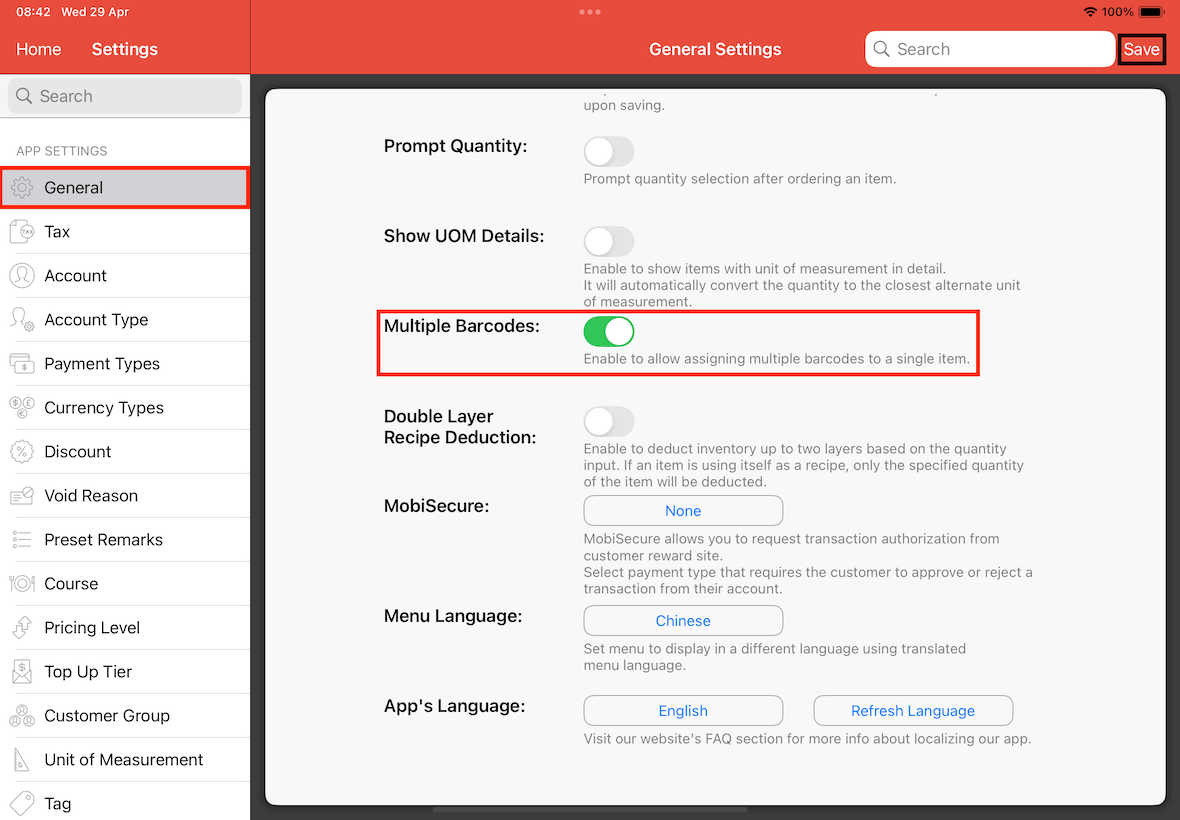
First, activate this feature at Settings -> General -> Multiple Barcodes.
Turn On Multiple Barcodes, click on Save.
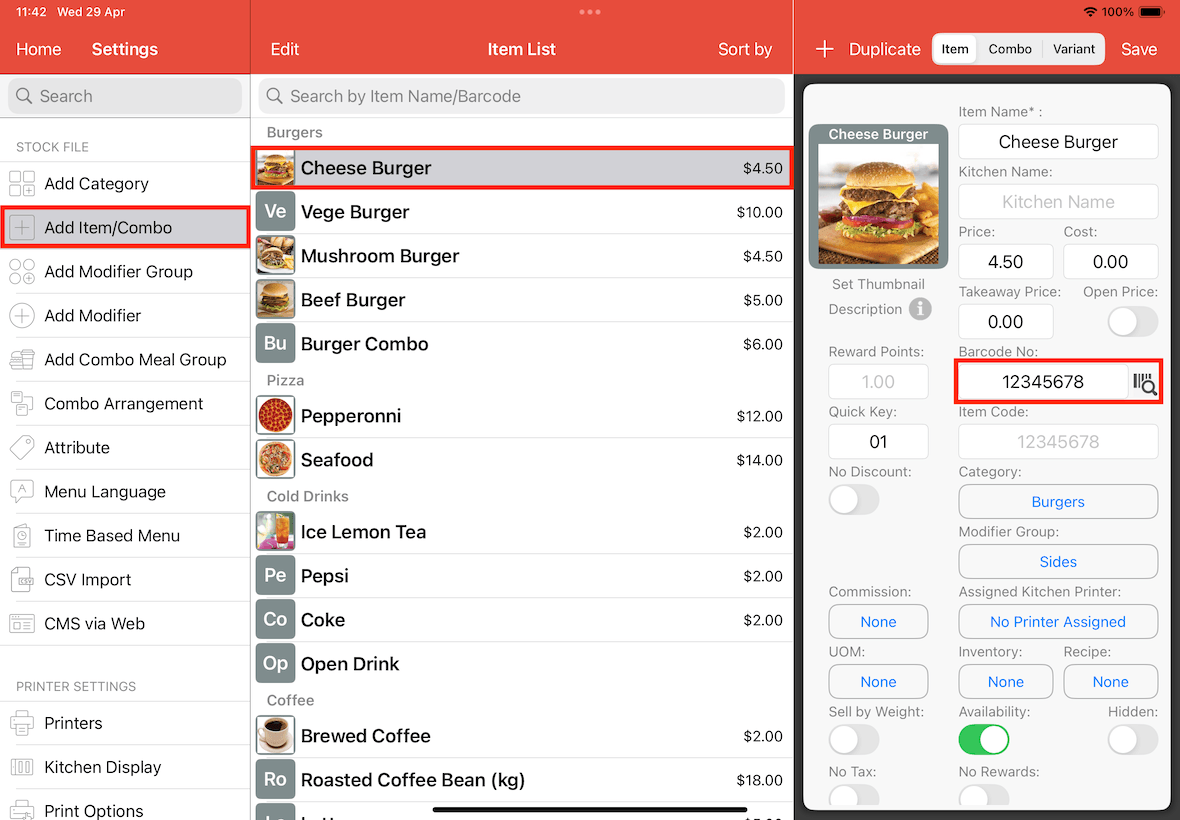
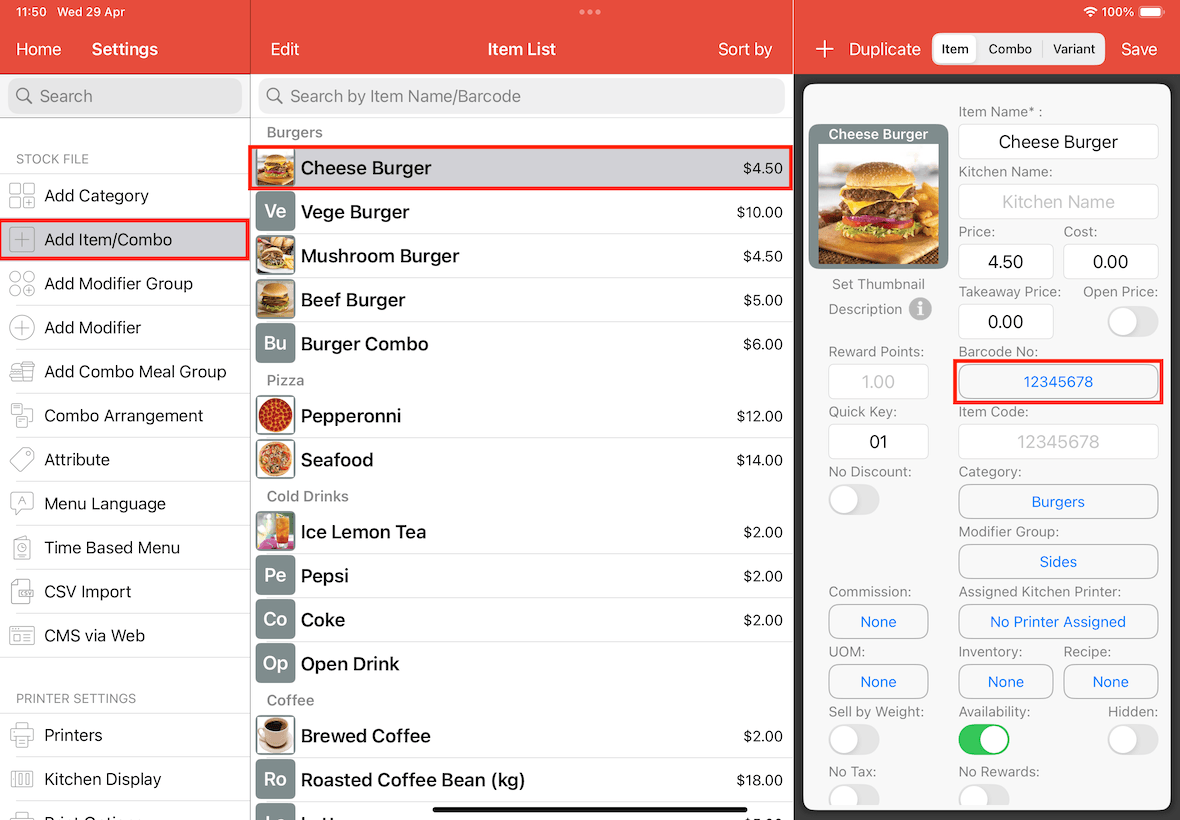
Now, go to Settings -> Add Item/Combo.
Select the item you wish to add multiple barcodes (e.g., Cheese Burger).
The Barcode No. text field will now be a button instead. Click on it.
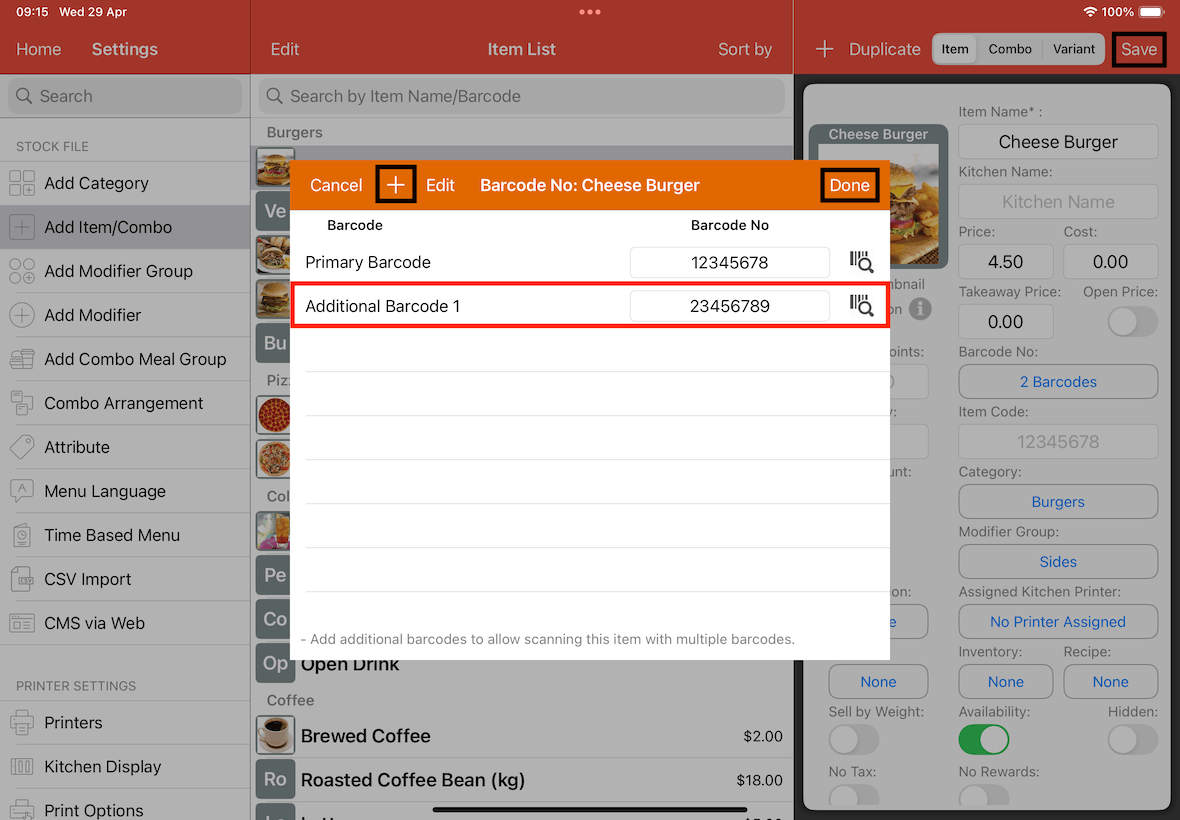
If you already have an existing Barcode No, it will be filled in the Primary Barcode textfield (e.g., 12345678).
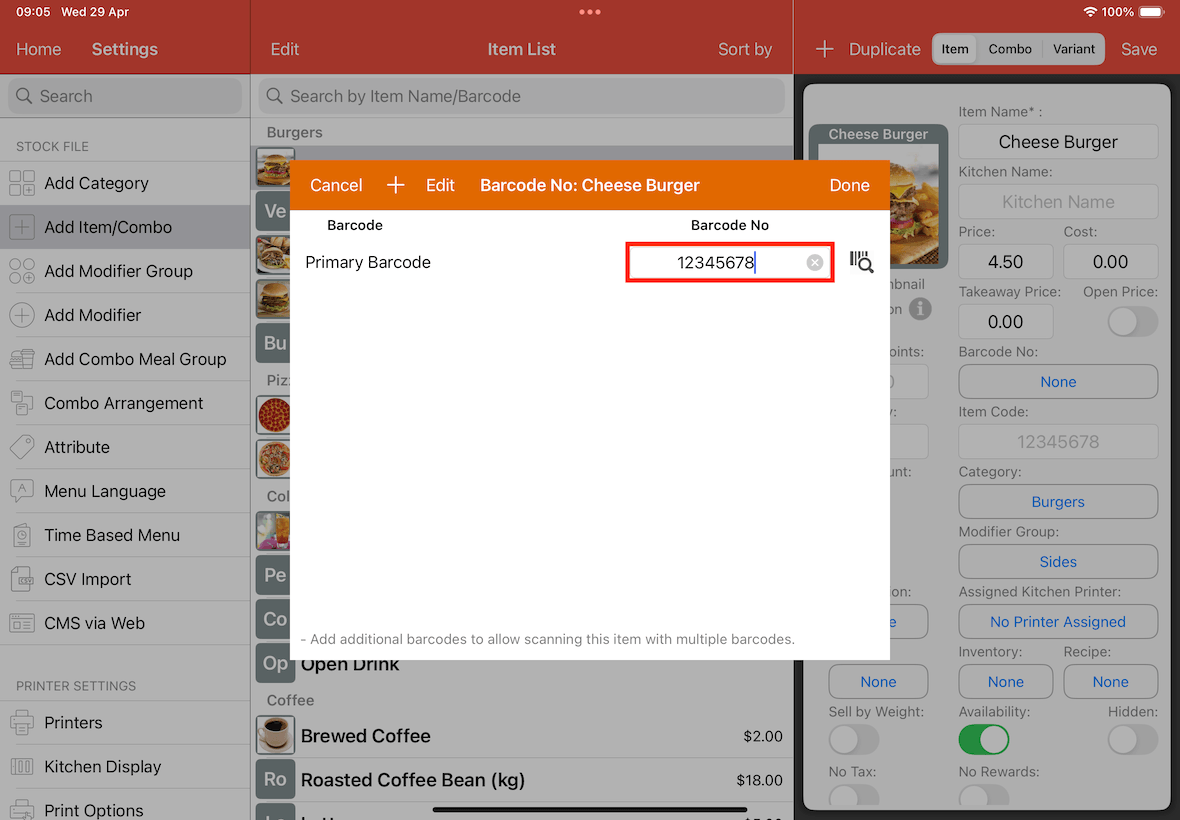
To add an additional barcode, tap on + at the top left.
A new row, Additional Barcode 1 will be added.
Enter your additional Barcode No (e.g., 23456789) for this item, and tap on Done.
Tap on Save at top right.
The Barcode No button title will update to show "2 Barcodes".
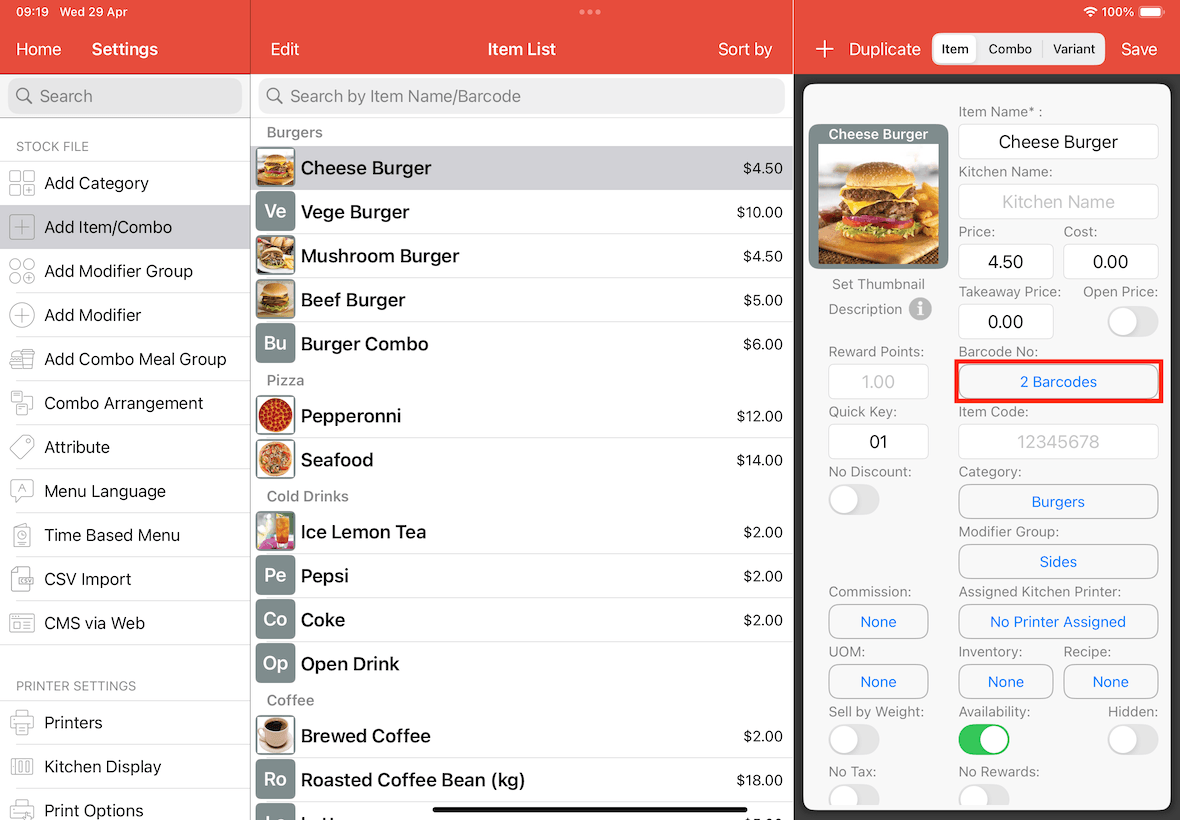
Outcome
Go to Cash Register page.
Tap on the Favourites button multiple times until you reach the Quick Key/Barcode menu as shown below.
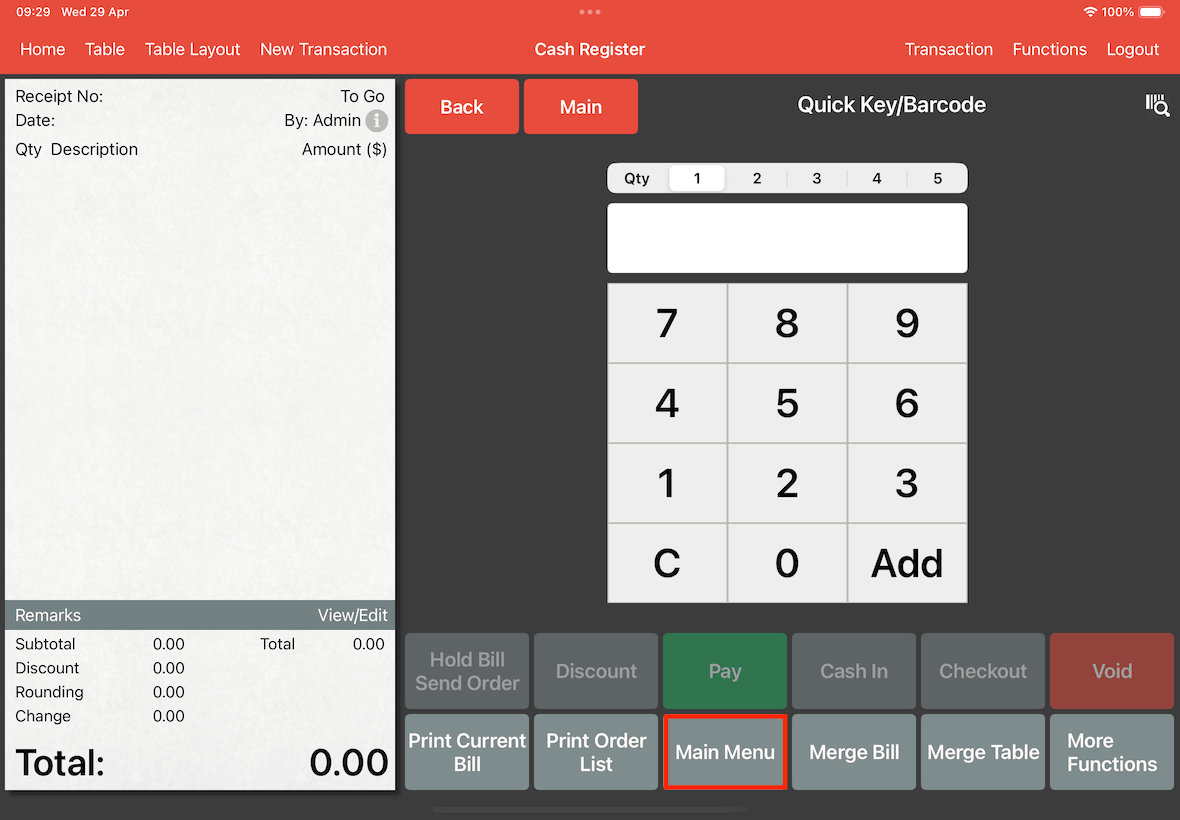
On this menu, we can key in the barcode that we set in previous steps.
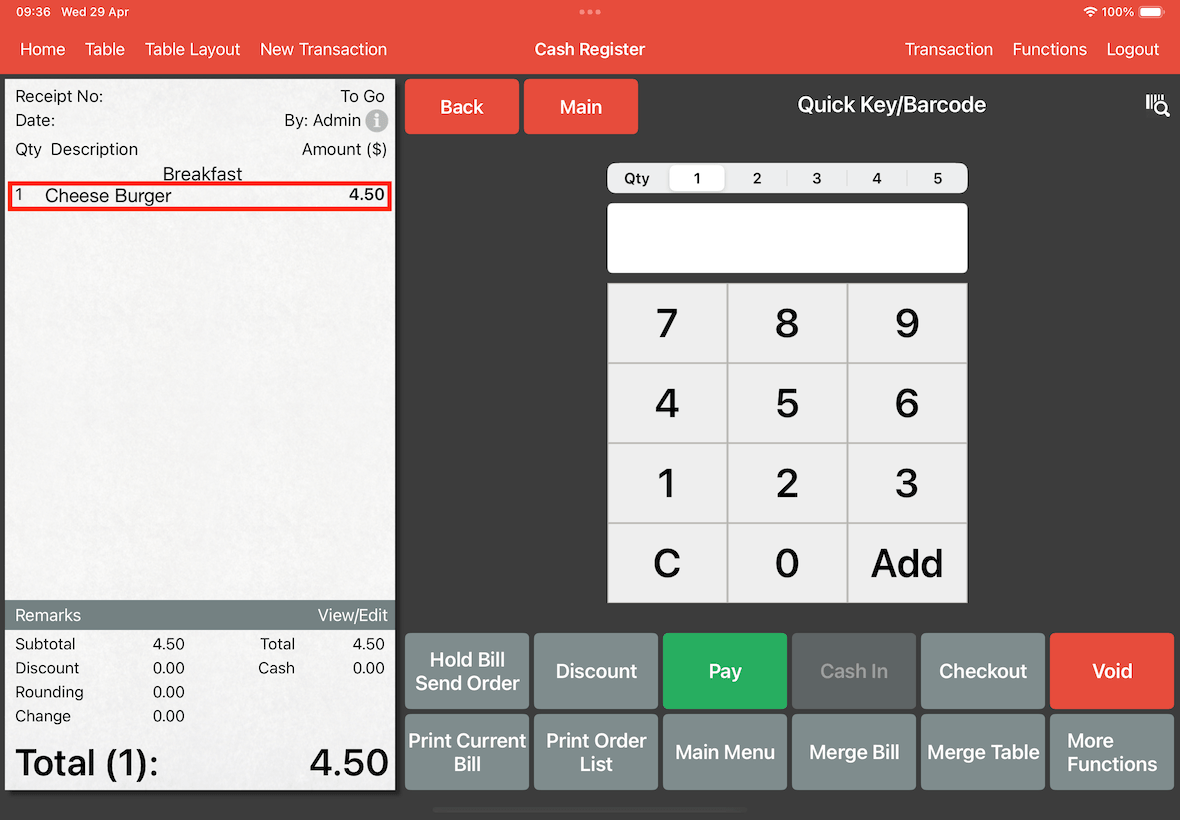
For this example, we enter barcode 12345678, which is the primary barcode for Cheese Burger.
Tap on Add.
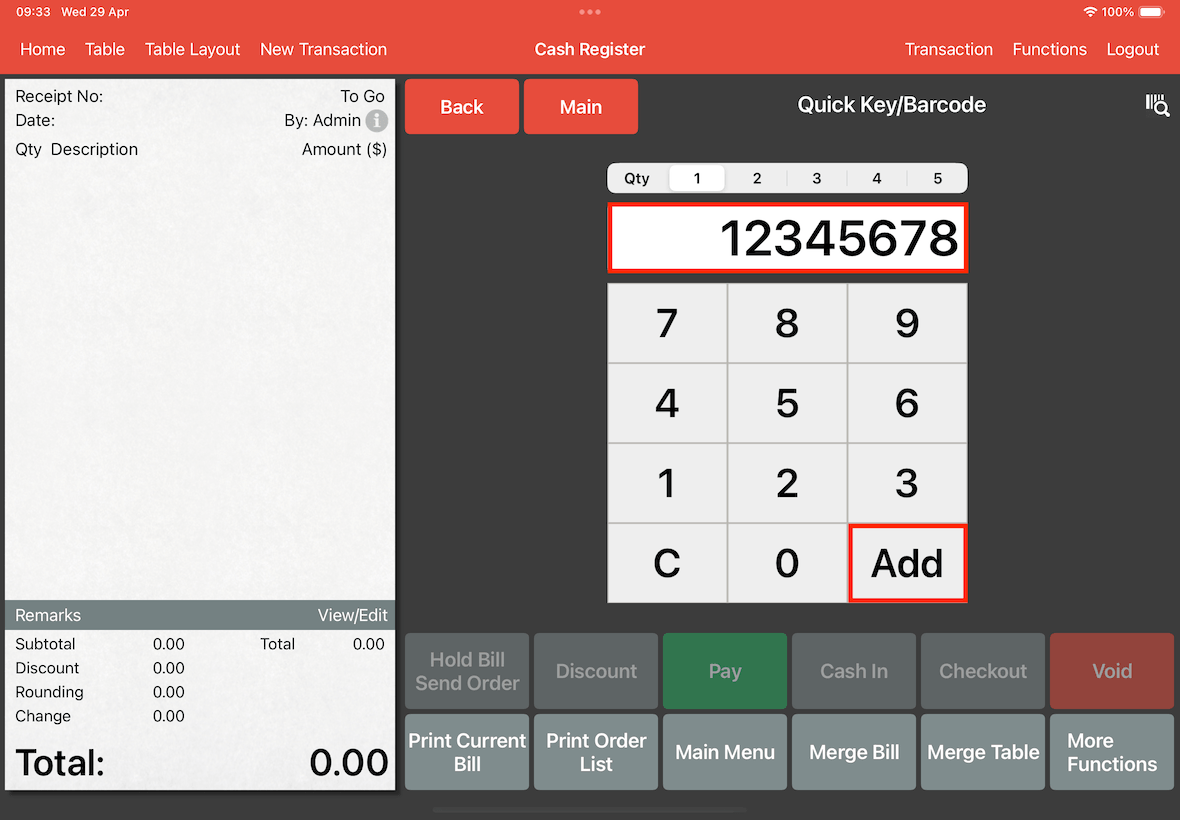
Cheese Burger is added to the bill.
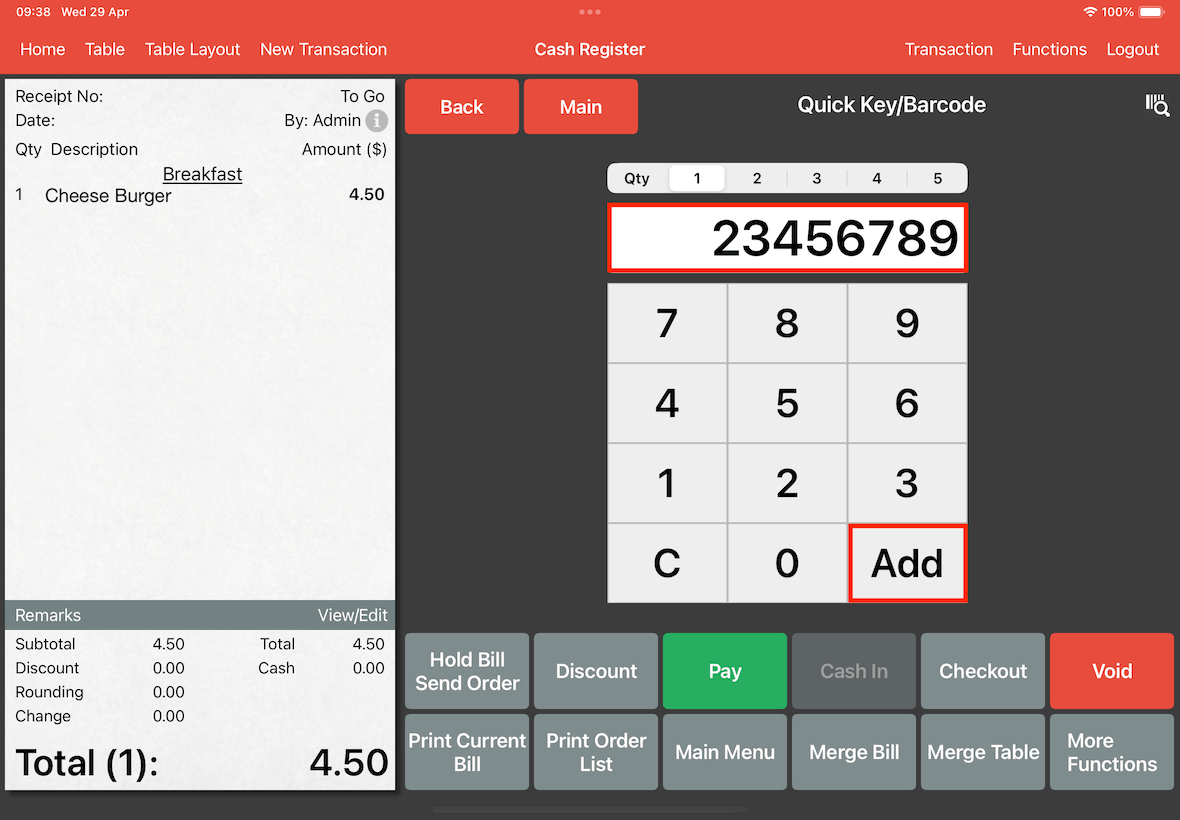
Now we enter barcode 23456789, which is the additional barcode for Cheese Burger.
Tap on Add.
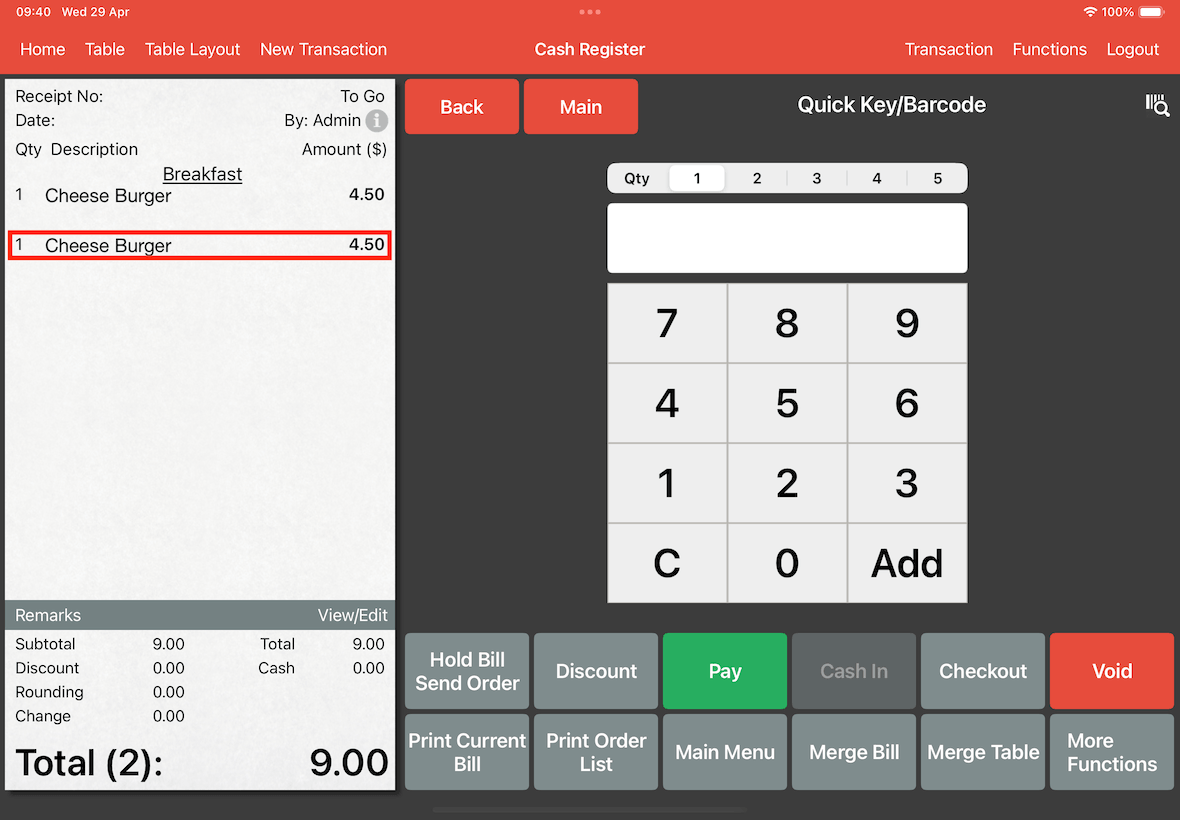
As shown below, a second Cheese Burger order is added to the bill.
The same behaviour will work for barcode scanner.