Guide | MobiPOS > Online Booking > Settings/Setup > Booking Configurations by Date
Booking Configurations by Date
While there is a base booking configurations, you can also define booking configurations based on seasonal period or holiday.
These overrides allow you to adjust operating hours, booking interval, and other settings for specific dates.
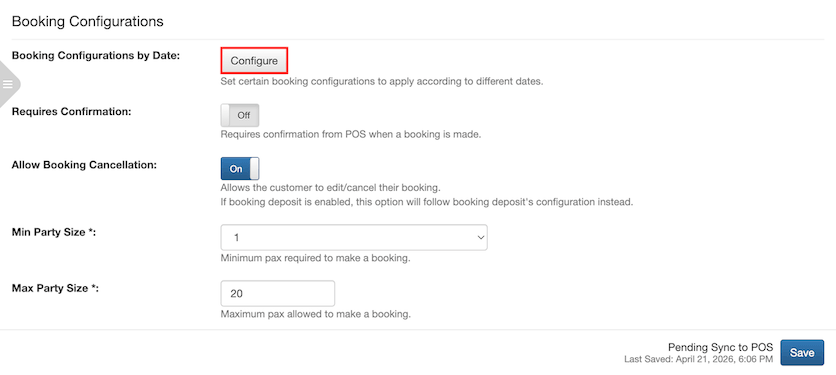
To add or change booking configurations by date, first go to Table Booking Settings page, and look for Booking Configurations by Date.
Click on the Configure button as shown in the above screenshot.
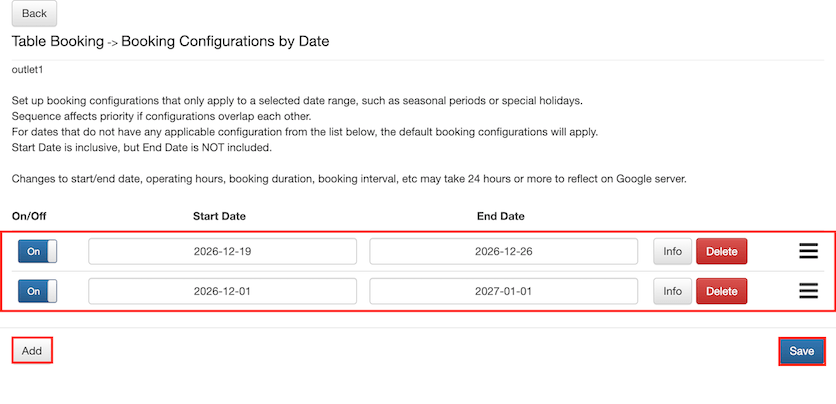
Upon clicking on the Configure button, you will be redirected to the page above.
Click on the Add button, and configure the start and end date for the configurations to be in effect.
Multiple booking configurations may be defined. However, in the event of a date overlapping each other, the system resolves the conflict based on the list's sequence. The configuration that is higher in the list will take precedence of the others.
In the above example:
19th - 26th Dec is at the top of the list.
1st Dec - 1st Jan is second on the list.
On 19th Dec, the system will apply the 19th – 26th Dec configuration, as the entry is higher in the list.
From 1st of Dec to 18th of Dec and 26th of Dec to 31st of Dec, the system will apply the 1st Dec - 1st Jan configuration.
* Note that the configuration will not be in effect for the End Date. For example, even though the End Date for the first configuration is set to the 26th, it will only apply from 19th Dec until the 25th.
Booking Configuration Details
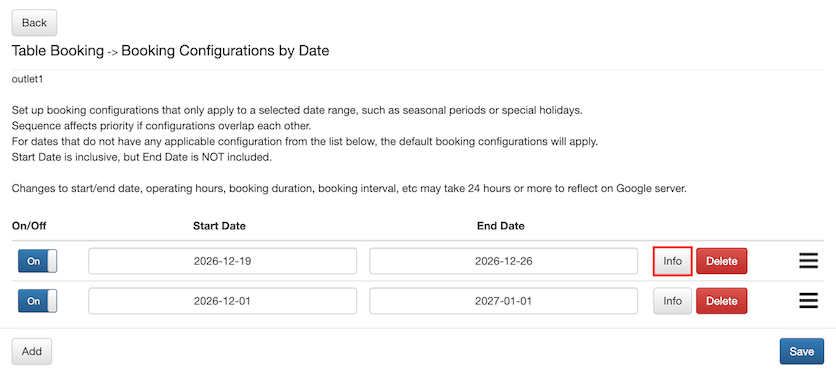
To change the booking configuration for the specific period, click on the Info button as shown below.
Proceeding, you will be redirected to the configuration page as shown below.
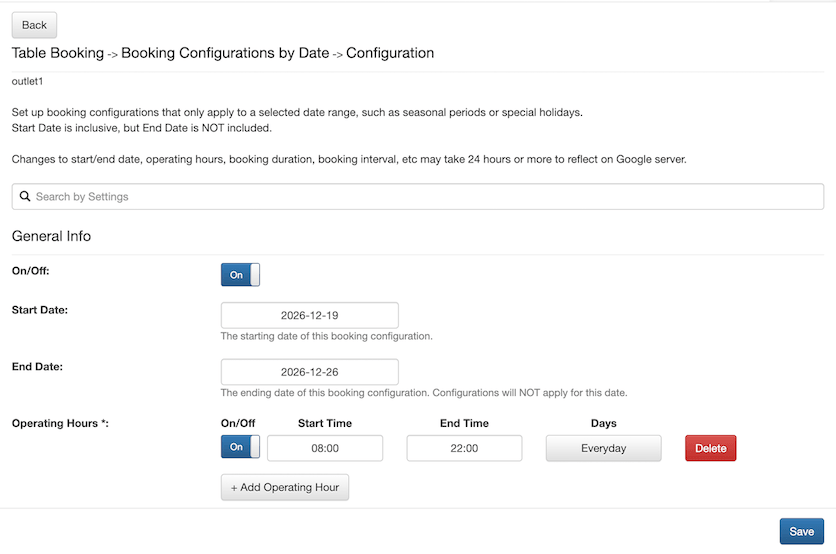
As you can see above, the operating hours has been set from 8 a.m. to 10 p.m. everyday for the selected time period.
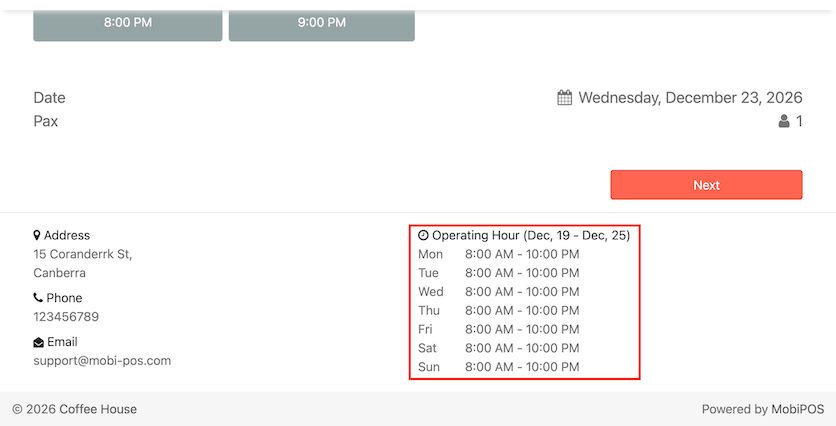
When a booking date selected falls between 19 - 26 Dec, the operating hours will follow this configuration as shown in the screenshot above.
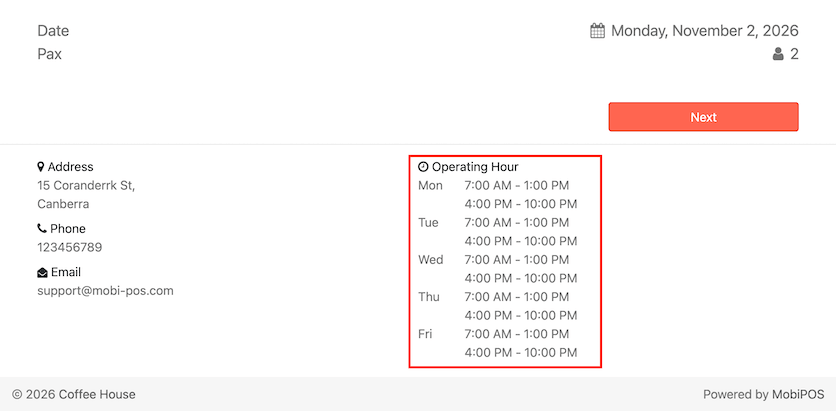
If a date outside of the start and end date range is selected, it will use the default operating hours instead.
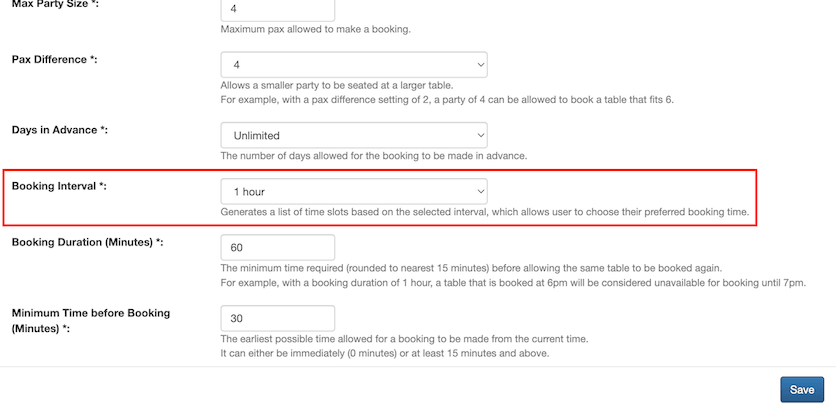
This applies to other settings as well, for example, Booking Interval.
In this configuration, the Booking Interval is set to 1 hour.
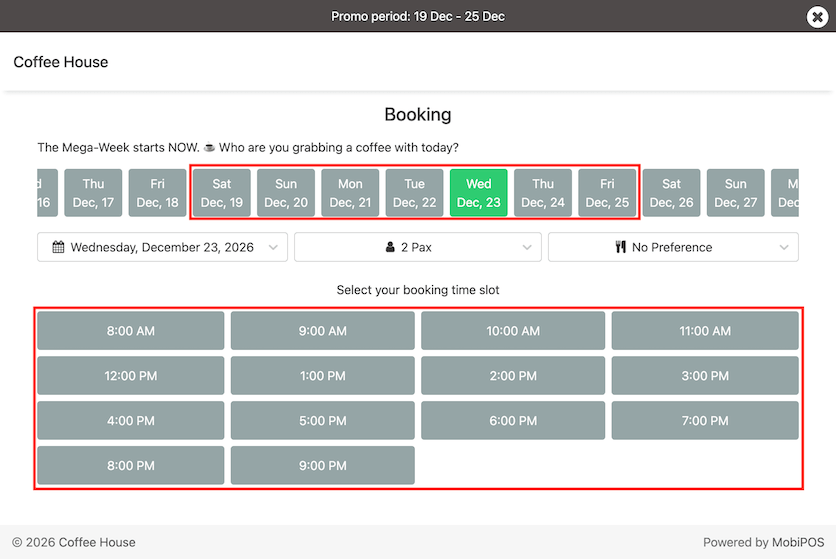
When 23rd Dec is selected, the booking interval of 1 hour will apply as shown in the screenshot above.
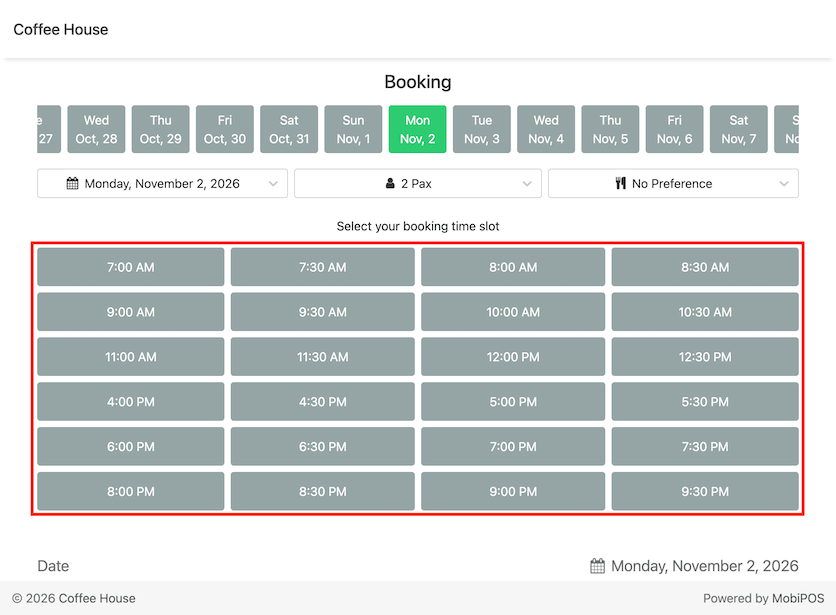
On 2nd Nov, there are no booking configurations by date configured. The default booking interval of 30 minutes applies.