User Guide
Starting Up
- Generate/Download Backup
- Restore
POS
- Stock File
- Add Category
- Add Item
- Creating Raw Materials for Item Recipe
- Item Recipe with Unit of Measurement
- Adding Multiple Barcodes for Item
- Add Modifier Group
- Add Modifier
- Add Combo Meal Group
- Combo Arrangement
- Attribute
- Menu Language
- Time Based Menu
- CSV Import
- CMS via Web
- Printer Settings
- App Settings
- General
- Order by Course
- Clear Unsent Order
- Inventory Check
- Auto Costing
- Prompt Quantity
- Show UOM Details
- Double Layer Recipe Deduction
- Tax
- Account
- Account Type
- Payment Types
- Currency Types
- Discount
- Void Reason
- Preset Remarks
- Course
- Pricing Level
- Top Up Tier
- Customer Group
- Customer Allowance
- Unit of Measurement
- Tag
- Table Management
- Denomination
- Timer
- Replace Word
- Button Layout
- Theme
- Settings
- Others
- Previous Receipt
- Pay In/Pay Out
- Custody
- Closed Tills
- Clock In/Out
- Gift Card
- Voucher
- Voucher Template
- Rewards/Loyalty
- Promotion
- Cloud Sync
- GloriaFood Delivery
- Backup/Archive
- App Activation
Add Ons
- General
- Inventory Management
- Warehouse
- Inventory Management
- Stock Take
- Stock Transfer
- Supplier
- Purchase Order
- Purchase Order Credit Note
- Content Management System
- Account/Privilege
- Integrations
- Others
- Settings/Setup
- Online Booking Settings
- Booking Interface
- Booking Menu
- Join Table
- Booking Deposit Usage/Configurations
- Booking Configurations by Date
- Function
- New Booking
- New Booking From Timeline
- Edit Booking
- Adjust Booking Duration
- Block Booking
- Lock In Booking
- Manage Booking
- Bypass Block Booking
- Booking Waitlist
- Online Booking with Deposit
- Others
Guide | MobiPOS > Online Ordering > Settings/Setup > Online Ordering Promotion with Promo Code
Promotion with Promo Code
This is a guide that shows how to create a promotion that requires a promo code.
Enter the code or phrase that you wish in the promo code text box.
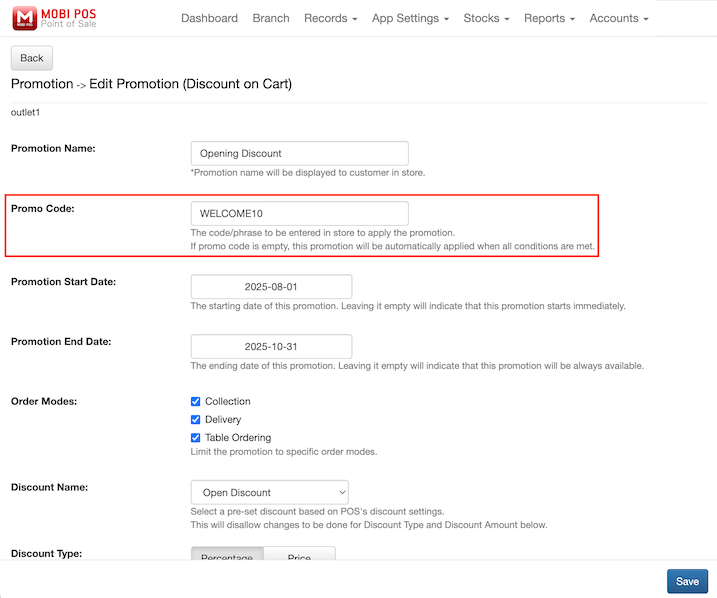
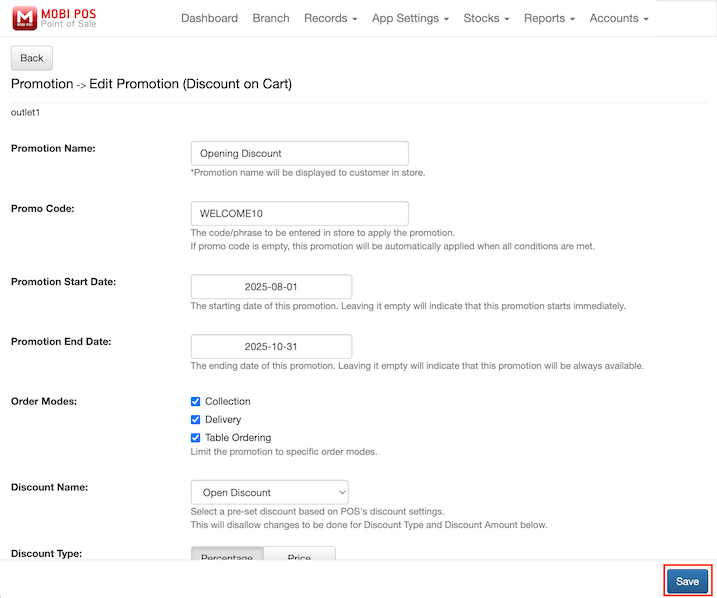
Proceed to enter all other necessary details that you wish, then click on the Save button.
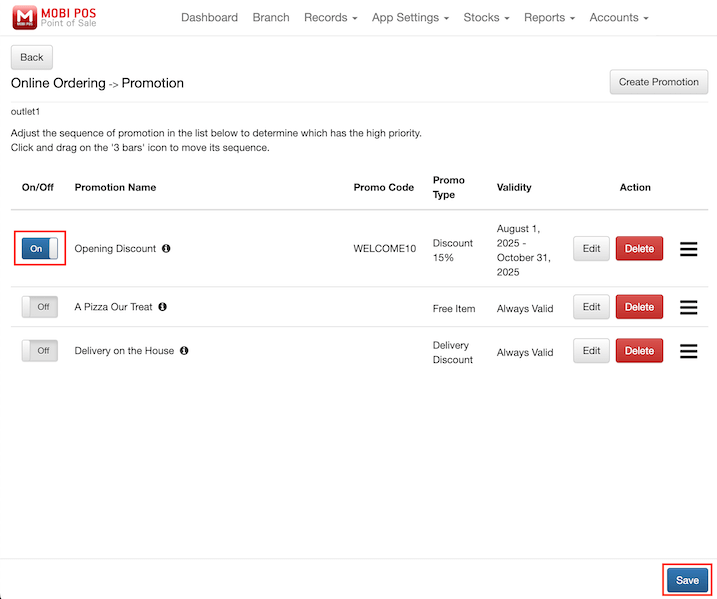
Upon saving, make sure the On/Off toggle button at the listing is switched on.
Click on the Save button.
Now you can head to the store’s online ordering website and try ordering.
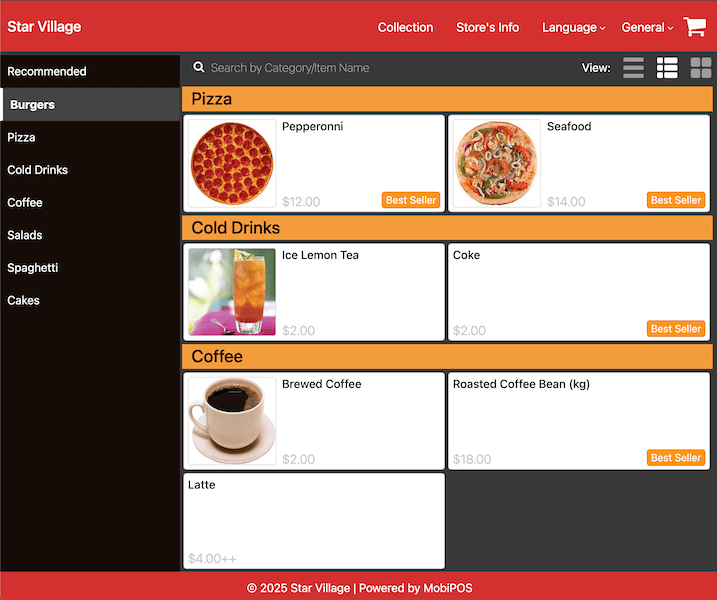
As shown in the screenshot below, there is no discount applied.
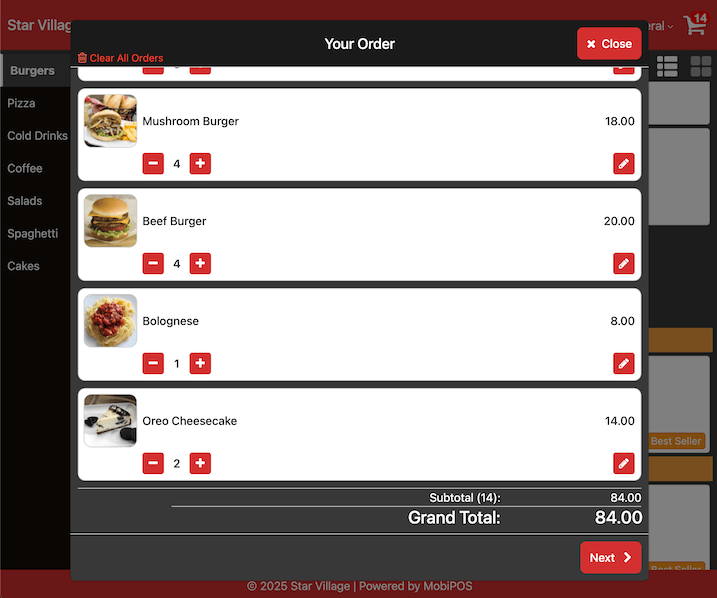
Click Next to proceed to the Order Details.
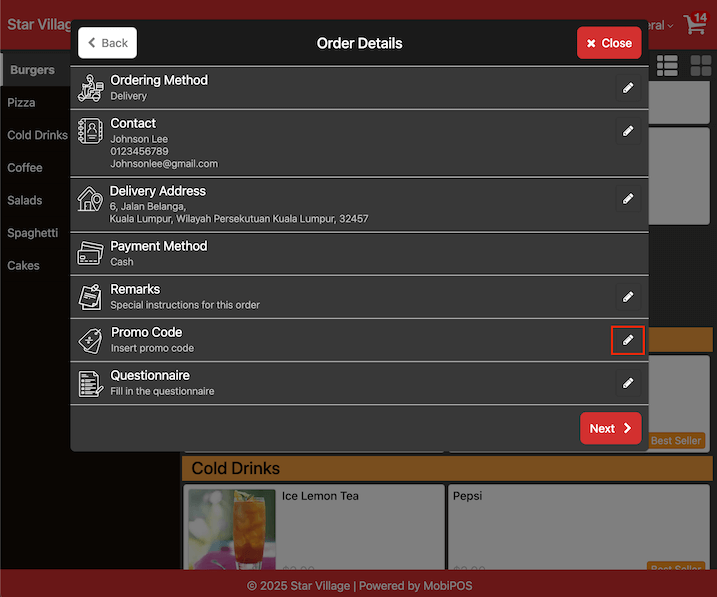
Click on the promo code edit button.
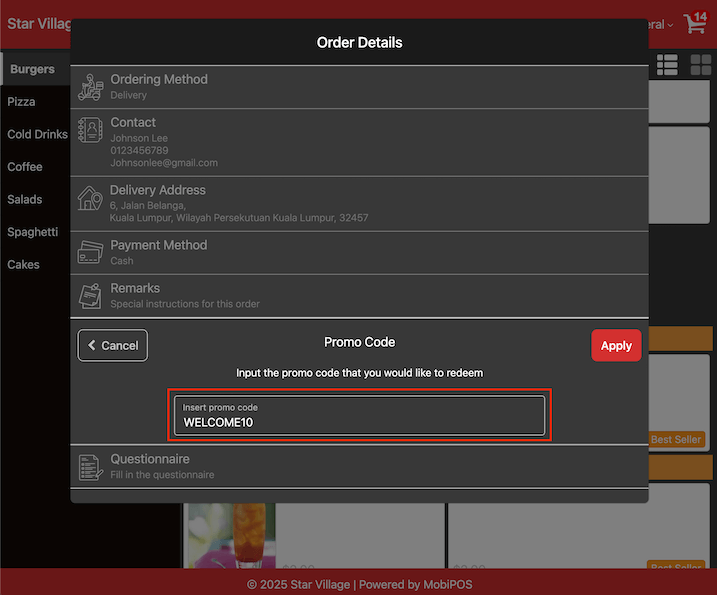
Input the promo code that has been configured previously.
Upon applying the promo code, a confirmation message will appear on top.
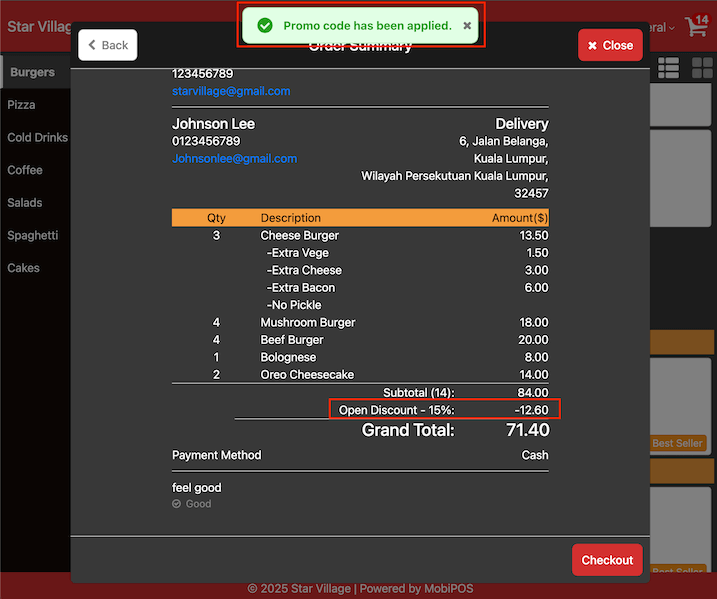
As you can see an open discount of 15% is applied.