Guide | MobiPOS > Online Ordering > Settings/Setup > Online Payment Surcharge
Online Payment Surcharge
This guide will walk you through setting up payment surcharges for online payment types.
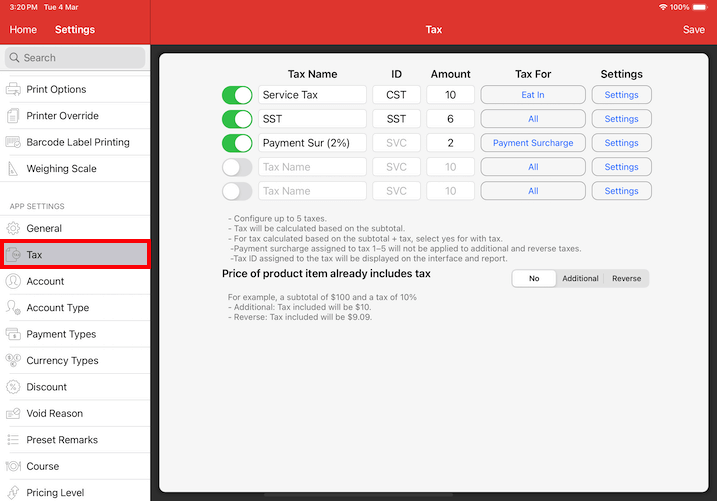
Navigate to Settings -> Tax.
Set up your tax with name and amount, and set the Tax For to "Payment Surcharge".
In our example, this is our setup:
Tax Name: Payment Sur (2%) (this will be the tax name displayed on your bill)
Tax Amount: 2
Tax For: Payment Surcharge
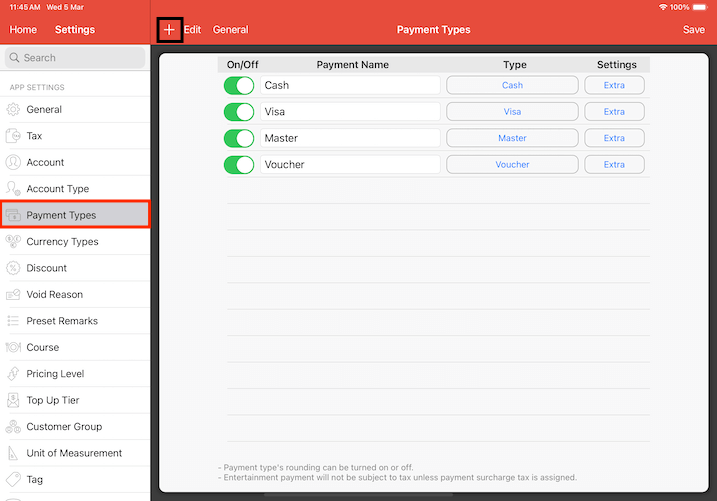
Next, go to Payment Types and click the + icon to create a new payment type.
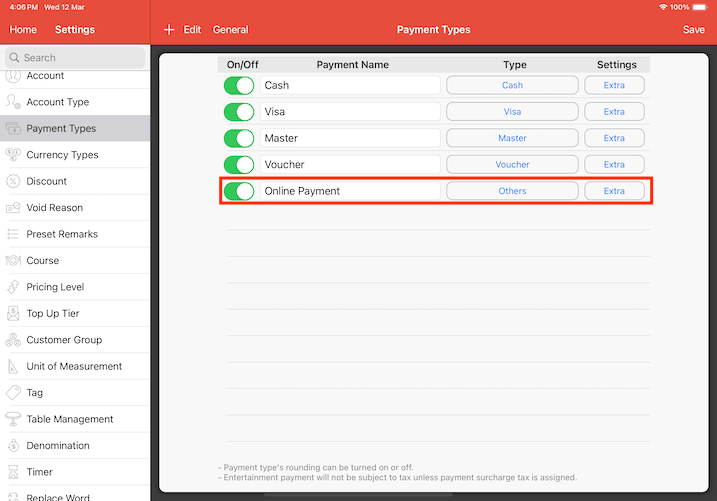
Enter a name for the new payment type.
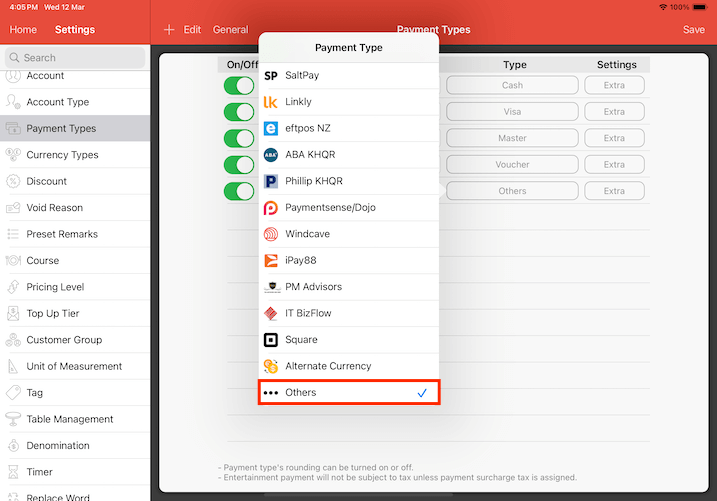
Under Type, scroll down and select "Others".
This newly created payment type will be used to differentiate all online payments and other normal payment types.
If 'Master' is selected instead of 'Others', all online payments received will be categorised under Master instead.
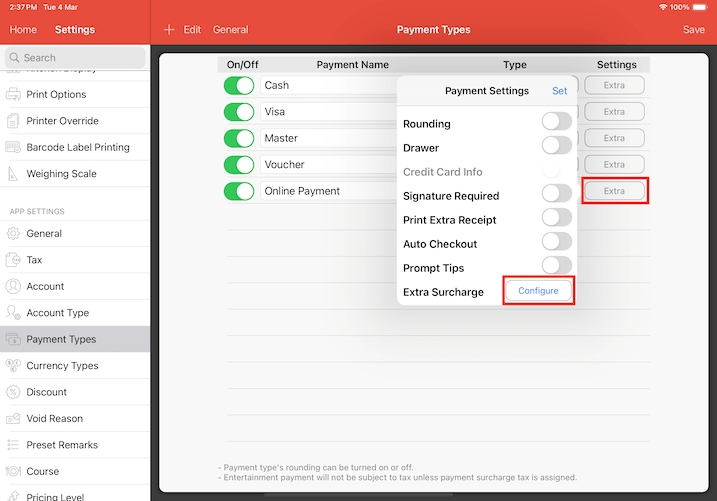
Under Settings column, click Extra.
There will be a list of extra settings to be applied to your payment type.
Under Extra Surcharge, click Configure.
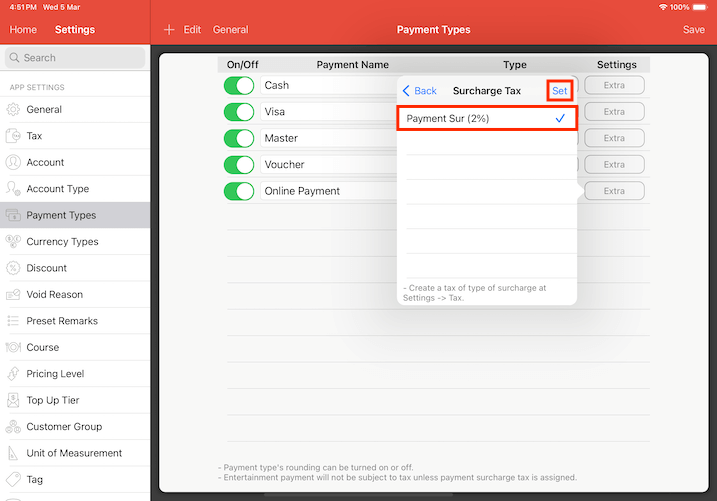
This section will display a list of your preset payment surcharge taxes.
In our example, we are setting "Payment Sur (2%)" on payment name "Online Payment".
After selecting your choice of surcharge, remember to save your changes by clicking "Set".
Payment type with surcharge tax setup is now complete.
Next, we will need to configure this payment type for your online orders through Online Ordering Settings page.
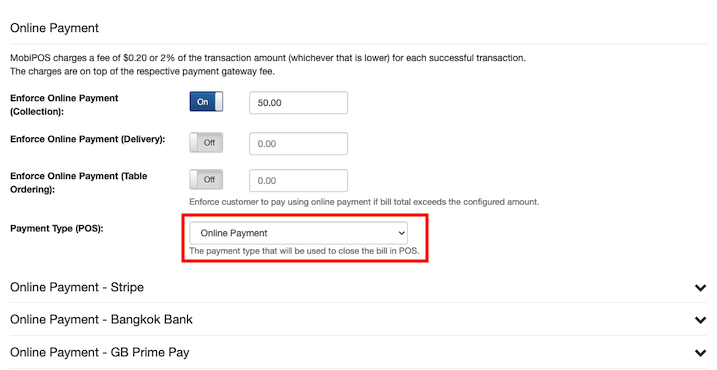
Under Online Payment section, select the payment type that has surcharge tax applied.
In our example just now, our payment type is 'Online Payment'.
Save your changes. We are all set.
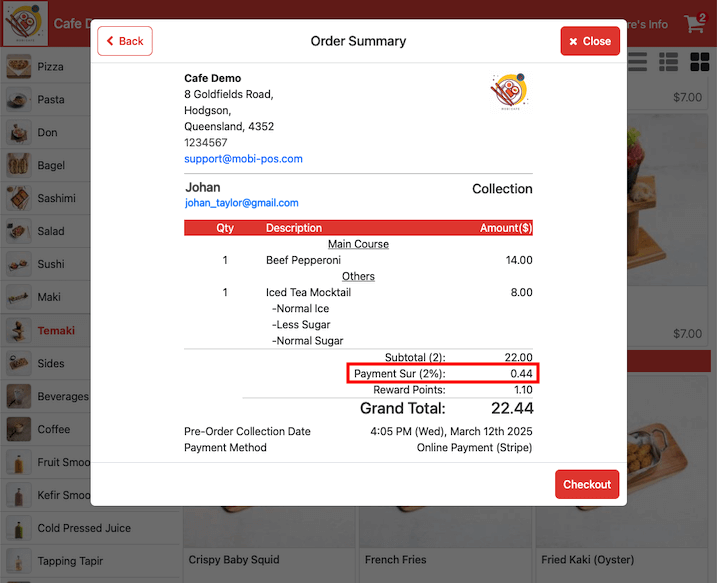
When customers use any online payment (eg: "Online Payment - Stripe") to checkout their bill, payment surcharge will be automatically applied.
They will be able to see the tax amount in their order summary.
In our case, ''Payment Sur (2%)" tax is applied on the bill when they use Online Payment - Stripe as their payment type.
To find out more about online ordering payment options, visit our guide.