Guide | MobiPOS > Kiosk Terminal > Kiosk User Guide
User Guide
The Kiosk Ordering system is a self-service ordering system designed for in-store use.
Customers can browse the menu, place their orders and make payments directly through the kiosk.
The following guide will walk you through the kiosk interfaces, from the welcome screen to completing an order.
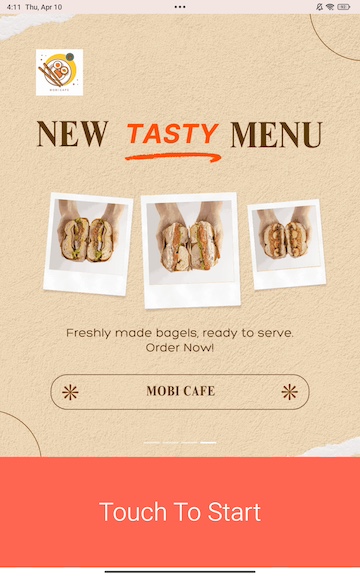
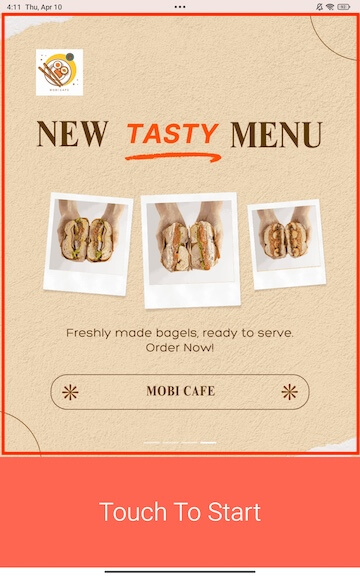
Promo Slideshow
Your promotional slideshows configured from settings will be displayed here.
Users can tap anywhere on the screen or "Touch to Start" section to begin placing their order.
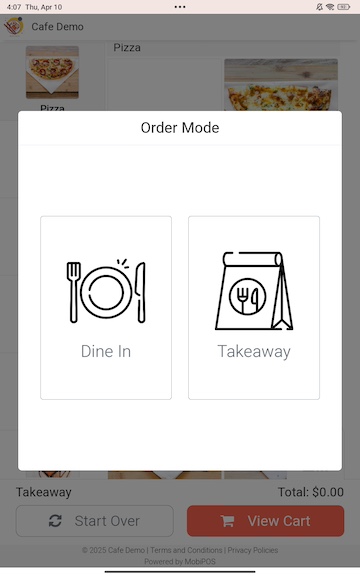
Order Mode
Users will be prompted to select an order mode before proceeding.
They can choose either Dine In or Takeaway based on their preference.
Order mode availability can be configured in our kiosk configuration page.
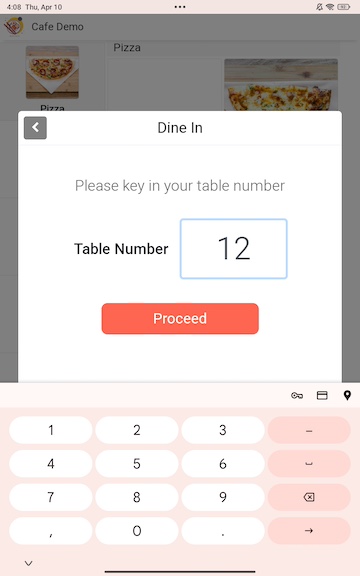
Users will be asked to enter required details such as table number to continue with the order.
This depends on the configurations in the settings page.
For example, dine in orders would require table number to continue.
Menu Interface
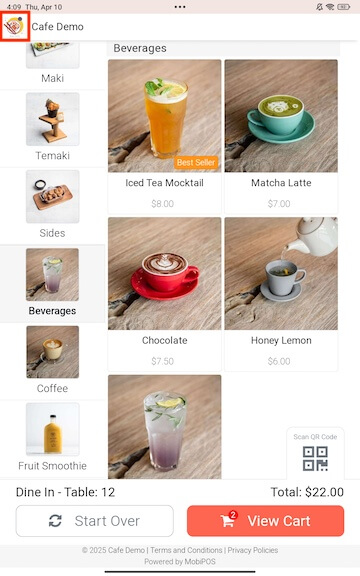
Store Logo
On the top left corner of the menu interface, users will see your store’s logo displayed.
This can be configured from the Kiosk Configuration settings to match your brand identity.
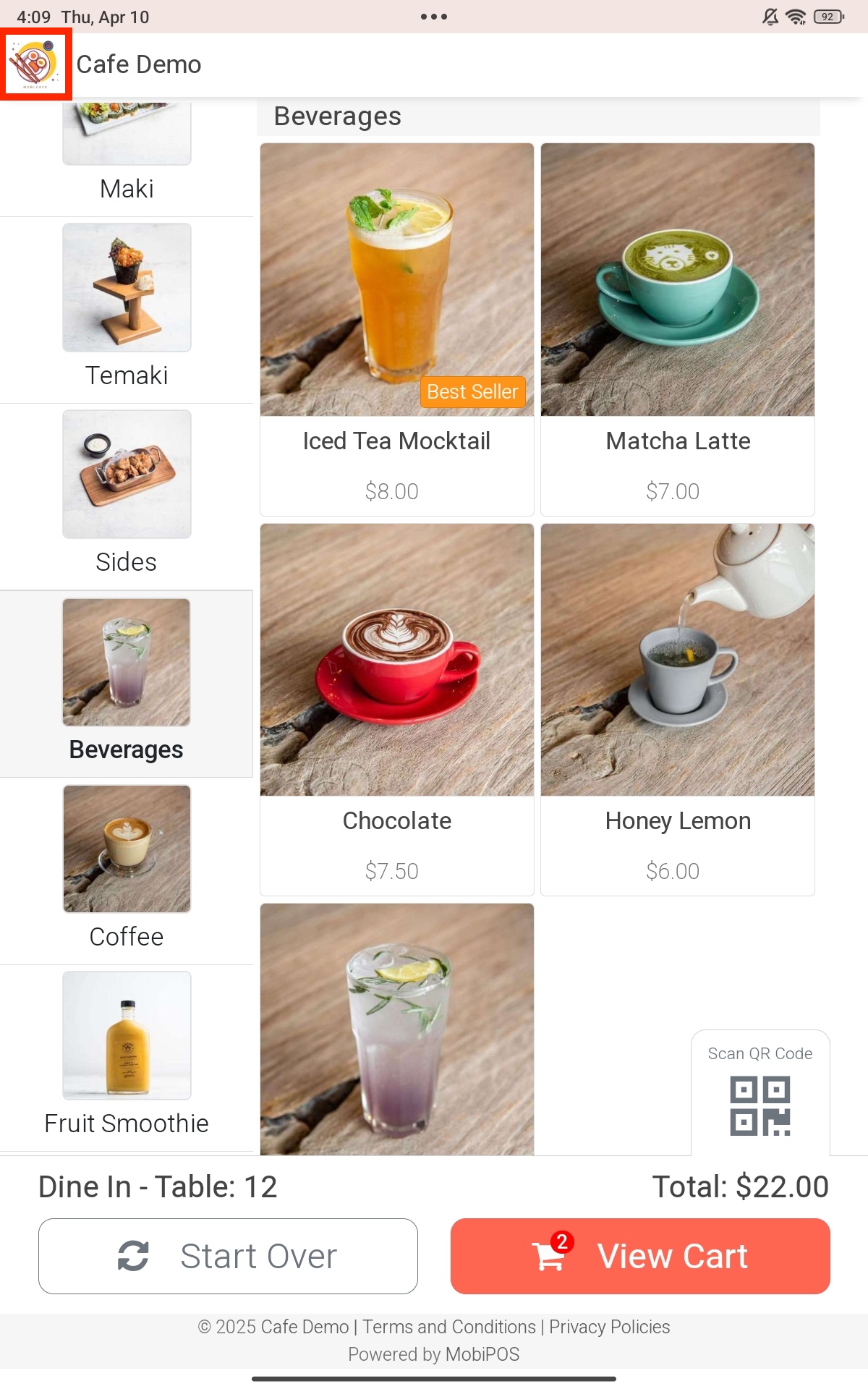
Category
All categories are displayed on the left panel.
Products
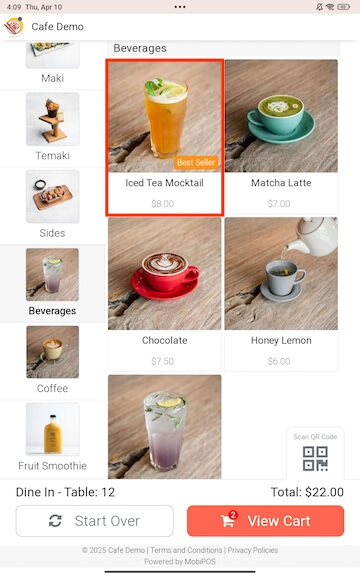
Products will be displayed under their respective categories on the right side of the screen.
Each product includes the following details:
1. Product picture
2. Product name
3. Product price
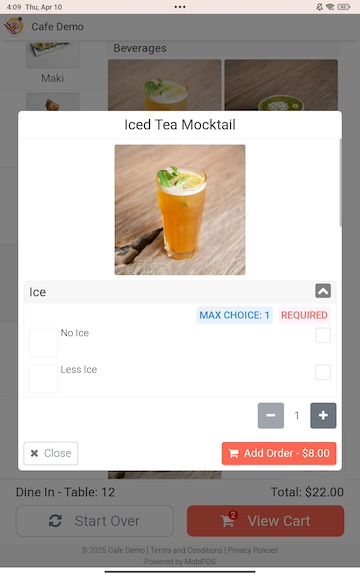
Product Modifier
For products with modifier groups or variants, a pop-up will be shown with the choices.
Users will be able to modify their choices in this interface.
Cart
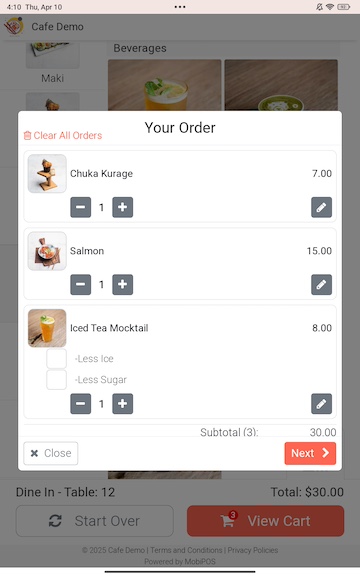
On the bottom right side, click on the View Cart section to see a summary of all selected items and the subtotal.
Click on Next to proceed.
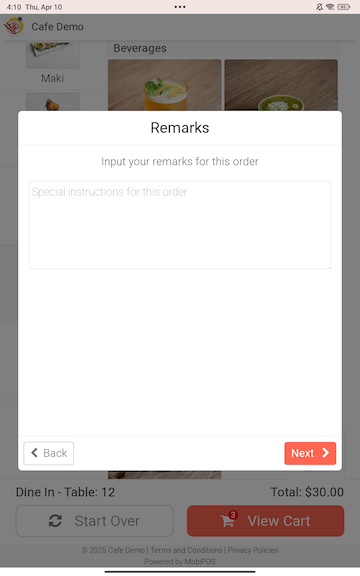
Receipt Remarks
Users may write additional remarks for the receipt here.
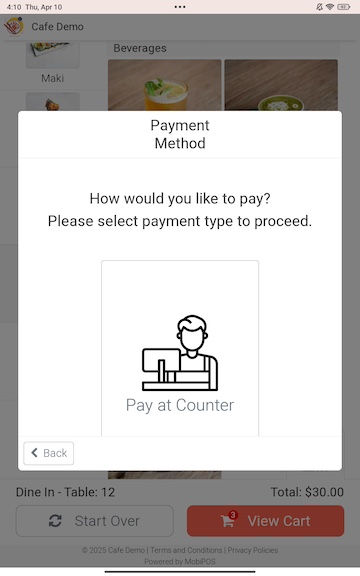
Payment Method
Users may select their preferred payment method during checkout.
Available payment options can be configured in the kiosk settings page.
Pay at Counter will be enabled by default if no card payment is available.
Order Success Notification
After successful submission of customer's order, they will be brought to the order summary page.
This indicates that the order will be sent to the kitchen.
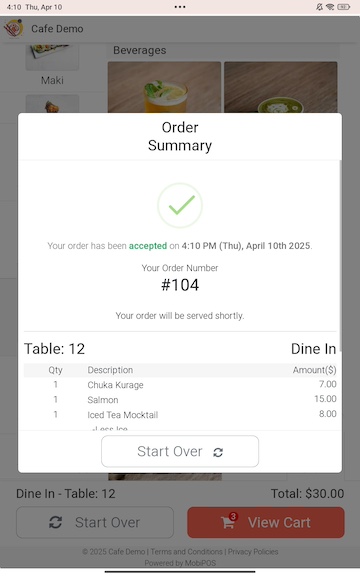
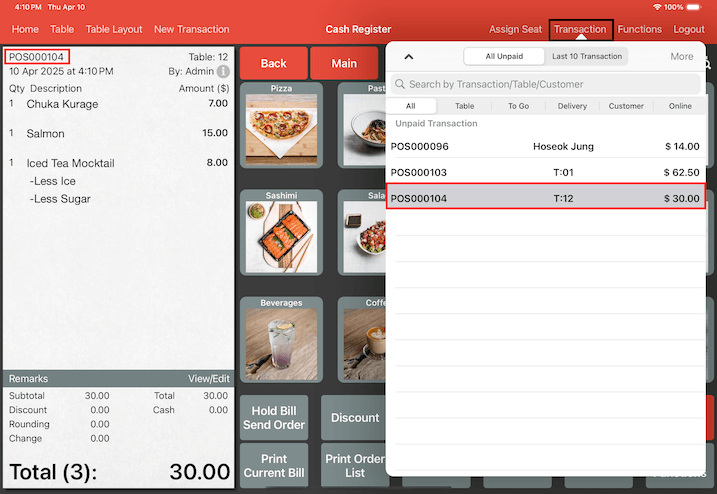
Order will appear on the main POS under the Transaction section.
Tap on Transaction from the POS to manage your orders.