Guide | MobiPOS > Settings > Others > Rewards/Loyalty
Rewards/Loyalty
The Rewards/Loyalty system allows you to reward customers with points based on their purchases.
Users are able to set up the rewarding and redemption system.
By default, redeeming rewards will apply as discount based on the subtotal on the bill.
Alternatively, you may also configure redeem rewards as a payment type, and redeeming rewards will act as a payment method towards the bill grand total.
To set up customer reward points as payment type, refer to the steps at the end of this guide.
Customer rewards or redemptions are made during the payment process.
To reward a customer, customer account must be assigned to the receipt.
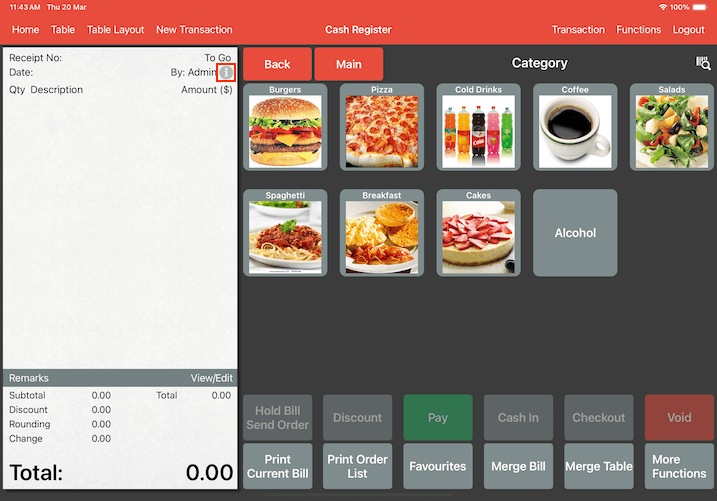
Under Cash Register, look for a small Info Button on the right top of the receipt.
Click on it to assign a customer to the receipt.
Setting Up
We will now walk you through the process to set up rewards for your customers.
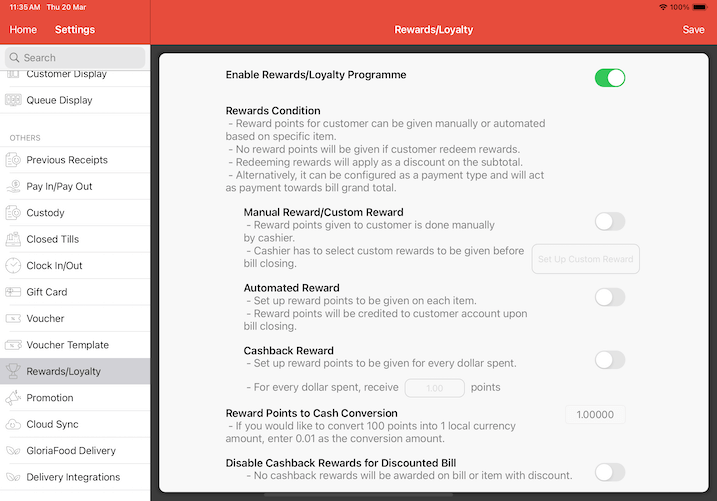
Navigate to Settings -> Others -> Rewards/Loyalty.
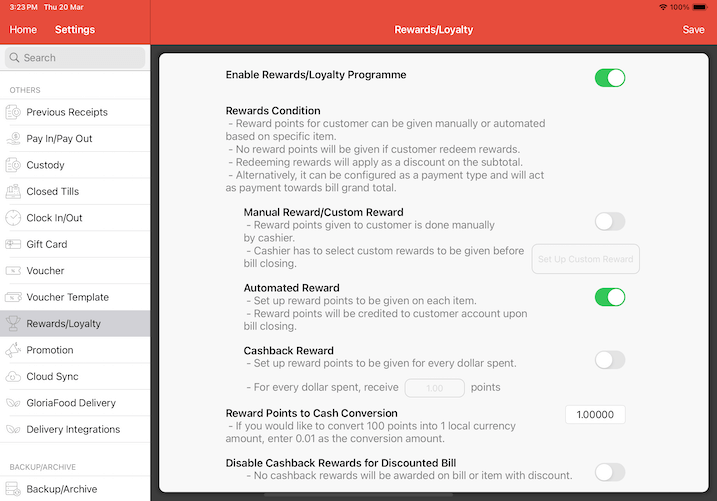
Manual Reward
Manual rewards are preset rewards, and are decided by the cashier whether the conditions are met at the point of payment.
After finish setting up, the cashier will be able to see a list of preset manual rewards during the payment process.
Cashier will be able to apply the choice of rewards to customers before bill closing.
To enable manual reward, firstly you need to turn on the toggle.
Then, click on Set Up Custom Reward to configure your custom reward list.
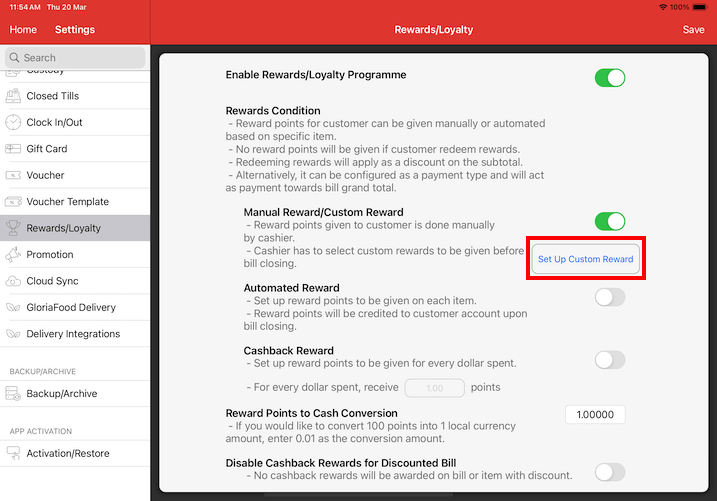
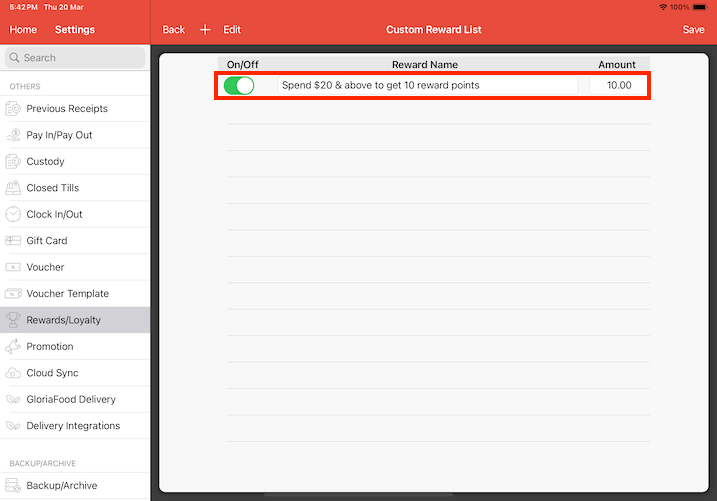
Click the + icon to create a new custom reward.
Save your changes and we are all set.
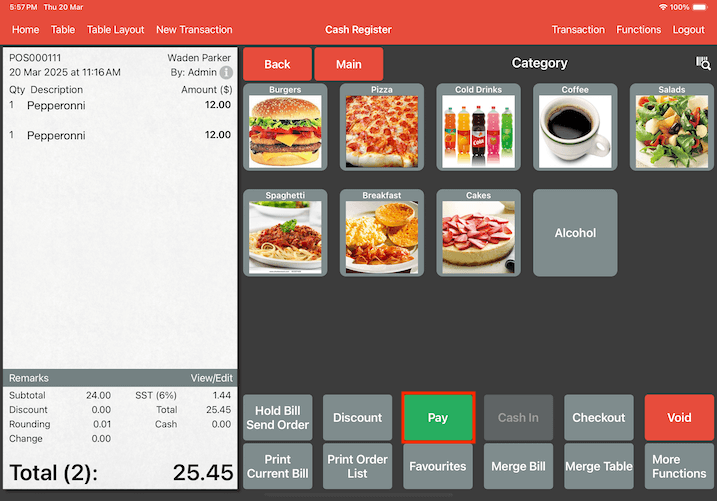
To apply a manual reward during the payment process, click on Pay.
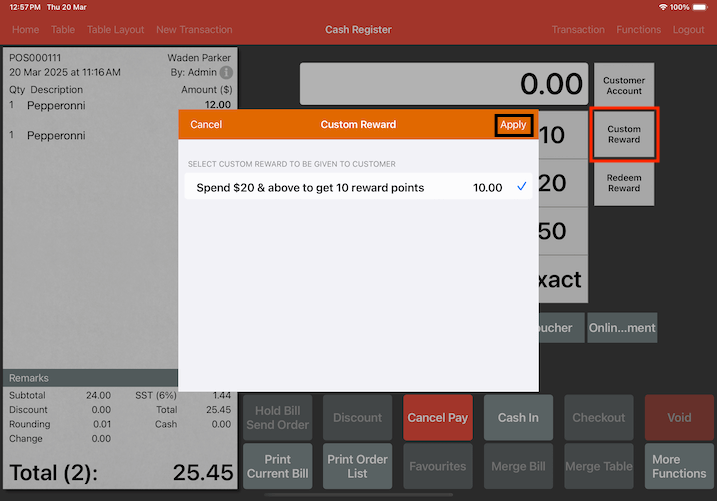
Click on Custom Reward to view a list of all your preset custom rewards.
Then, select the reward you want to apply to that bill.
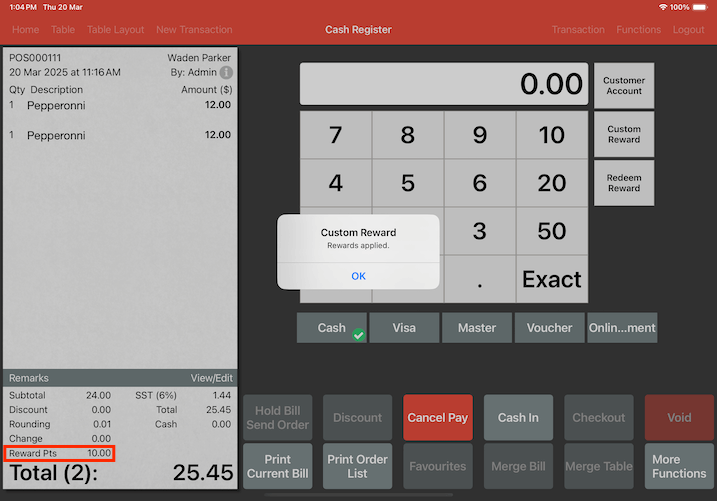
A confirmation popup will appear, indicating that the reward has been successfully applied.
The applied reward will be reflected in the Reward Pts section.
Automated Reward
Reward your customers with specific points based on items they purchase.
This requires further configurations via Item page.
Points will be credited automatically to the customer’s account upon bill closing.
To configure item-based rewards, go to Add Item/Combo.
Select the item you want to assign reward points.
Then, enter the number of points to be rewarded for that item.
Remember to save your changes.
In our example, we will set 10 reward points for the Mushroom Burger.
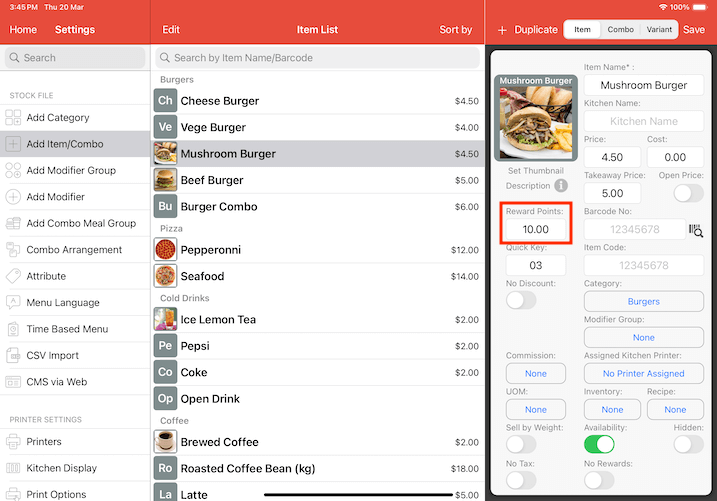
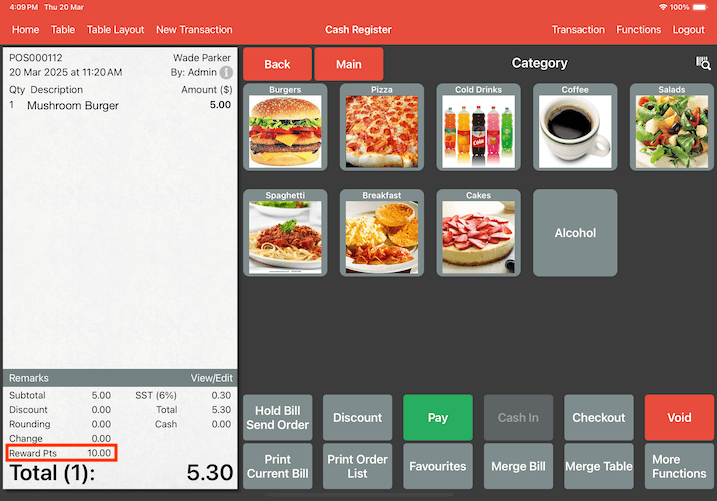
When a customer orders a mushroom burger, 10 points will automatically be rewarded.
The applied reward will be reflected in the Reward Pts section.
Cashback Reward
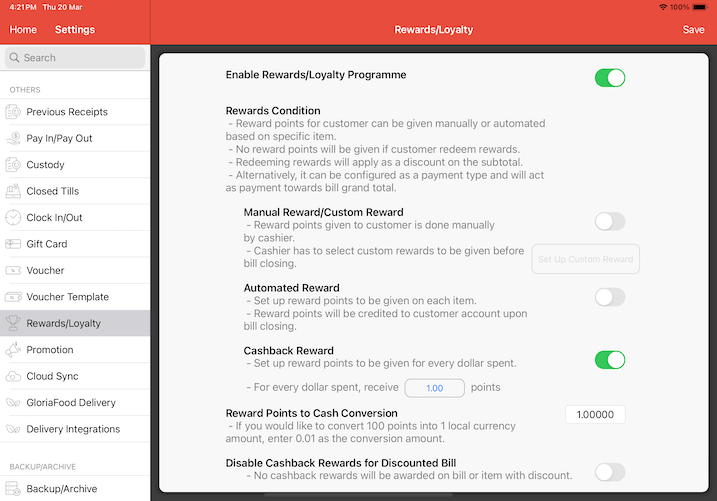
Set up reward points to be given for every dollar spent.
Cashback rewards can be customized based on different customer groups.
Click on the input field.
Then, set the number of points to be awarded per dollar spent for different customer groups.
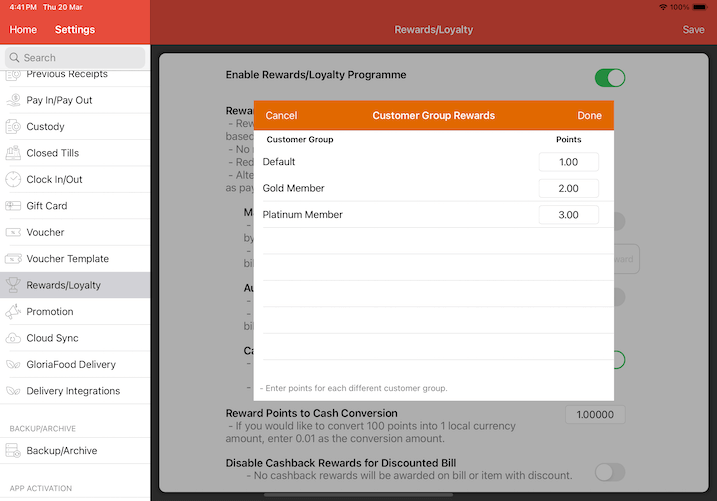
To set up customer group, please refer to the Customer Group guide.
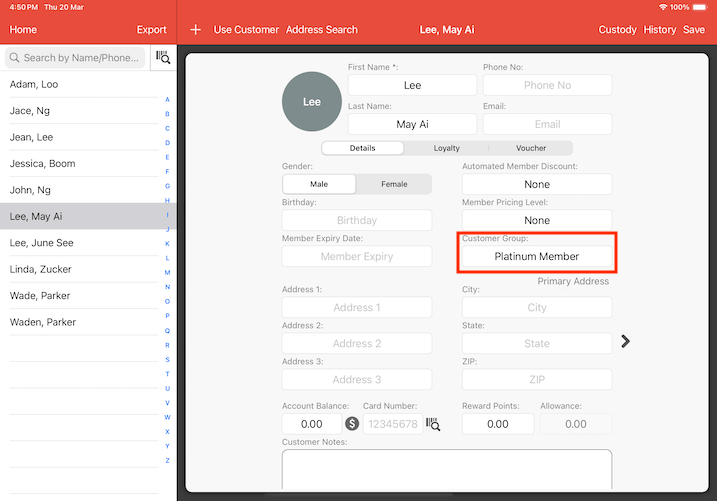
During the payment process, assign the customer to their receipt.
The system will automatically apply the appropriate reward points based on their group.
In our example, the customer is a Platinum Member which entitles them to 3x points of their subtotal as configured earlier.
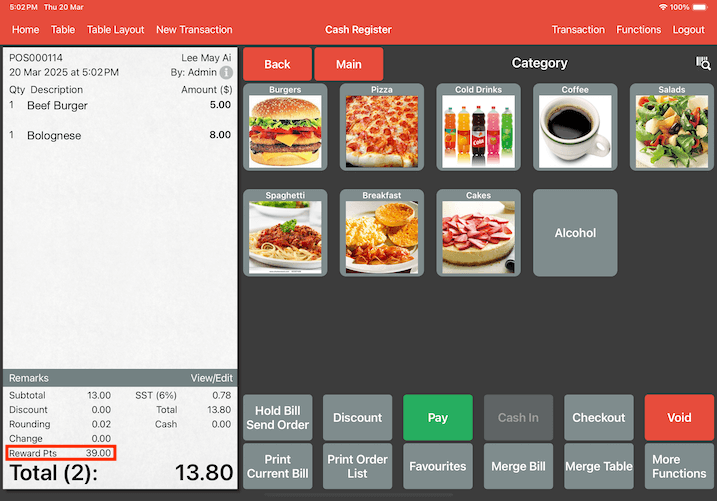
Rewards Points to Cash Conversion
Reward points can be converted into cash currency by configuring this setting.
You may enter your amount of currency after converting points depending on the reward points amount.
For example, if 100 points is $1, you may enter 0.1 as the conversion amount.
Disable Cashback Rewards for Discounted Bill
When enabled, cash back reward will not be applied when any of the items or bill has discount.
For example, if "Beef Pepperoni" has a 10% discount and although "Salmon" does not have any discount,
no cash back rewards will be applied to the bill.
Allow Reward and Claim in a Single Transaction
When turned on, customers are able to earn and claim rewards in a single transaction.
Reward List
The reward list acts like a discount.
Setup points required for each reward to be redeemed.
Customer Reward Points as Payment Type
By default, redeeming rewards will apply as discount based on the subtotal on the bill.
Alternatively, you may also configure redeem rewards as a payment type, and redeeming rewards will act as a payment method towards the bill grand total.
To set up customer reward points as payment type, navigate to Settings -> App Settings -> Payment Types.
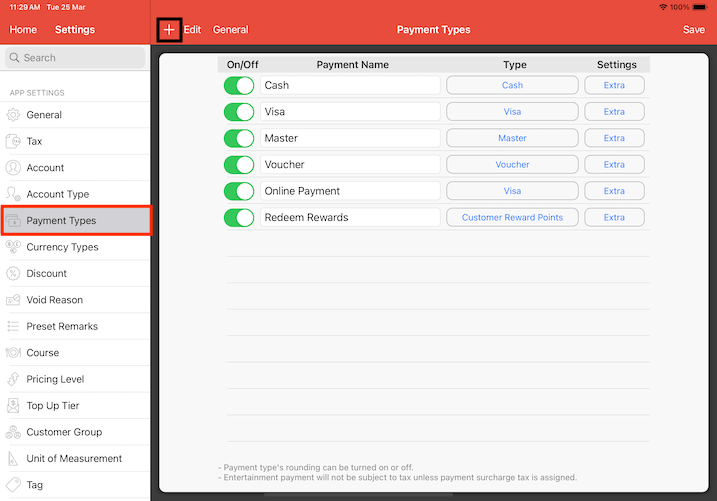
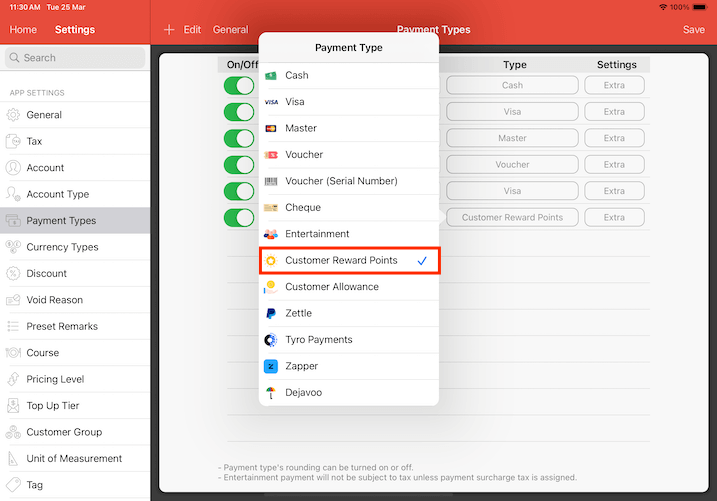
Select Customer Reward Points as the type from the dropdown menu.
Remember to save your changes.
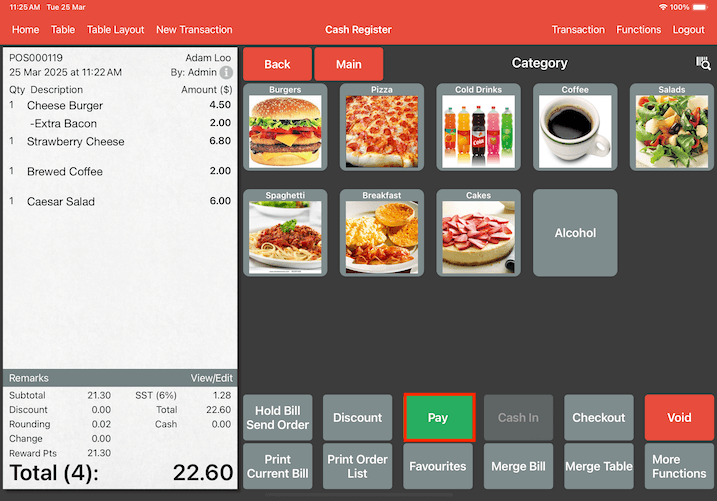
To redeem reward points at checkout, click on Pay.
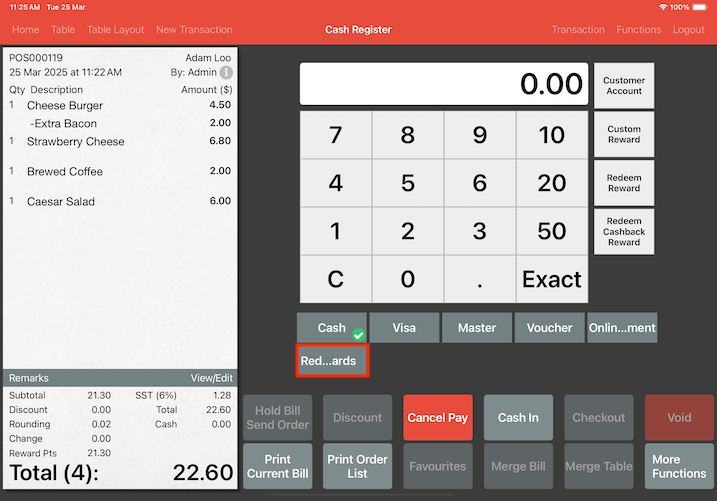
Then, select Redeem Rewards as the payment method.
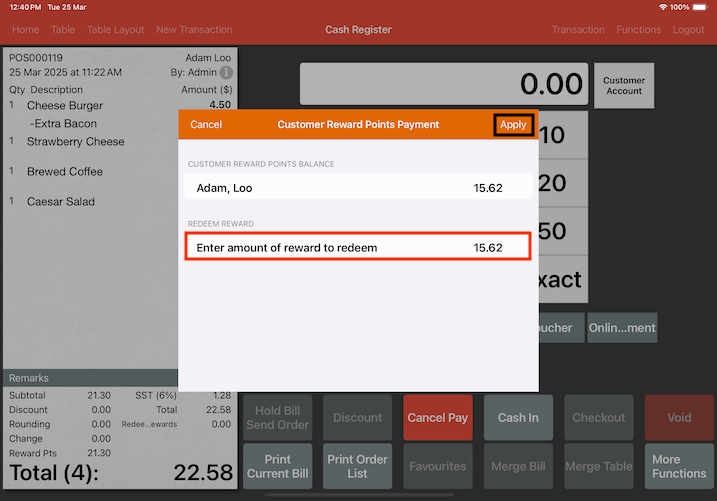
The cashier can either manually enter the number of points the customer wants to redeem or apply the full amount by default.
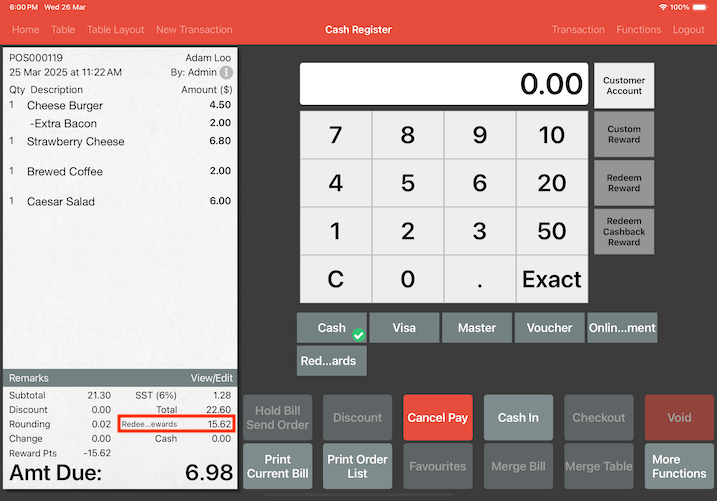
Once applied, the system will subtract the redeemed points and adjust the final bill amount accordingly.
Other Examples
Case 1 (Manual Reward)
If you are running a promotion under a special condition, use a manual reward.
Example, get a free cup of coffee when customers spend $20 and above.
The reward can be given based on points accumulated too.
You may set the required points to redeem a free coffee at 10 points.
This can be done under the Reward List.
Case 2 (Automated Reward)
If you are running a promotion, for example, every 10 coffees purchased, customer get 1 for free.
You could set up item coffee to give an automated reward of 1 point.
In the reward list, specify the points required, which is 10 points to redeem a free coffee.
The reward can be a $2 discount, which is the price of the coffee.
When a customer has 10 reward points, they could redeem this reward which will
deduct $2.00 off the bill and take 10 points away from their account.
Case 3 (Cashback Reward)
If points are given upon spending, set up cashback reward.
Each point earned can be used to deduct the total bill amount.
Case 4 (Multiple Rewards)
When multiple rewards are applied at the same time, they will be processed in the following priority order:
1. Manual rewards
2. Automated rewards
3. Cashback rewards
This ensures that any manually adjusted rewards take precedence, while system-applied rewards and cashback are processed subsequently.
For example, we turned on all of our existing setup from the above steps in the Reward/Loyalty setting page:
1. Manual Reward "Spend $20 & above to get 10 reward points"
2. Automated Reward for item "Mushroom Burger" that is priced at $5.00, gets 10.00 reward points
3. Cashback reward where you get 1.00 points every dollar spent
Refer to the image below to see what happens when you apply multiple rewards simultaneously:
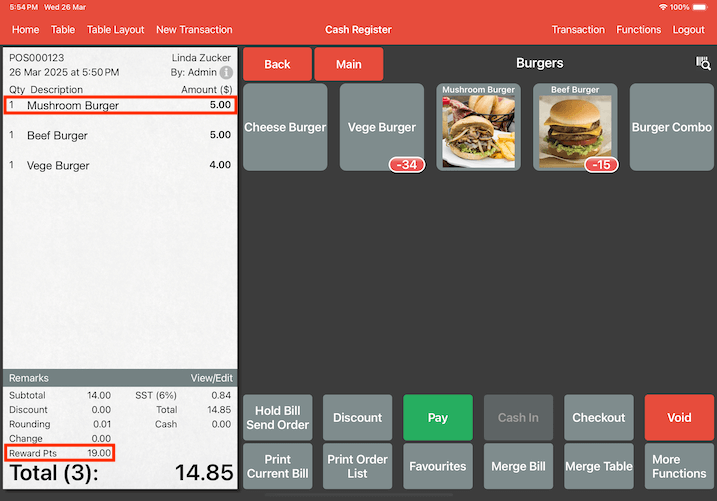
Reward Pts of 19.00 is calculated as the following formula:
Automated Reward (from item "Mushroom Burger") + Cashback Reward = Total Reward Points.
10.00 + 5.00 + 4.00 = 19.00 Reward Pts.
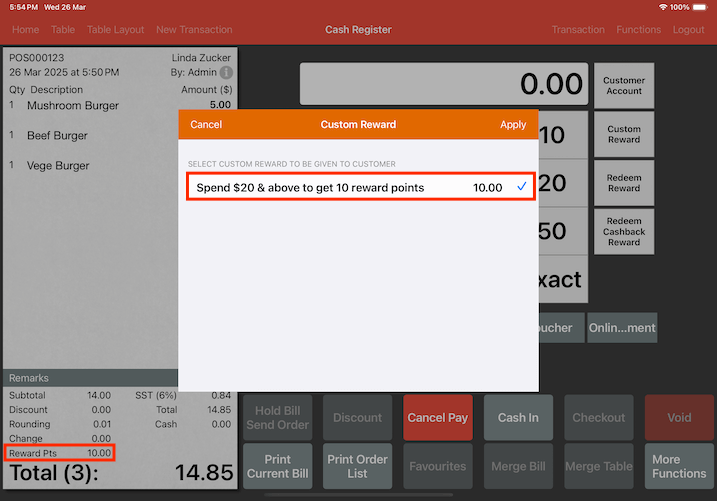
Now, if cashier selects Manual Reward of "Spend $20 & above to get 10 reward points", the Reward Pts will be overwritten with the new value of 10.00 instead, since the manually adjusted rewards take precedence.
If you need further assistance, feel free to send us an email at [email protected].