Guide | MobiPOS > Kiosk Terminal > Settings/Setup > Kiosk Dine In
Dine In
Enable this option to allow customers to place dine in orders through the kiosk.
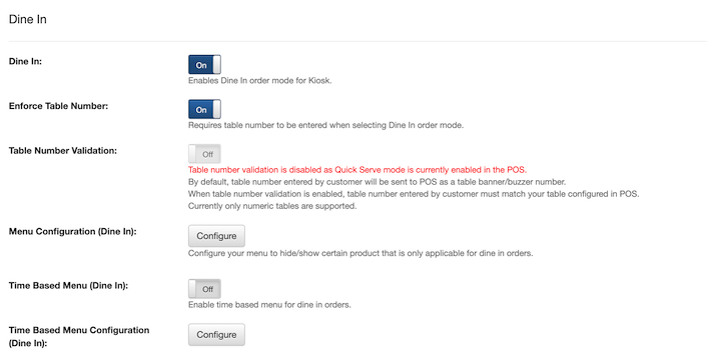
Enforce Table Number
When enabled, customers will be required to enter a table number before placing a dine in order.
Table Number Validation
Table number validation ensures that customers enter a valid table number configured in the POS when placing a dine in order.
By default, the table number entered by the customer will be sent to the POS as a table banner/buzzer number.
Do note that only numeric table numbers are supported.
Option to enable table number validation is only available for Restaurant mode.
When customers insert an invalid table number on the kiosk, error message will be shown to the customer.
Menu Configuration
Customize your menu to show or hide specific items that are only available for orders placed through the kiosk.
To do this, click on the Configure button.
It will bring you to a new page where you can choose which items you want to hide, show or disable.
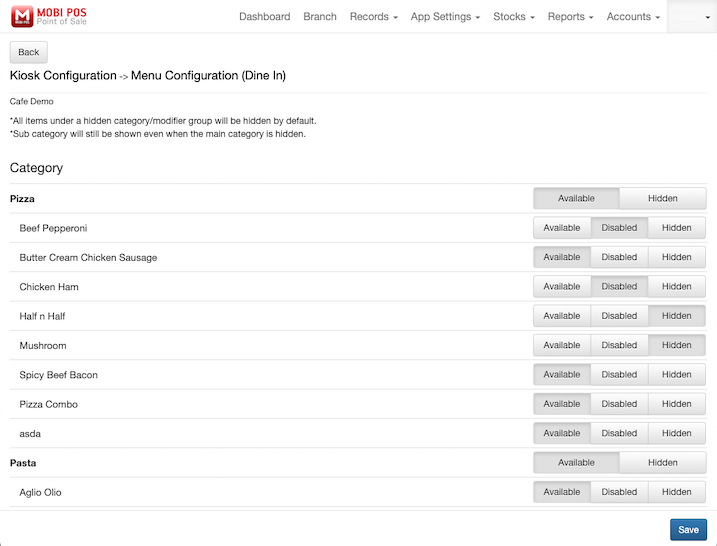
Set an item to Available when it's in stock and ready to be ordered.
Set an item to Disabled if it's temporarily unavailable but you still want customers to see it.
Set an item to Hidden if it's no longer offered or should not be visible to customers.
All items under a hidden category or modifier group will be hidden by default.
Sub-categories will still be shown even when the main category is hidden.
Time Based Menu
Toggle the switch to on to enable time-based menu availability for dine in orders.
Only items within the configured time slots will be available for ordering.
If no time settings are set, the full menu will remain available at all times.
Time Based Menu Configuration
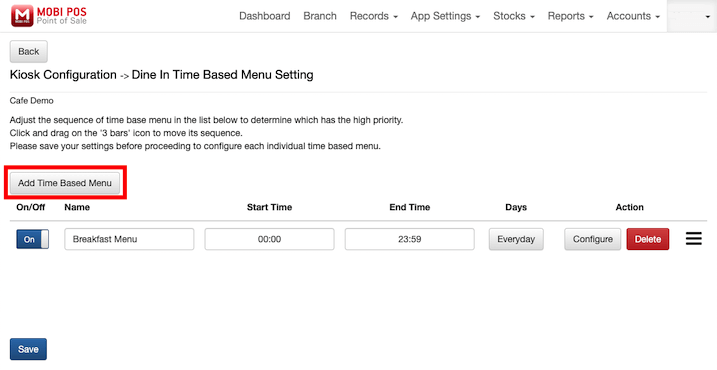
Customize your menu here to display specific items only during set time periods for dine in orders made through the kiosk.
To add a time based menu, click on + Add Time Based Menu.
Click on Configure to further customize your menu settings.
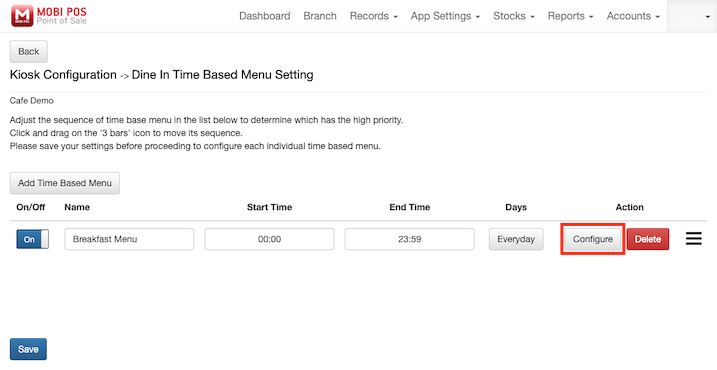
This will bring you to another page where you can select categories within your menu to be served on the selected time based menu.
Set an item to Available when it’s within the active time range and ready to be ordered.
Set an item to Hidden if it should not be visible to customers.
Remember to save your changes.
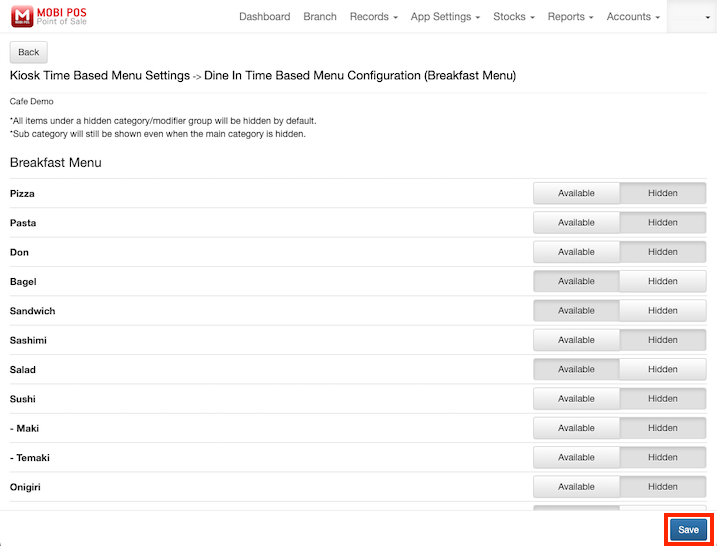
Note: To hide specific items from the menu, use the Menu Configuration settings. Changes made here will be applied consistently throughout the day.
If an item is marked as unavailable through the iPad, it will override the availability set in the online menu. However, this change will only take effect based on the Sync Intervals defined in the Cloud Sync settings on the iPad.

Confirmation Receipt
When enabled, a confirmation docket will be printed automatically whenever a dine in order is placed from the kiosk.
Payment Methods
Select the payment methods available for kiosk orders.
Customers can choose from various payment options, including Tyro, SmartPay, Linkly, and Kayaaku card payments.
If no card payment method is selected, Pay at Counter will be enabled by default.