Guide | MobiPOS > Online Ordering > Settings/Setup > Online Ordering Delivery Discount
Delivery Discount
This guide explains how to configure a promotion that offers free delivery when customers spend $40 or more.
Click on the Next button.
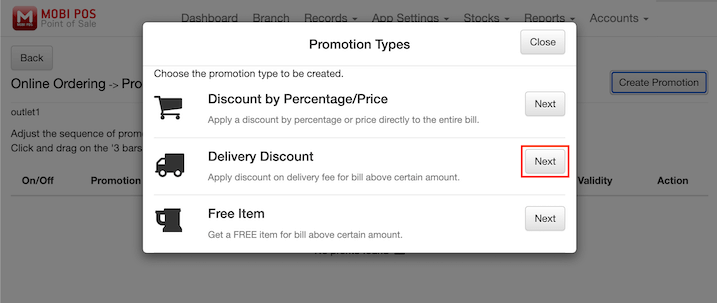
Enter all the necessary promotion details.
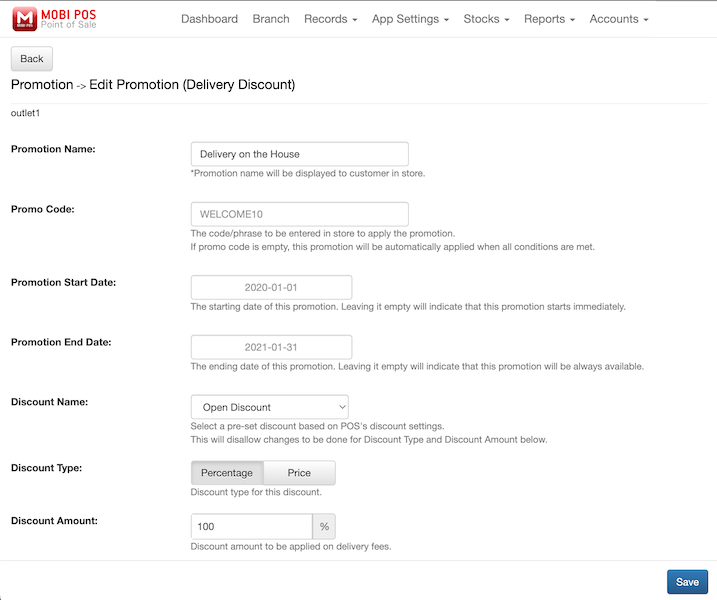
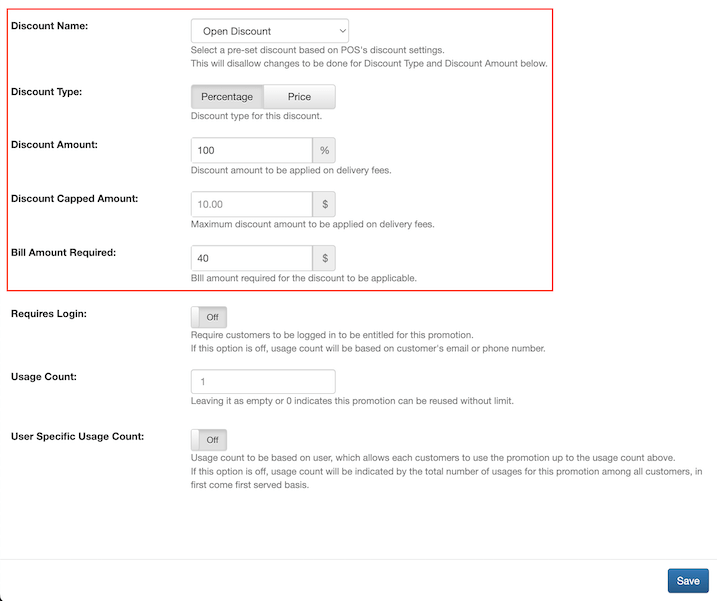
You may choose a pre-set discount based on your POS discount settings from the Discount Name list.
Else, configure a different setup with the Open Discount option in our example.
Select the Discount Type as Percentage.
Enter your desired Discount Amount. We set 100% as the discount amount in the example below.
You may also configure your Discount Capped Amount.
Here, set the Bill Amount Required, which is the minimum spending for the discount to apply.
For example, if it is set to $80, only orders of $80 or above will be eligible for this discount.
Click on the Save button.
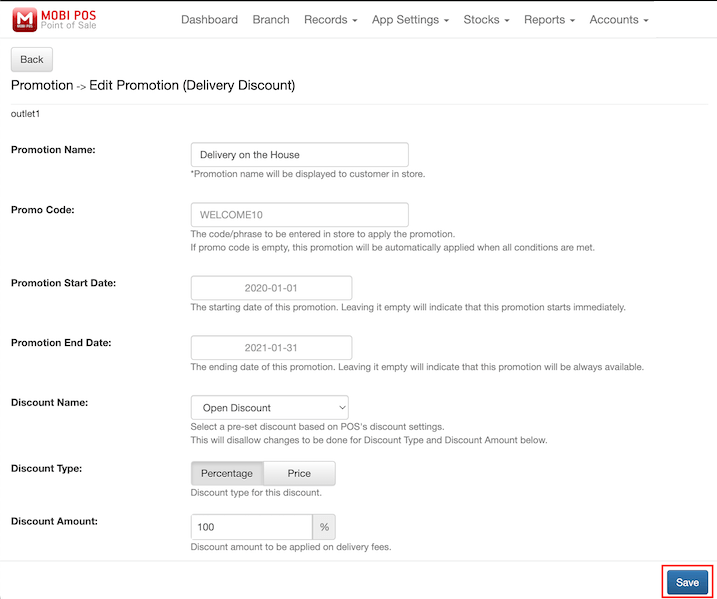
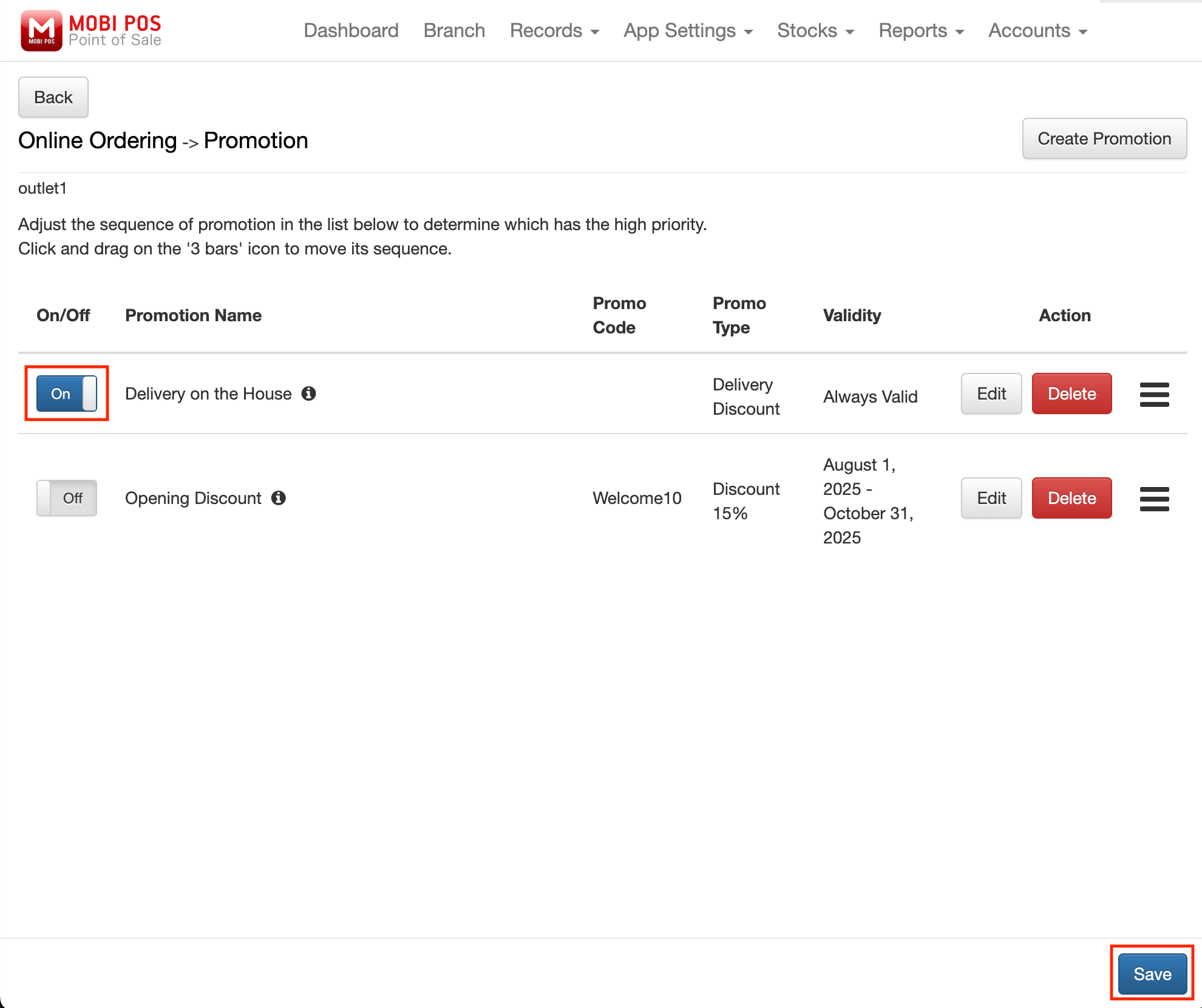
Upon saving, make sure the On/Off toggle button is switched on and proceed to save again.
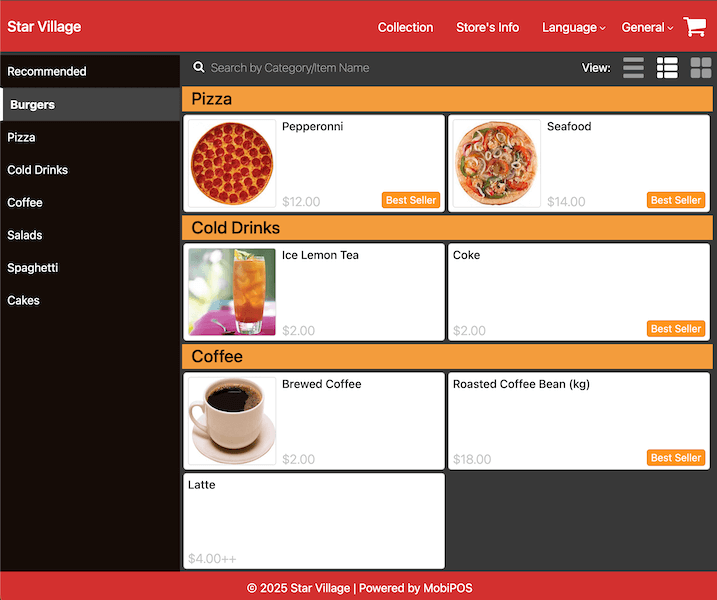
Now you can proceed to the store’s online ordering website and try ordering.
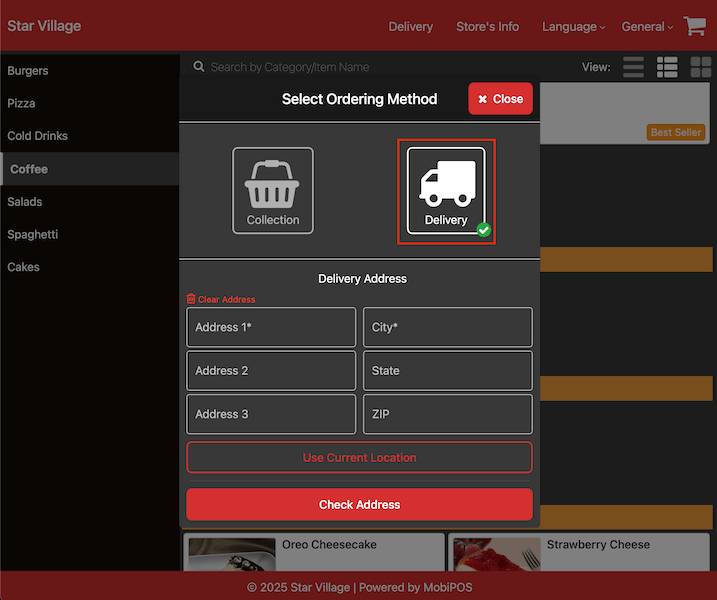
Make sure the ordering method is set to Delivery.
Enter the delivery address before placing an order.
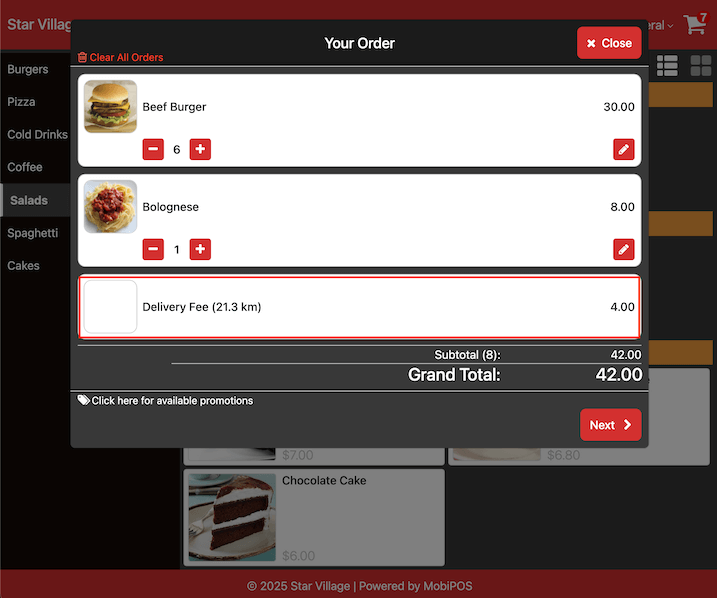
In the screenshot below, the bill amount is $42.00, but the delivery fee of $4.00 is still charged. This is because the free delivery promotion applies only when the food subtotal is $40 or more. Since the food subtotal is only $38.00, it does not meet the requirement.
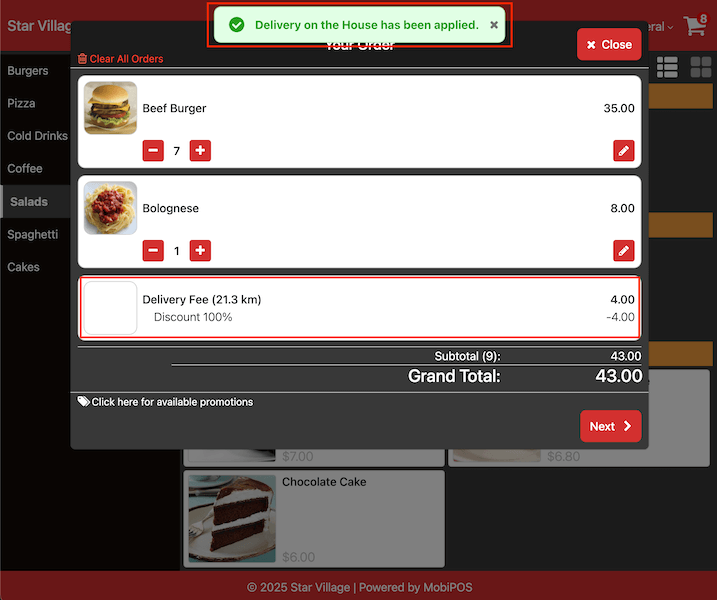
In the screenshot below, the free delivery promotion is applied as the bill is above $40. A confirmation message appears on top when the promotion is successfully applied.
Please refer to this guide for configuring Free Item Promotion.