Guide | MobiPOS > Settings > App Settings > Show UOM Details
Show UOM Details
This feature makes recipes easier to read and prevent mistakes by using simple unit instead of confusing decimals.
By default, the system will only show 1 type of Unit of Measurement (UoM) for an item's recipe.
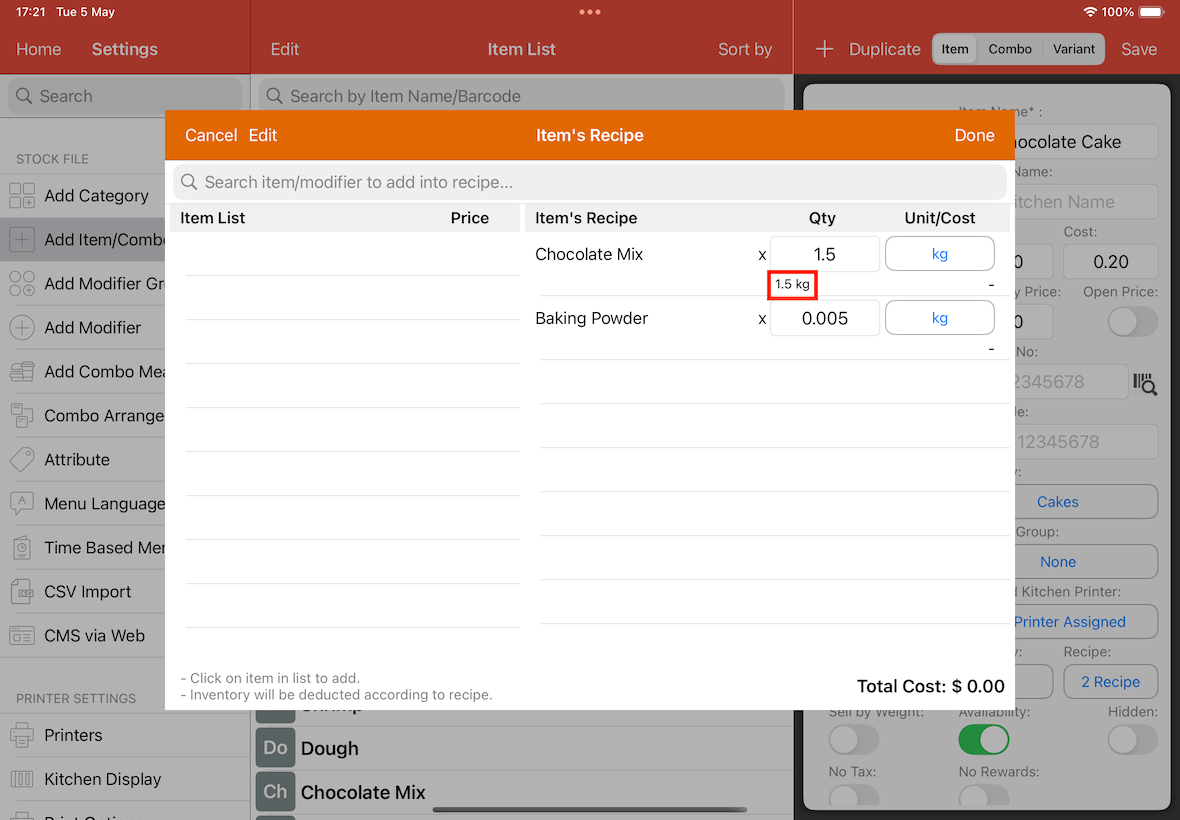
For example, go to Settings -> General -> Add Item/Combo, select an item and open its recipe.
As you can see, the Chocolate Mix uses 1.5kg with only one UoM, instead of 1kg 500g that uses two UoM.
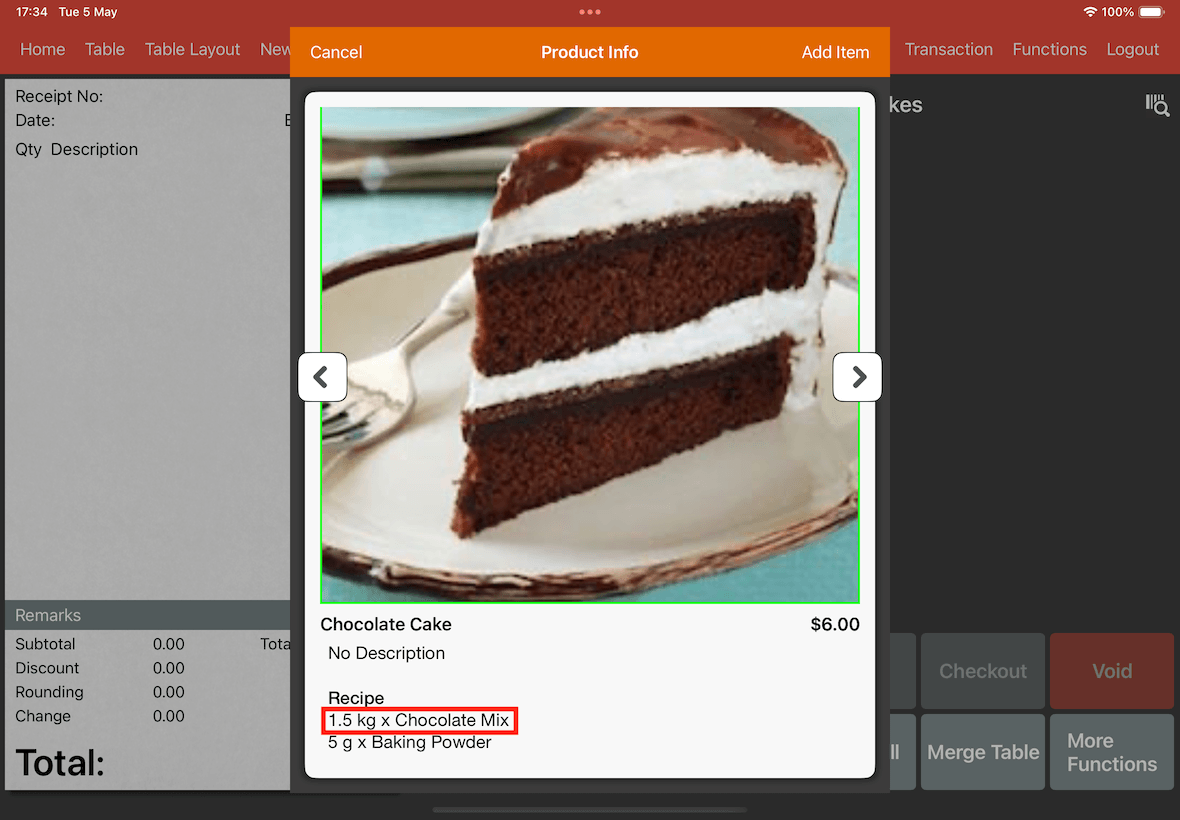
Next, go to Cash Register hold down on an item, a product info pop-up will show as below.
Chocolate Mix uses 1.5kg with a single UoM.
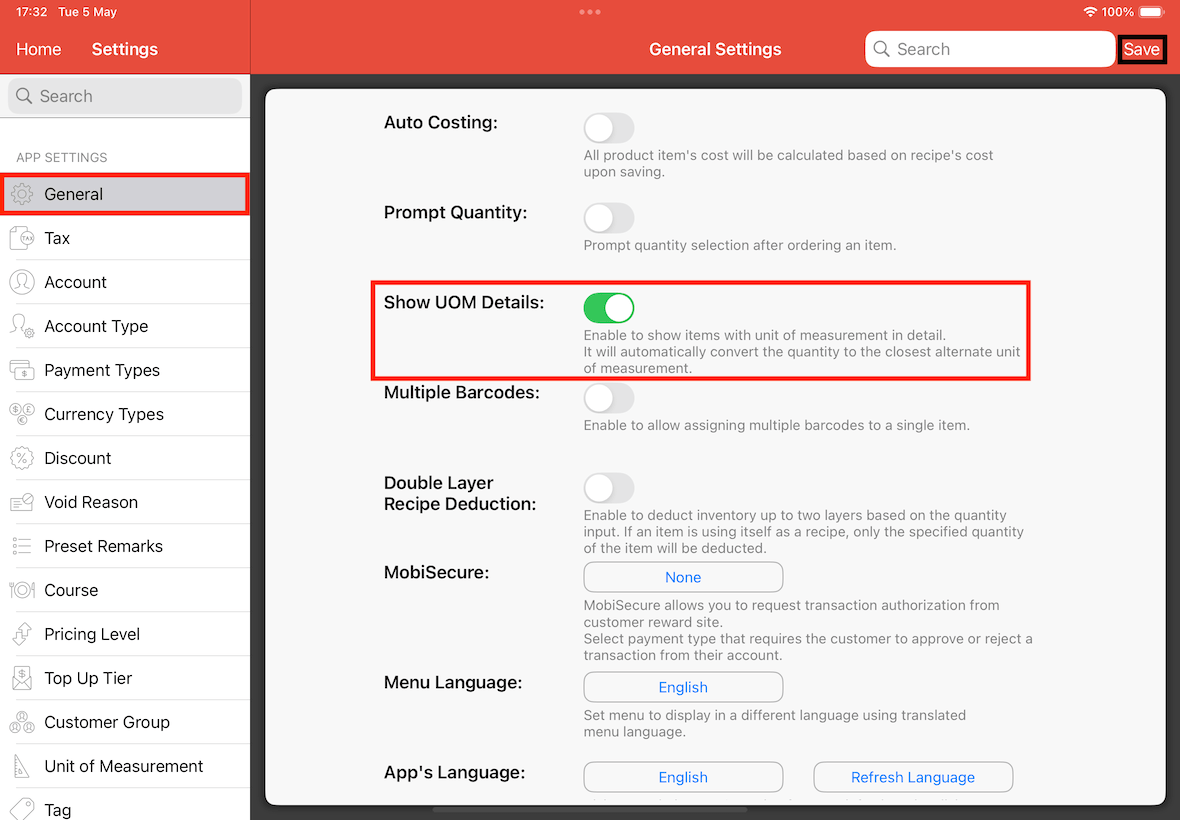
To show 2 types of UoM, go to Settings -> General -> Show UOM Details, switch it On and Save.
Now navigate to Settings -> General -> Add Item/Combo, select an item and add recipe to it.
Note that you should have already added ingredients (e.g., Chocolate Mix, Baking Powder) that uses UoM.
If not you can refer to this guide.
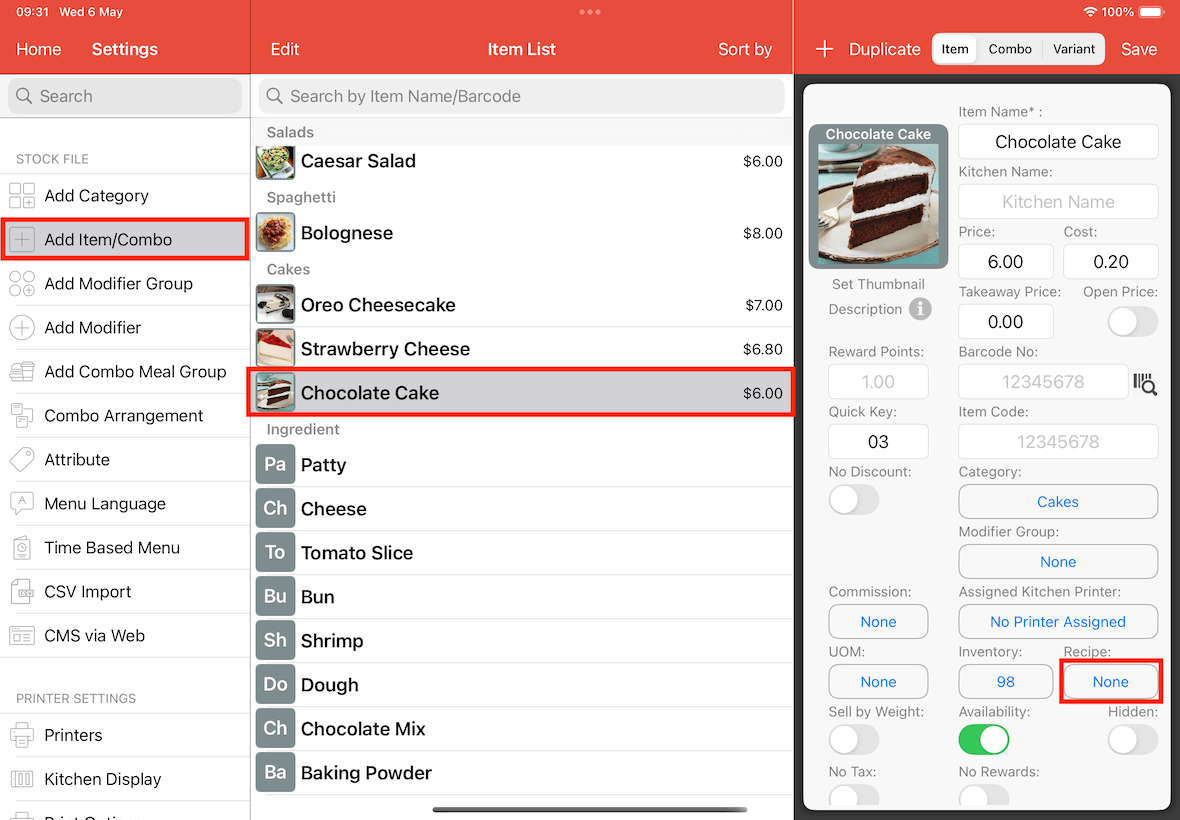
Next, you will add those ingredients into the recipe management for the item (e.g., chocolate cake).
Refer this on how to add raw material to item's recipe.
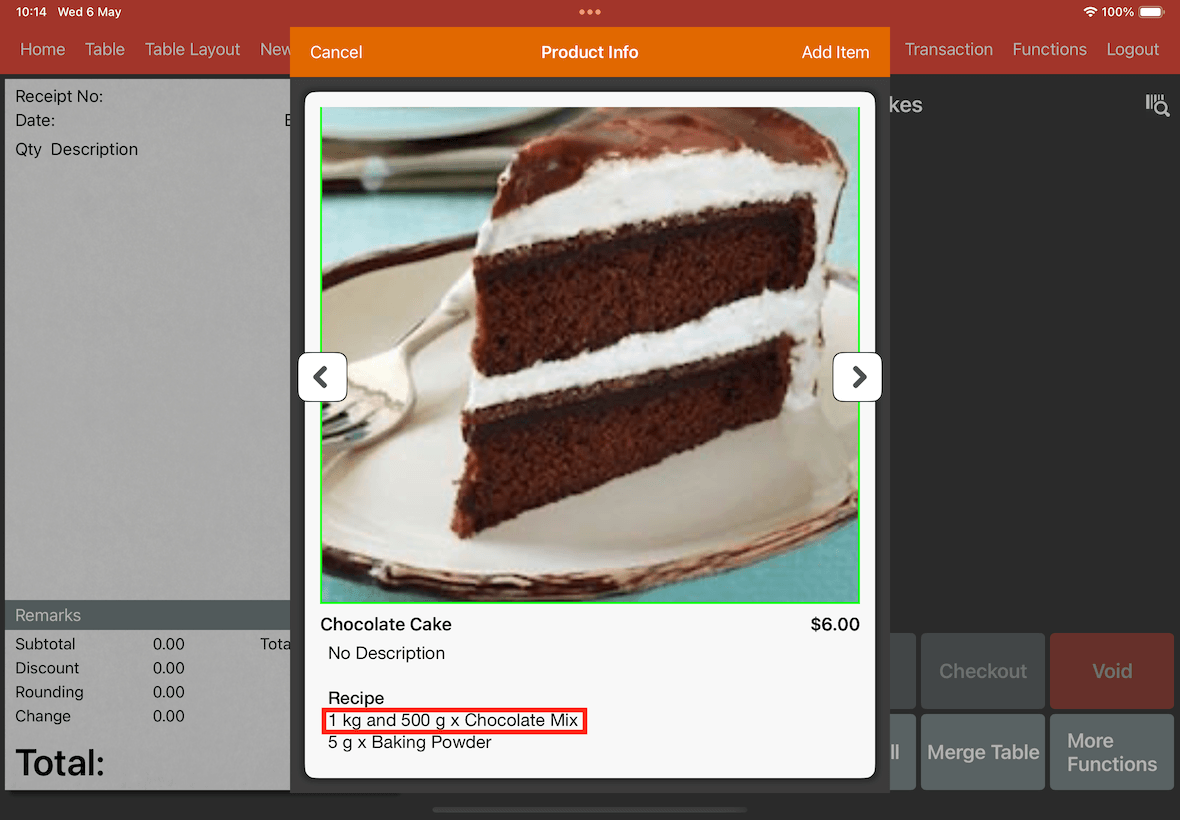
As shown below, Chocolate Mix is using 1 kg and 500 g instead of 1.5 kg.
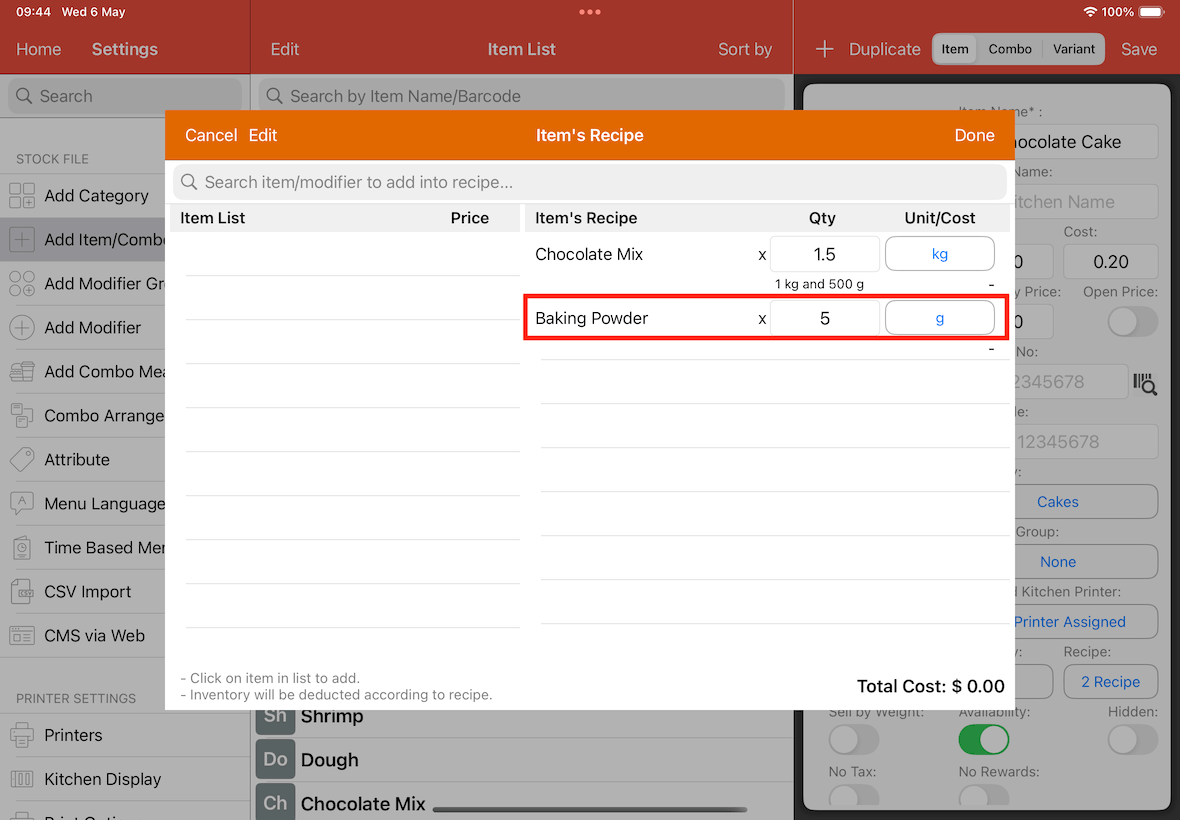
You can also switch between kg and g by tapping on the kg button under Unit/Cost column.
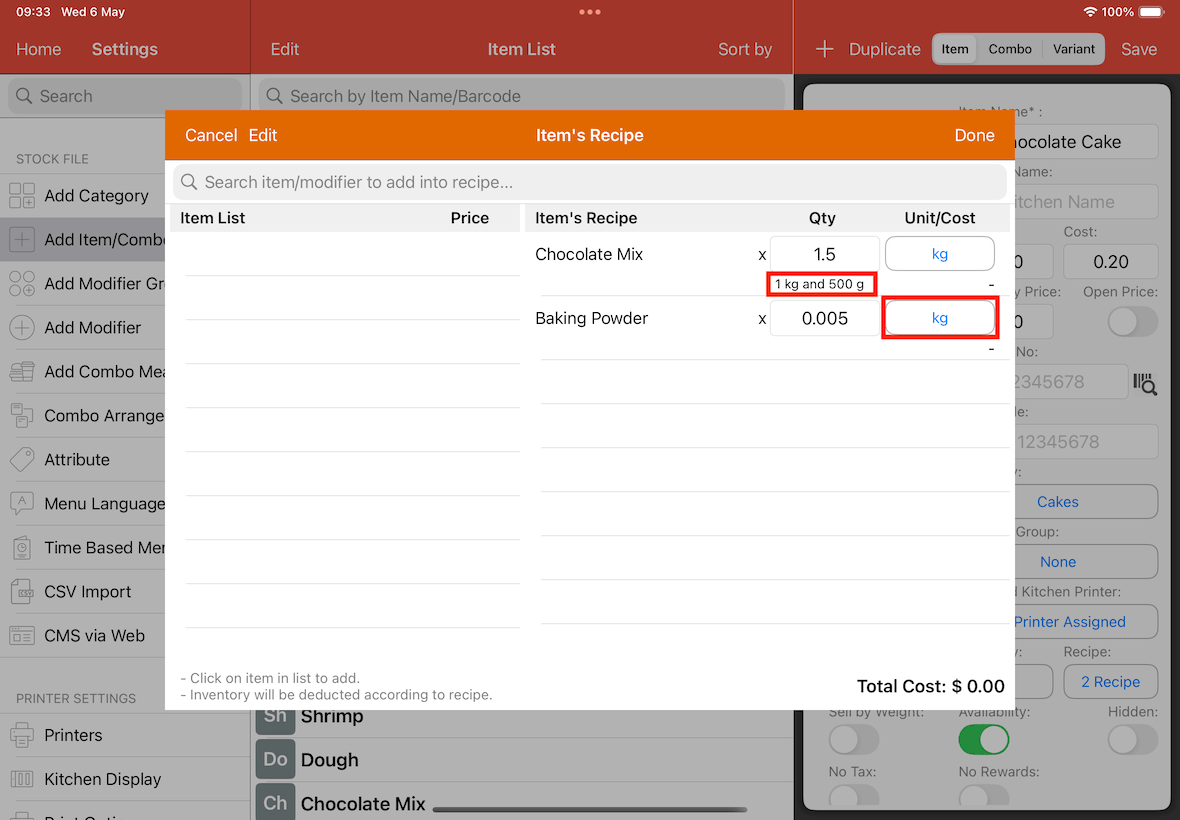
Which 0.005 kg of Baking Powder will show as 5 g.
Lastly, go to Cash Register hold on an item, a product info pop-up will show.
Now the product info is also showing 1 kg and 500 g for Chocolate Mix and 5 g of Baking Powder.