Guide | MobiPOS > Settings > App Settings > Clear Unsent Order
Clear Unsent Order
This guide explains how to automatically clear unsent orders from a bill after staff logout or a specific period of inactivity.
By default, the system retains unsent orders regardless of logout or inactivity.
This is useful as staff can switch accounts and each of them would have their own unhold orders remain in the bill.
However, if you prefer to have these orders cleared automatically when staff logout, follow the configuration steps below.
Clear Unsent Order through Logging Out
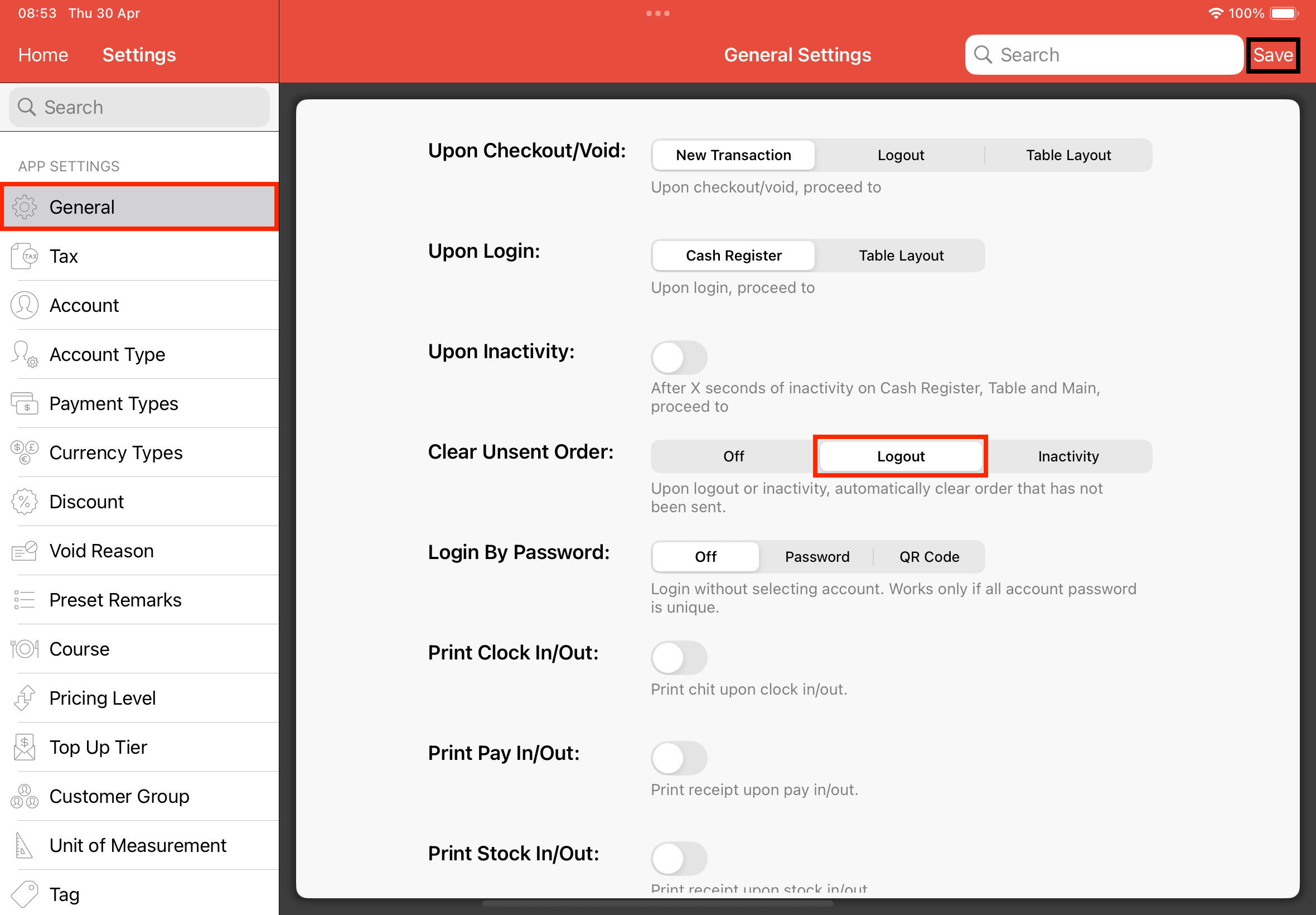
Enable this setting to automatically clear unsent items from the bill whenever you logs out.
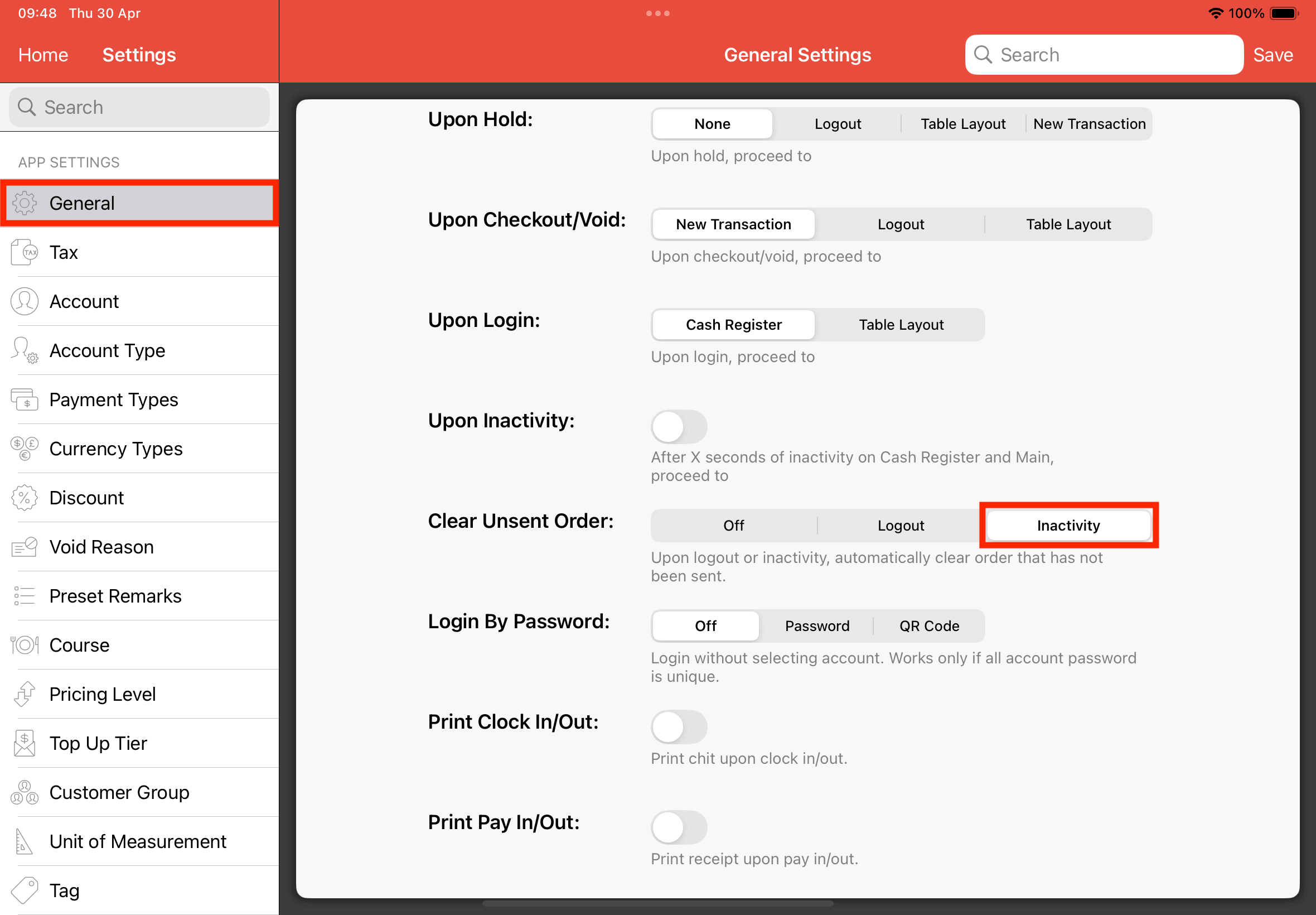
To activate, navigate to Settings > General > Clear Unsent Order, select Logout, and tap Save.
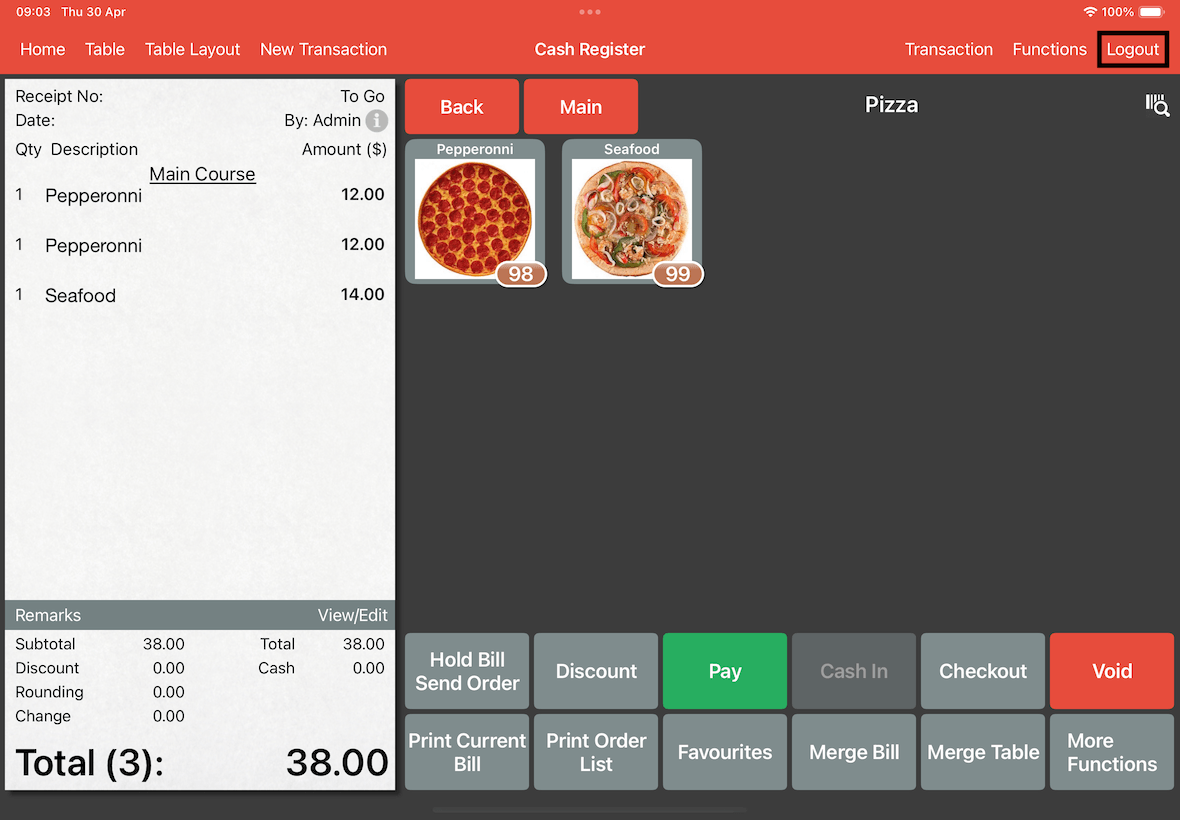
Go to Cash Register page and add items to the bill.
Tap the Logout button at the top right, the unsent orders will be automatically cleared upon your exit.
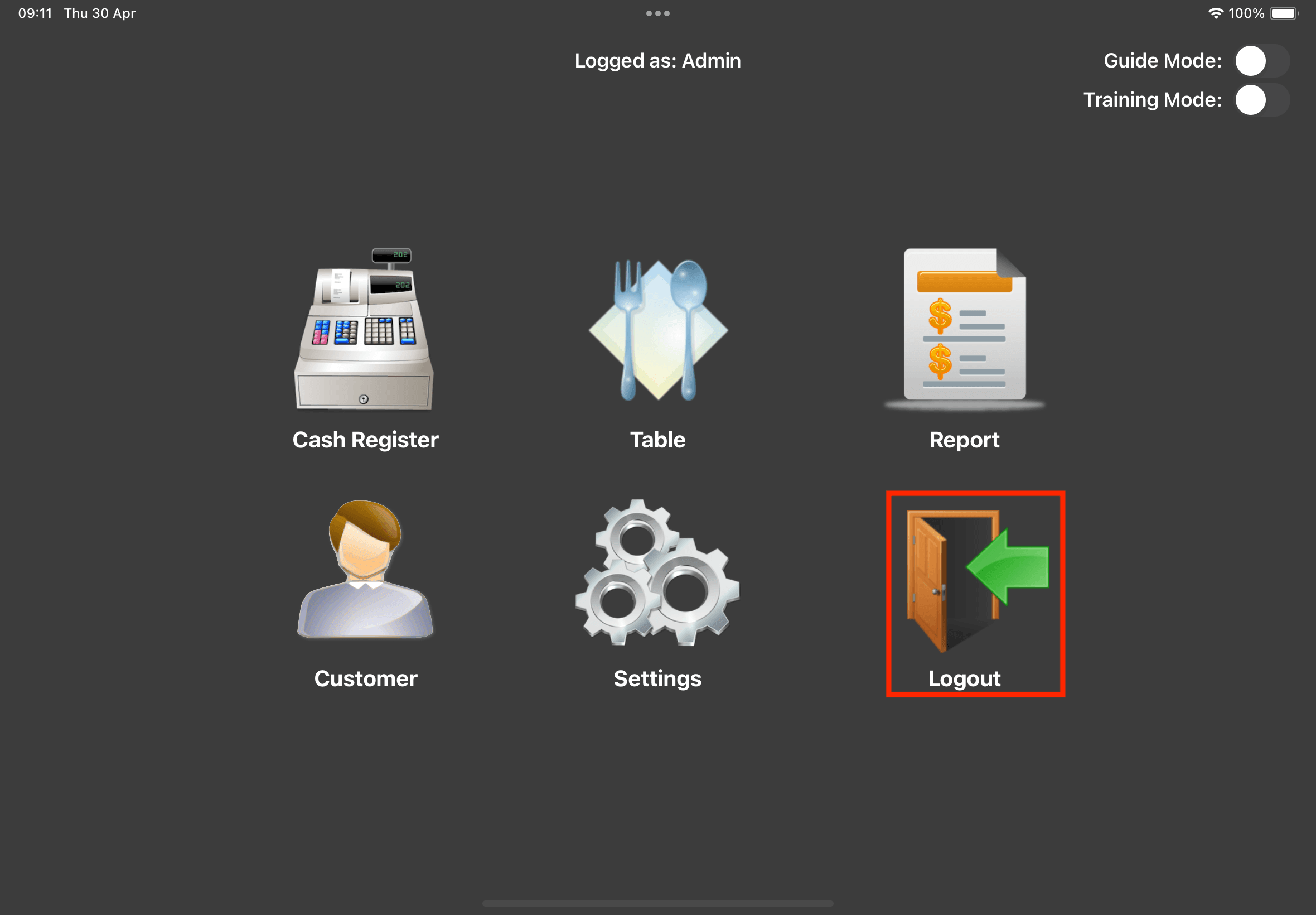
Alternatively, you can logout using the Logout button at the Home page.
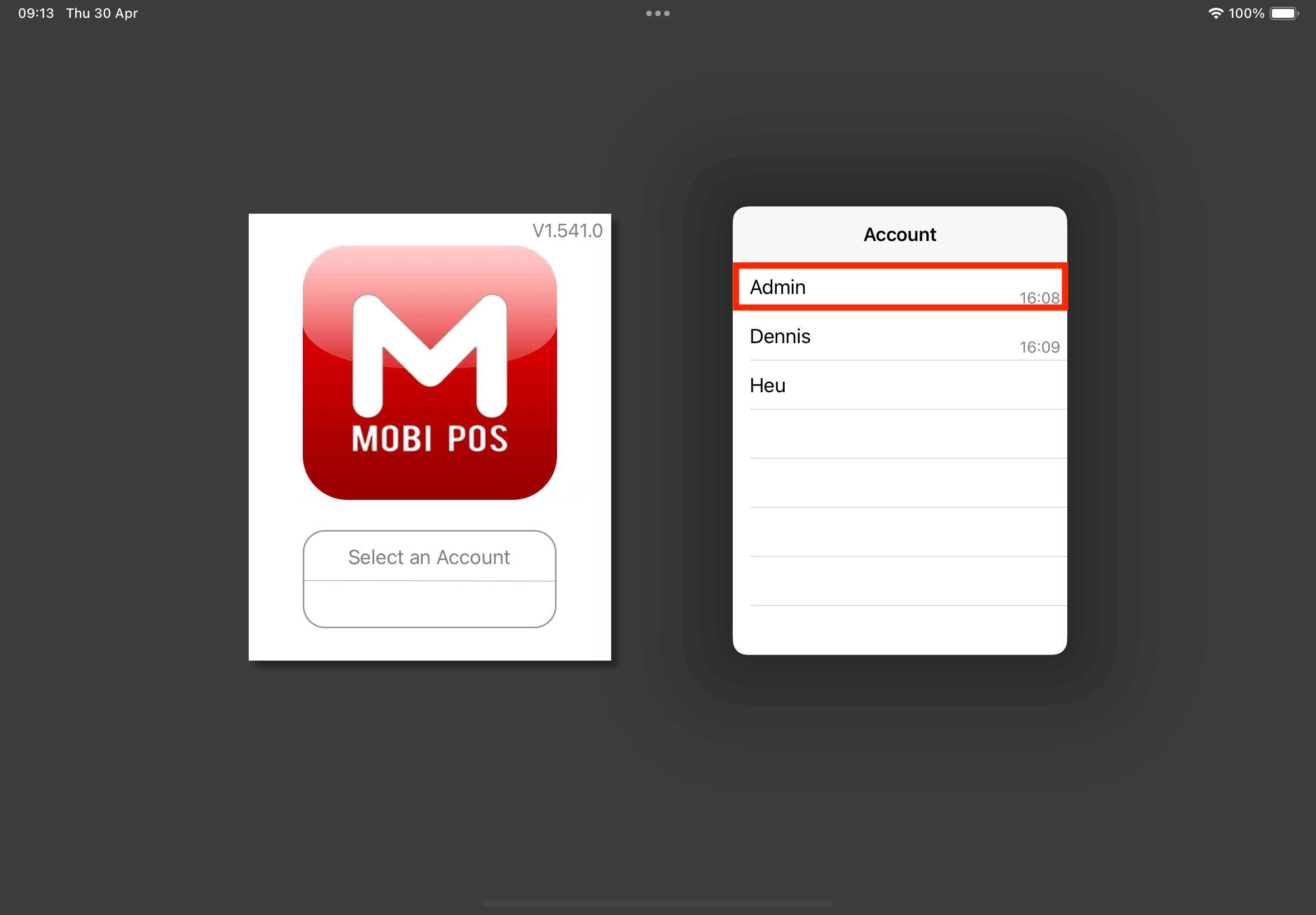
Log back into the same account (e.g., Admin) to confirm that the previous unsent items have been removed.
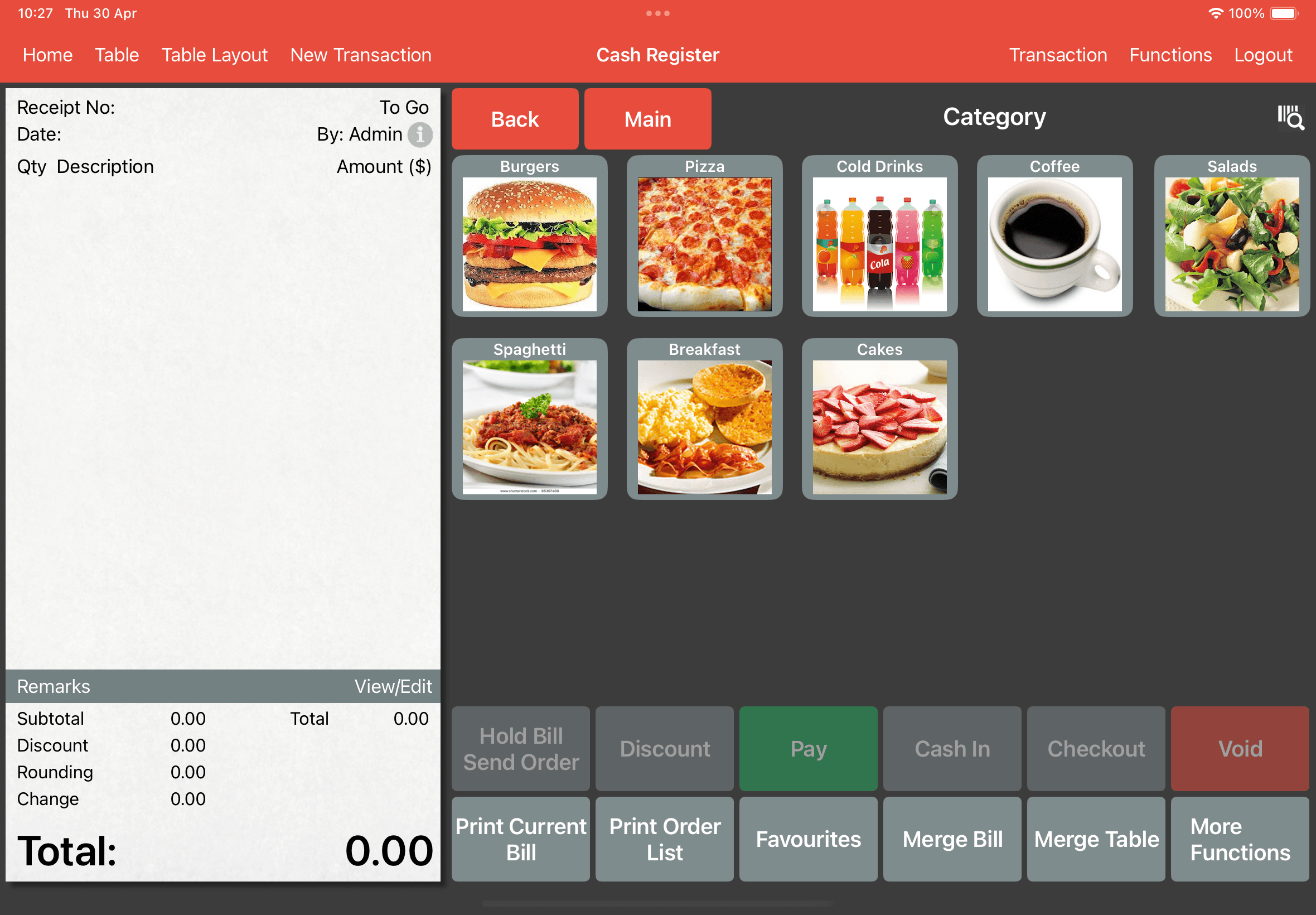
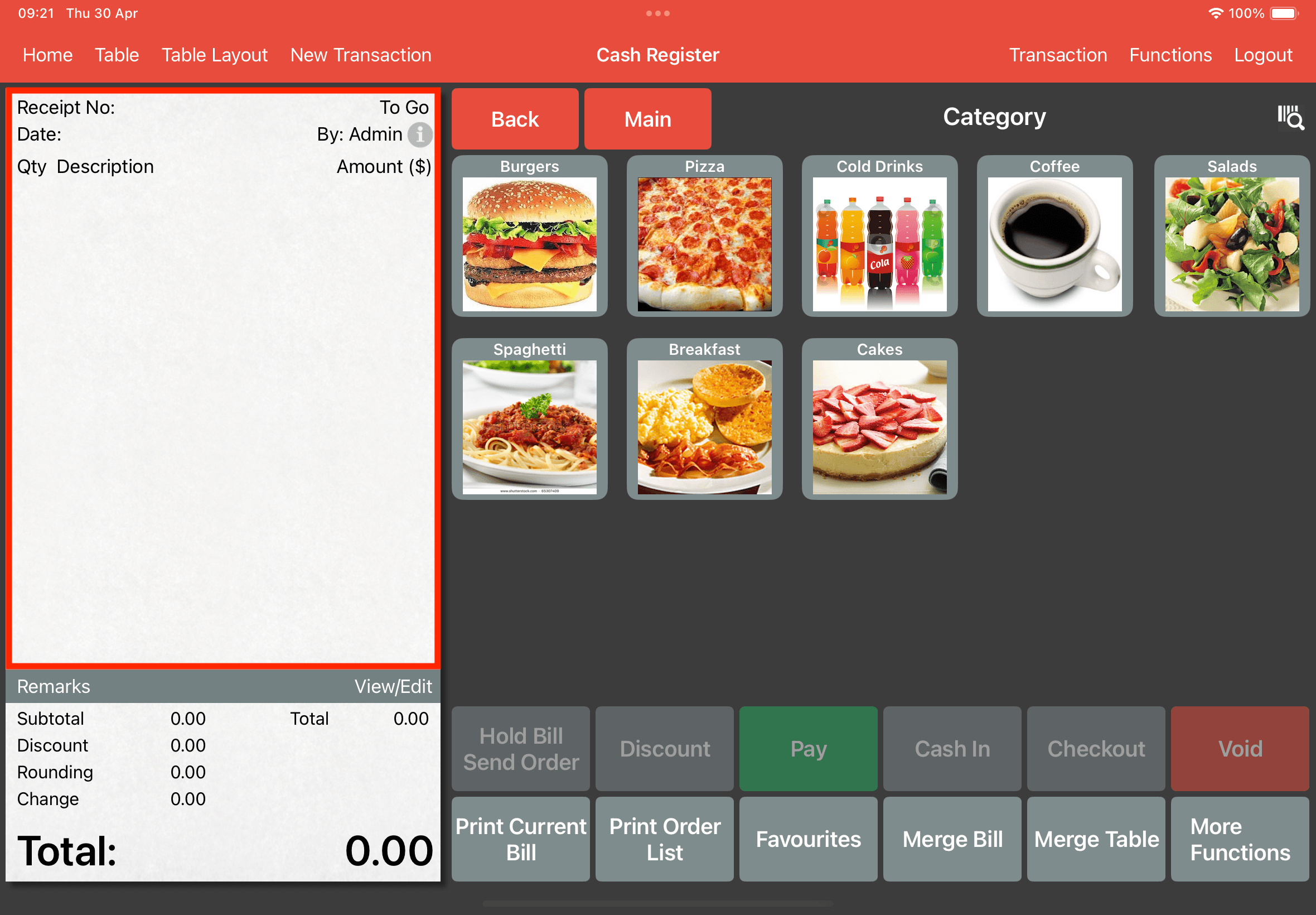
As shown below, returning to the Cash Register page will now display an empty bill, confirming that all unsent orders were successfully cleared.
Clear Unsent Order through Inactivity
This method automatically clears unsent orders if the system remains idle for a specific duration.
To enable this, navigate to Settings -> General -> Clear Unsent Order and select Inactivity.
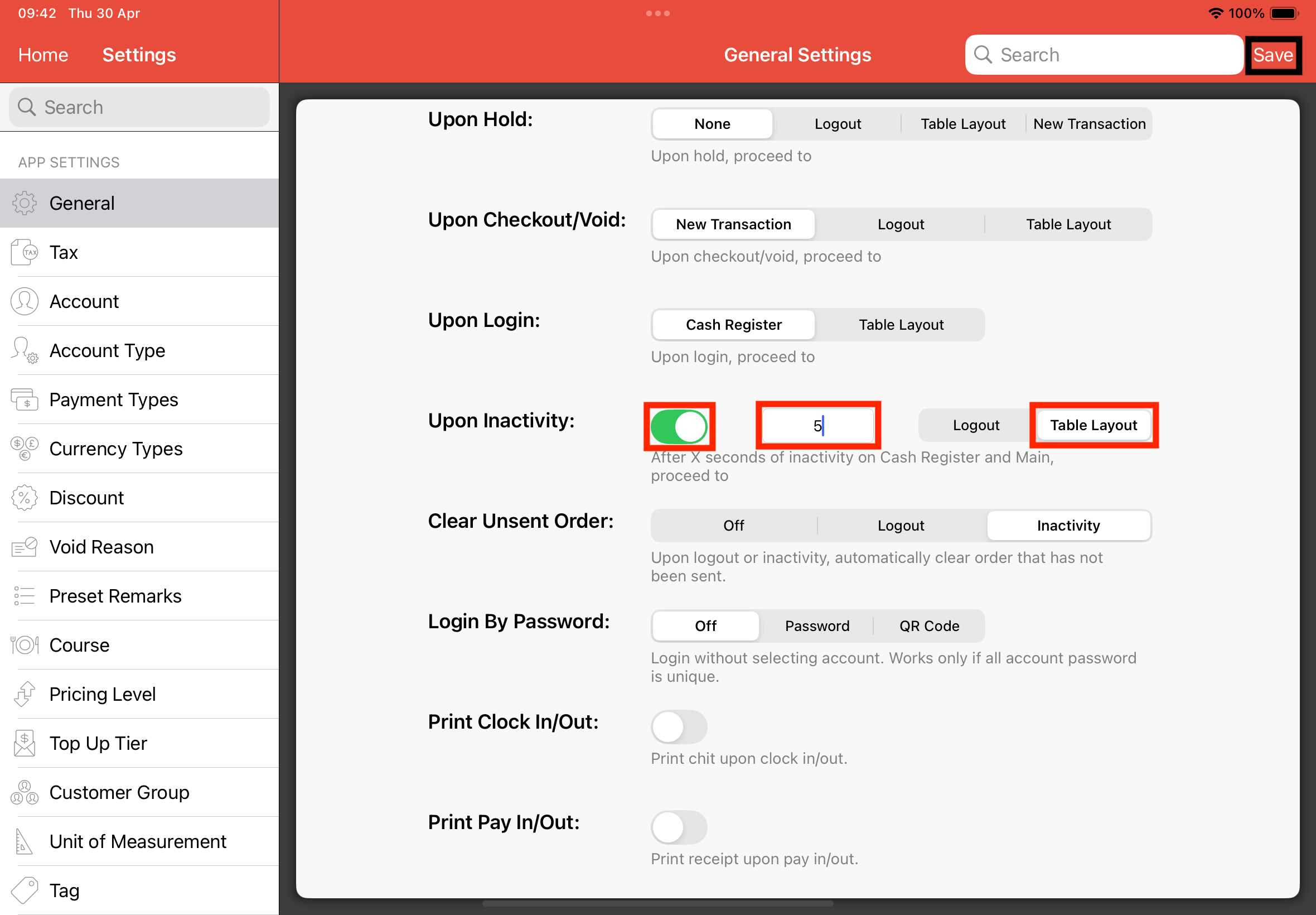
Toggle the Upon Inactivity switch to On.
Enter your preferred idle duration in seconds (e.g., 5 seconds), and choose whether the system should Logout or return to the Table Layout once the time expires.
Tap Save to apply the changes.
Just as before, add items to the bill on the Cash Register page to prepare for the test.
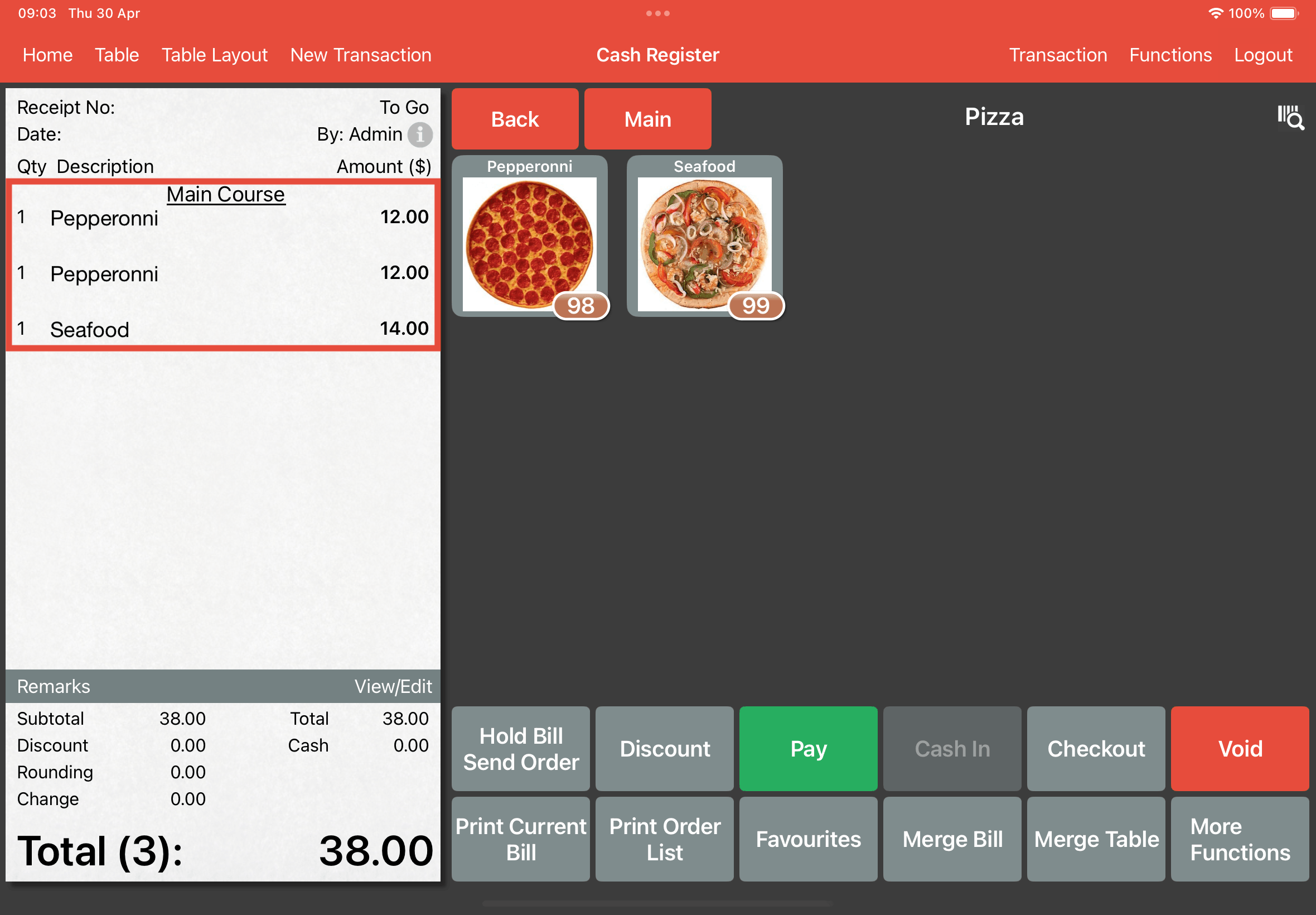
Now, stay idle on the Cash Register page and wait for 5 seconds.
An alert will appear, as shown below, notifying you that the page is about to change.
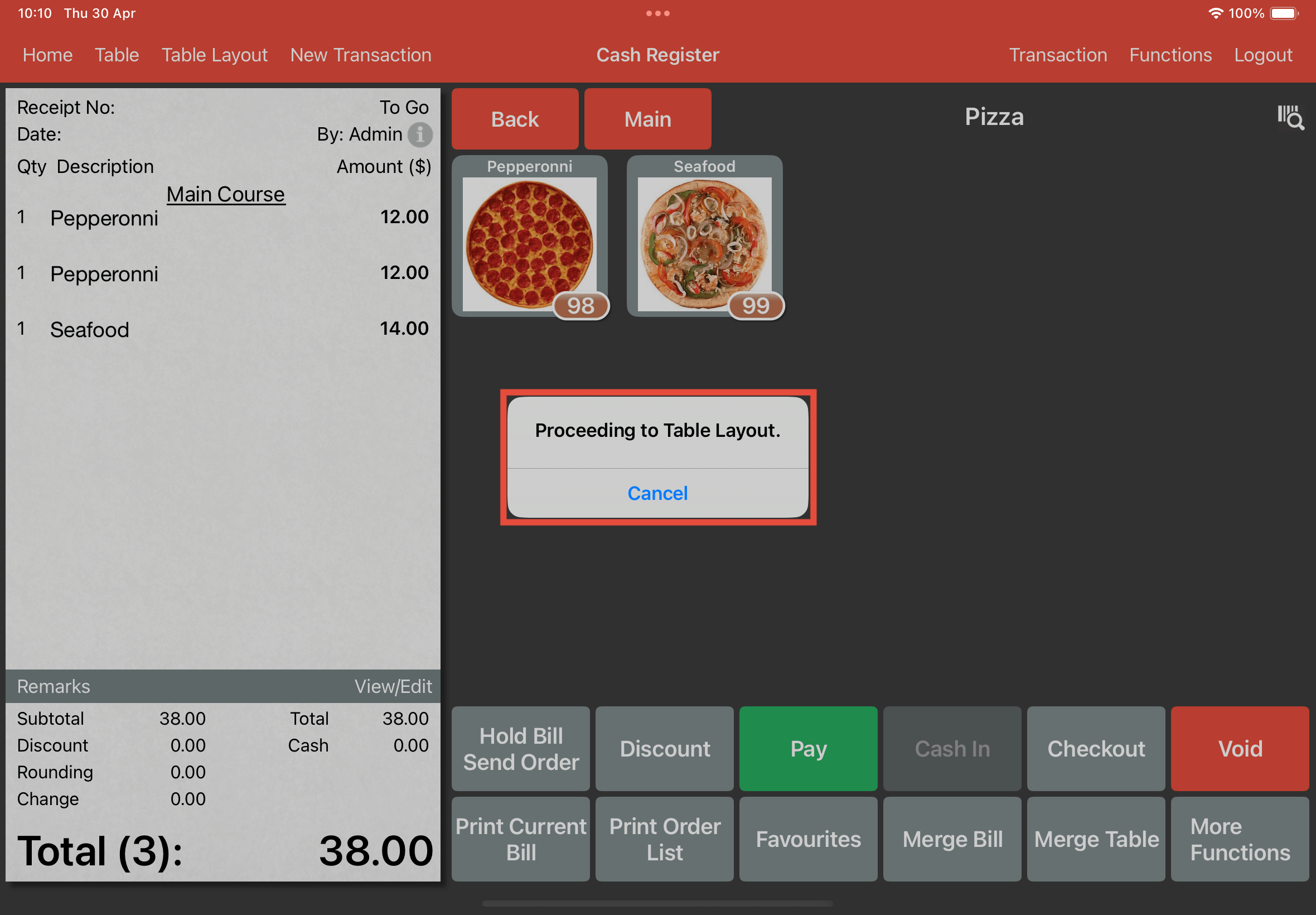
After that, the system will automatically redirect you to the Table Layout page.
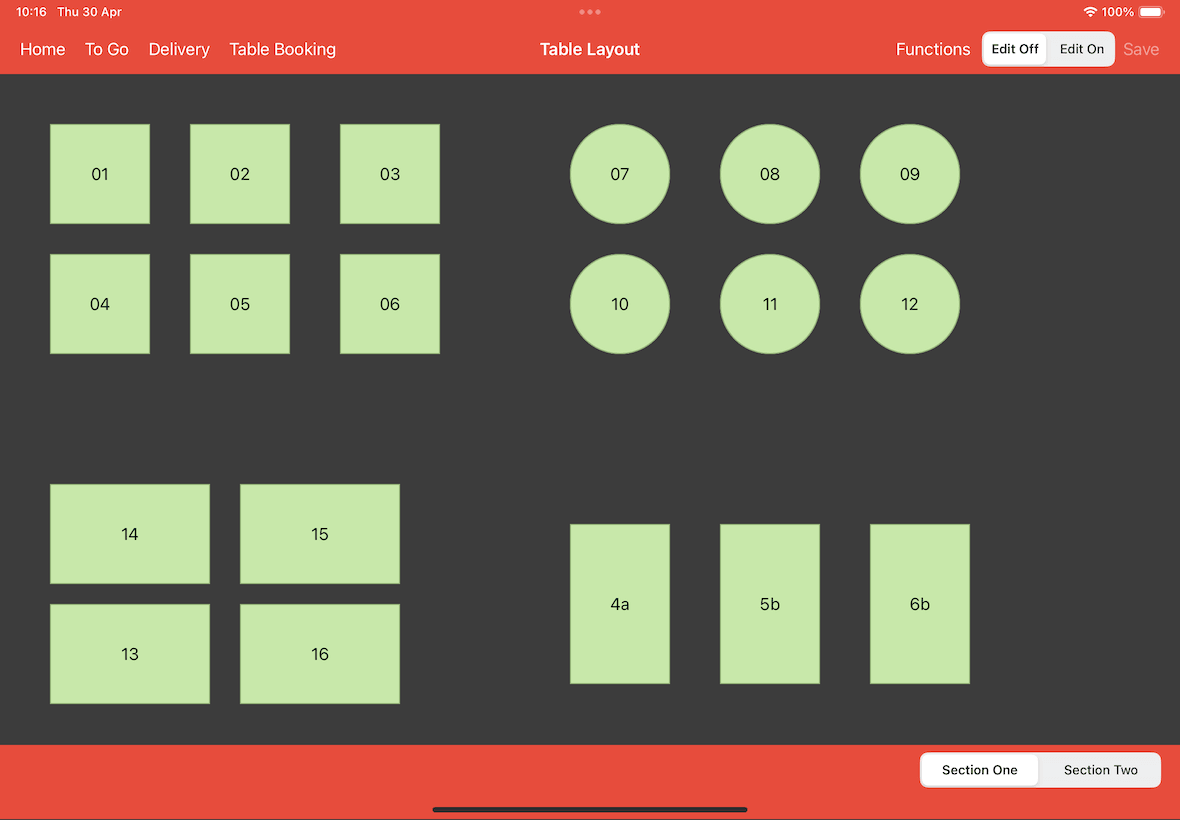
Upon returning to the Cash Register page, you will see that all previously added items have been cleared from the bill.