Guide | MobiPOS > Backup/Restore > Generate/Download Backup > Retrieve Backup via CloudSync
Retrieve Backup via CloudSync
This guide explains the steps to download MobiPOS backup from CloudSync feature.
This can be used to retrieve all your information remotely without the MobiPOS Application, so it will be useful for users with broken or stolen device.
We recommend users to continue doing the steps below on the iPad you wish to restore your data.
This way you may save the the time to transfer files.
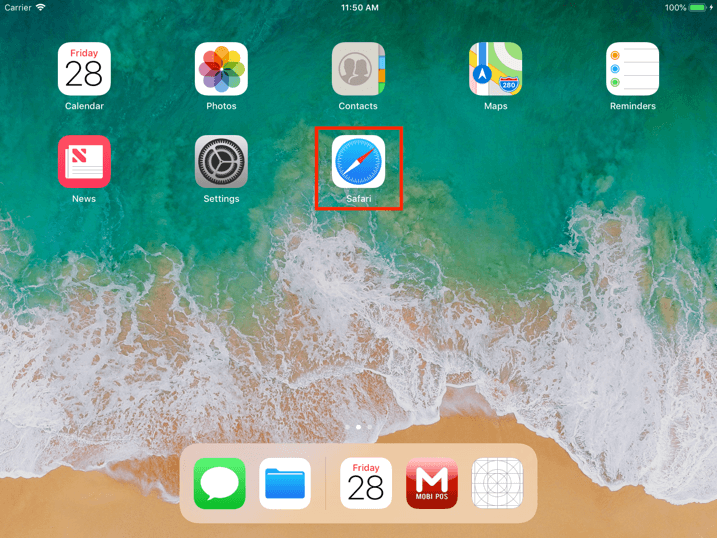
From your browser, go to https://cloud.mobi-pos.com or click
here.
On the website, log into your account.
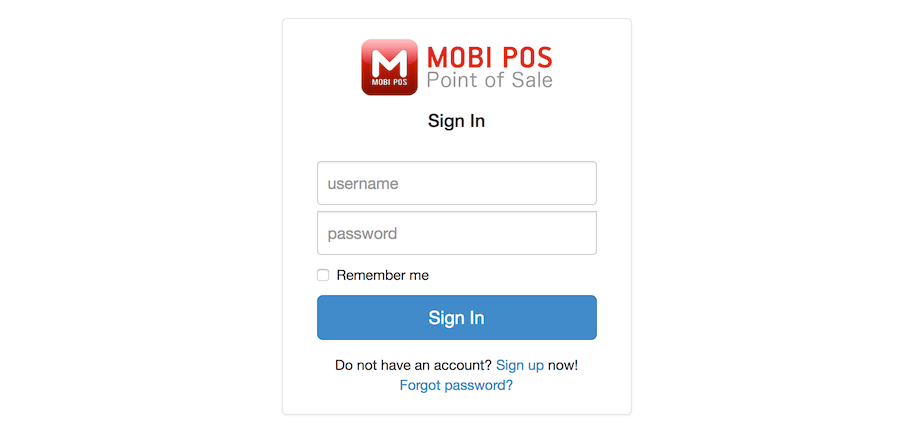
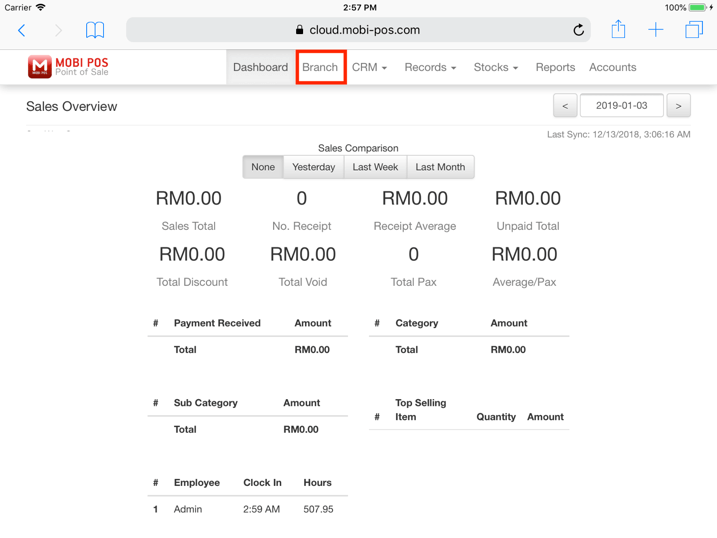
Image below shows the MobiPOS Cloud Sync homepage.
Tap on Branch.
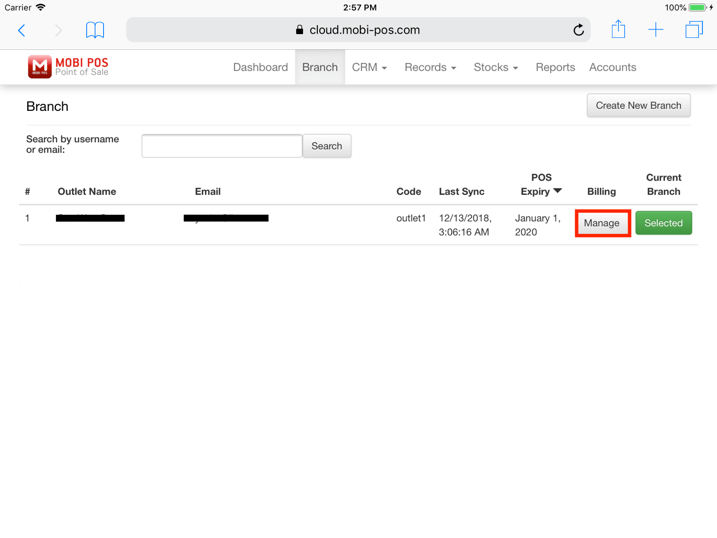
Upon tapping on Branch, the page will be redirected to the image as shown below.
Tap on "Manage".
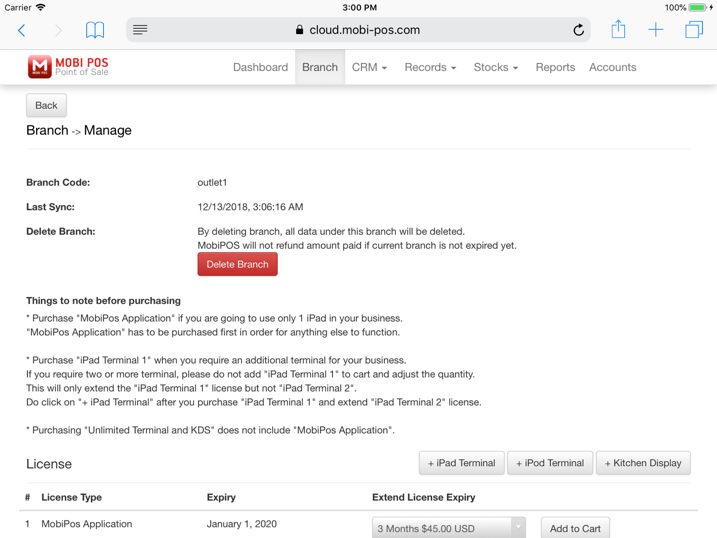
Then, scroll down and tap on "Request Backup" as shown in the image below.
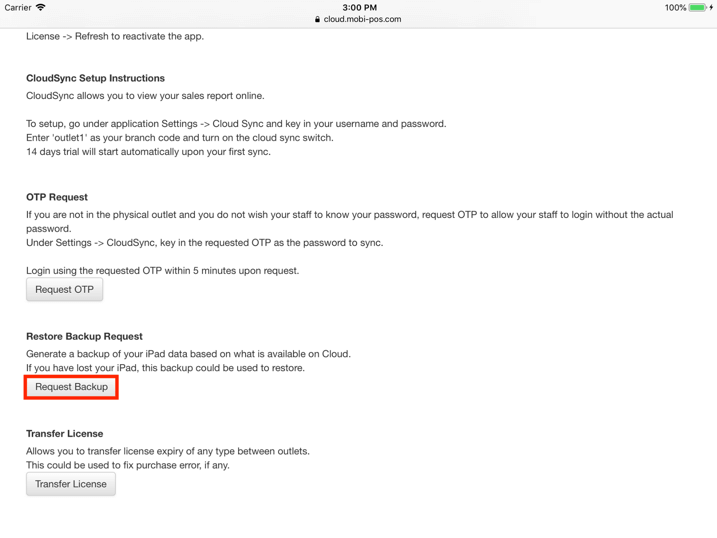
Upon tapping on "Request Backup", system will generate a backup file based on the latest data.
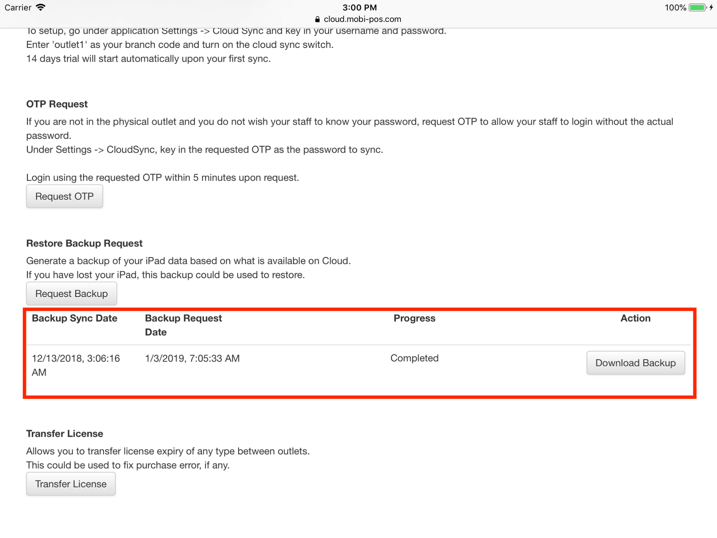
| Backup Sync Date | It shows the last sync date and time from the iPad to MobiPOS CloudSync. If the date is too long ago, you might lose some data in this restore. |
| Backup Request Date | It shows the date in which the backup is requested. |
| Progress | It shows the progress of the backup restoration. If you have been using MobiPOS for quite some time, it will need a longer time to process. A progress bar will be shown under the "Progress" column. Upon completion, it will be shown as "Completed". |
| Action | To download a backup, tap on "Download Backup". Users can only download backup when it is completed. |
When the file is ready to be downloaded, users may now click "Download Backup".
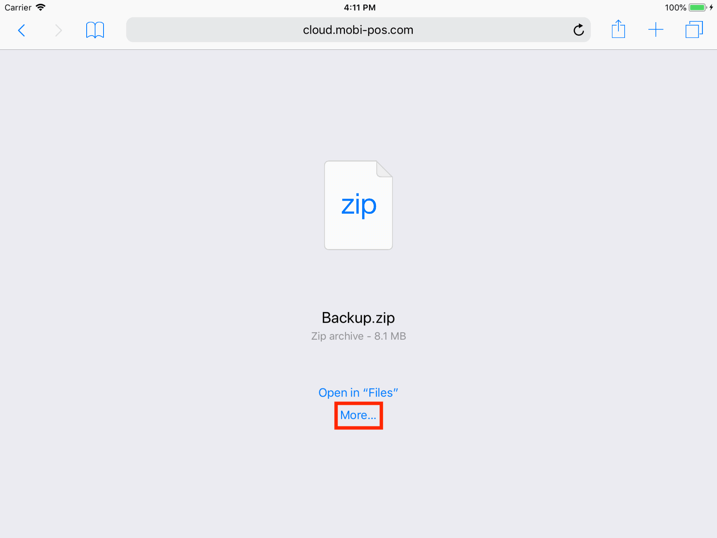
On the iPad, you will be redirected to this page as shown below.
This indicates that the backup file is successfully downloaded, and located in the Files app.
To restore your database on the current iPad, follow the steps below.
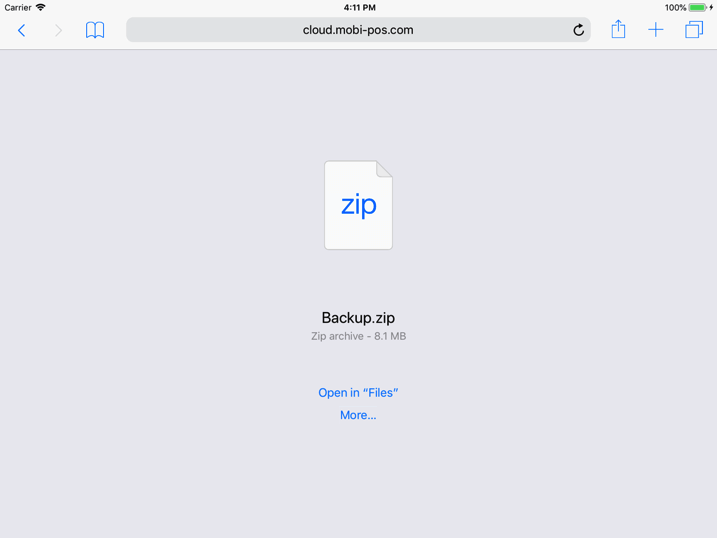
Else, if you are downloading on a computer, you should be able to find it in your Downloads folder.
Restore Backup on iPad
Continuing from the previous step, tap on "More".
Note: To restore the data from the cloud in the newly replaced iPad, make sure you already have your MobiPOS app downloaded from App Store.
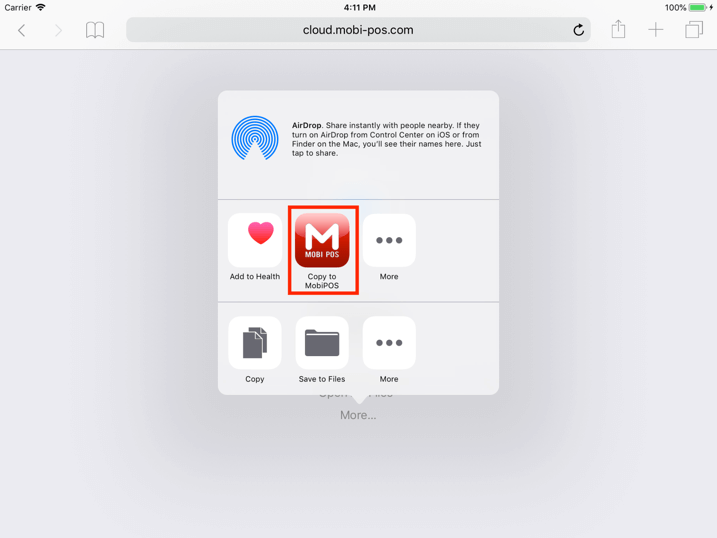
Upon tapping on "More", a pop-up window will appear as shown in the image below.
Then, click on MobiPOS.
Users will then be redirected to MobiPOS app.
Tap on "Full Restore".
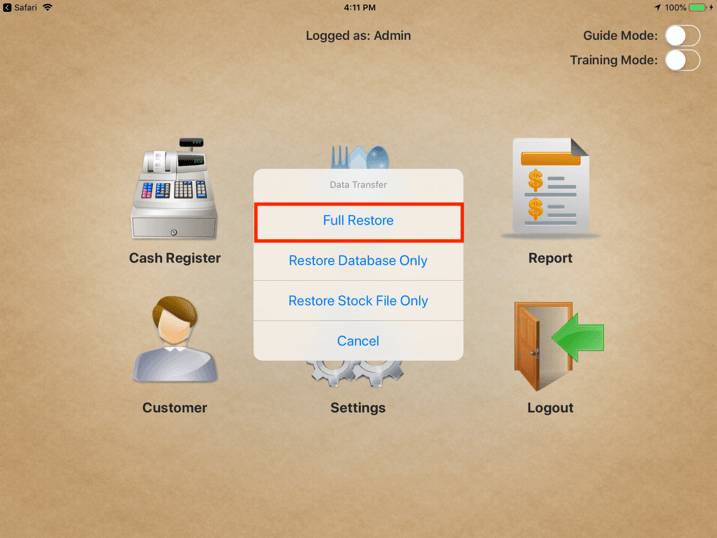
You should now get all the data based on your Cloud Sync backup on your iPad.
Do remember to turn back on CloudSync under Settings -> Cloud Sync.