Guide | MobiPOS > Settings > App Settings > Inventory Check
Inventory Check
By default, the systems lets you order an item even if the inventory goes into negative.
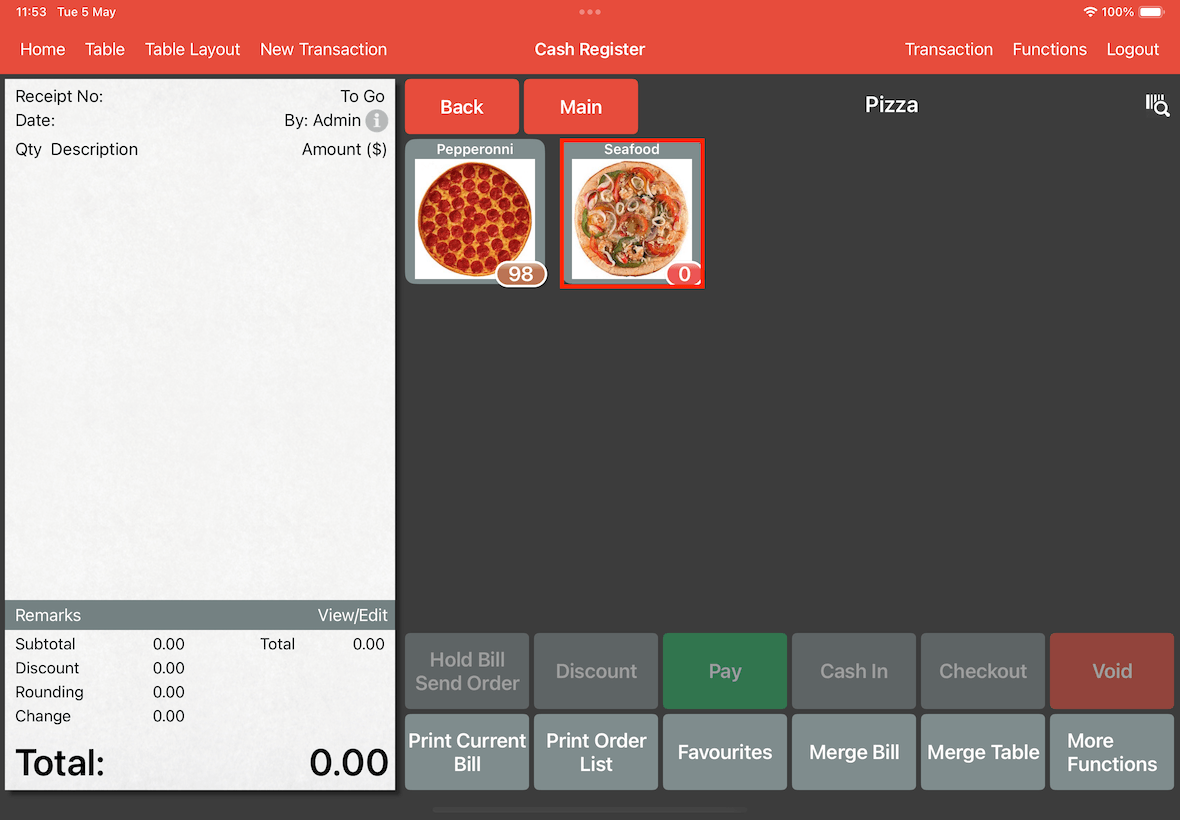
As shown below, seafood pizza inventory is 0.
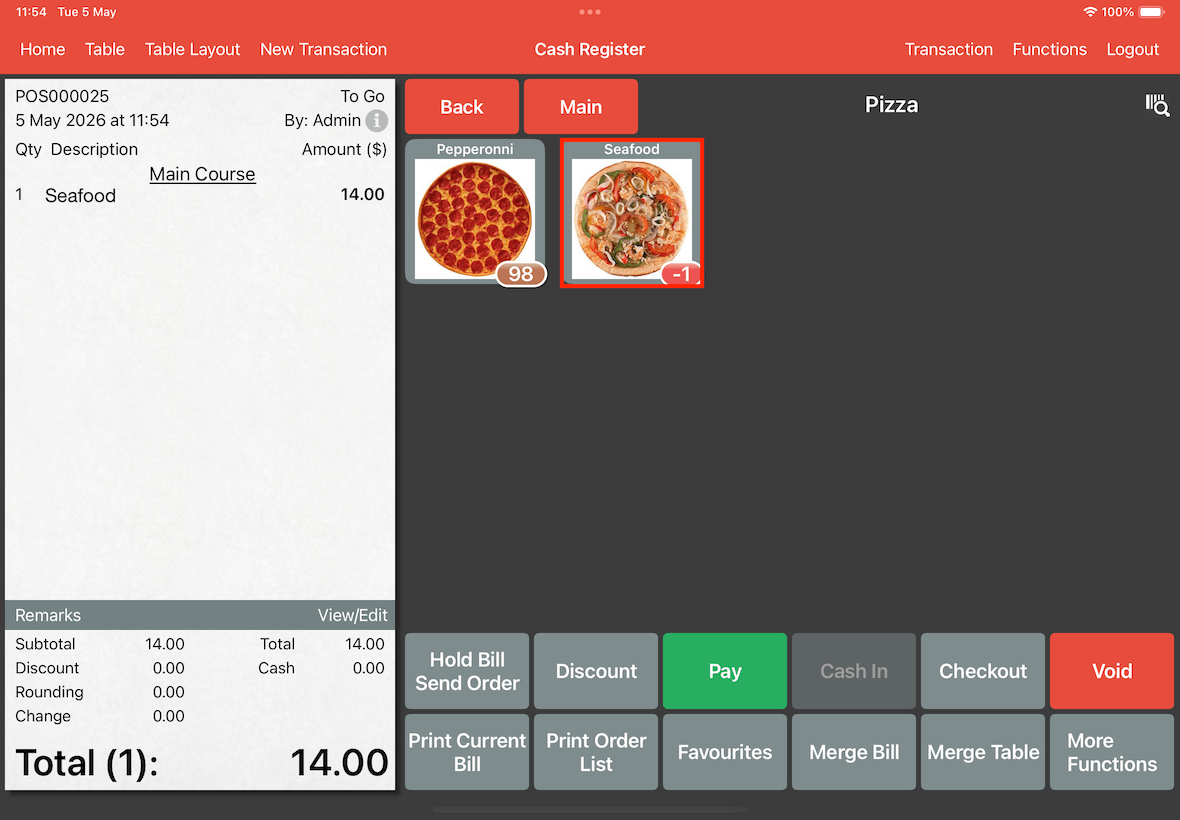
The system still let the pizza to be ordered, and deduct the inventory to be -1.
However, if you want to prevent the item to be ordered when inventory reaches 0 or below, you can follow the steps below.
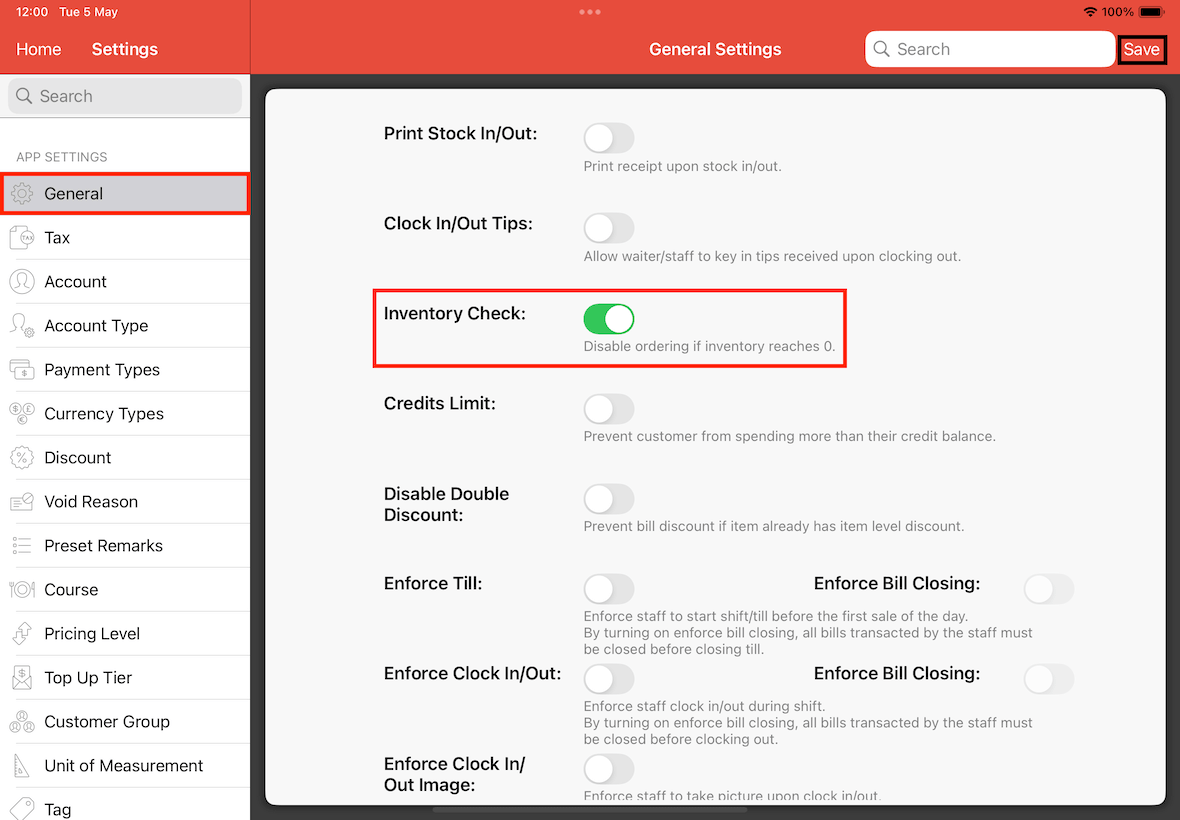
First, go to Settings -> General -> Inventory Check, switch it On and Save.
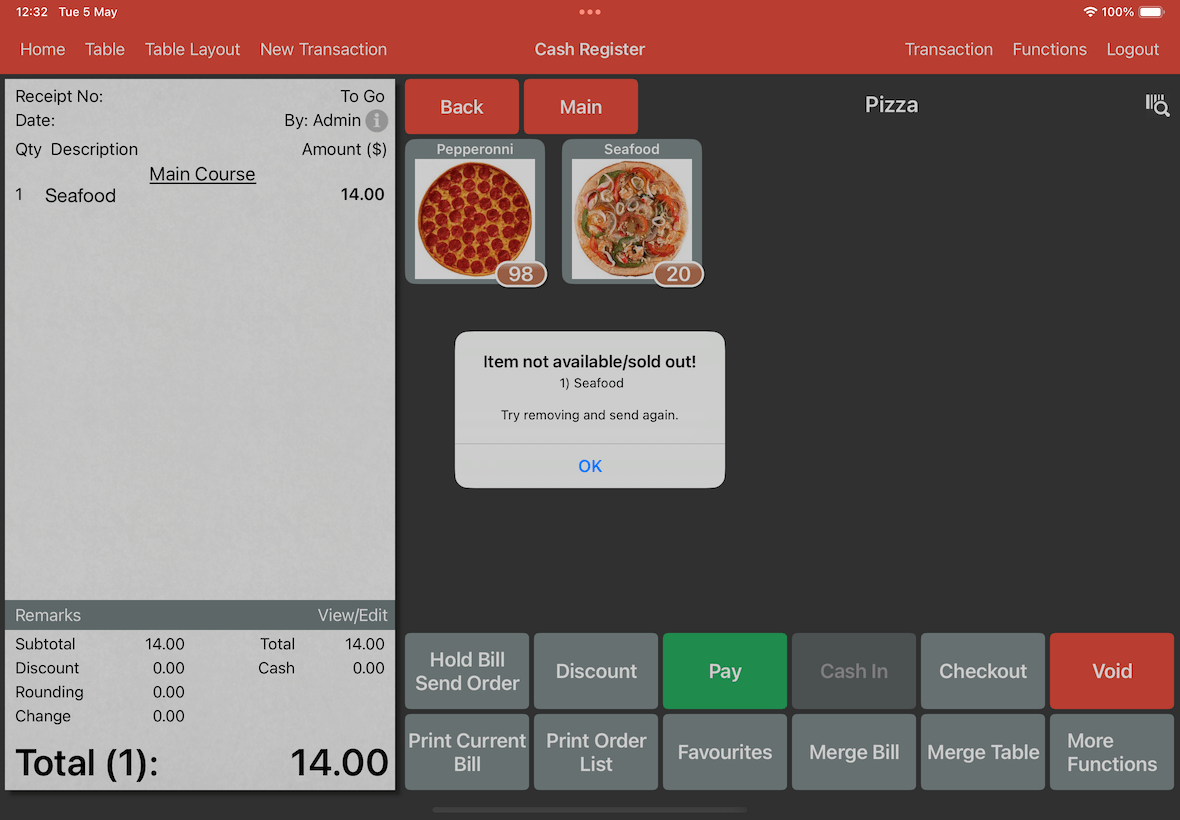
Now go back to Cash Register page, order an item (e.g., Seafood pizza) and send the order.
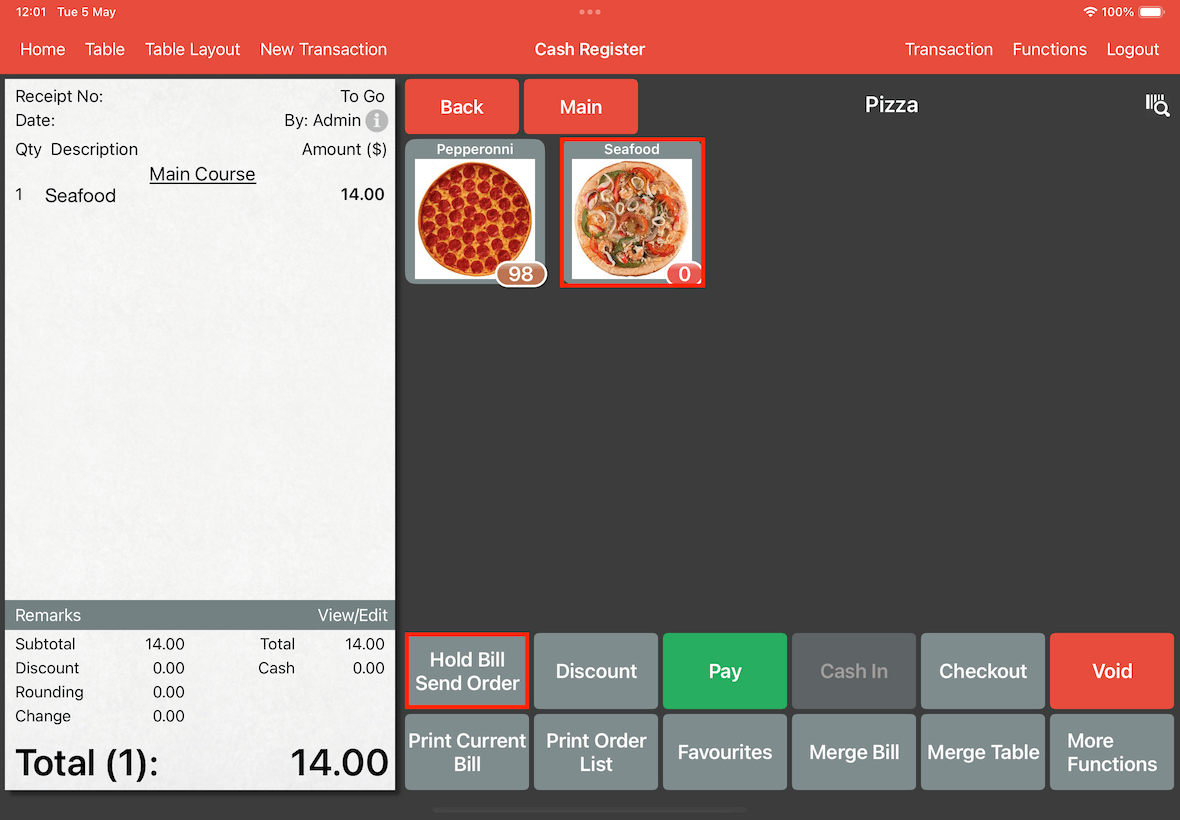
It will now shows a message when you checkout with an item that is 0 or in negative.
This will prevent staff from over ordering.
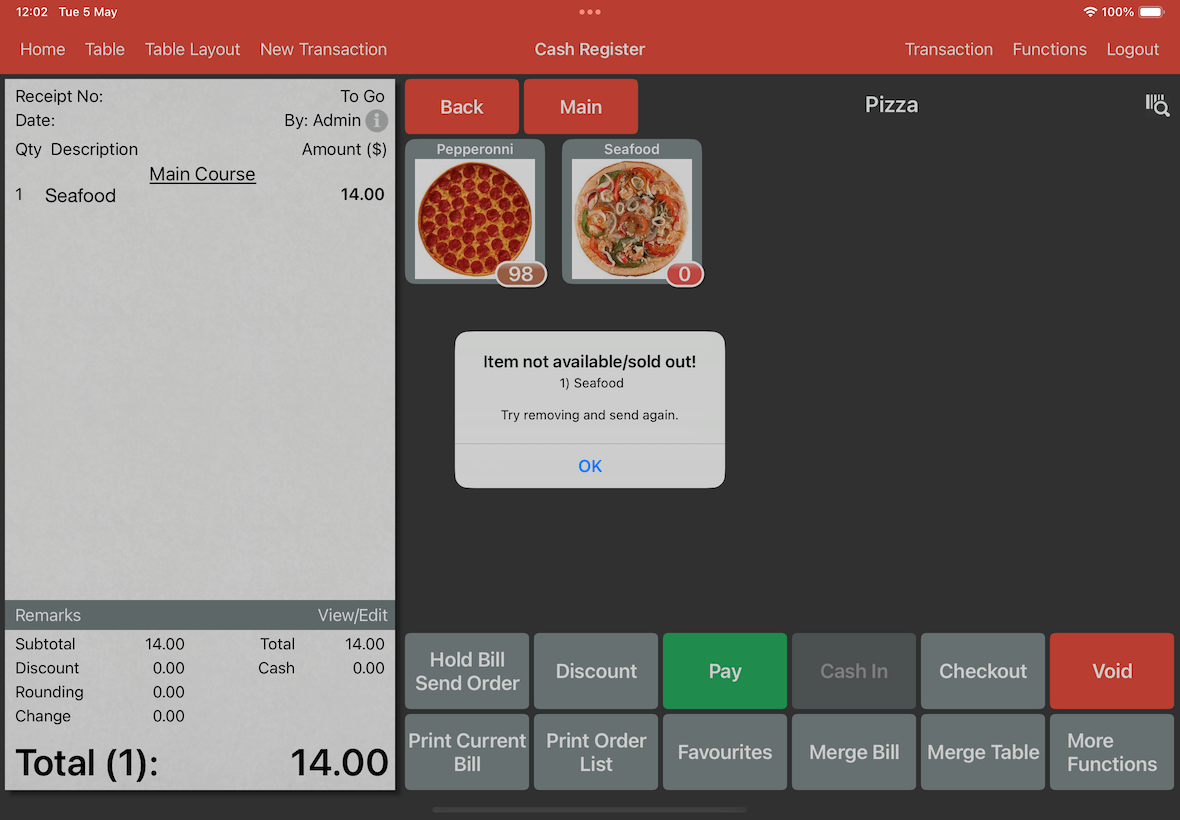
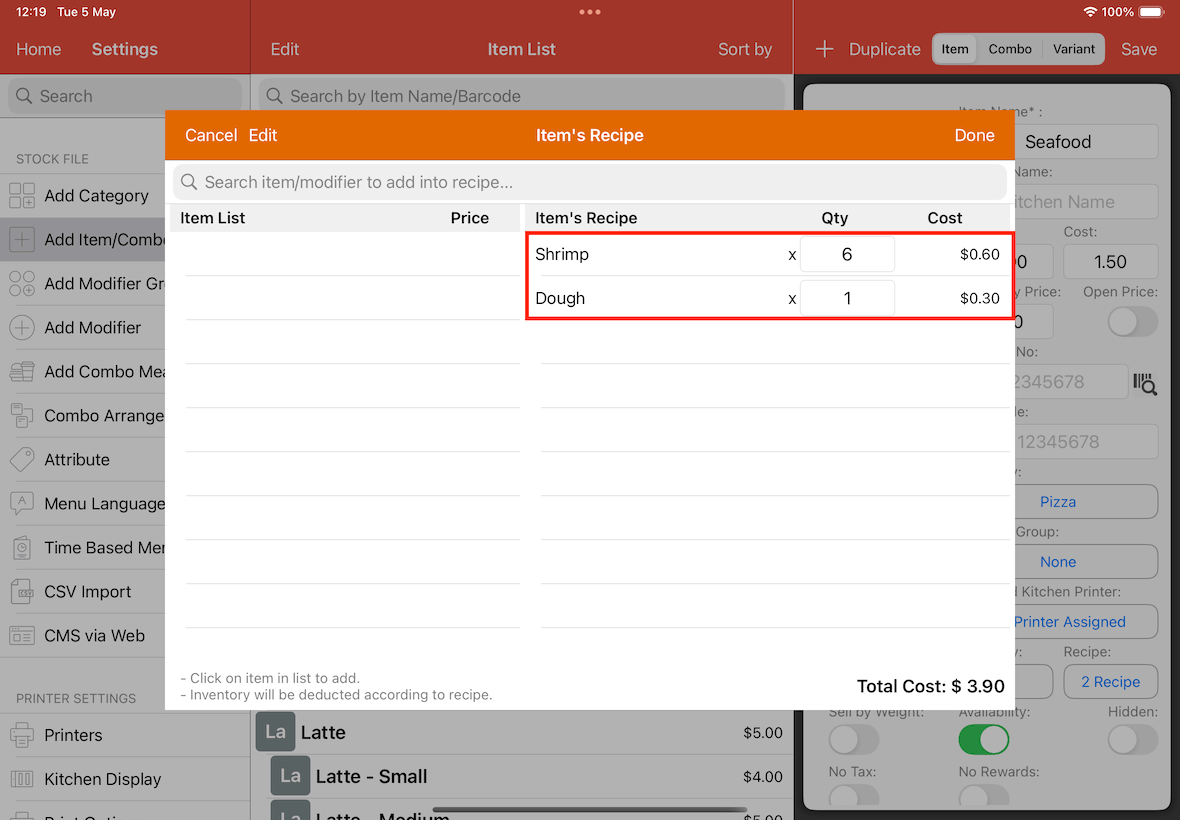
In certain situation, where an item is configured with recipe, the system would also prevent it from ordering if its recipe's inventory is below what is needed.
For example, Seafood Pizza uses two recipe which is 6 shrimp & 1 dough.
But shrimp only left 4 in the inventory, which is an insufficient amount for the Seafood Pizza.
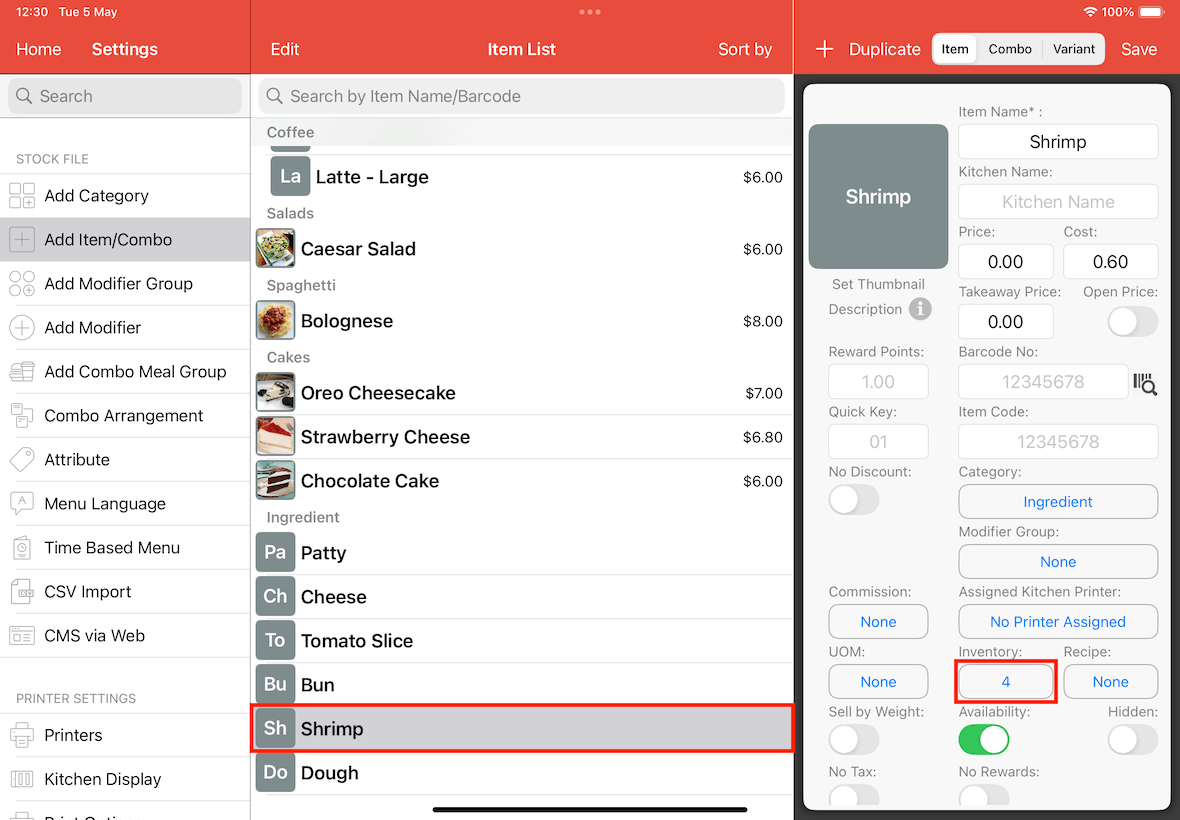
The inventory amount of dough is sufficient for the Seafood Pizza.
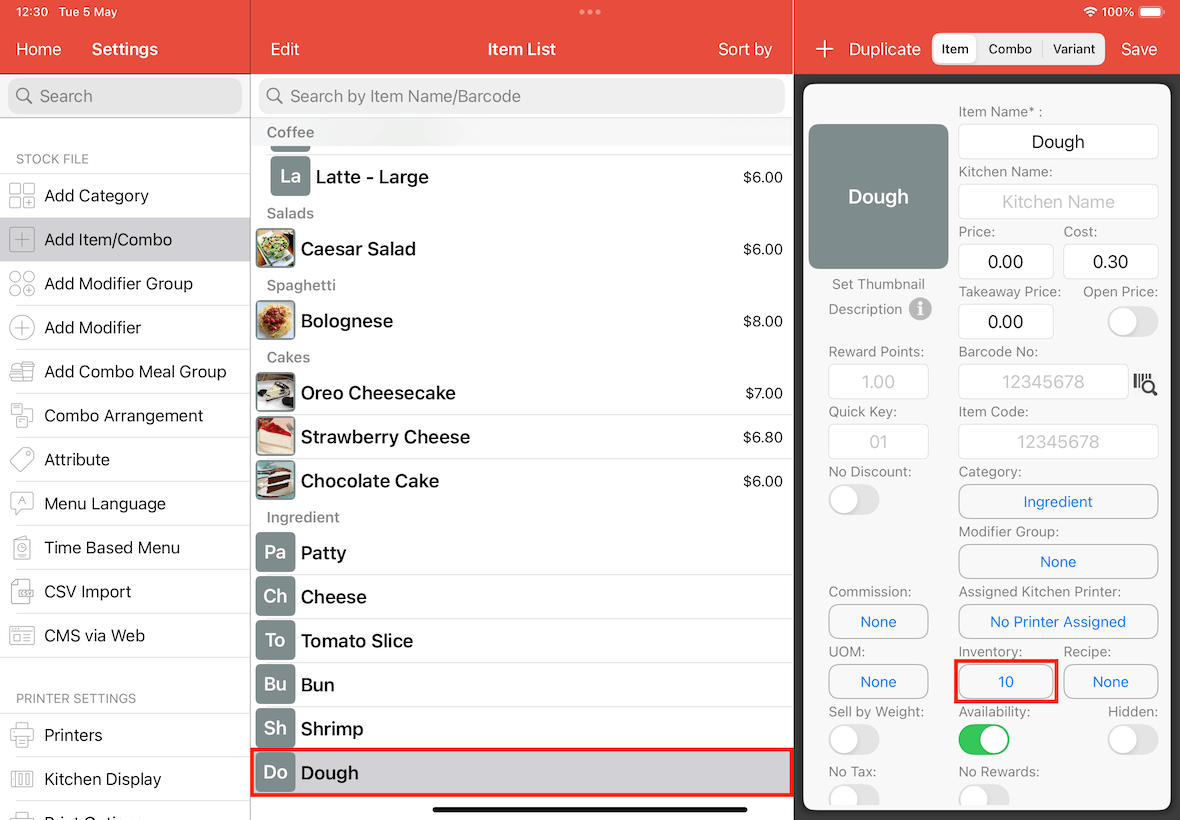
The alert message will still show even the pizza have sufficient inventory amount, due to its recipe inventory amount is insufficient.