Guide | MobiPOS > Settings > Others > Creating Voucher as a Discount
Creating Voucher as Discount
Typically, vouchers are treated as a form of payment rather than a discount.
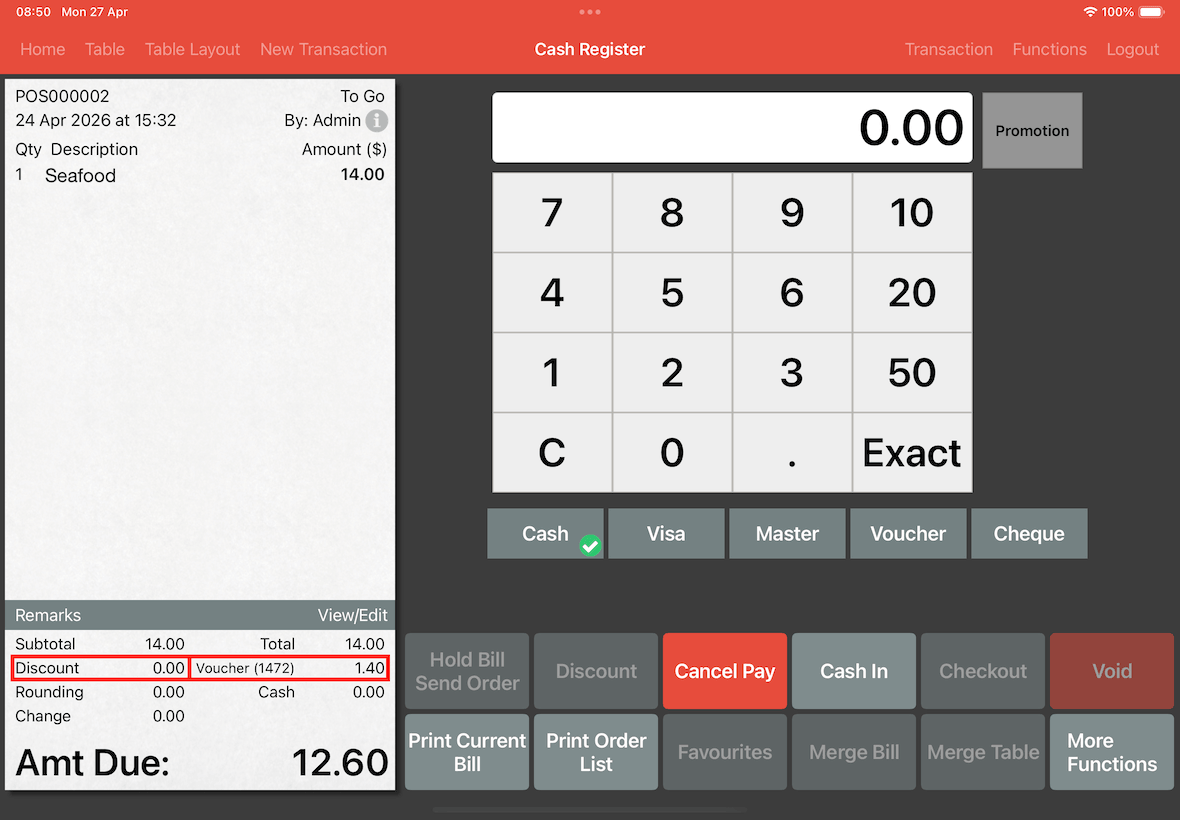
As shown below, if a voucher is applied, it applies as a payment.
While the Discount field remains at 0.00
In this guide, we will show you how to create a voucher that apply as a discount.
Configure Promotion
Before creating a voucher, you first have to create a promotion.
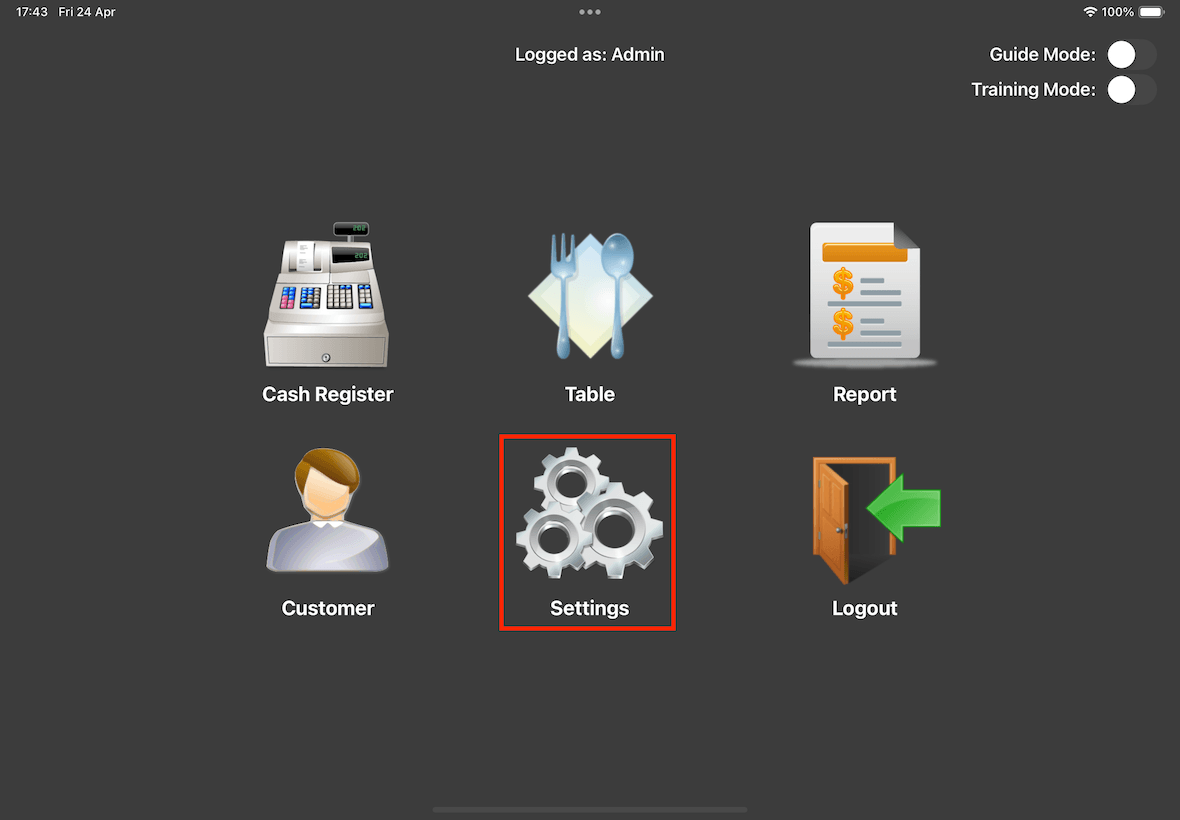
Go to Settings.
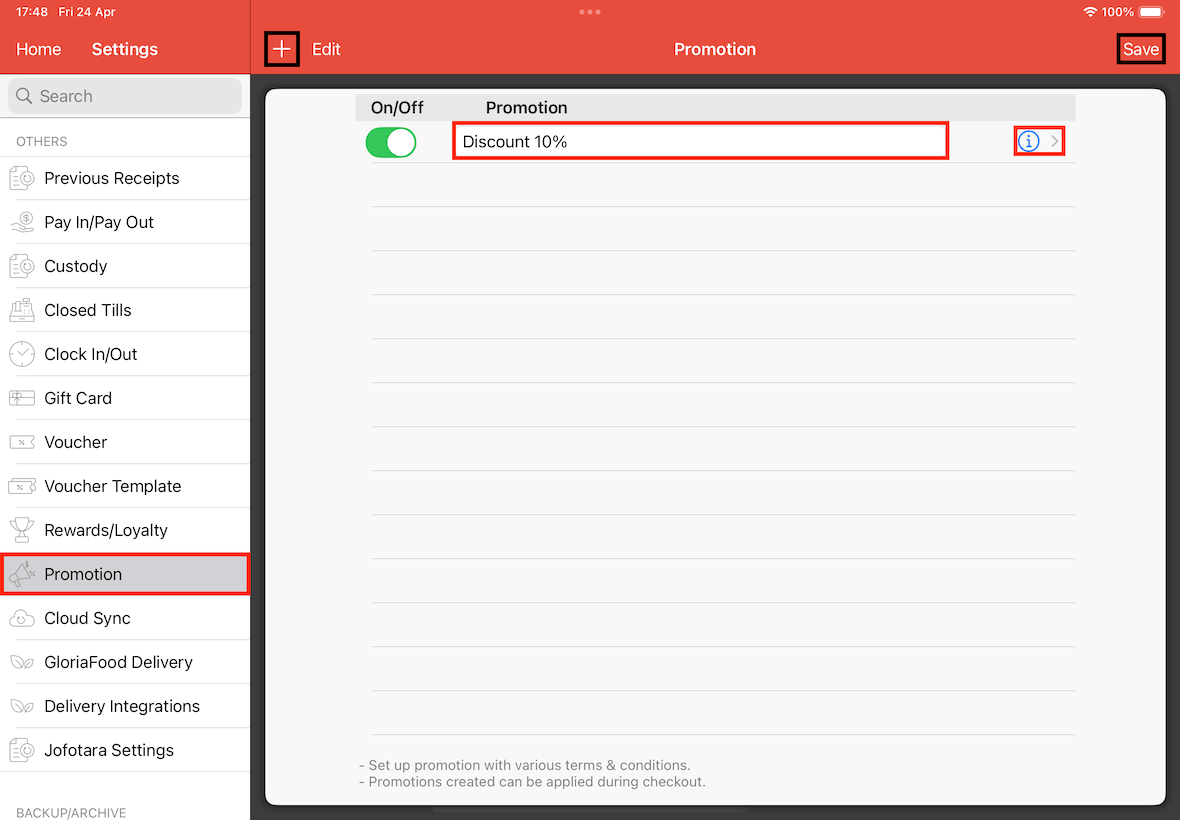
Select Promotion at the sidebar.
Click on the + button located on the left top, key in the promotion name and save it, then
tap on the information icon for the promotion you have created.
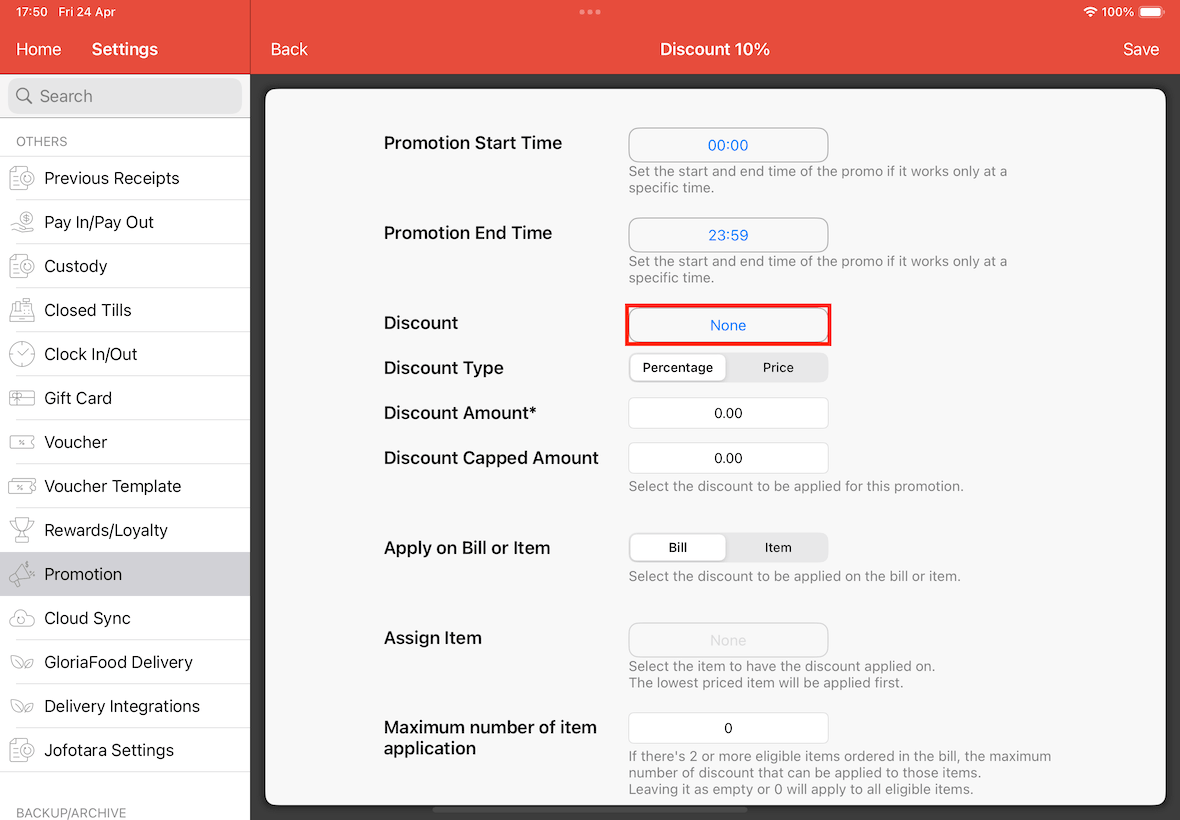
Scroll down to the Discount section.
Tap on the None button to open up the discount selection menu.
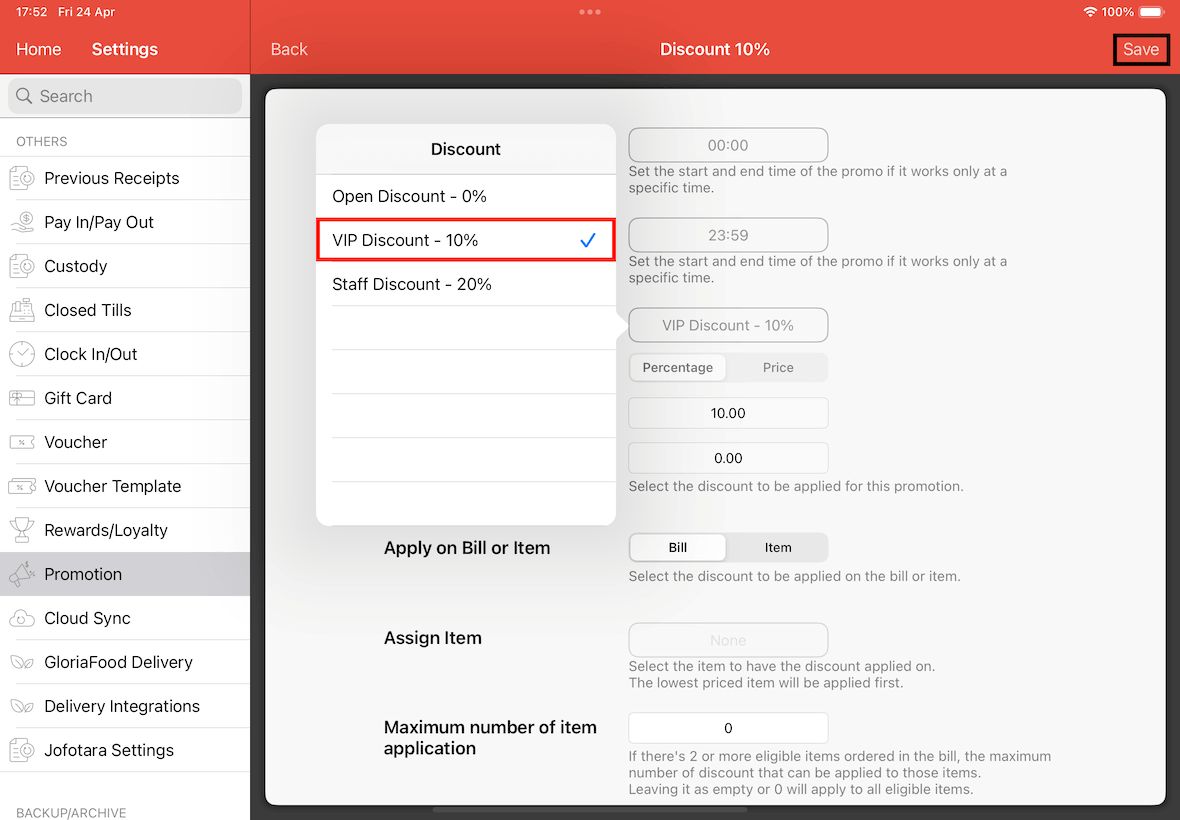
In the pop-up, select the specific discount that you wish and save it.
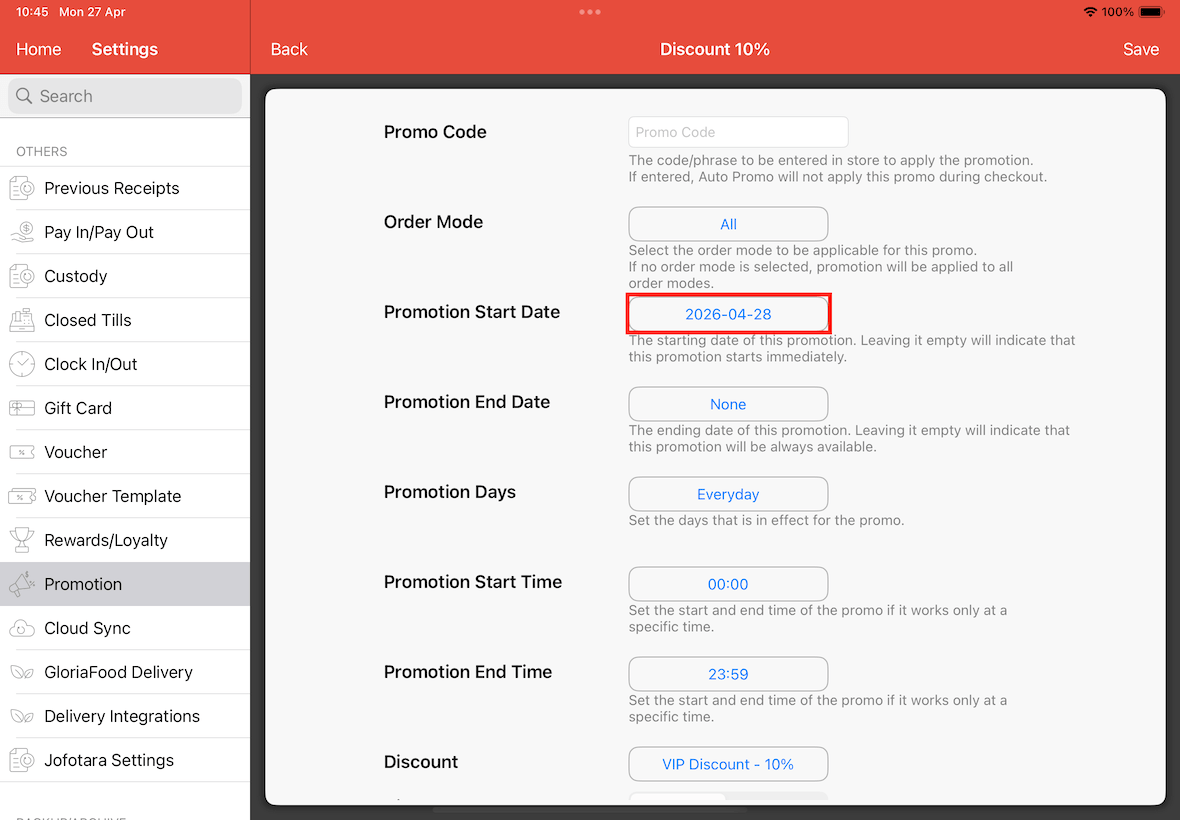
All the rules and configuration would apply to how the voucher works.
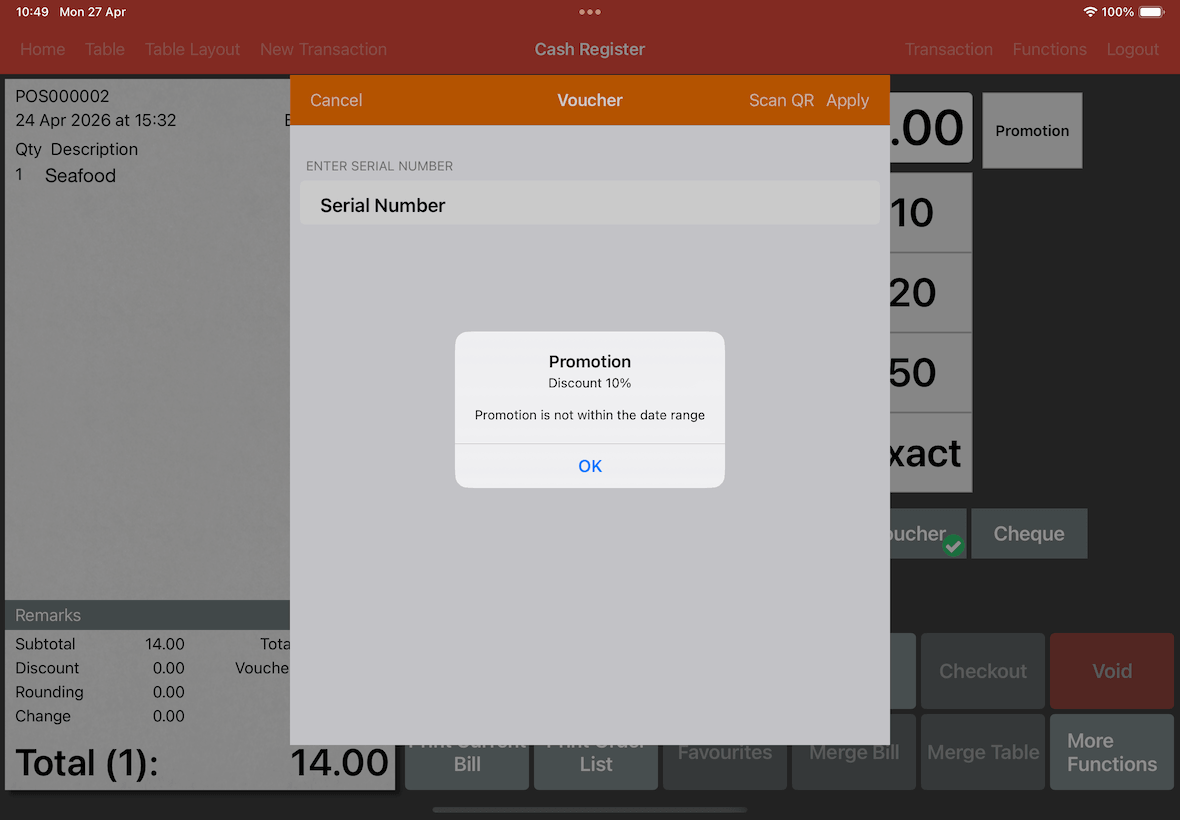
For example, if a promotion start date is set, applying the voucher before the start date will be blocked.
Configure Voucher Template
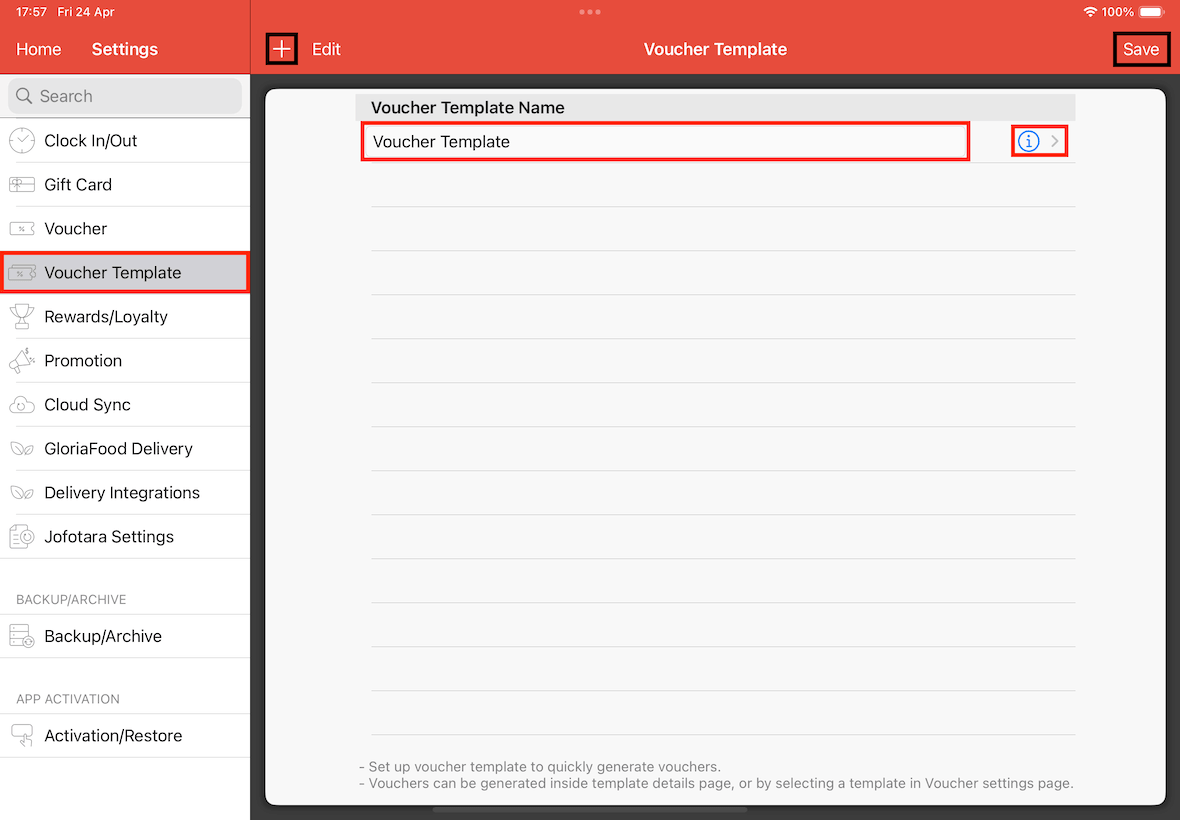
Next, go to Settings -> Voucher Template.
Click on the + button on the left top, key in the voucher template name and save it.
Tap on the information icon for the template that you have created.
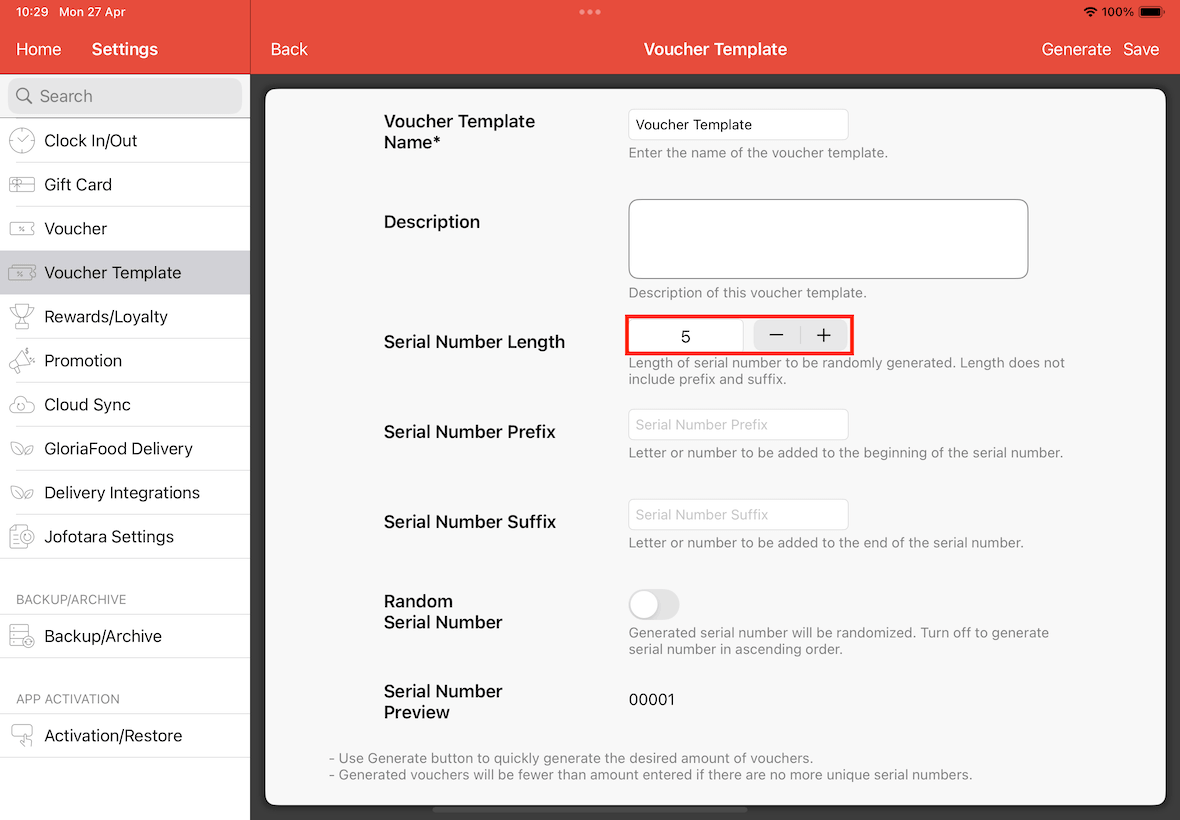
Locate the Serial Number Length section.
Tap on the + button/manually input the number to 3 or higher (e.g., 5).
Increasing the length of it would make the voucher number harder to be guessed.
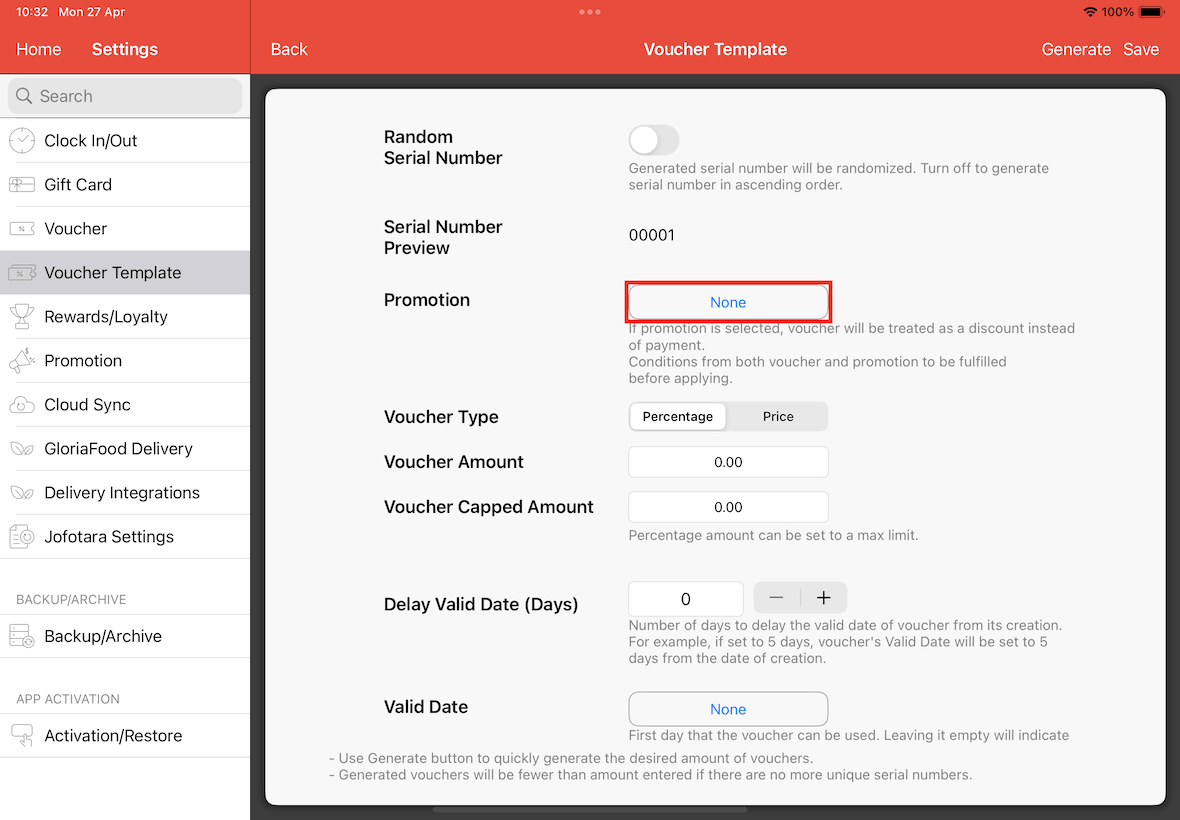
Scroll down to the Promotion section.
Tap on the None button to open the selection menu.
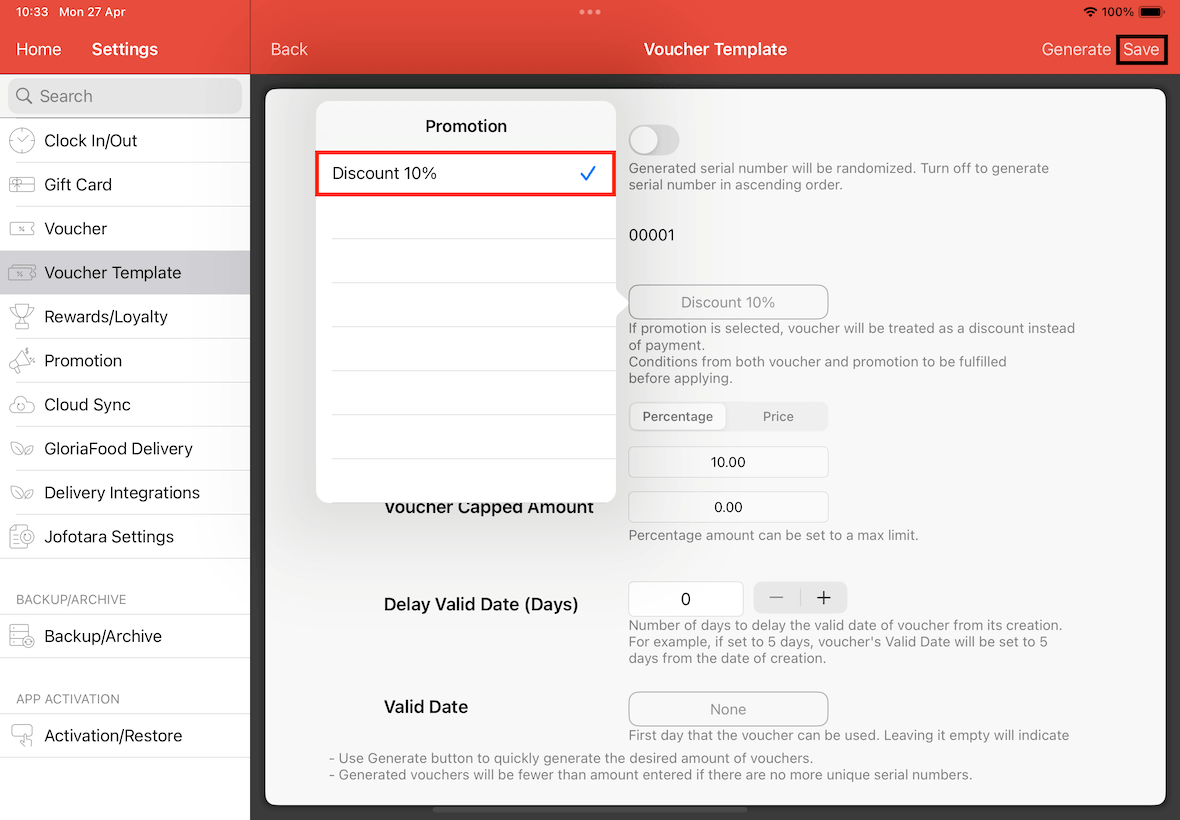
Select the specific promotion you created previously.
Click on the save button located at the right top to save it.
Create Voucher
For the last step, go to Settings -> Voucher.
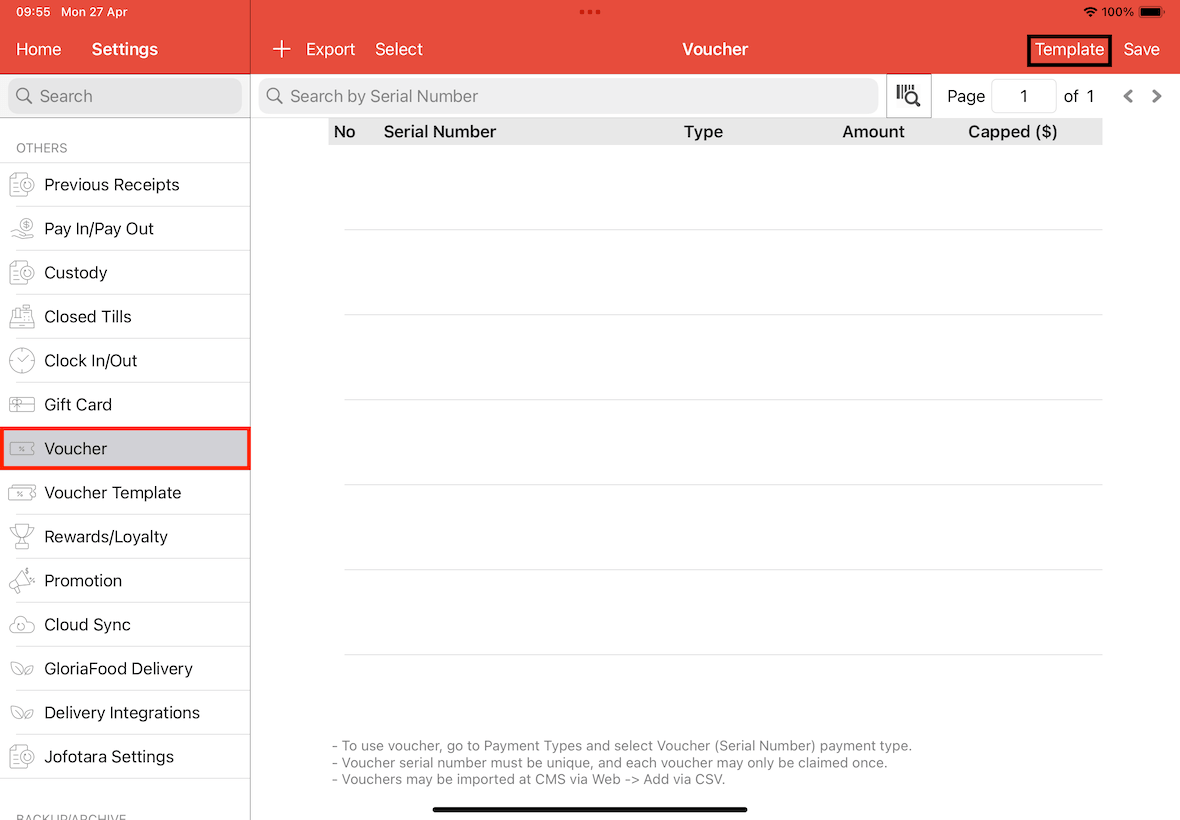
Tap on Template button at the right top corner.
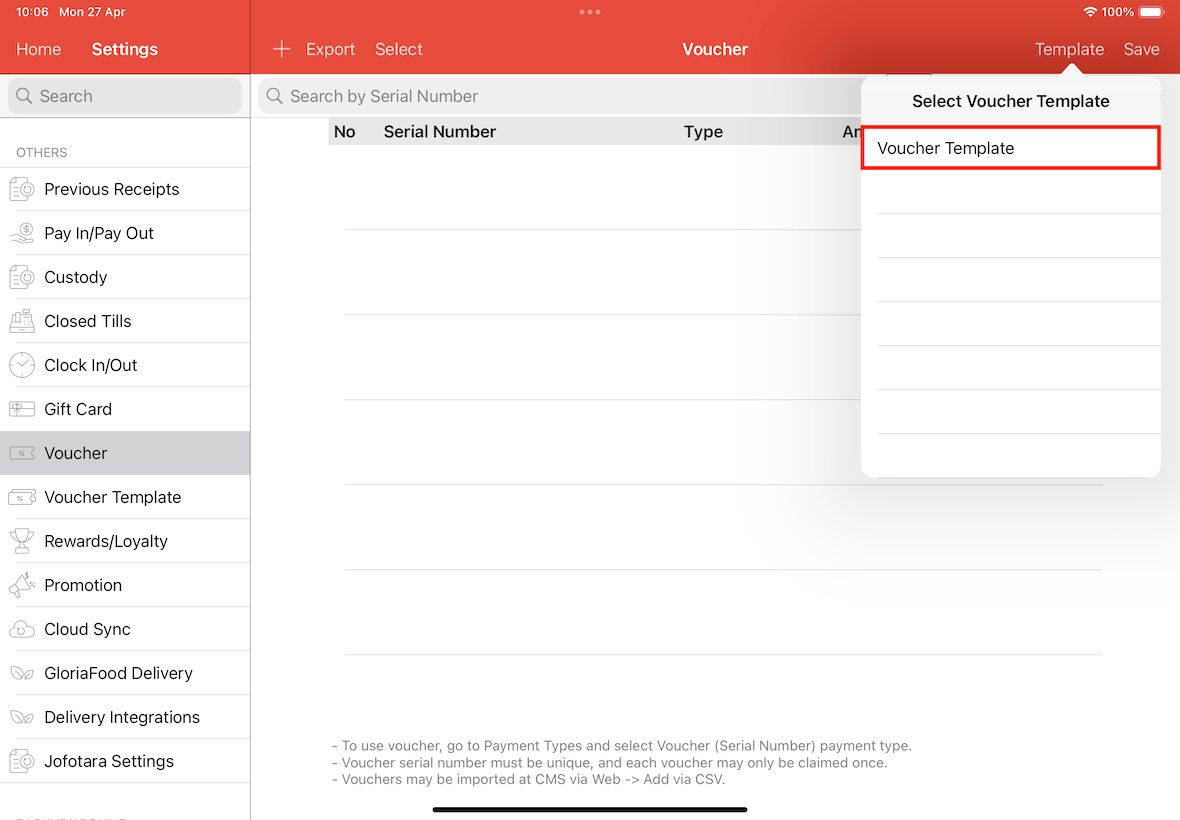
In the pop-up, select voucher template that was created (e.g., Voucher Template).
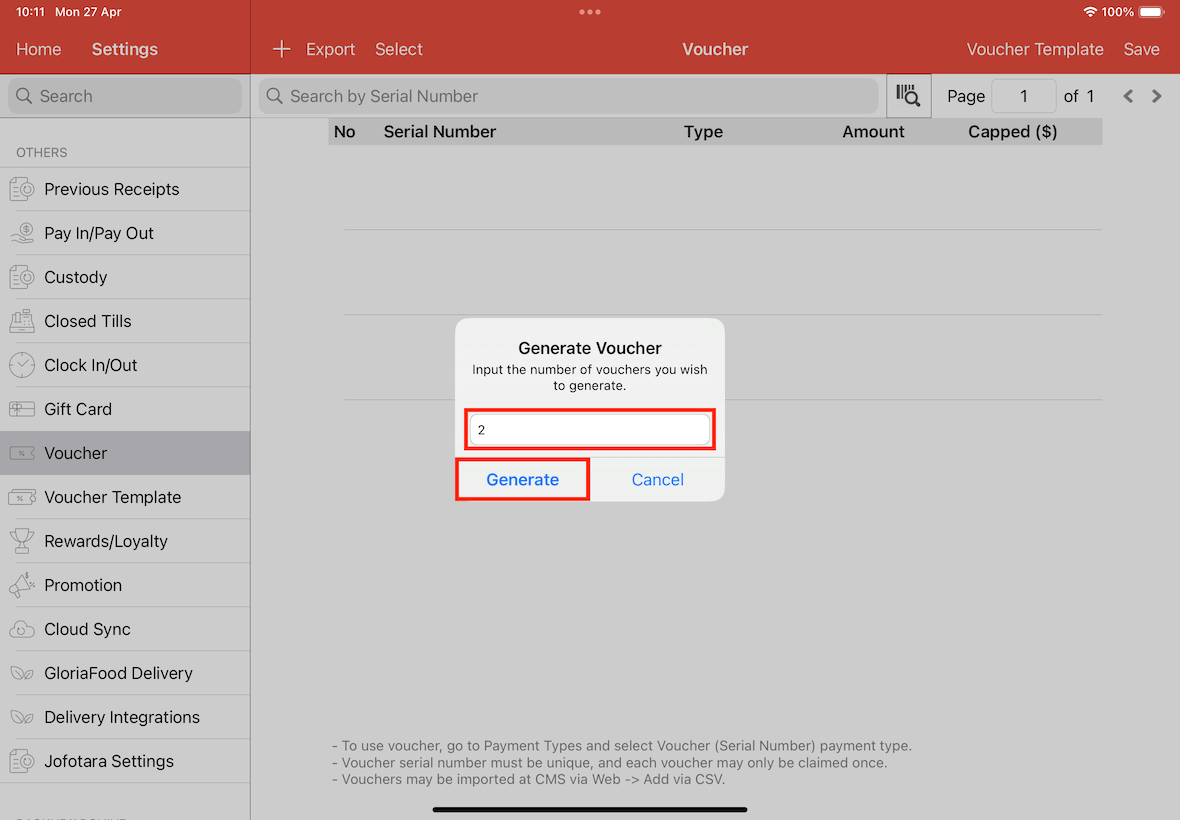
A Generate Voucher alert will be shown.
Enter the quantity of vouchers you wish to generate (e.g., 2) and tap Generate.
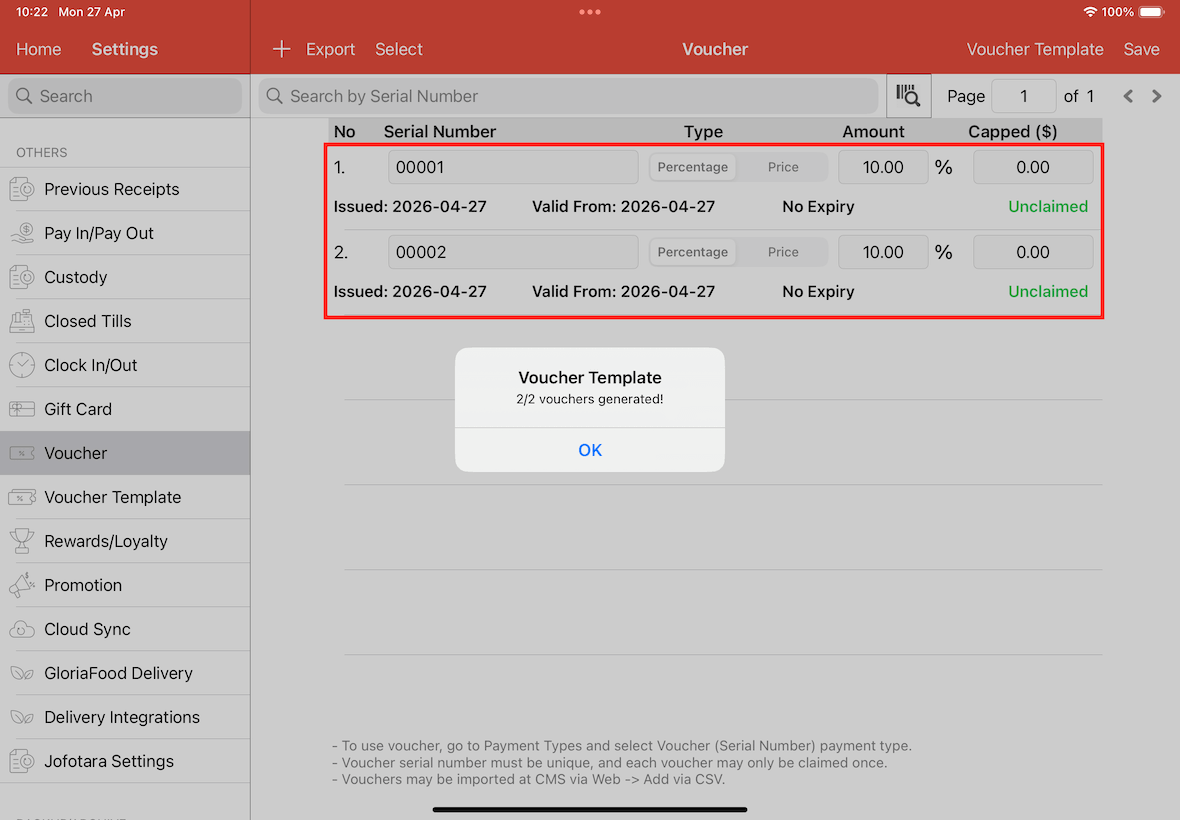
Two vouchers are now created with unique serial numbers (e.g., 00001, 00002).
Outcome
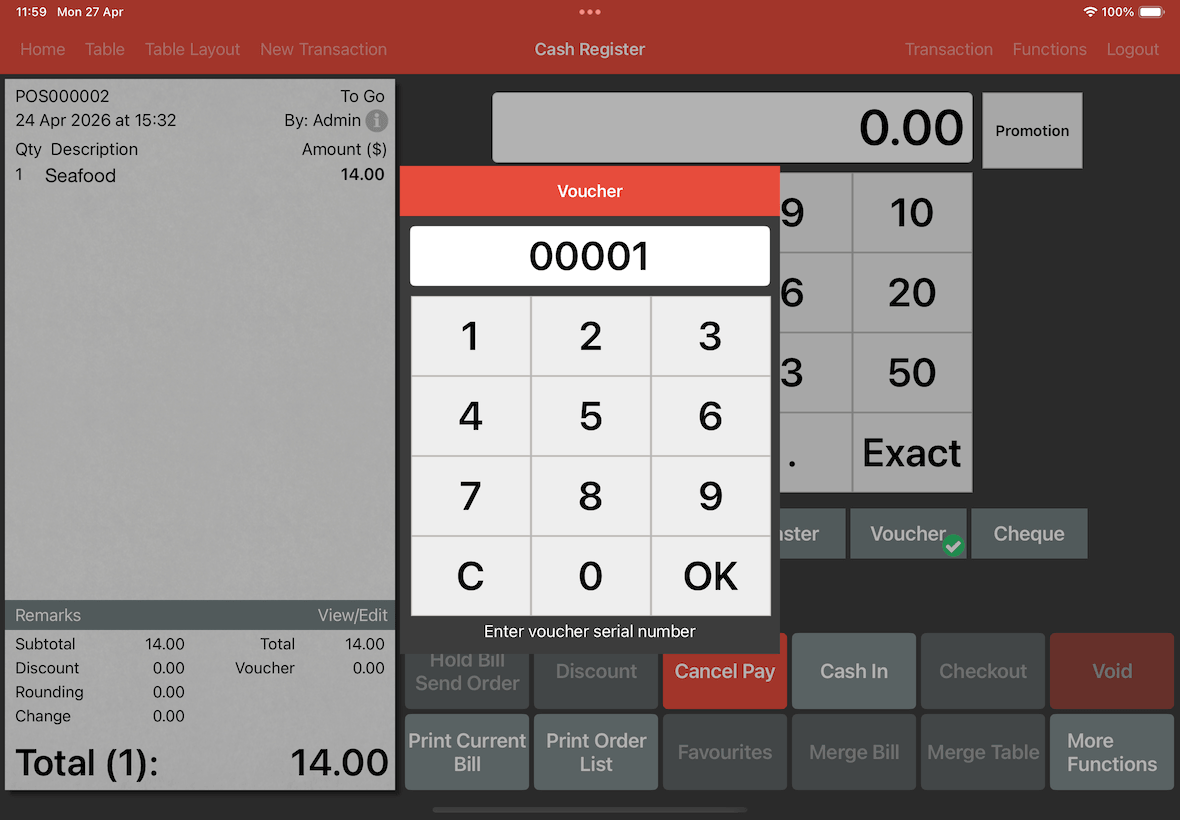
Now at the cash register screen, click on the Voucher payment type, key in the serial number of the voucher and click OK.
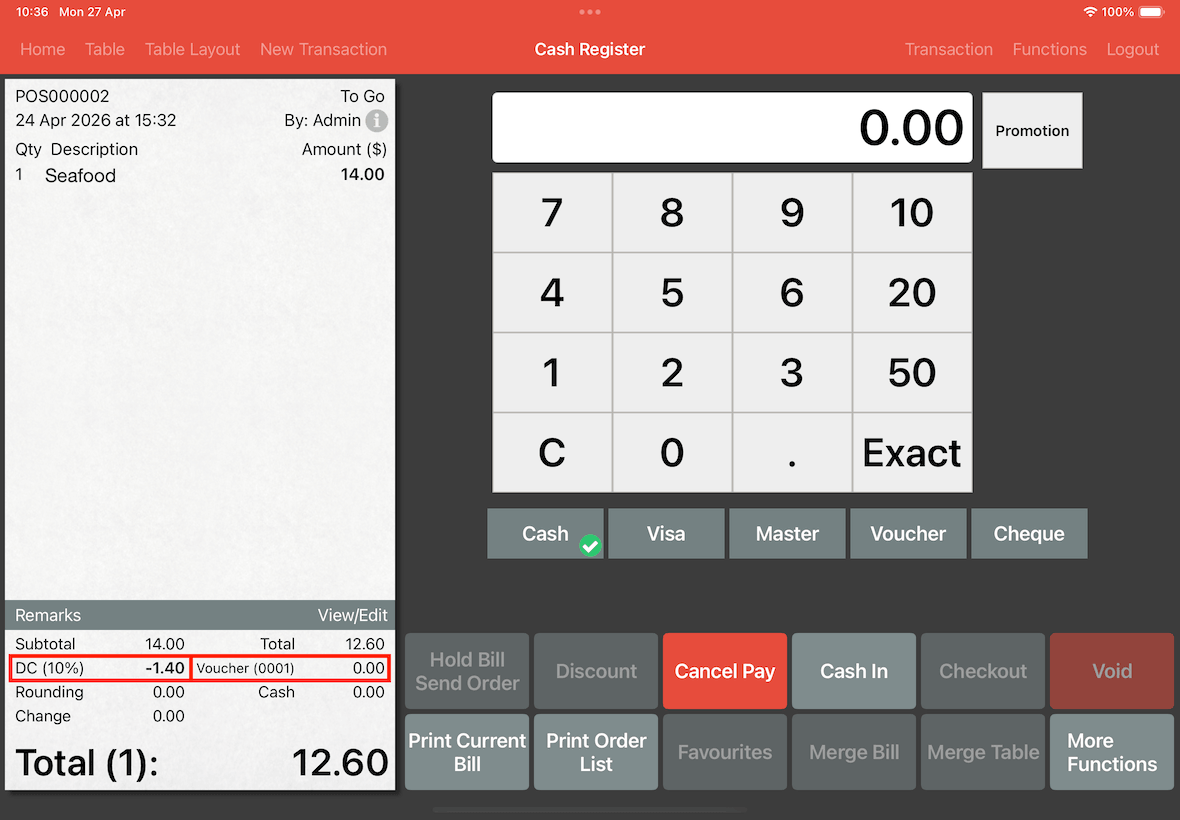
As shown below, a discount is applied rather than a payment.
The last 4 digit of the voucher will be shown under payment, to mark it as used.