Guide | MobiPOS > Online Booking > Others > Reserve with Google Setting
Reserve with Google Setting
This guide explains on how to add the table reservation feature on Google.
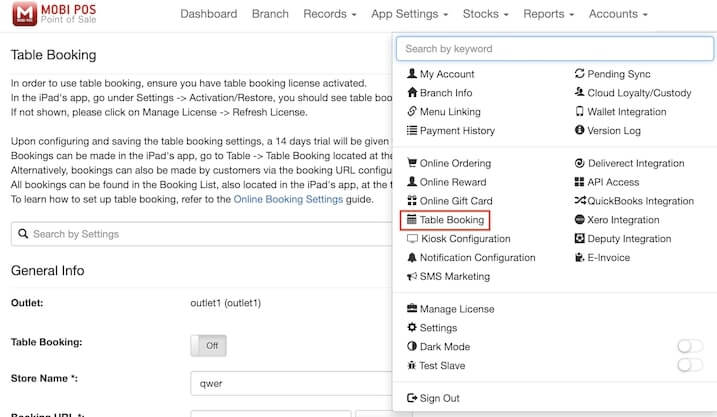
On the Cloudsync website, click on the Username located on the right top, then click on Table Booking.
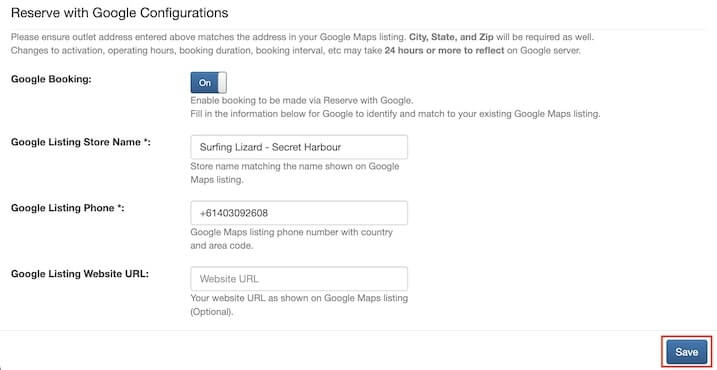
Search for Reserve with Google Configurations.
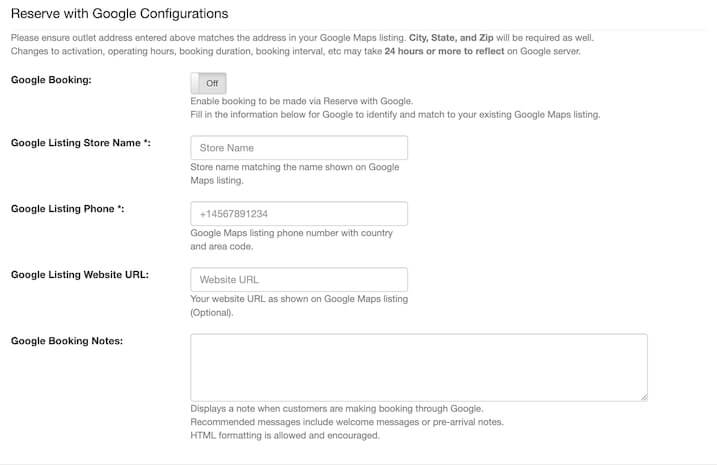
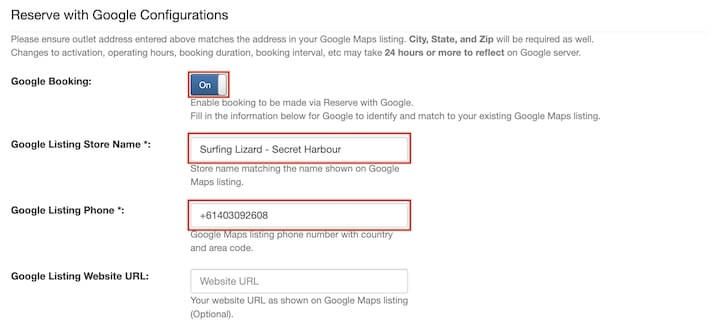
Switch on Google Booking.
Next, enter your Google Listing Store Name and Google Listing Phone exactly the same as they are registered in your Google Business Profile, as any differences may cause errors
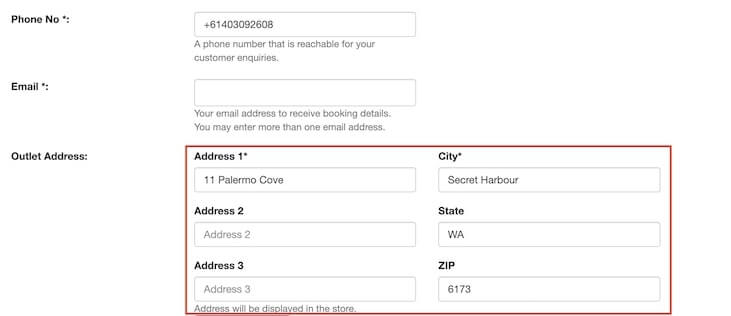
Then, enter your store’s address in the General Info section, ensuring it matches your Google Business Profile.
Click on the Save button after filling in the necessary information. Changes may take up to 24 hours or more before the reserve a table button would appear on your Google Business Profile.
This is what the final output looks like:
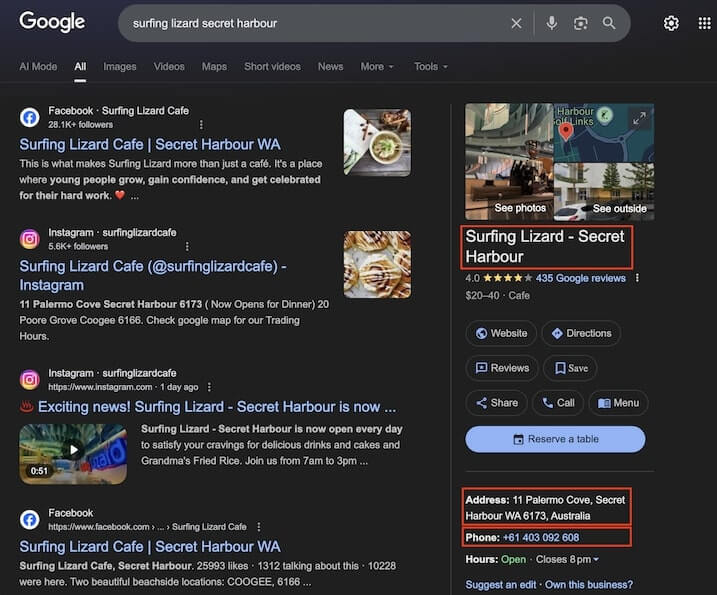
As you can see, the store’s name, contact, and address must be the same as those entered in the online booking settings.
Customers can now reserve a table directly from your Google Business Profile, making it easier for them to make a booking.
Please refer to this guide on how to reserve a table via google.