Guide | MobiPOS > Online Booking > Function > Bypass Block Booking
Bypass Block Booking
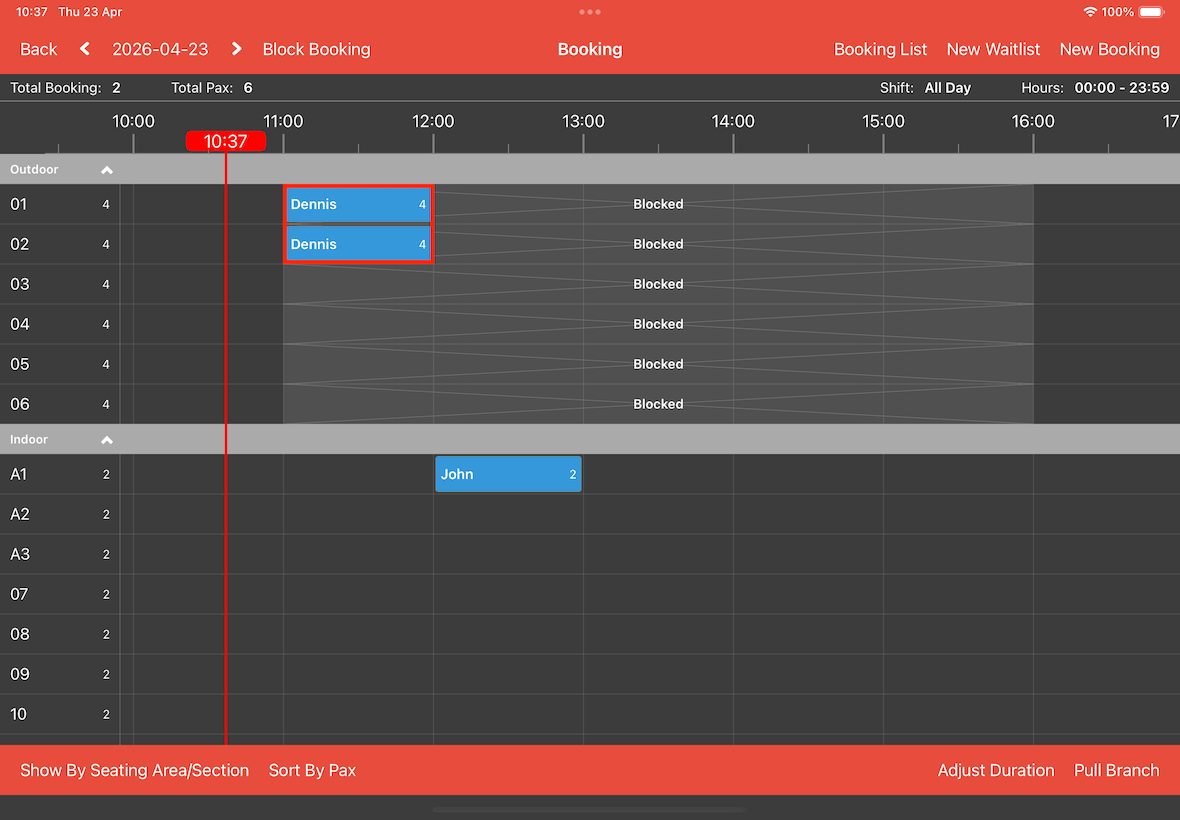
When tables are blocked, sometimes we still want to be able to assign bookings to the blocked tables.
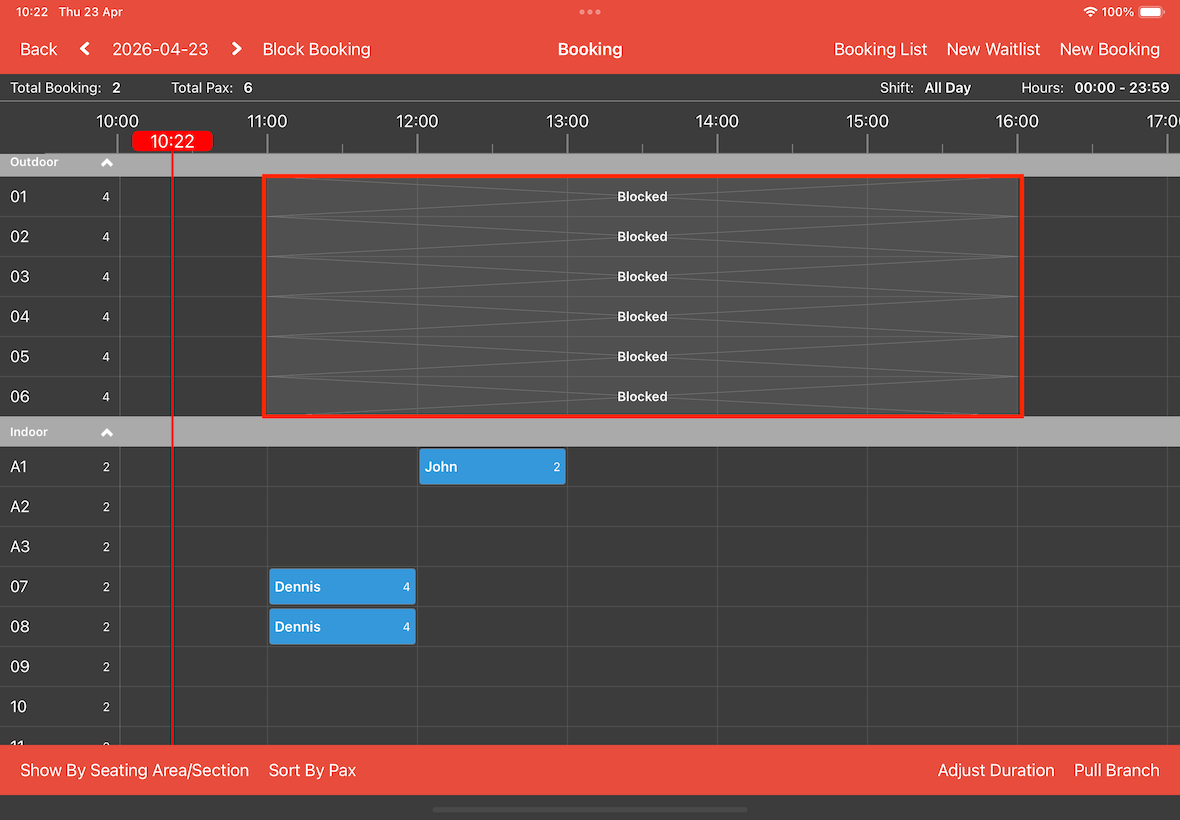
There are 3 methods to perform bypass block booking:
1. Booking details
2. Move booking
3. Booking list
Booking Details
This method is suitable for single or multiple table booking.
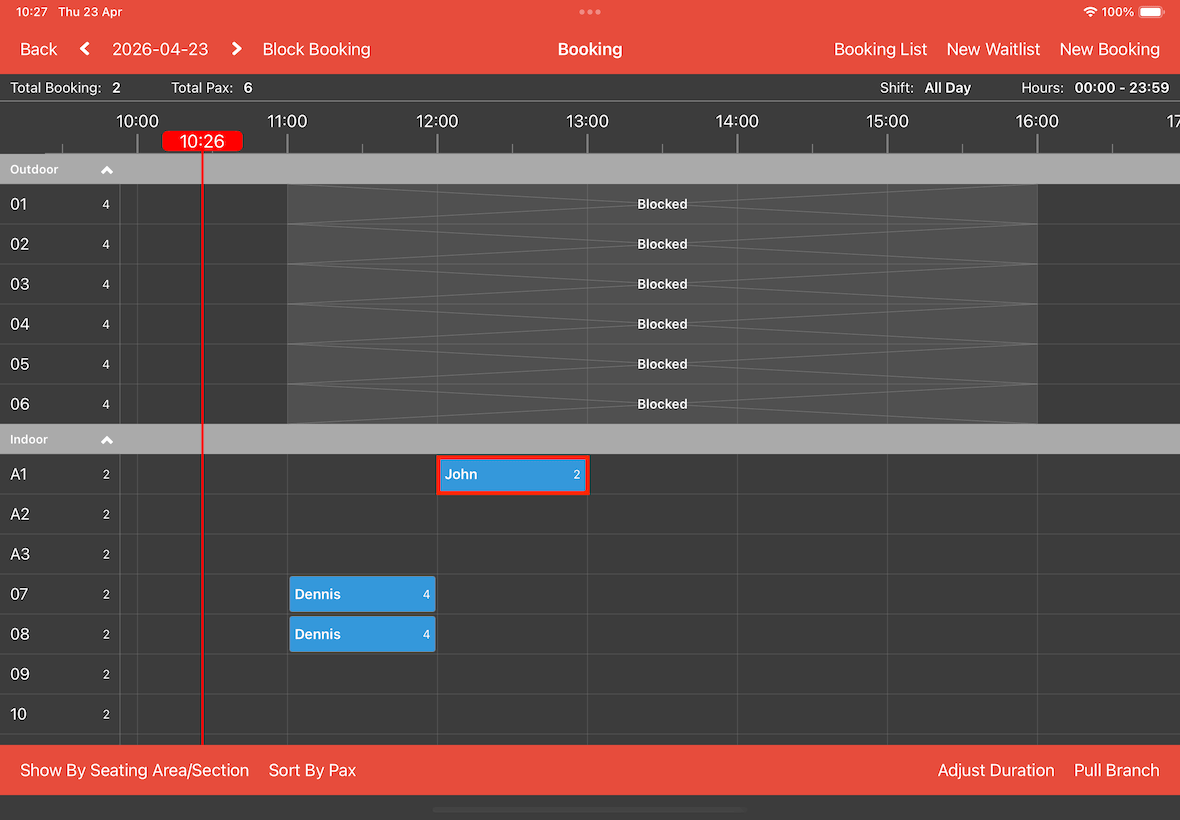
First, tap on a booking entry in timeline to edit.
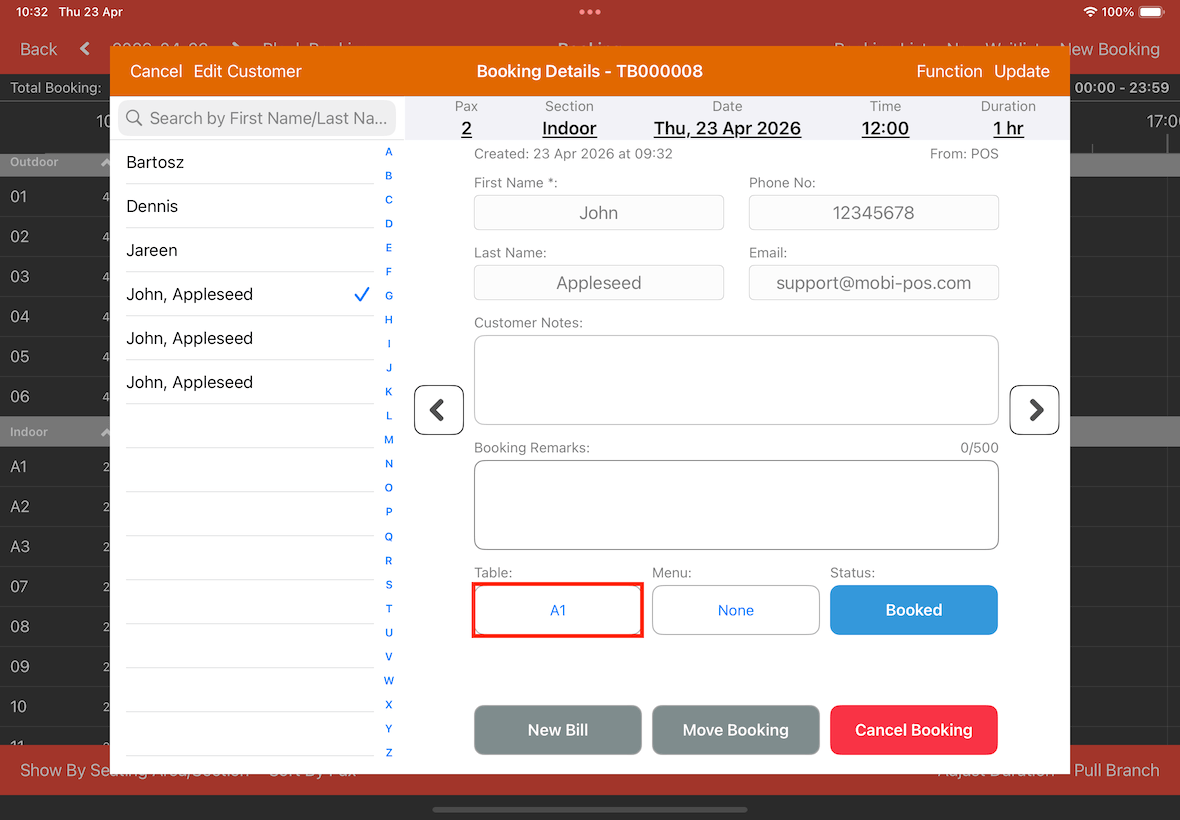
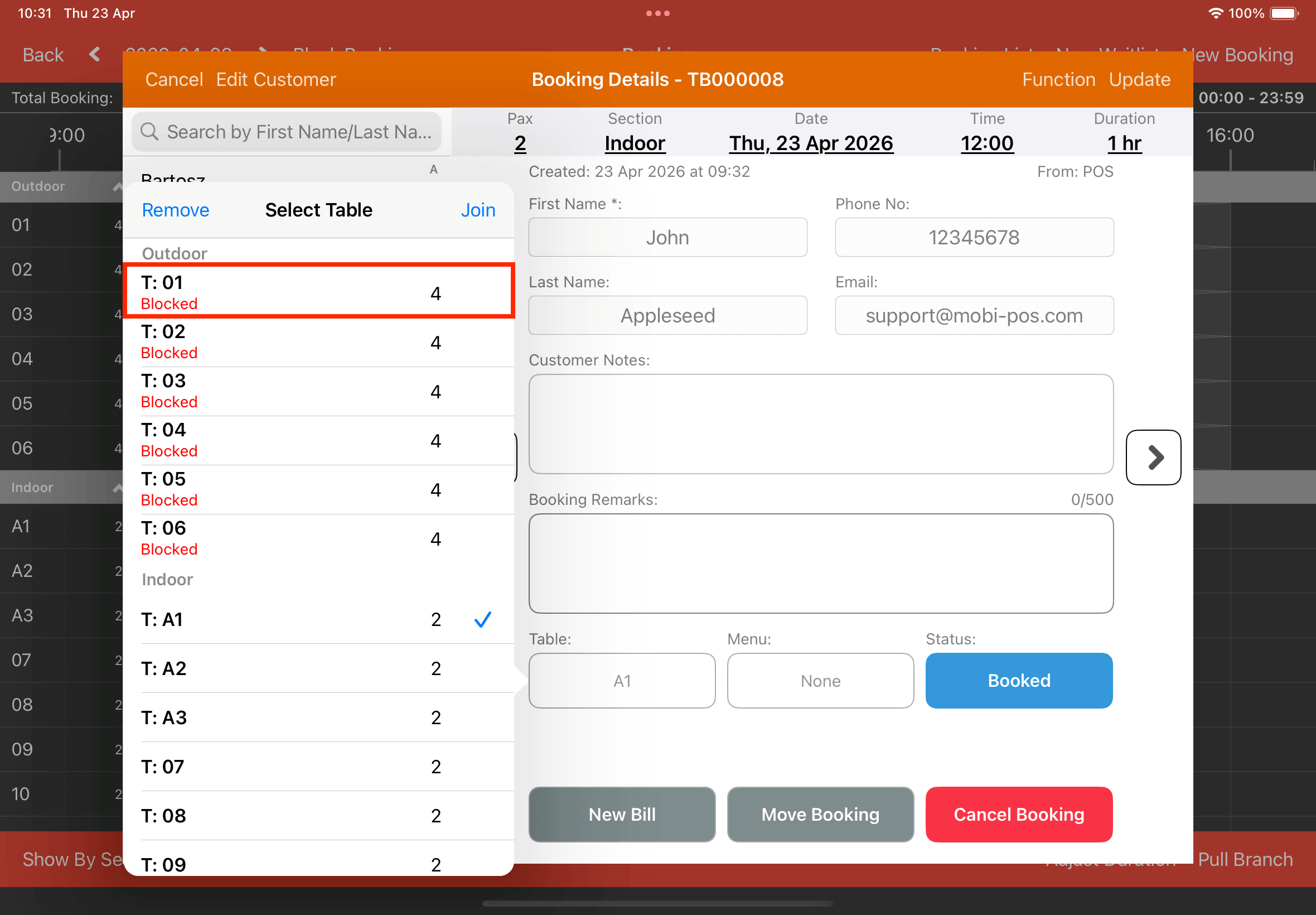
Tap on the button under Table.
In the Select Table pop-up.
Select a table that is blocked.
You can identify the blocked table by the red colored Blocked word under it.
In the below screenshot T: 01 will be selected.
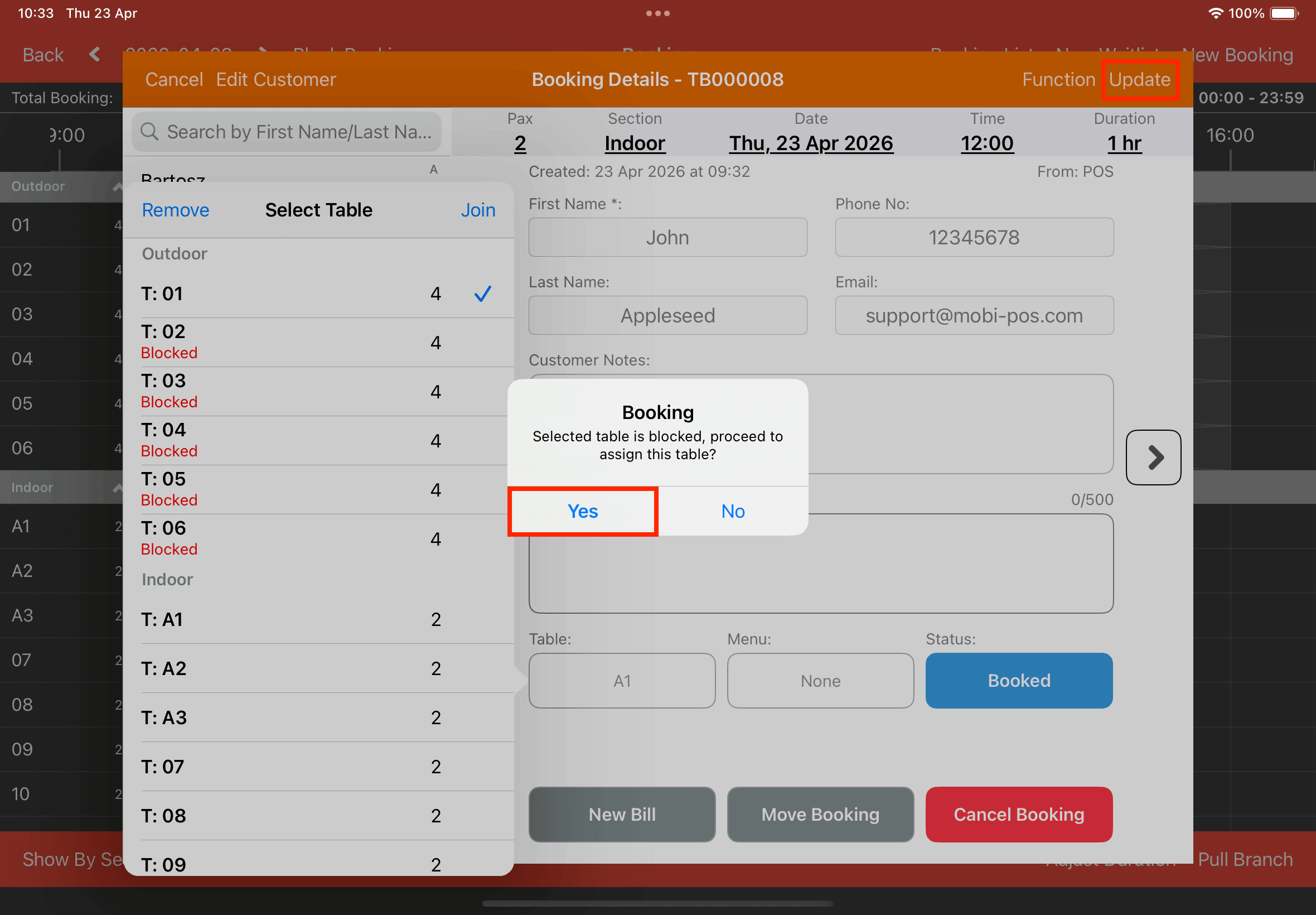
Remember to tap on the Update button at the right top corner. If Cancel is tapped, all the changes will be reverted.
The system will prompt you to confirm whether you really wish to assign the booking to the blocked table.
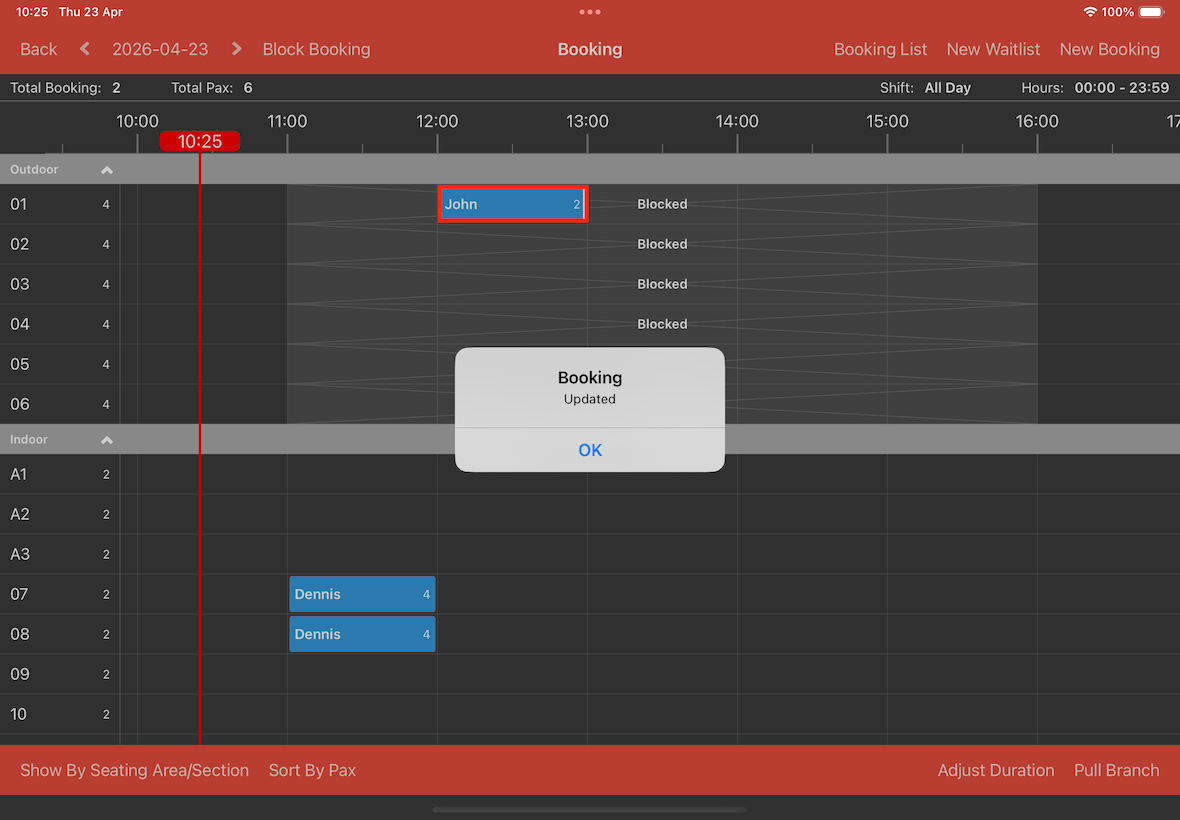
Upon tapping Update, you will see your booking is now assigned to the blocked table.
Move Booking
Do note that this method only works for single table booking.
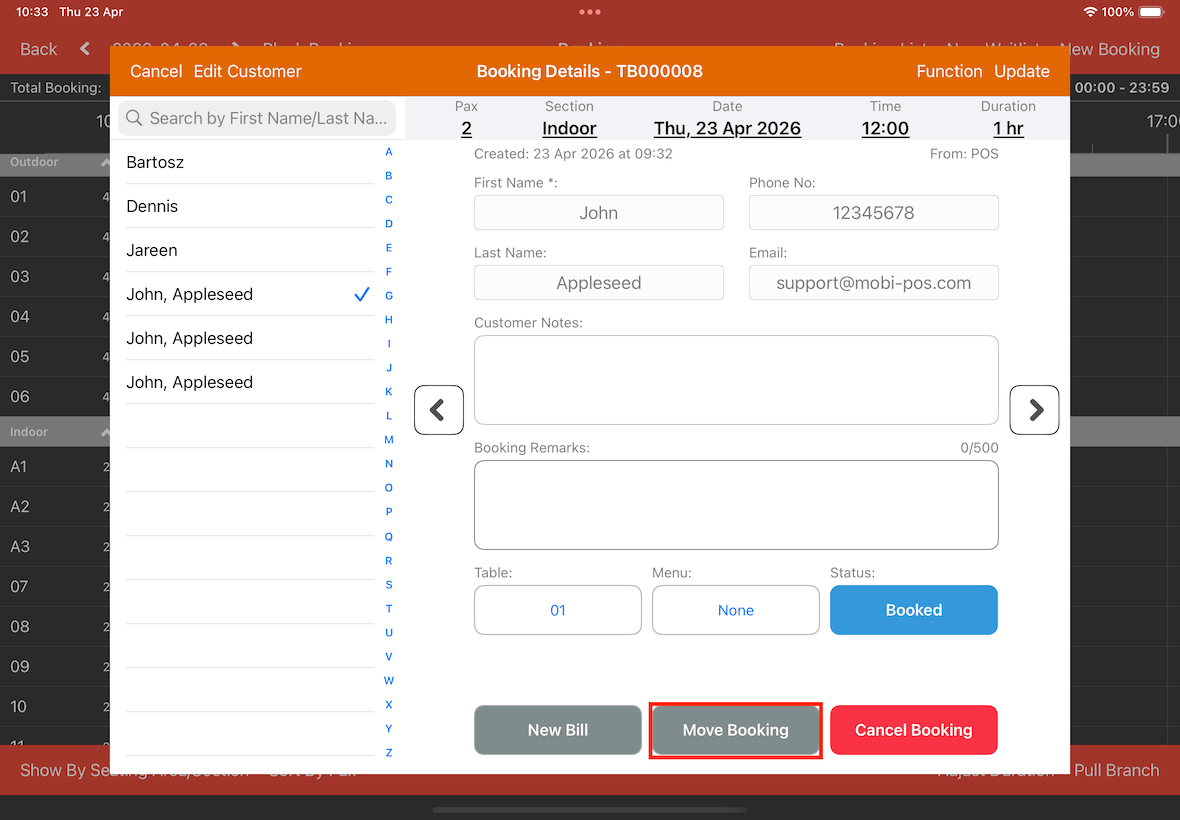
In the Booking Details pop-up tap on the Move Booking button (as shown below).
You are now in move booking mode.
Tap on the blocked area.
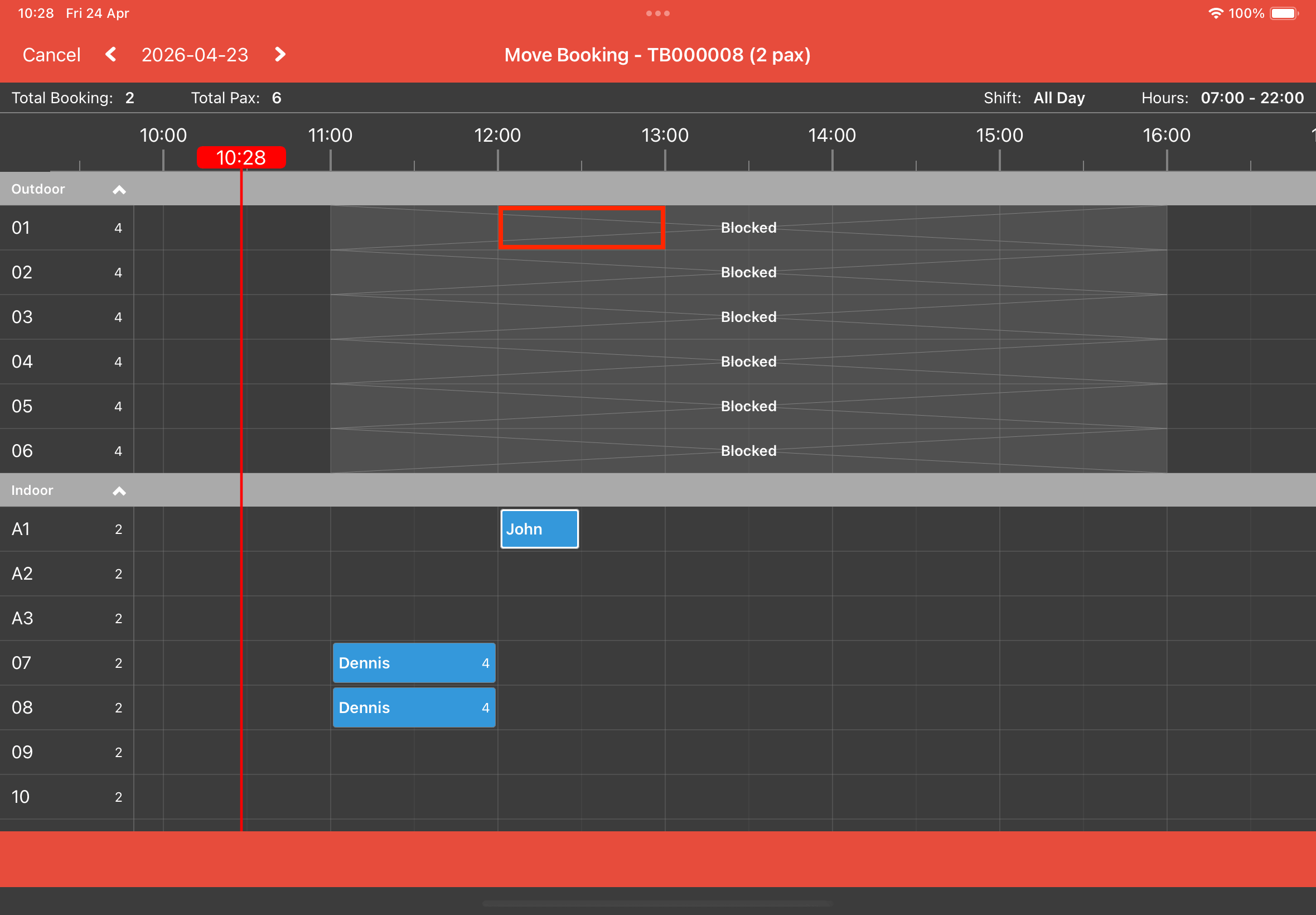
The system will prompt you to confirm whether you really wish to assign the booking to the blocked timeslot.
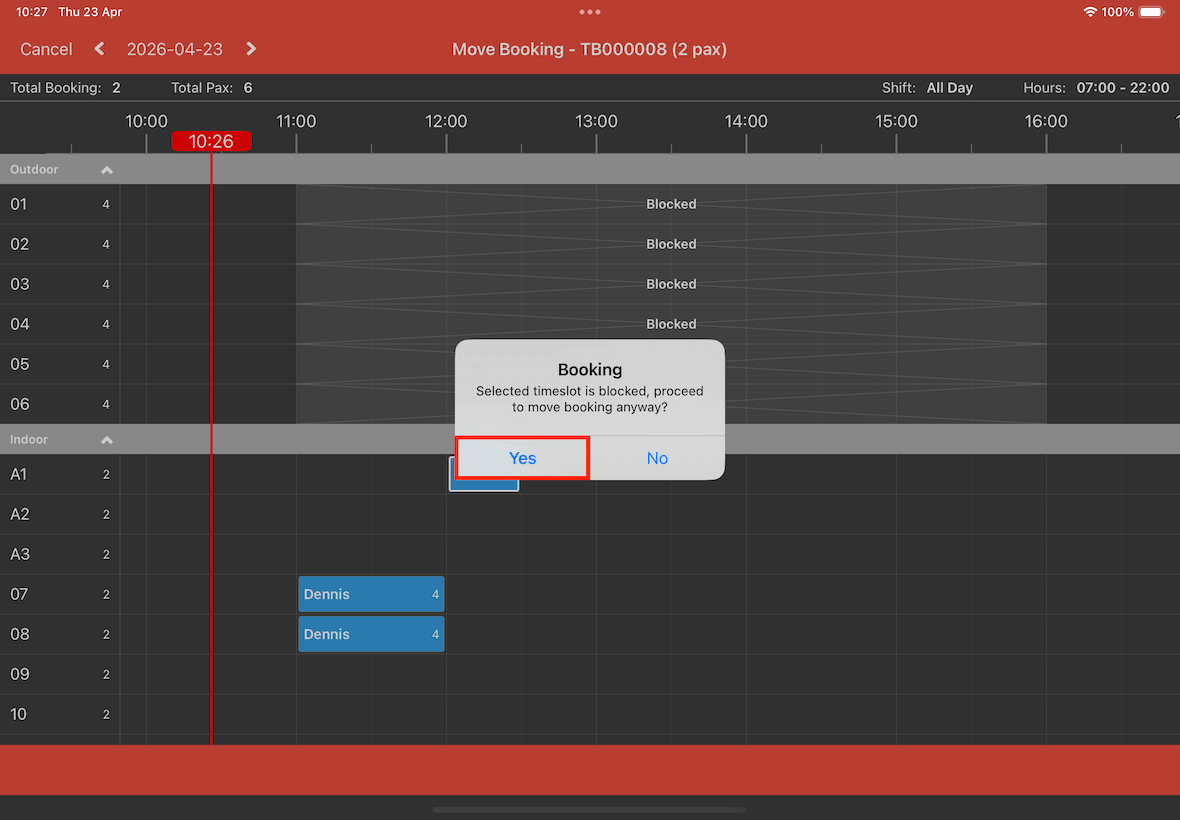
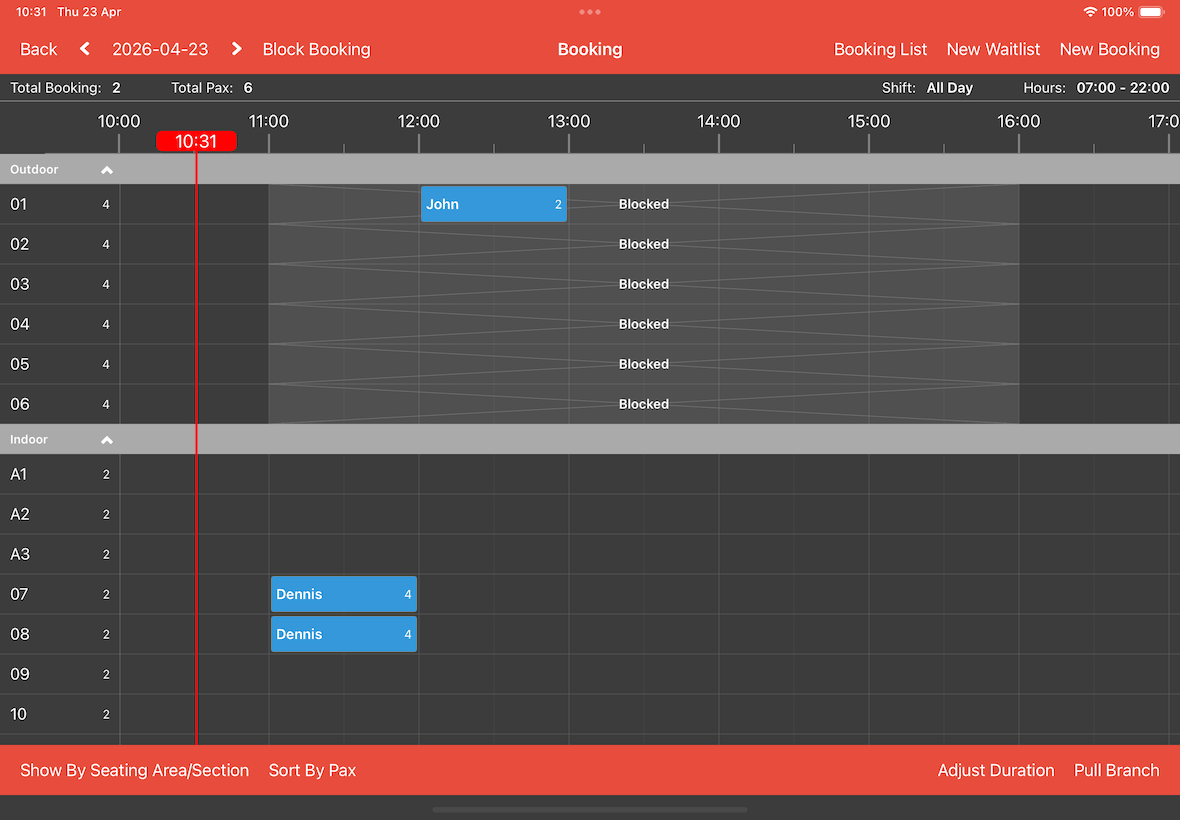
Once confirming, the booking will be moved to the the blocked timeslot.
Booking List
Do note that this method is suitable for single or multiple table booking.
First, tap on the Booking List button on the top bar.
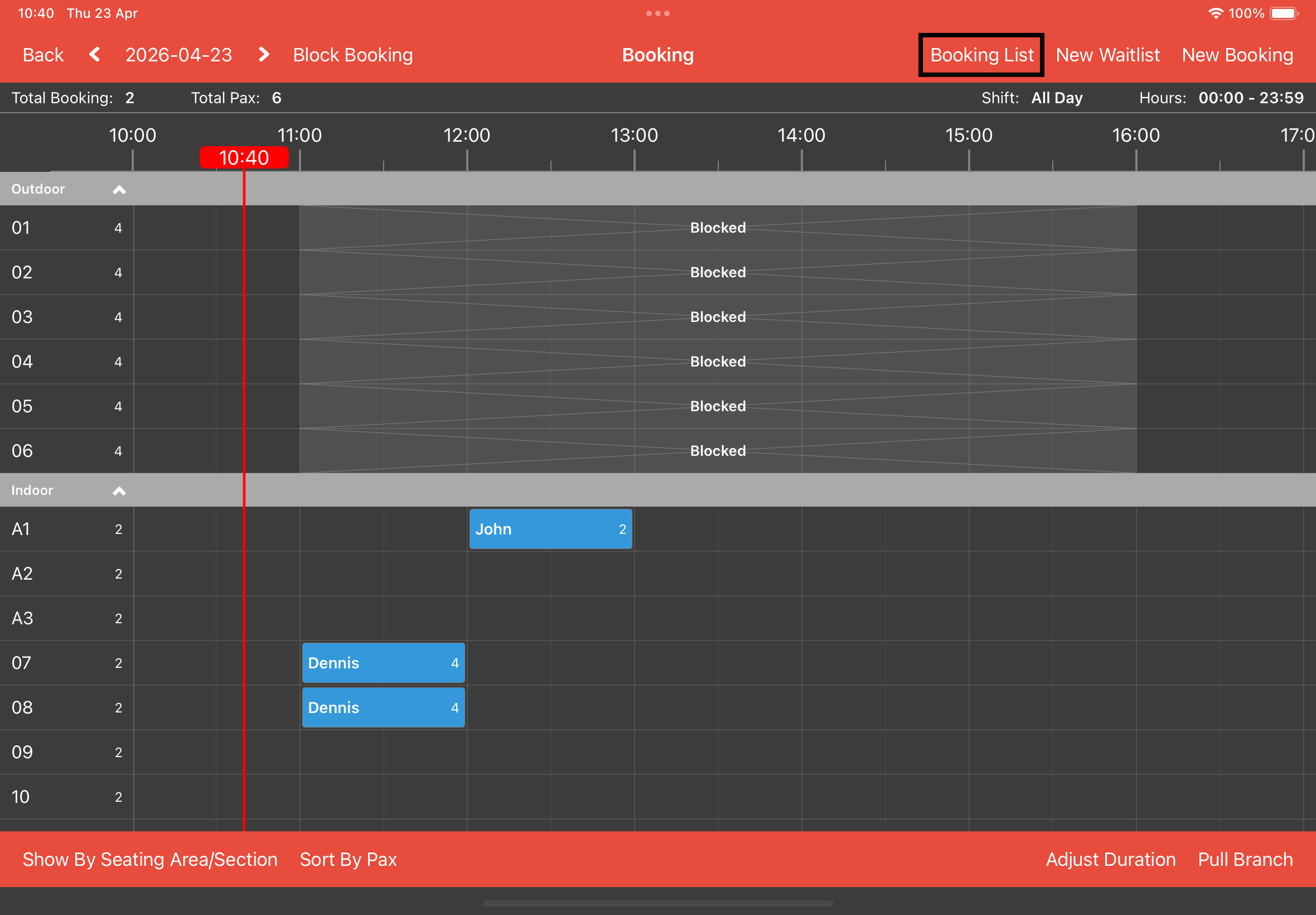
In Manage Booking pop-up tap on the Section/Table button for the booking you want to make changes to.
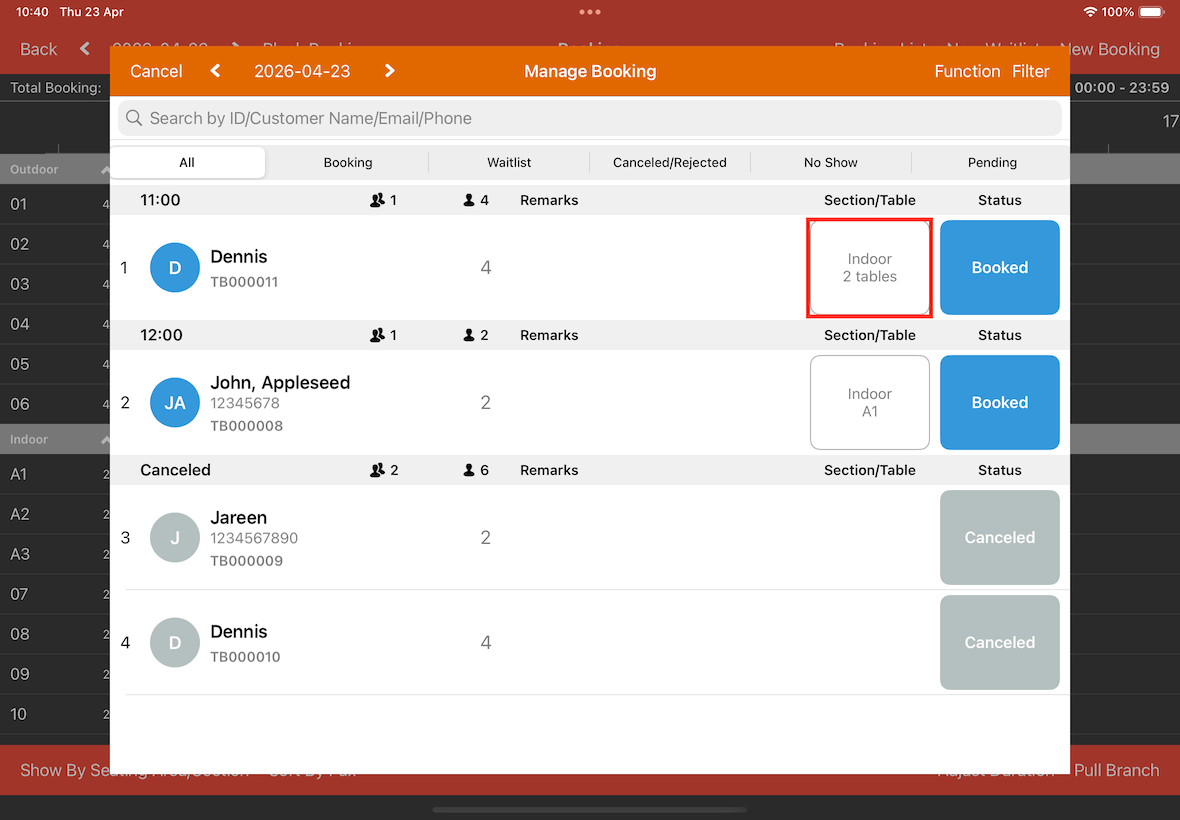
In Assign Table pop-up deselect the main table first with the * symbol on the left (as shown below).
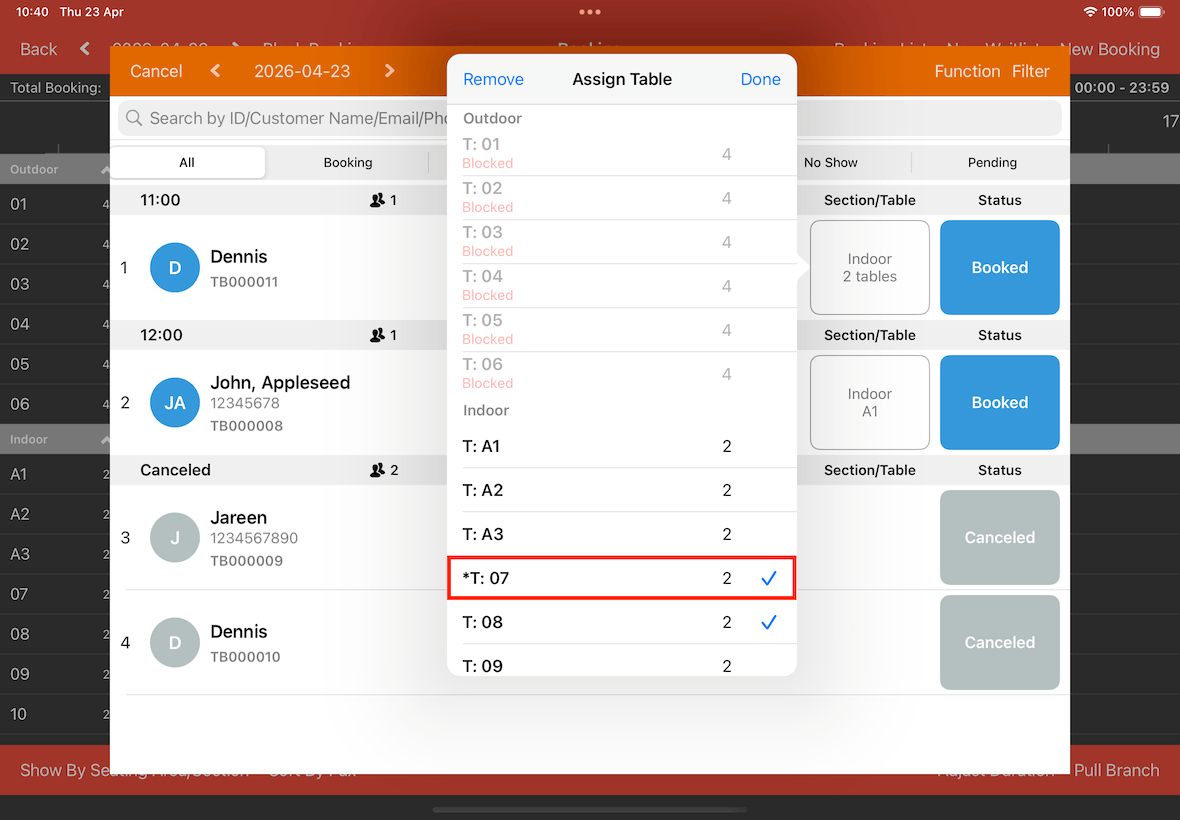
After deselecting you can now select the blocked table that you want to assign.
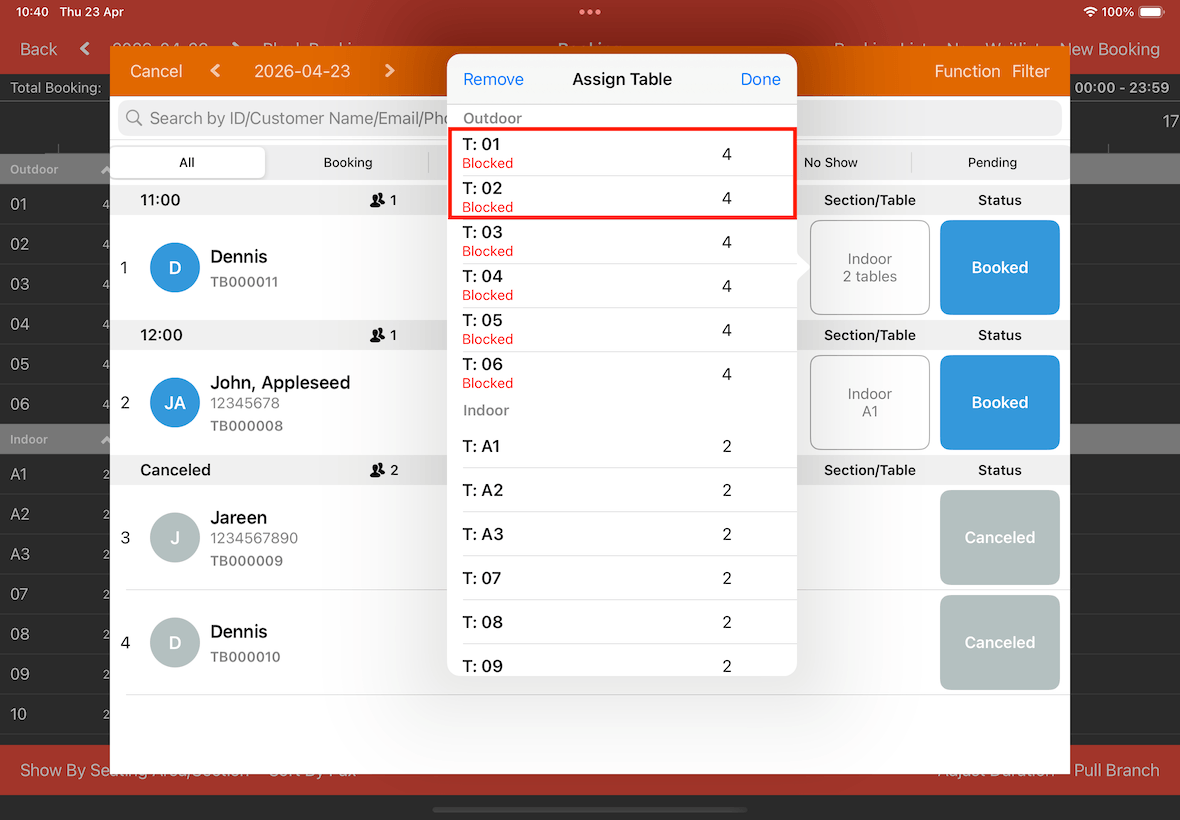
Upon completion, tap on the Done button on the top right corner.
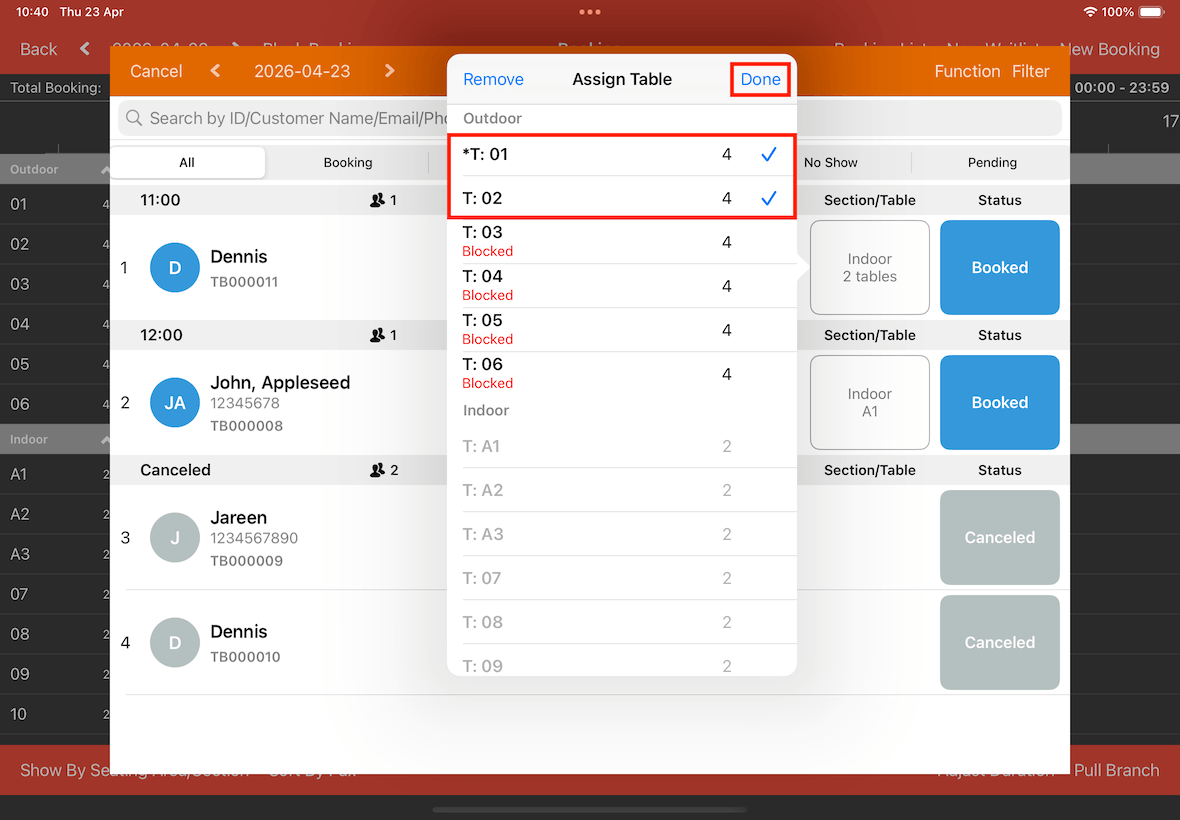
The system will prompt you to confirm whether you really wish to assign the booking to the blocked timeslot.
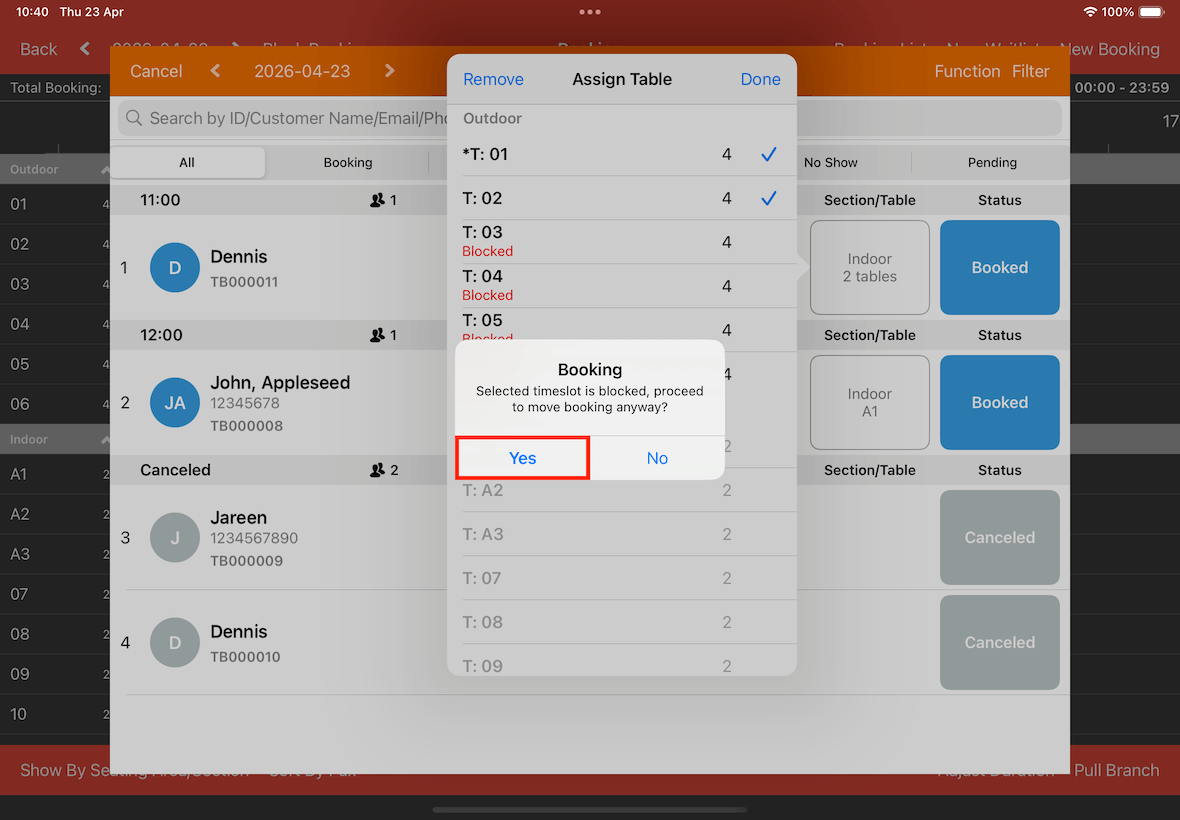
Once confirming, the system will show that you have successfully assigned the table to the blocked timeslot.
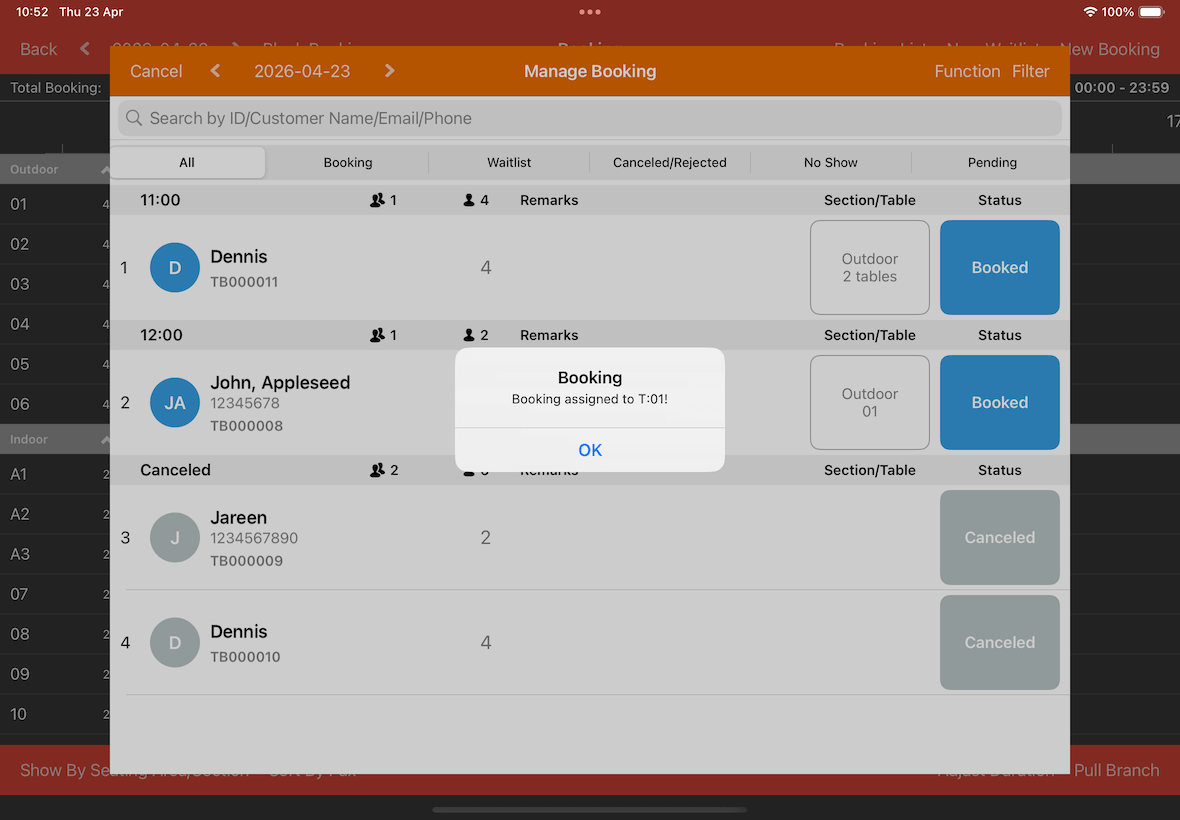
As you can see in the below screenshot the table has been moved to the blocked time slot.