Guide | MobiPOS > Settings > Settings > Booking Settings
Booking Settings
This guide walks you through the booking system configuration options on your iPad.
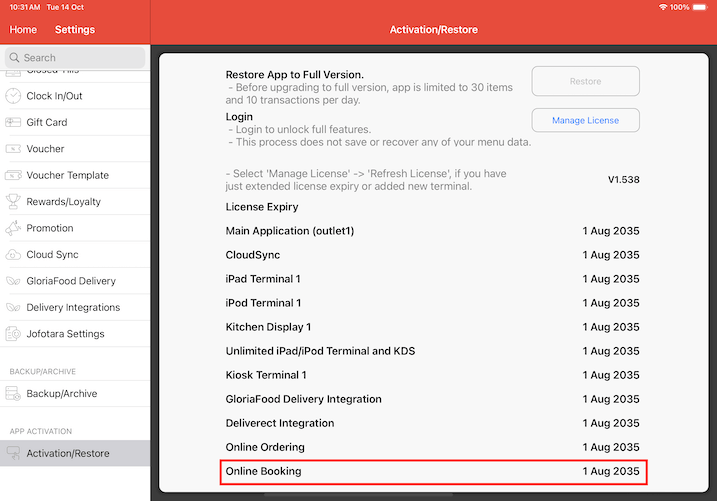
To use table booking, you will need licenses as below:
- MobiPOS Application
- MobiPOS CloudSync
- MobiPOS Online Booking
Without these licenses, the booking settings will not appear in your settings.
Booking Settings Configurations
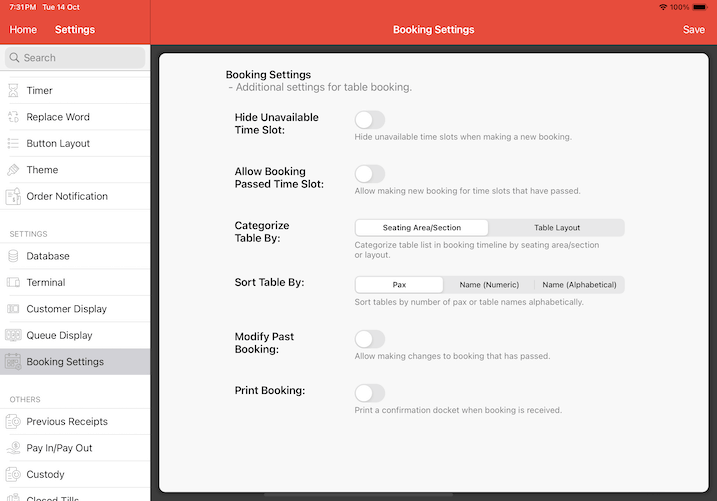
Hide Unavailable Time Slot
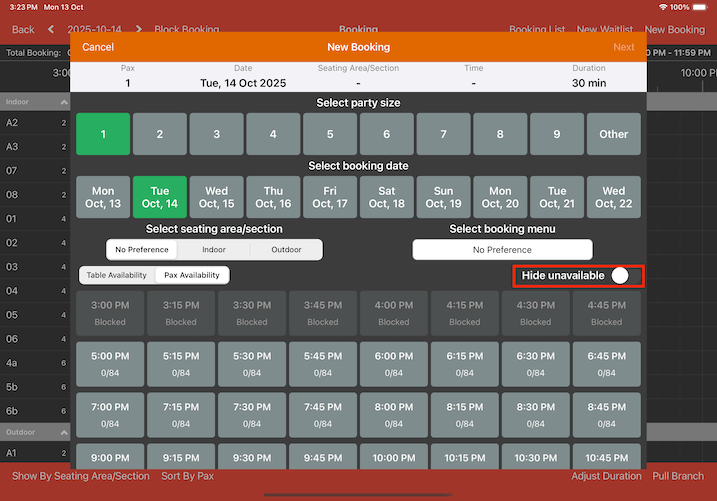
This setting hides any time slot that are already fully booked or unavailable when making a new booking.
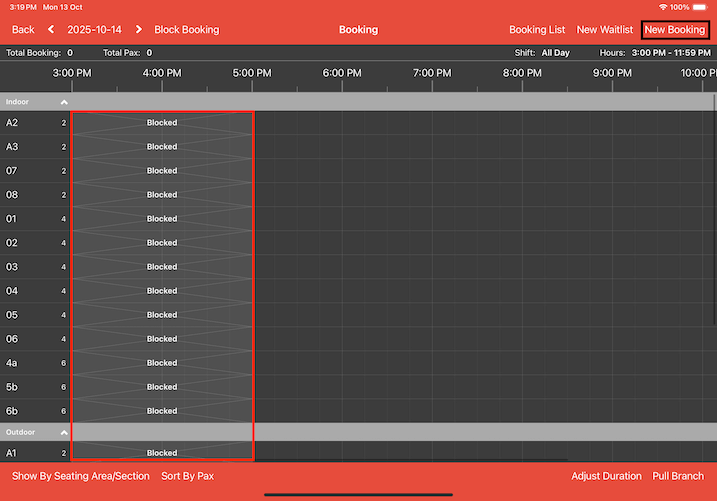
In this example, the time range from 3:00 PM to 5:00 PM has been blocked across multiple tables.
To see how the "Hide Unavailable" feature works, tap on the New Booking button.
Upon tapping, you will see that the time slot grid now starts directly at 5:00 PM.
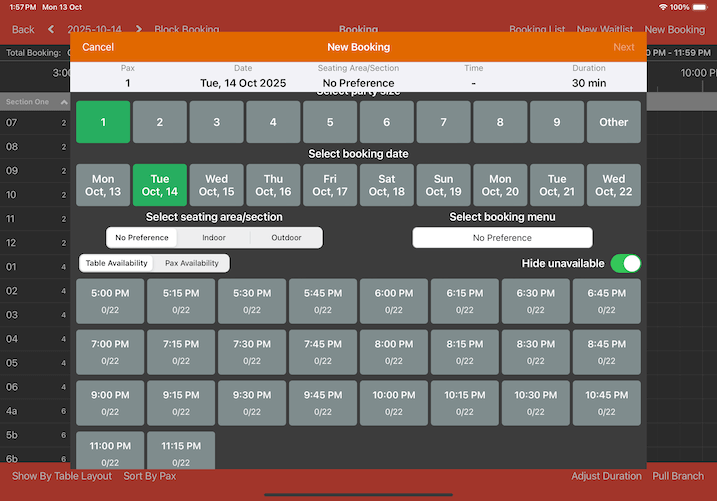
Alternatively, you can turn off the 'Hide unavailable' if you prefer to display the blocked time slots.
Allow Booking Passed Time Slot
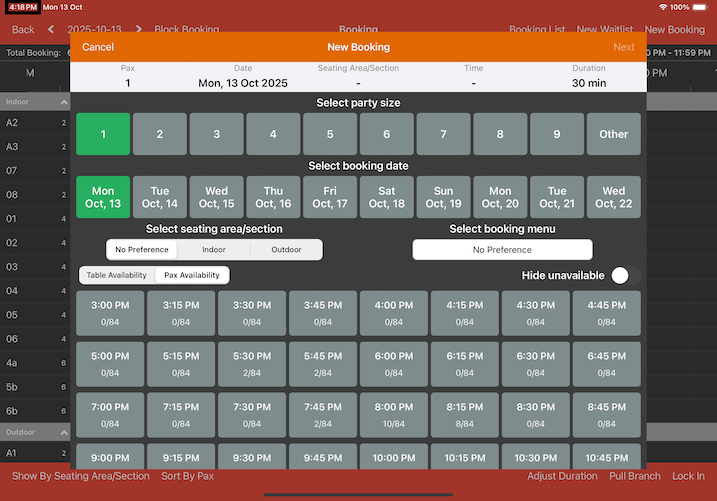
This setting allows new bookings to be made for time slots that have already passed.
As you can see, the earlier time slots remain selectable and show availability even though they have already passed the current time.
Categorize Table By
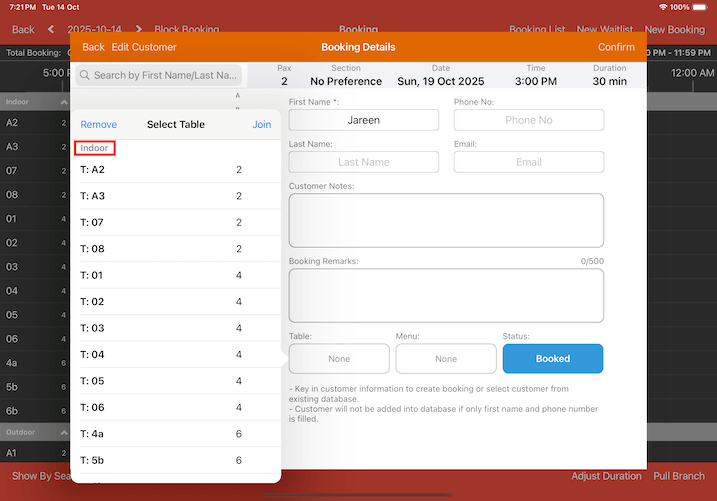
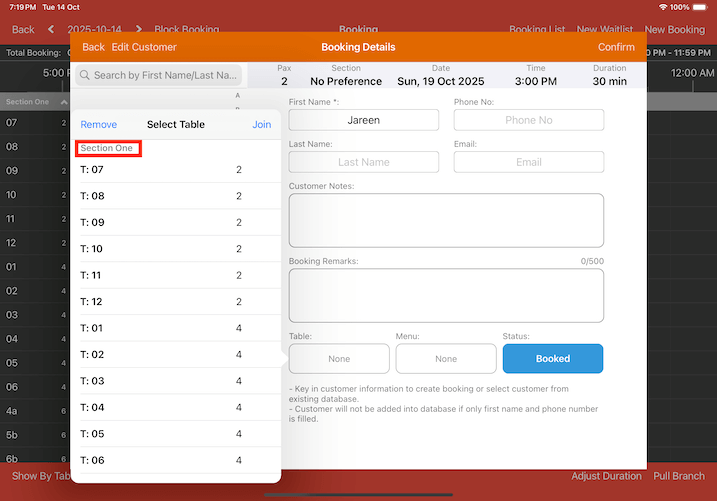
This setting determines how tables are grouped in the booking timeline.
You can refer to this guide on how to configure your Seating Area/Section and Table Layout in Online Booking Settings.
When setting up the booking details, the table selection will automatically follow your categorized table settings. In the example below, the tables are organized by seating areas, with the Indoor section displayed at the top.
If the tables are organized by table layout. You can see that the “Section One” is displayed at the top of the list.
Sort Table By
This setting determines how tables are ordered in the table selection list when creating or managing bookings.
Sort Table by Pax
The tables list will be sorted by their seating capacity, from smallest to largest. For example, 2-person tables will appear first, followed by 4-person tables, then 6-person tables, and so on.
Sort Table by Name (Numeric)
The tables list will be sorted by their names in numerical order.
Sort Table by Name(Alphabetical)
The tables will be sorted alphabetically by their names. Numbers appear first, followed by number-letter combinations, then letter-number combinations.
Modify Past Booking
This setting allows you to make changes to bookings that have already passed their scheduled time.
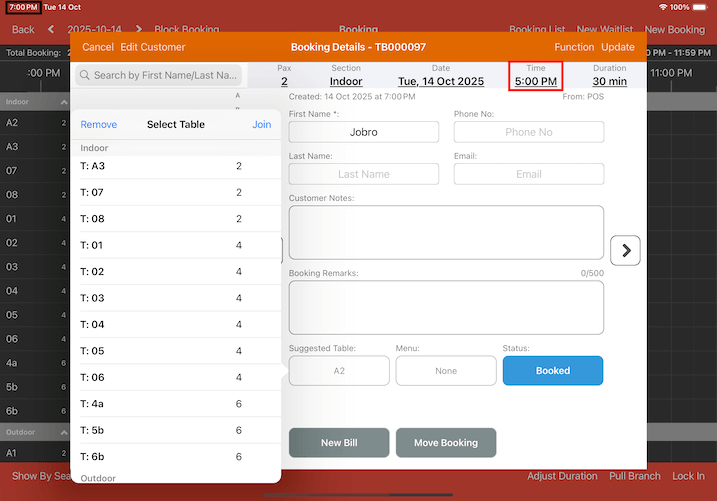
As you can see in the example below, the current time is 7:00 PM, and a customer has a booking scheduled for 5:00 PM. You can still access the booking details and make any necessary changes.
Print booking
This setting automatically prints a confirmation docket whenever a new booking is received.