Guide | MobiPOS > Settings > App Settings > Tax for EFTPOS Surcharge
Tax for EFTPOS Surcharge
Normally, when EFTPOS is used and includes a surcharge, the system displays the extra amount as a tip by default.
Instead of showing the extra charges as tips, you can change the settings to a tax type labeled "EFTPOS Surcharge."
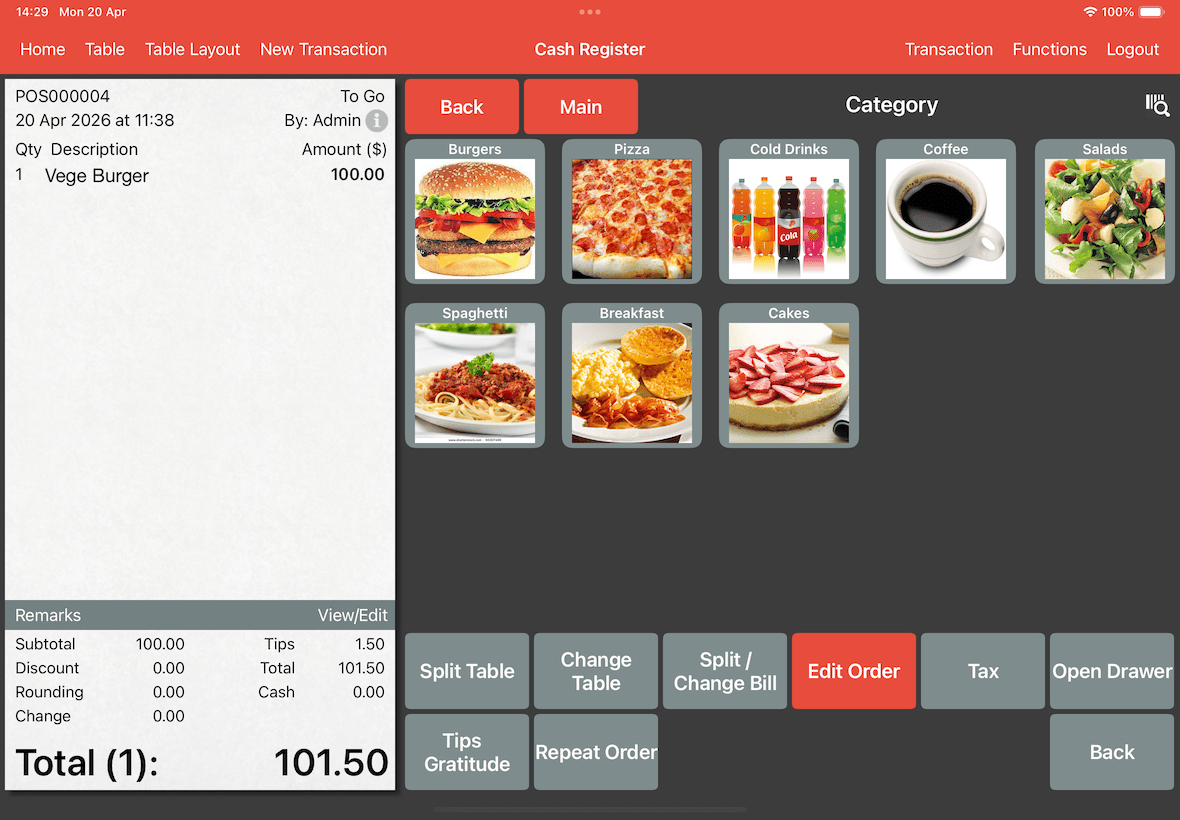
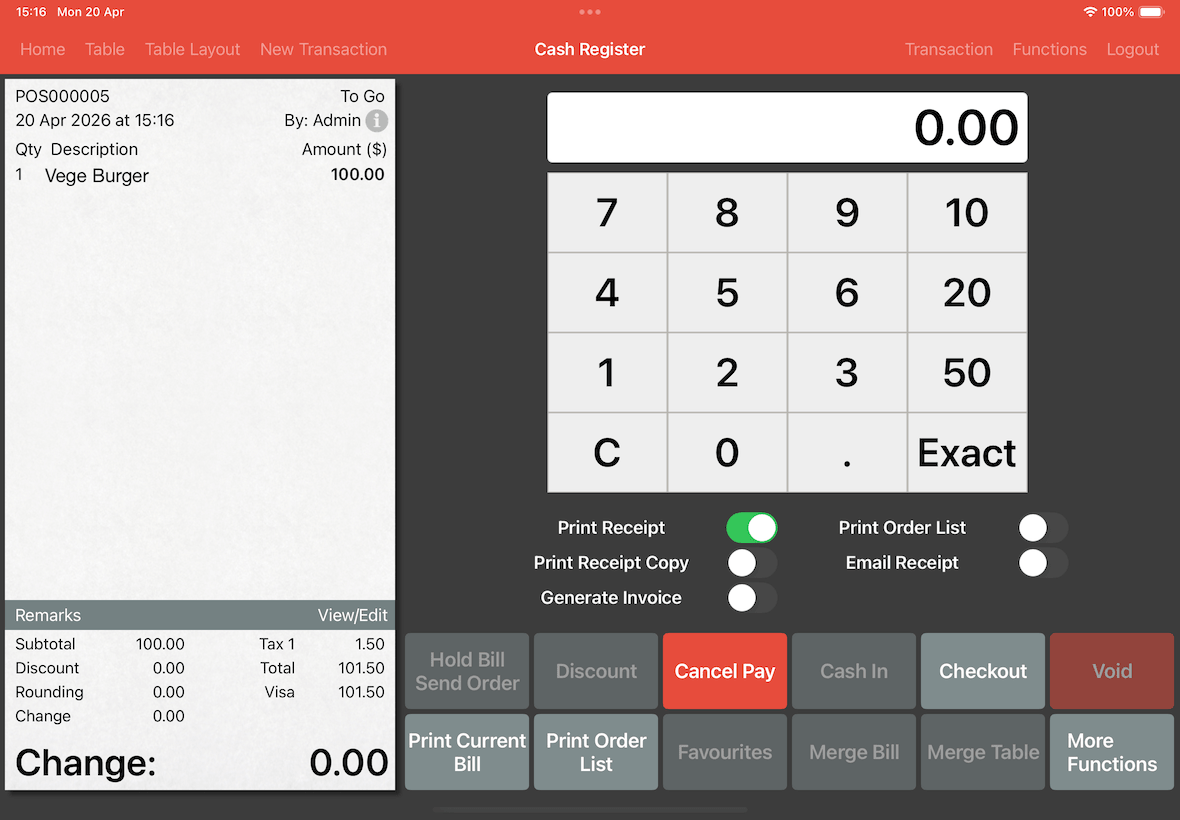
As seen in the screenshot above, a bill of $100 becomes $101.50 due to the surcharge from EFTPOS.
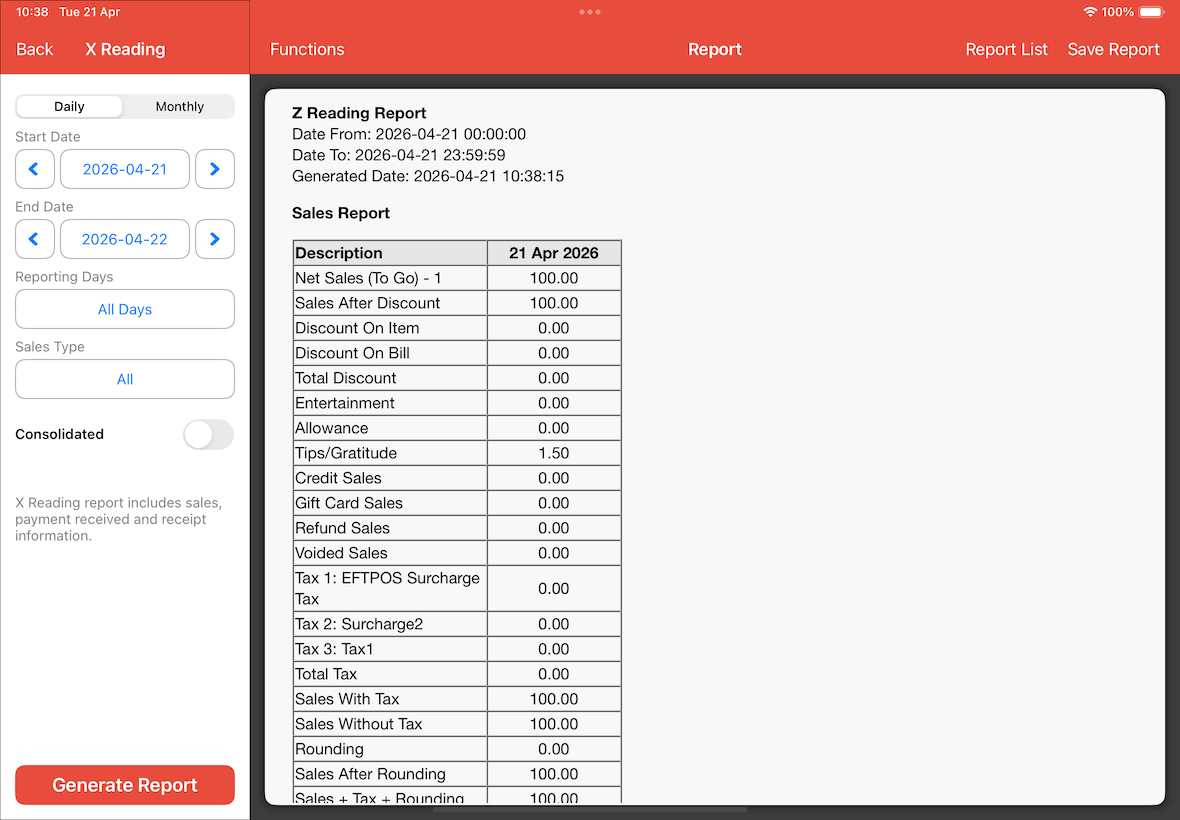
On the report, the $1.50 is parked under the Tips section.
To reclassify this as an EFTPOS Surcharge Tax type, follow the steps below:
Tax Page Configuration
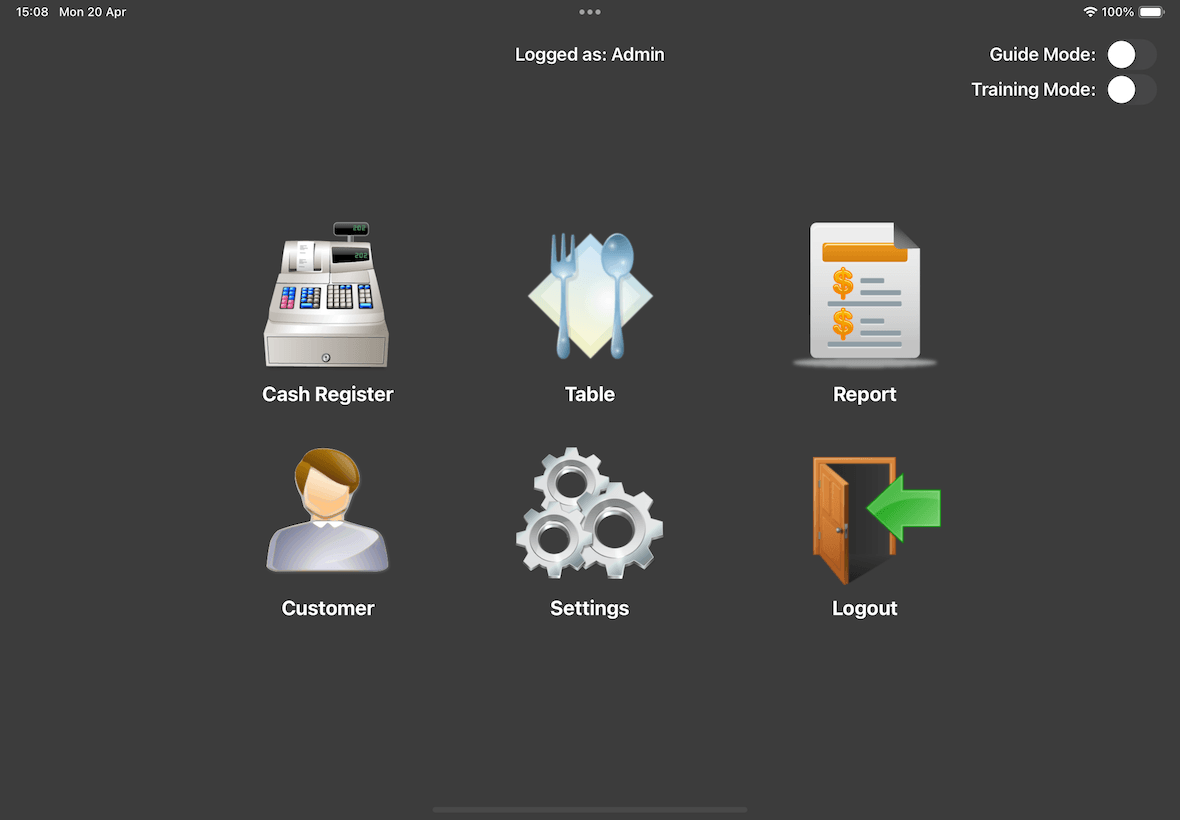
First, go to Settings as what is shown in the below screenshot .
Second, select Tax.
Click on the + button on the left top.
Enter your preferred Tax Name (eg. EFTPOS Surcharge Tax).
ID is an identifier for the tax that will be shown in the cash register and it is optional.
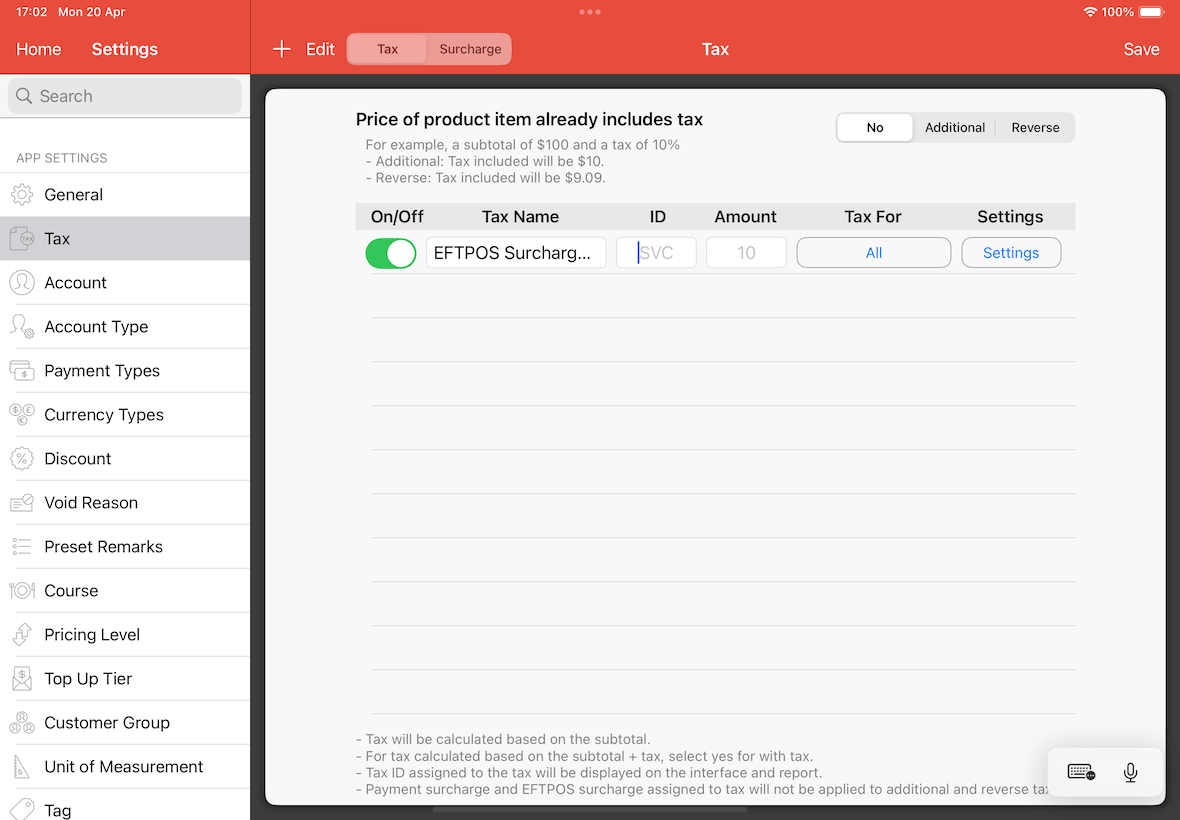
Next, set the Tax For to EFTPOS Surcharge.
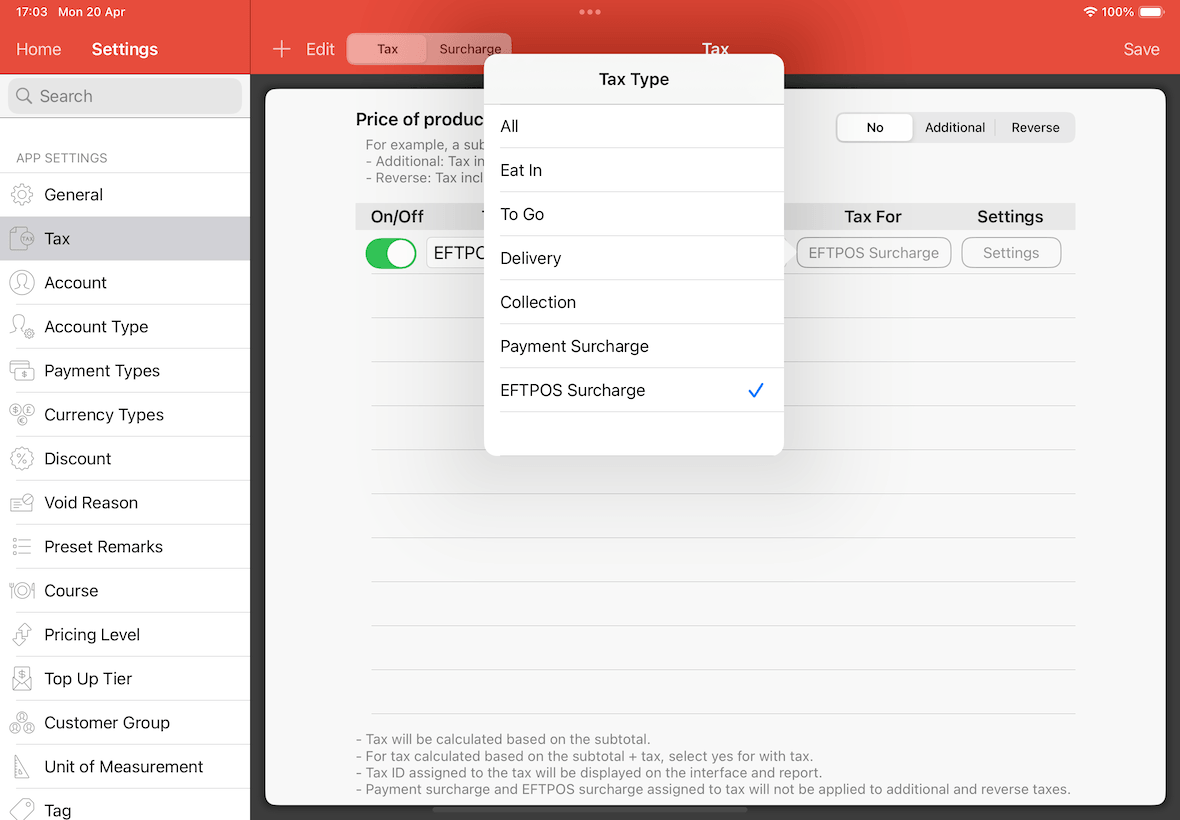
Note that the Amount is disabled as the figure would come directly from the EFTPOS terminal.
Upon completion, click on the Save button located at the right top of the page.
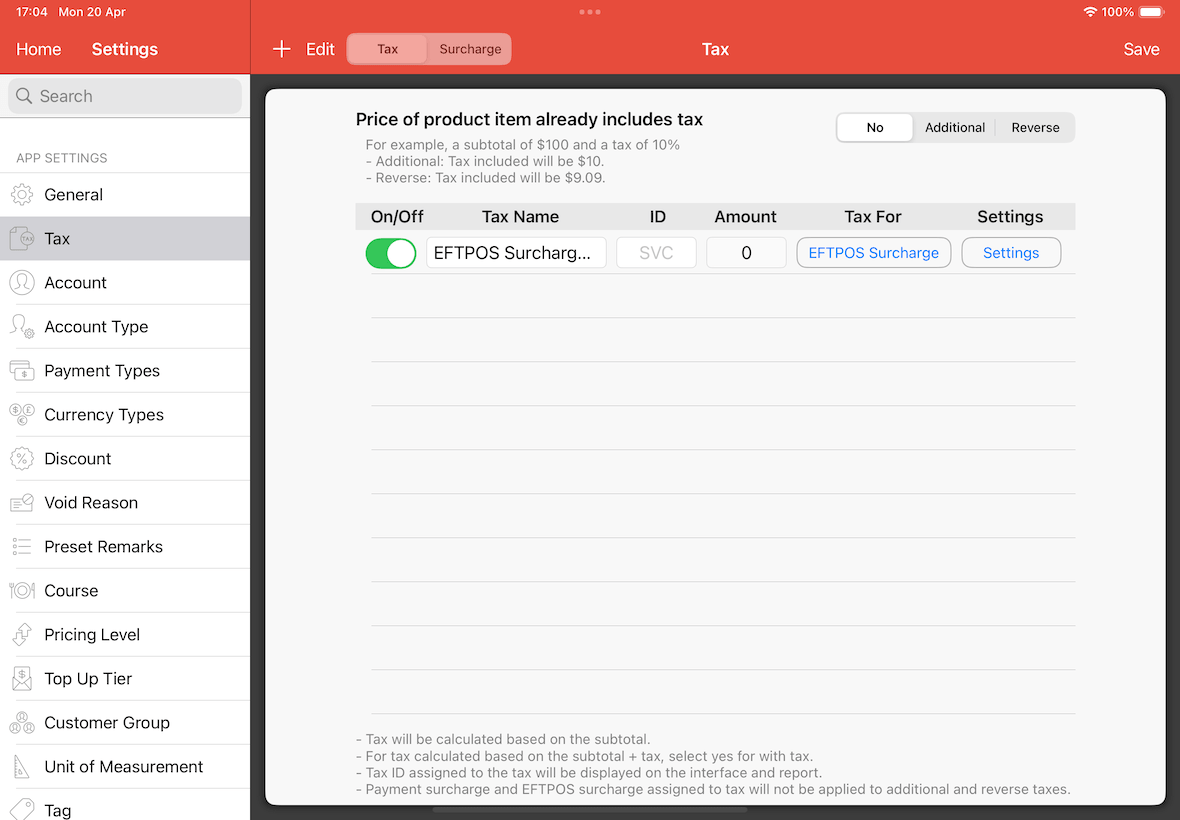
Next we will need to configure at the payment page.
Payment Types Page Configuration
First, go to Settings -> Payment Types.
For payment type that is integrated to the EFTPOS which has a surcharge automatically included.
You will need to assign the EFTPOS Surcharge to it.
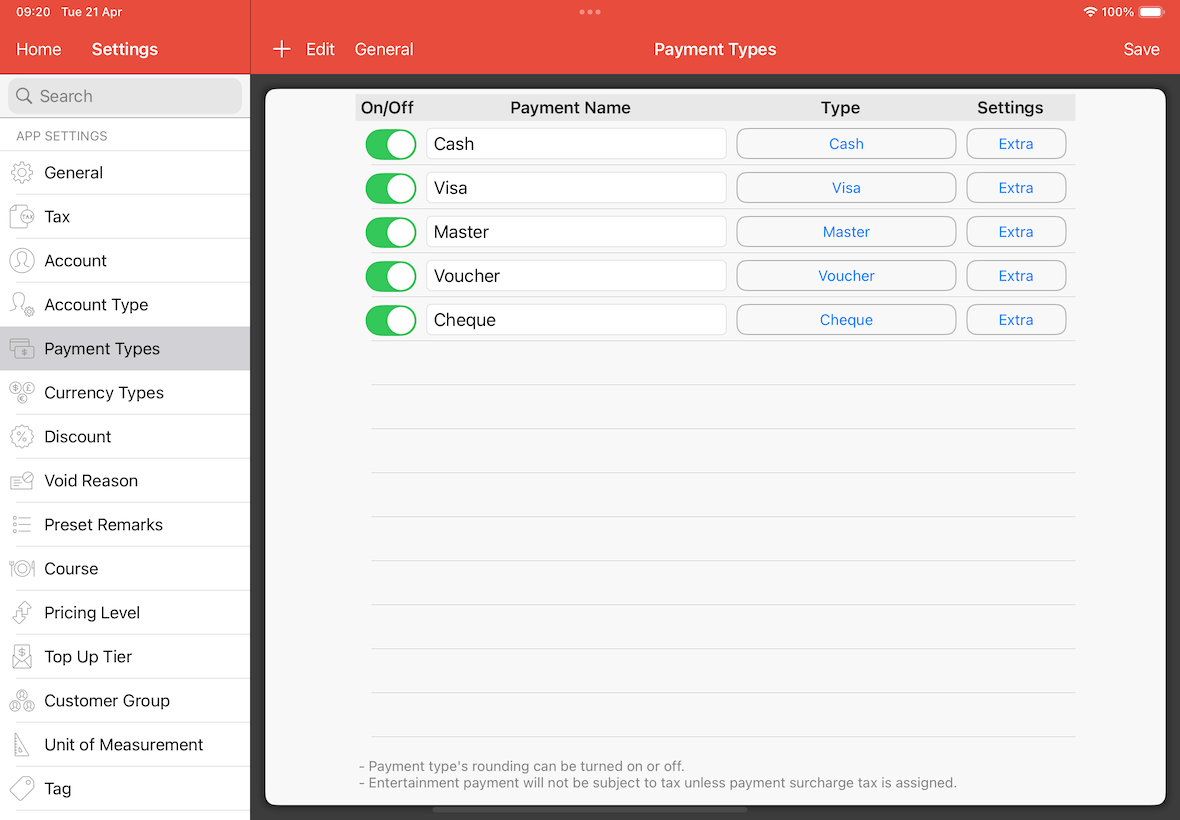
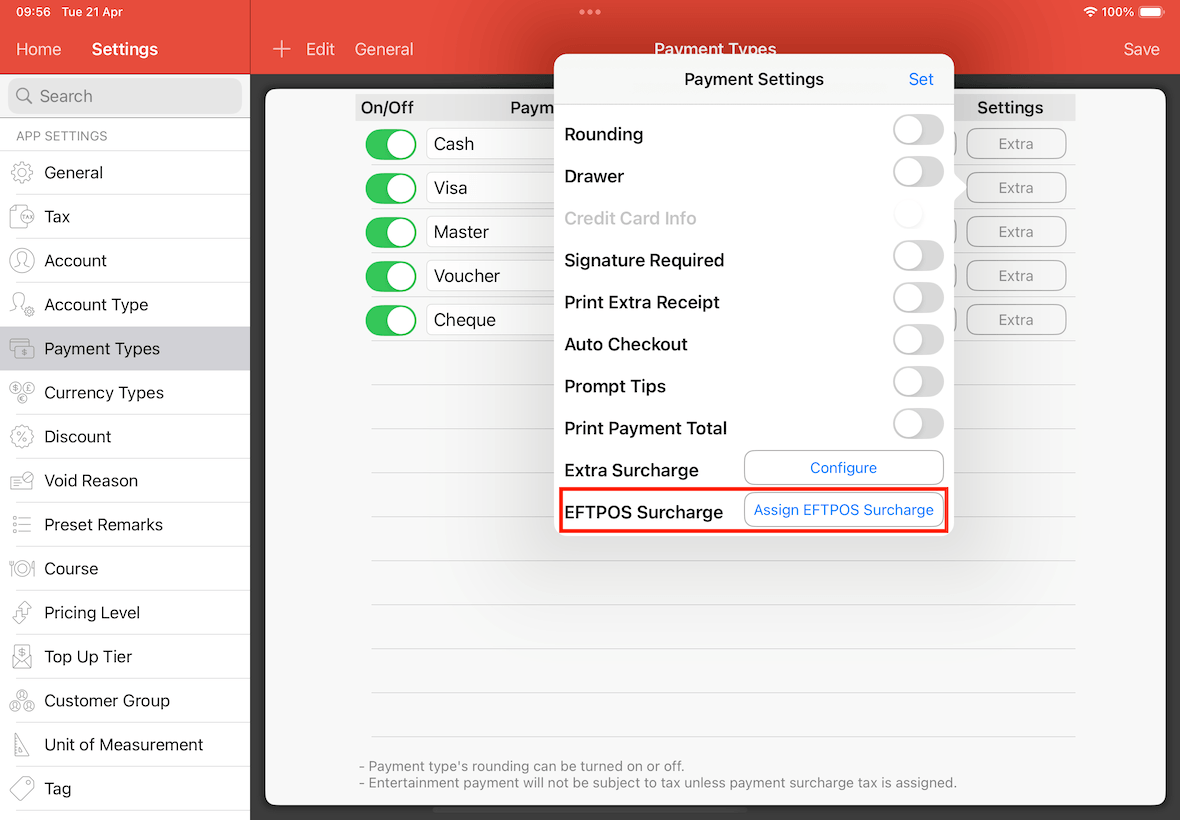
Tap the Extra button in the settings column.
The Payment Settings screen will pop-up.
Next, tap the Assign EFTPOS Surcharge button.
Assign the previously created EFTPOS Surcharge Tax.
Tap Set after selecting the EFTPOS Surcharge Tax on the list.
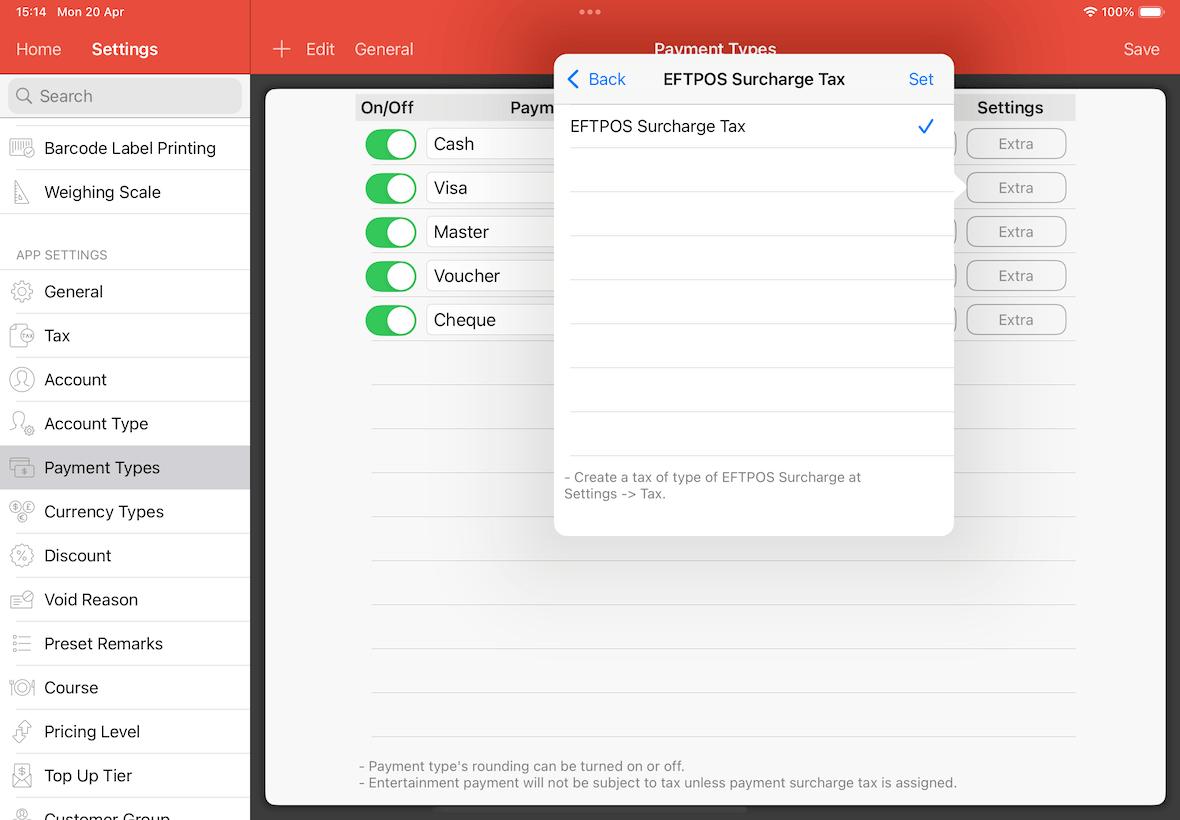
Remember to tap Save on the top right corner.
You are all set.
Outcome
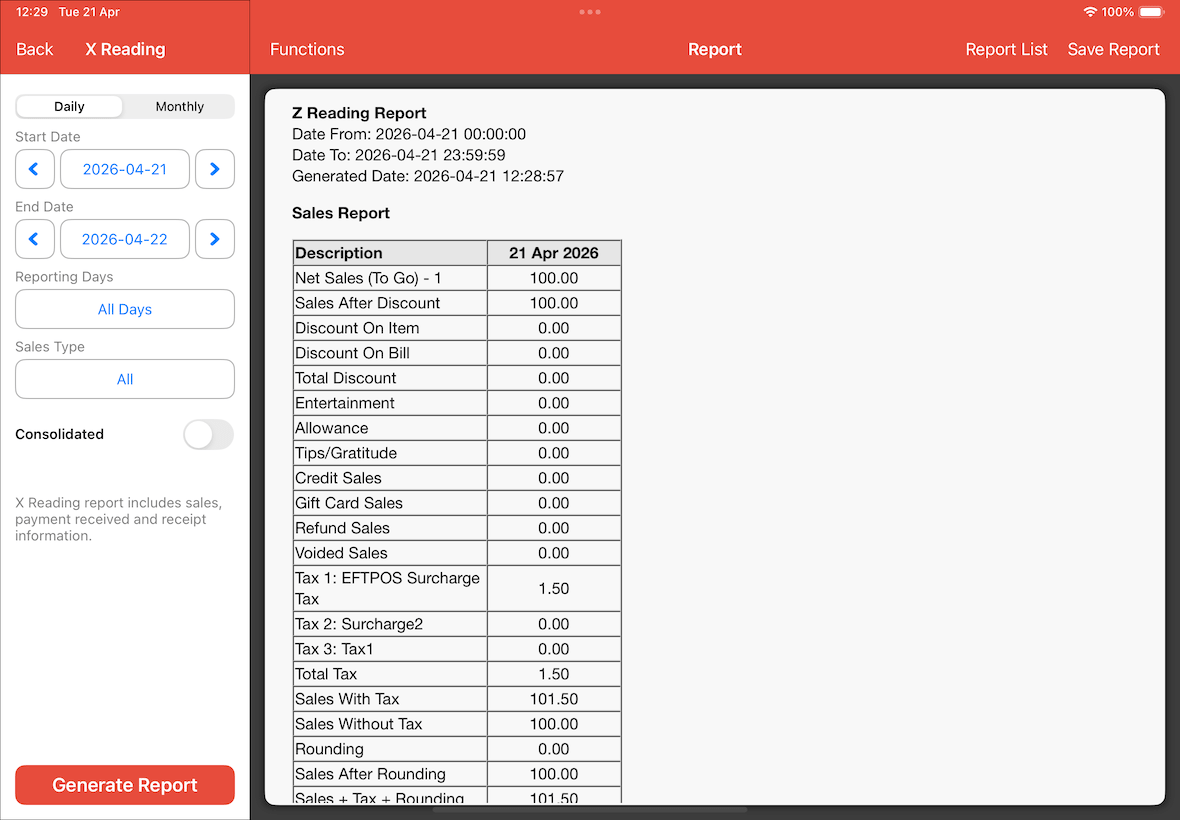
Upon completion of all the steps above, making a payment with surcharge enabled, the surcharge of $1.50 will be listed as Tax 1 instead of Tips.
On the report, the surcharge will be parked under the EFTPOS Surcharge Tax section.
Your report should look like what is shown in the screenshot below.