Guide | MobiPOS > Settings > Stock File > CSV Import
CSV Import
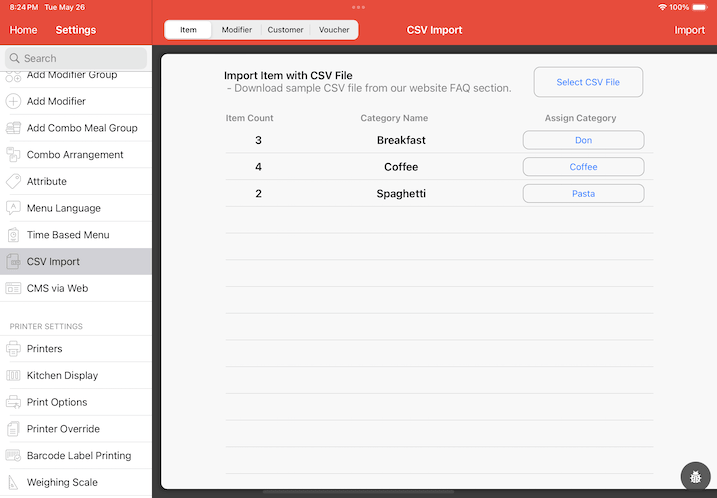
CSV Import
You can import items, modifiers, and customers into MobiPOS.
Download the sample file from CMS via Web -> Add via CSV and modify them.
Importing CSV file
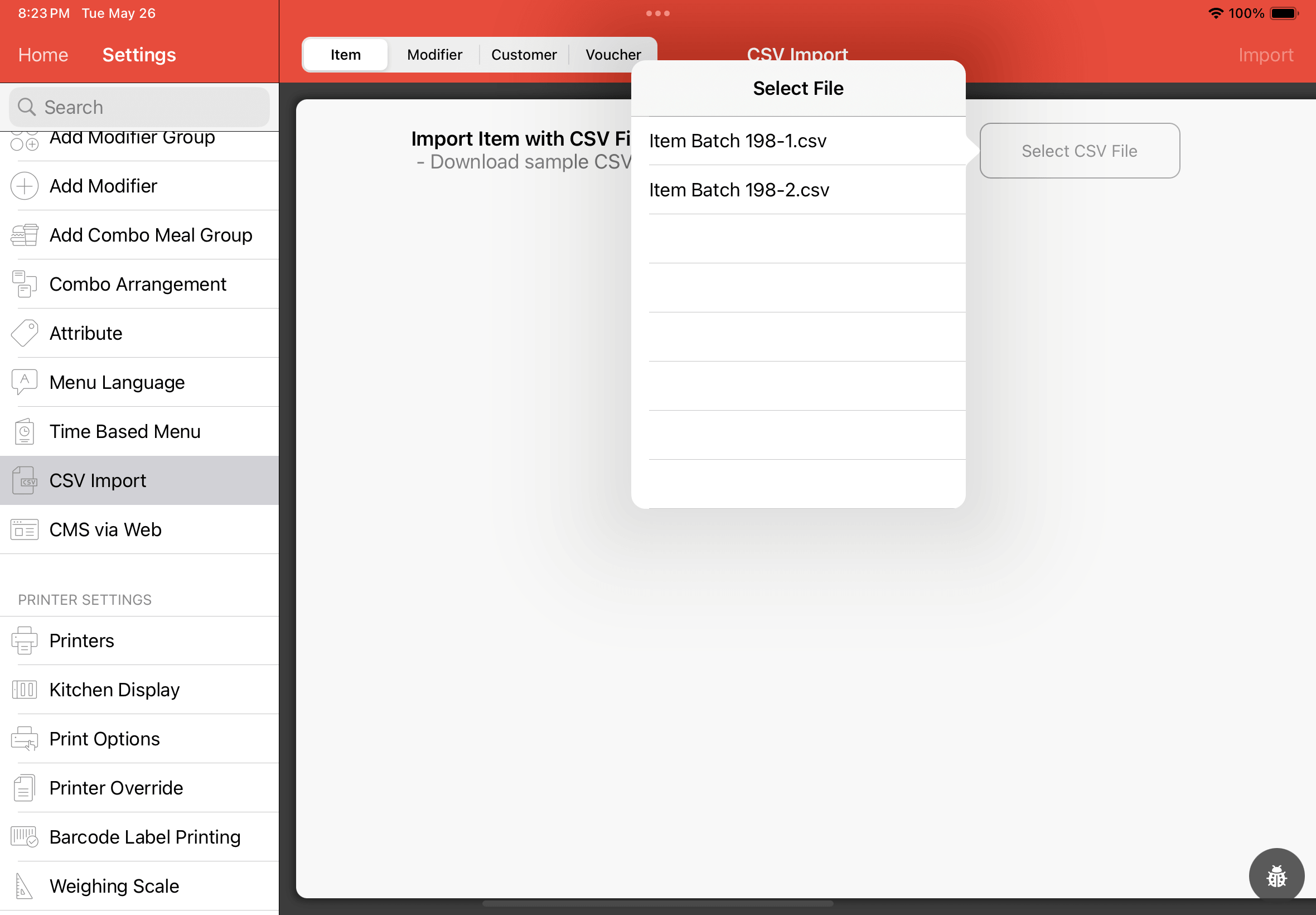
After creating your CSV file, you need to upload the file into the MobiPOS documents folder.
However, with CMS via Web, you can upload the file without the need of plugging your iPad into a PC/Mac.
Importing CSV file into Documents Folder via PC
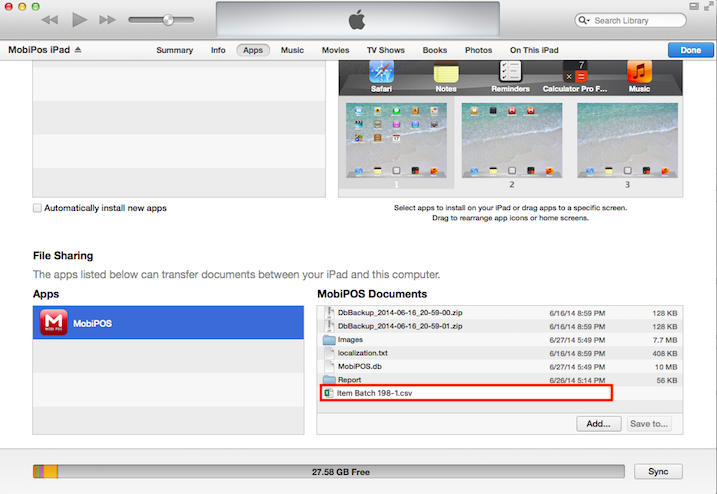
To upload the file into the MobiPOS document folder, you have to plug your iPad into your PC and open up iTunes.
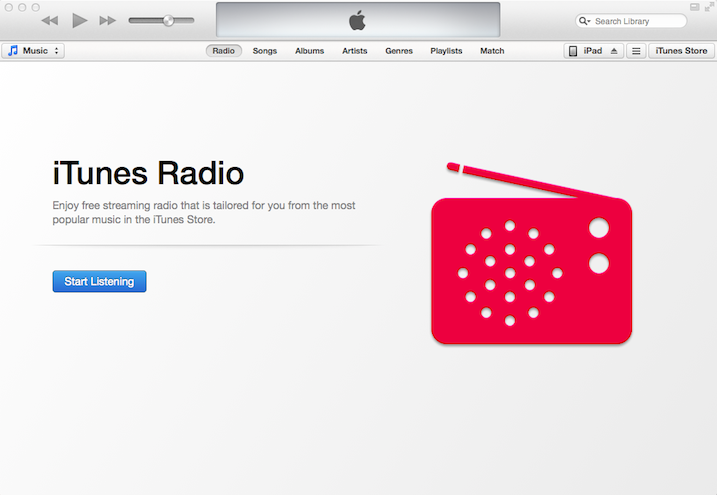
Without the usual synchronization, you should find your iPad is connected
and your iPad can be located at the top right.
Click on "iPad".
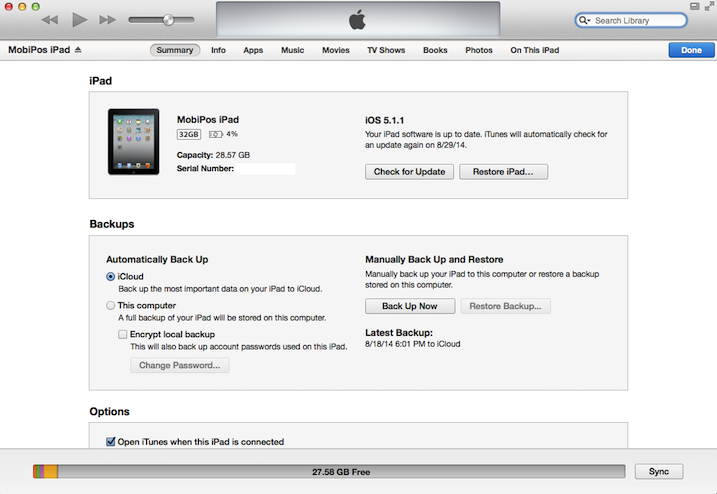
Upon clicking on "iPad", you should find your iPad device information.
On top, you will find "Summary", "Info" and "Apps".
Click on "Apps".
After clicking "Apps".
Scroll down to the bottom, you should find MobiPOS application in "File Sharing".
Click on "MobiPOS", you will find its documents on the right.
You may hold and drag your desired files into your desktop.
Importing Item
Before importing items, make sure you have created all the categories needed by the item.
Upon selection of the CSV file, assign each category, and import them.
If the application exits, make sure your CSV file is identical to the sample CSV file.
Open them with a notepad and check the number of a comma in each line.