Guide | MobiPOS > Settings > Others > Assign Voucher to Customer
Assign Voucher to Customer
Before you start, ensure that you have created at least one voucher template.
You can refer to this guide to create it, if you have not done so.
There are 2 ways to assign a voucher to a customer.
1) Cash Register -> Receipt Info page
2) Settings -> Voucher page
Via Cash Register page
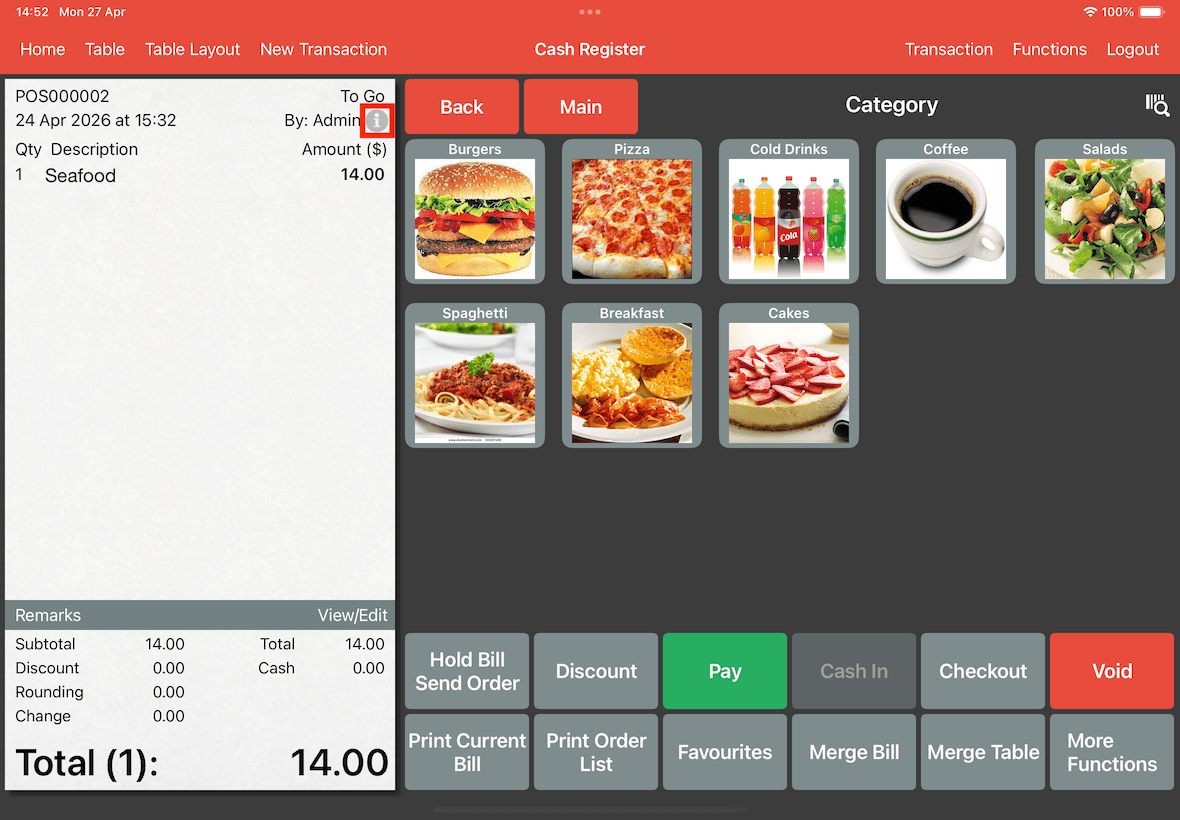
First, tap on the information icon as shown below to open up receipt details.
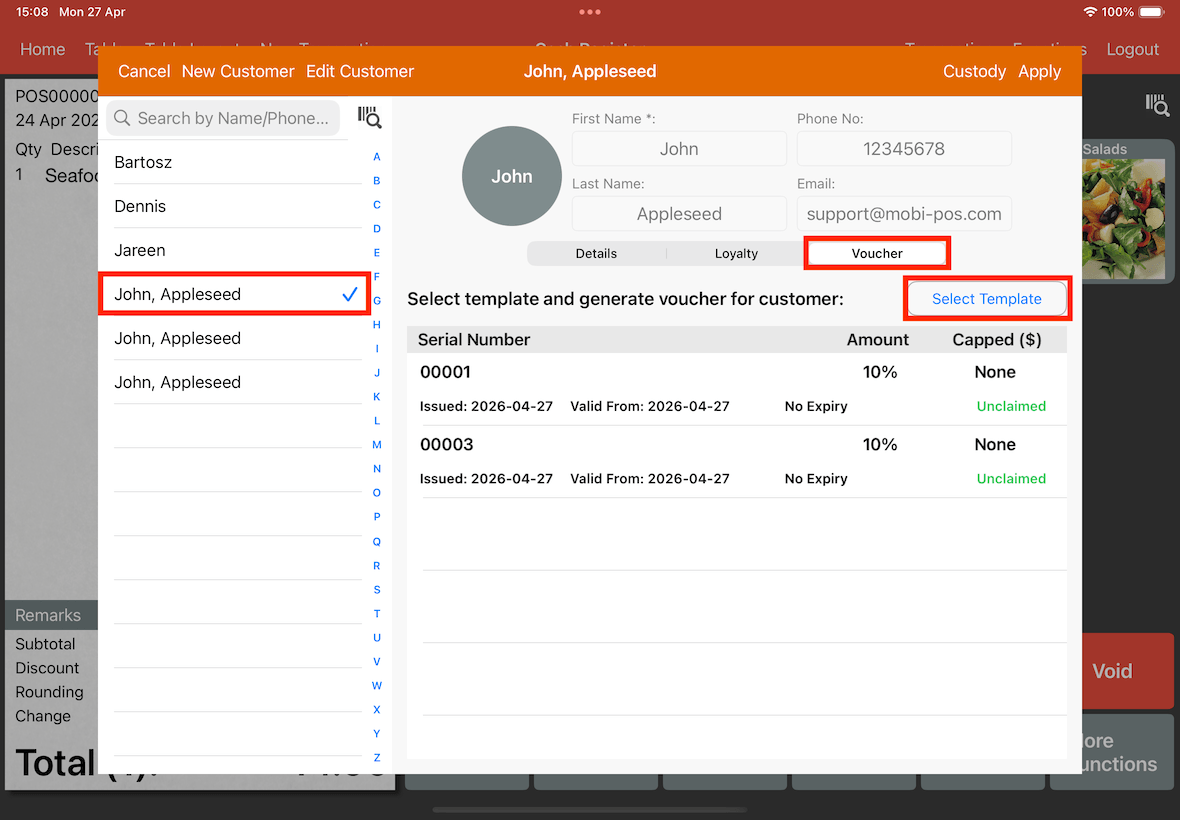
Select a customer from the sidebar.
Next, tap on the Voucher tab below the customer's email.
Tap on the Select Template button.
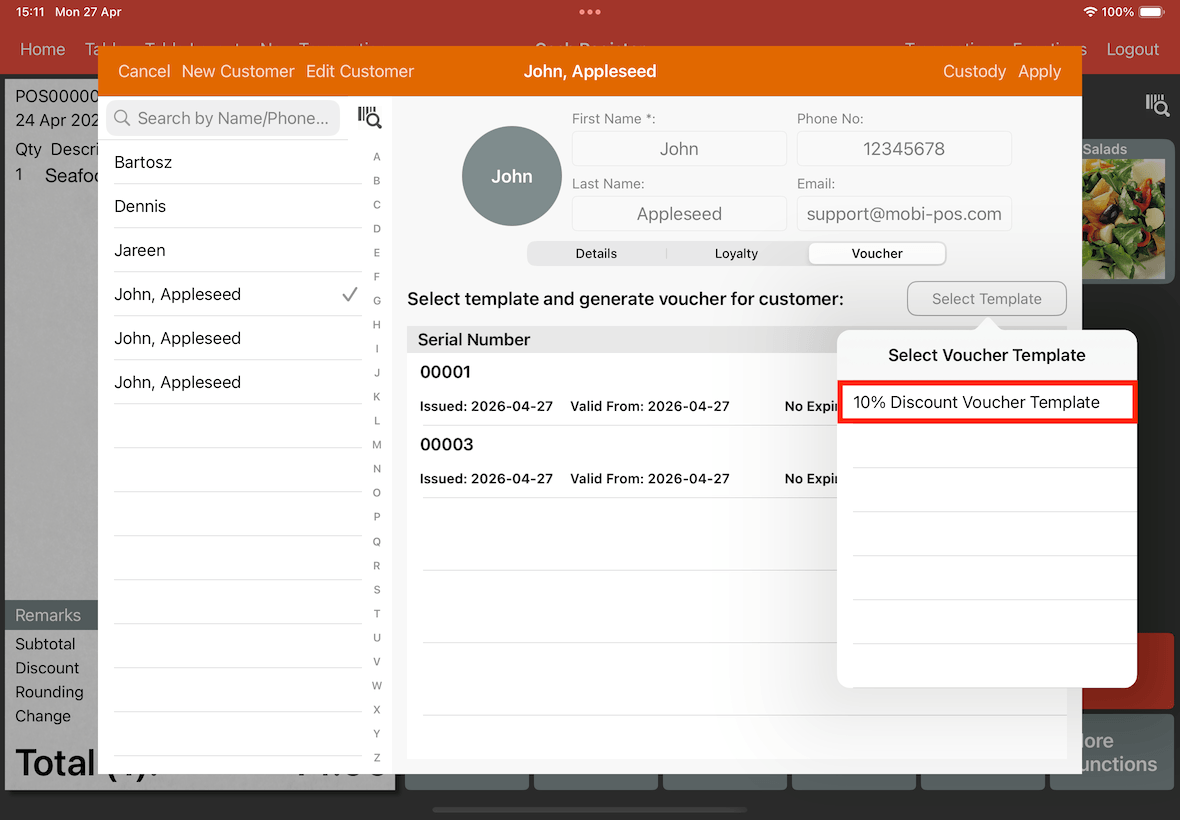
A list of voucher templates that you have created will be shown.
From this list, select the voucher template that you wish to use to create a voucher (e.g., 10% Discount Voucher Template).
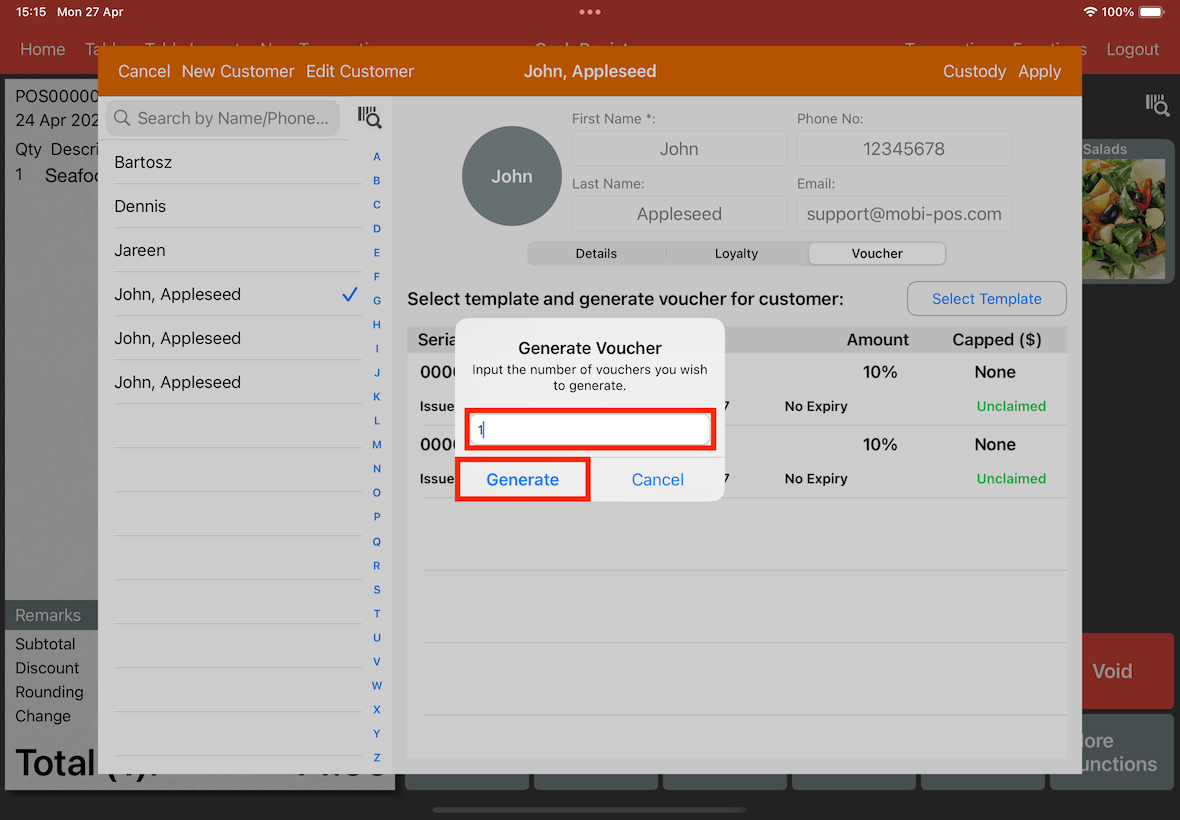
Upon selecting a voucher template, the Generate Voucher alert will appear.
In the text field, key in the amount of vouchers you wish to generate (e.g., 1), and tap on Generate to confirm.
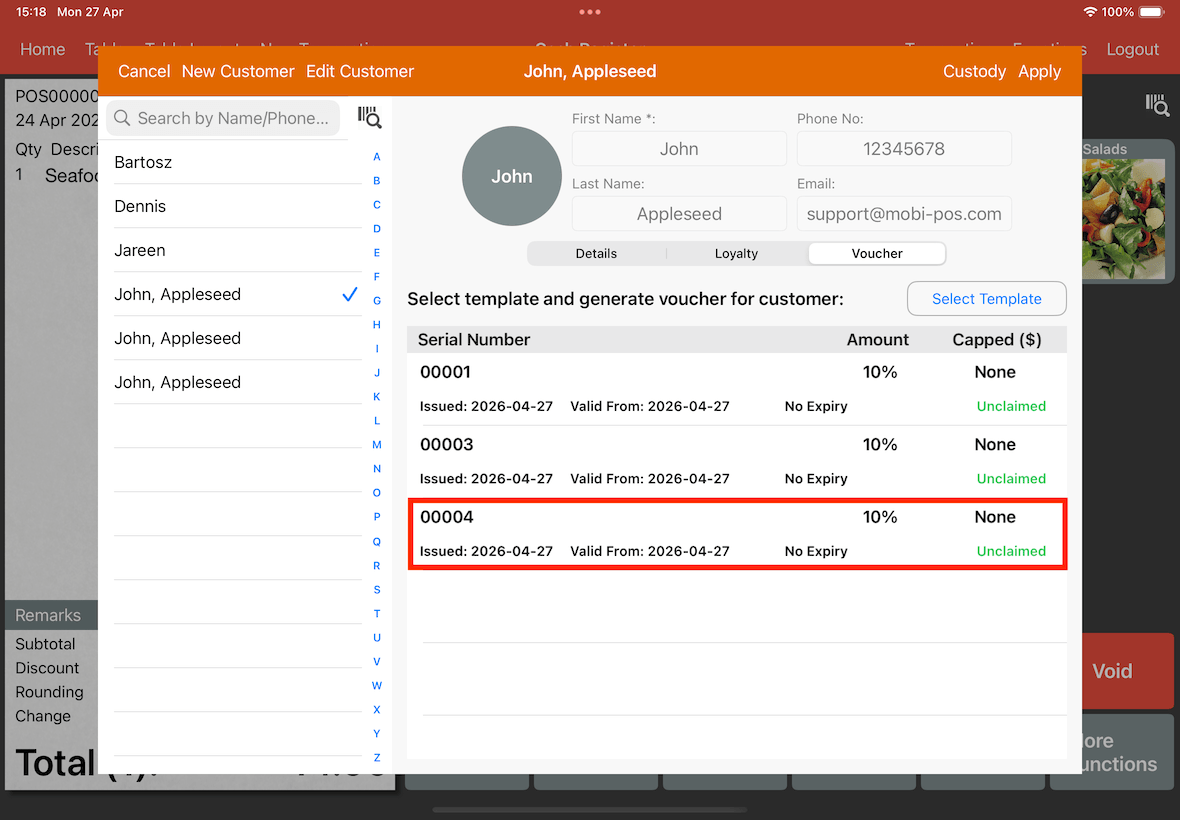
As shown below, a new voucher is generated with the serial number of 00004.
Via Settings page
Go to Settings -> Voucher
Tap on the Template button at right top, and select a voucher template (e.g., 10% Discount Voucher Template).
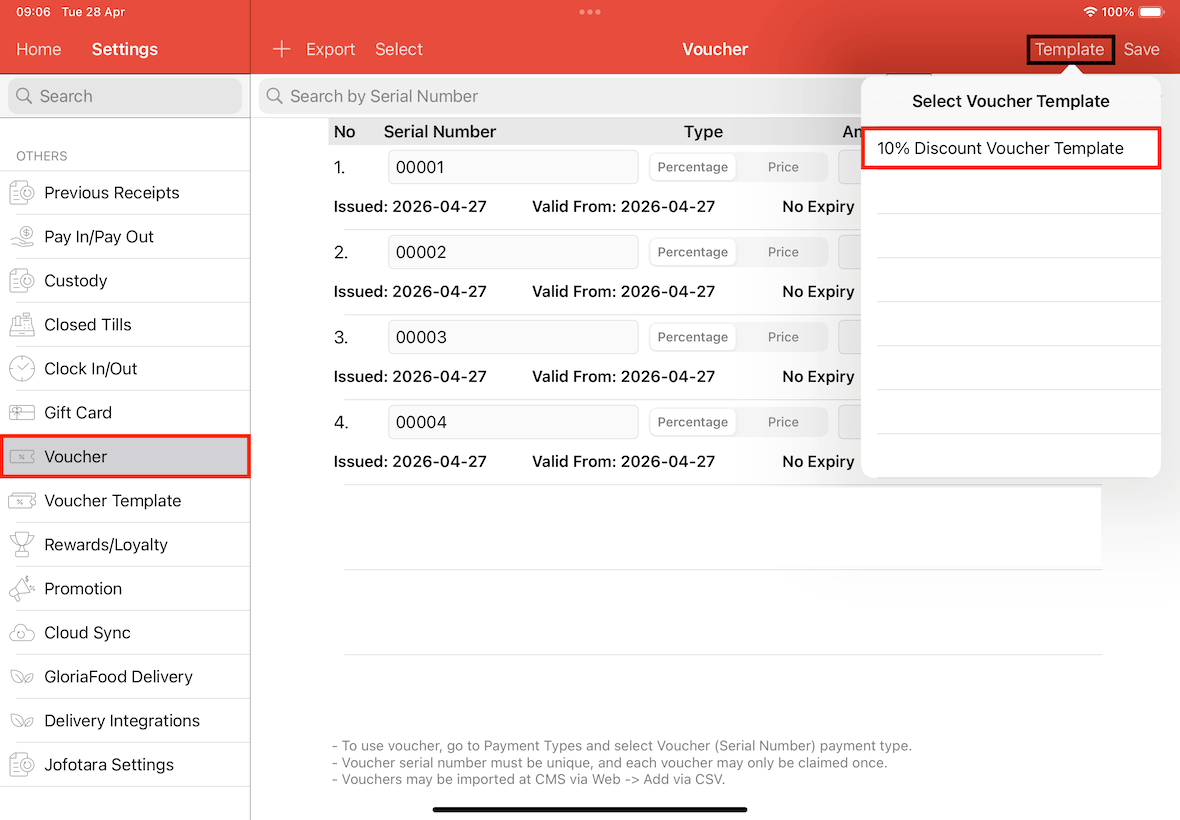
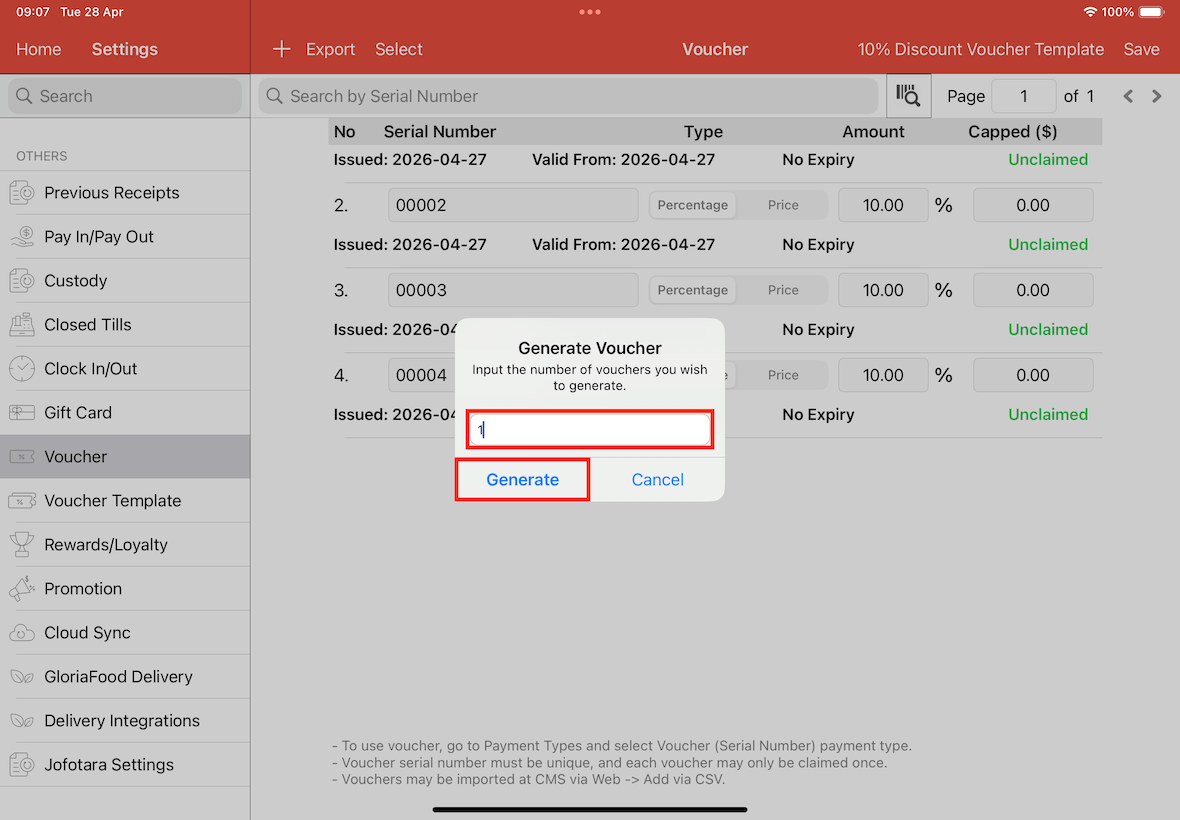
Upon selecting a voucher template, the Generate Voucher alert will appear.
In the textfield, key in the amount of vouchers you wish to generate (e.g., 1), and tap on Generate to confirm.
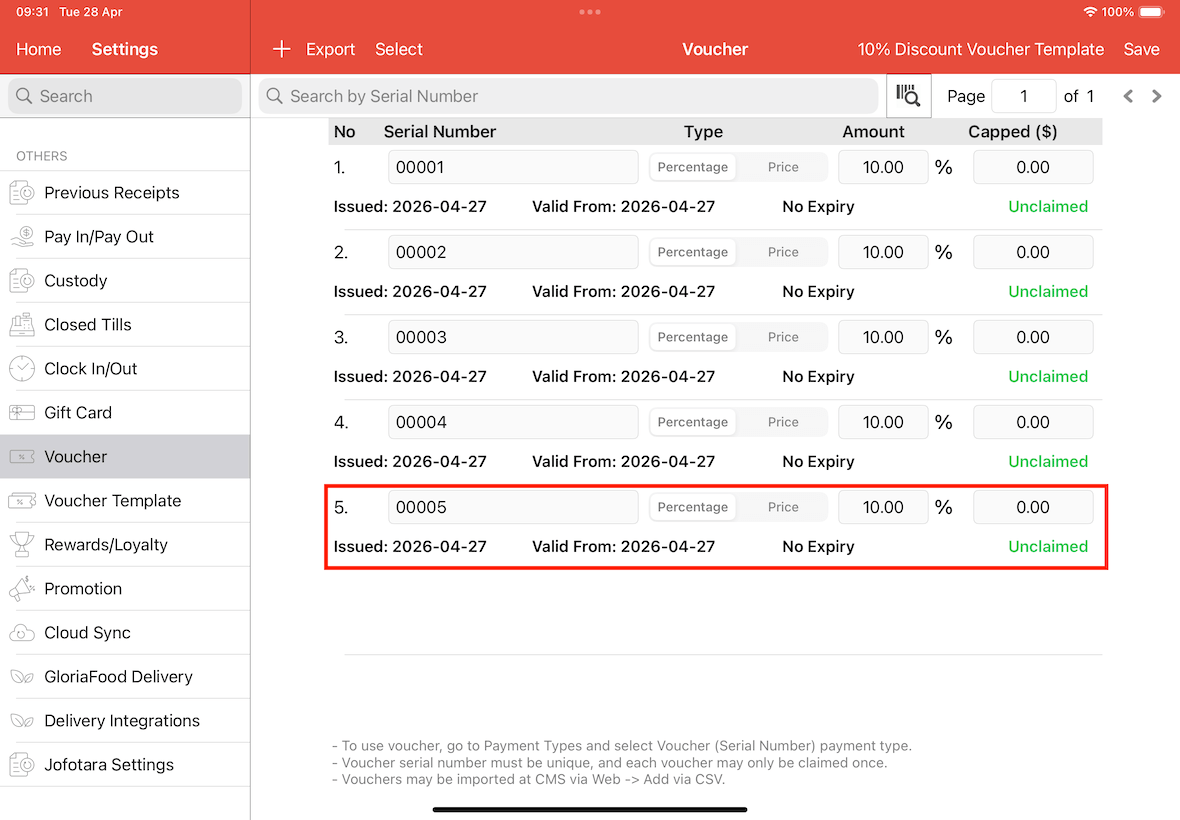
A new voucher with serial number 00005 is generated.
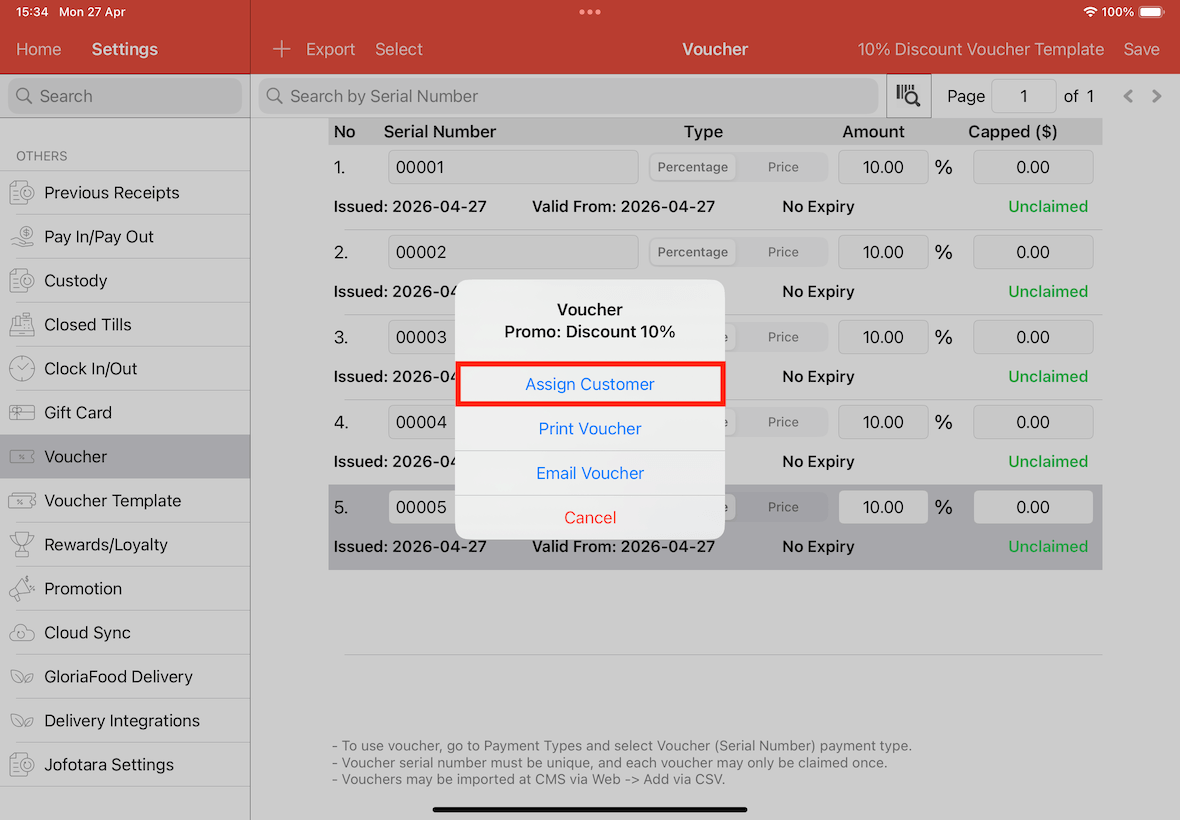
Tap on the newly created voucher.
A pop-up will appear, tap on the Assign Customer button.
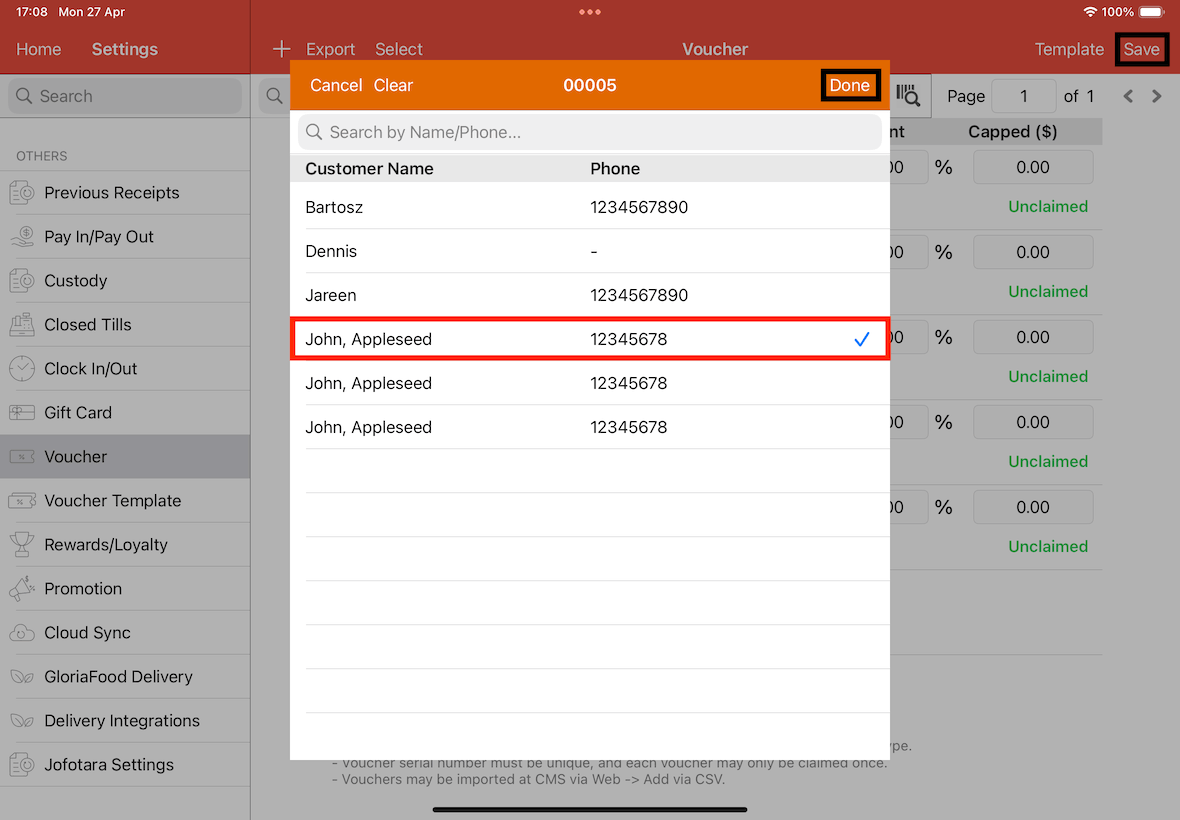
A list of customers will appear.
Choose the customer (e.g., John,Appleseed) you wish to assign for this voucher.
Tap on Done and Save it.
Outcome
Now that we have the voucher assigned to the customer.
If the customer is assigned to the bill, paying with voucher will show the list of vouchers owned by this customer.
Below will show the steps to assign the customer to the bill and pay using his/her voucher.
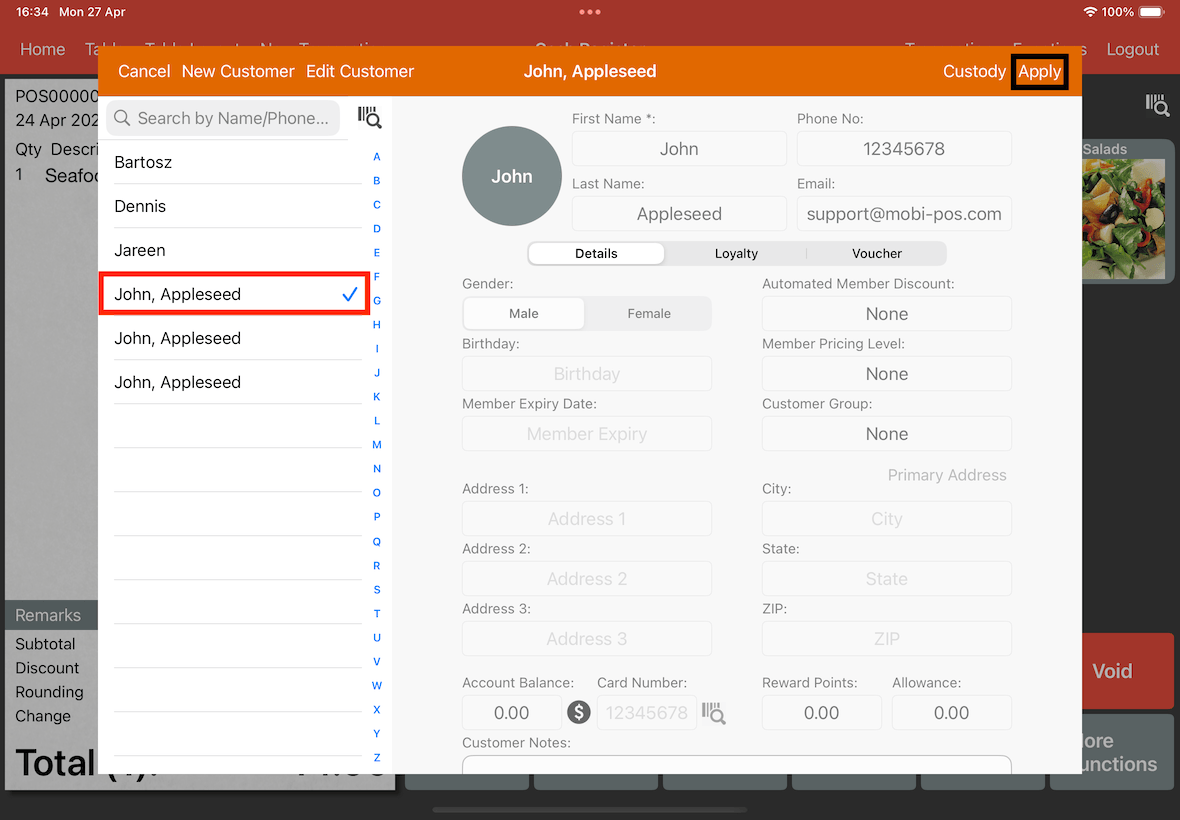
Go to Cash Register page, and tap on the information icon.
Select the customer(e.g., John, Appleseed) on the sidebar.
Tap on Apply to assign the customer to the bill.
Upon applying customer, tap on Pay, and select Voucher.
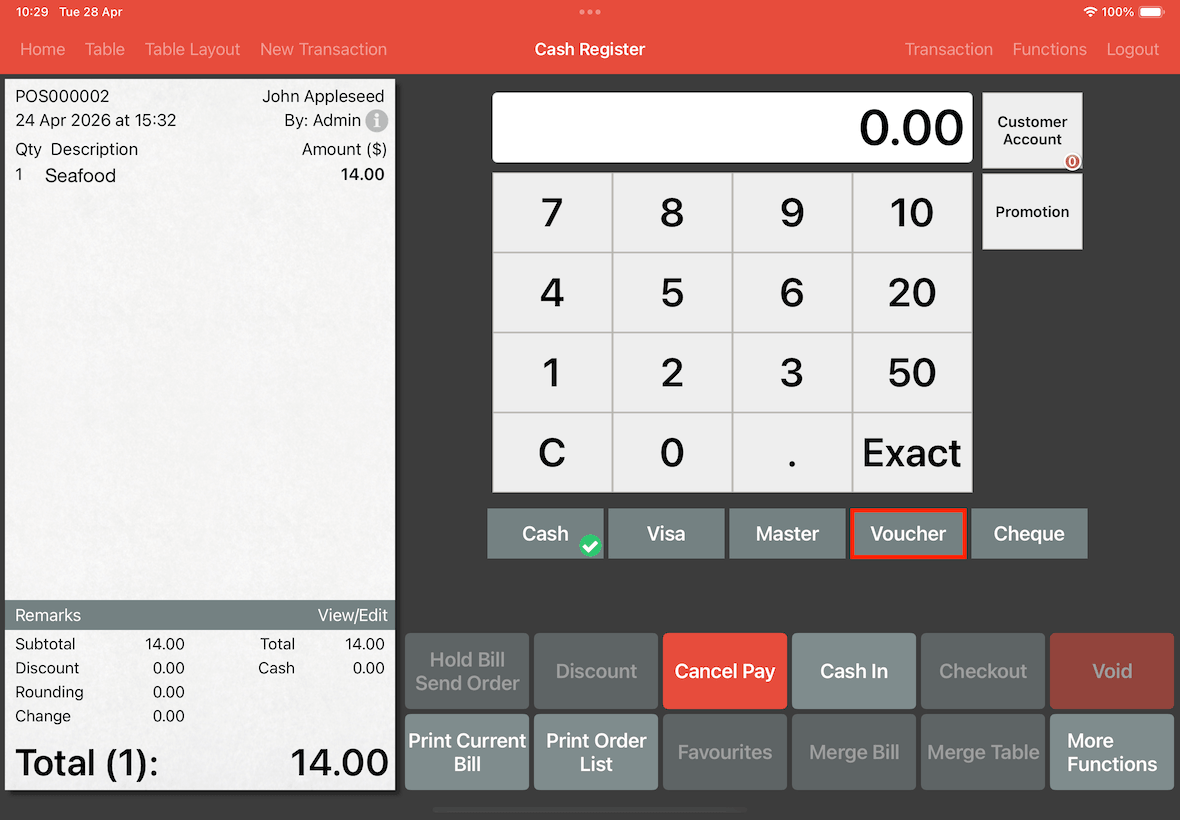
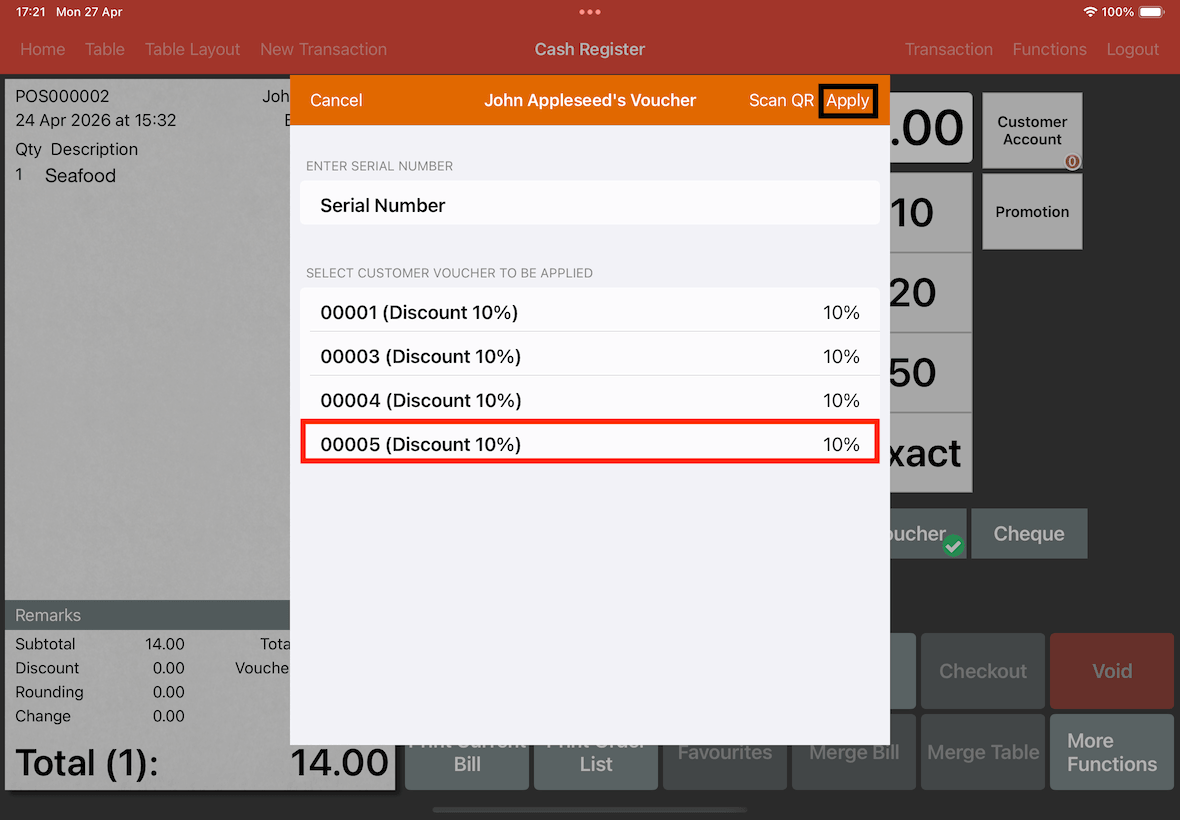
When a customer is assigned to the bill, the list of customer's vouchers will be shown, instead of QR scanner.
From this list, select the voucher that we just created. (e.g., voucher 00005).
Click on Apply.
The last 4 digits of the voucher will be shown to mark it as used.
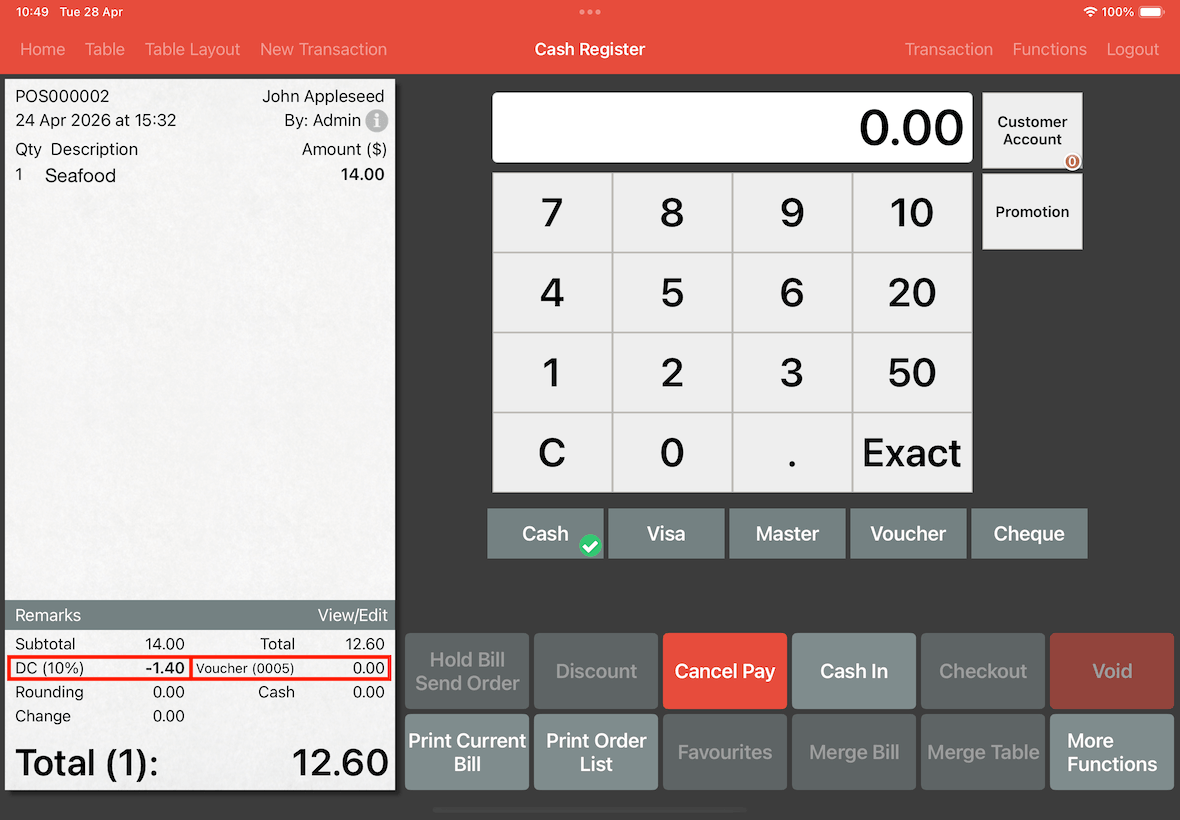
Proceed to cash in the leftover amount of the bill, and checkout.